What Is the Best MBR to GPT Convert Tool? Your Checklist Here
The decision to convert from Master Boot Record (MBR) to GUID Partition Table (GPT) is often driven by three main factors: replacing a disk, updating a system, or simply personal preference.
If you have a larger disk that exceeds the 2TB limit set by MBR, you'll need to convert it to GPT to utilize its full capacity. Fortunately, there are reliable disk conversion tools available that can help you achieve this. By converting your MBR disk to GPT, you can bypass the 2TB limit and make the most of your disk space.

6 Best MBR to GPT Convert Tools Recommend & Free Download
This part of the article provides a comprehensive review of each MBR to GPT convert tool, allowing for a comparison and selection of the best option for your needs.
- 1. Qiling Disk Master🏆
- 2. IM-Magic Partition Resizer
- 3. MiniTool Partition Wizard
- 4. MBR2GPT
- 5. Disk Management
- 6. CMD
If you found this list of MBR to GPT conversion tools helpful, be sure to share it with your friends online to assist them in converting their disk drives with flexibility.
1. Qiling Disk Master
The disk conversion tool - Qiling Disk Master is a software that allows you to convert MBR to GPT or GPT to MBR without losing data or removing volumes on your disk, making it suitable for users of all levels to quickly and easily change the partition style in Windows.
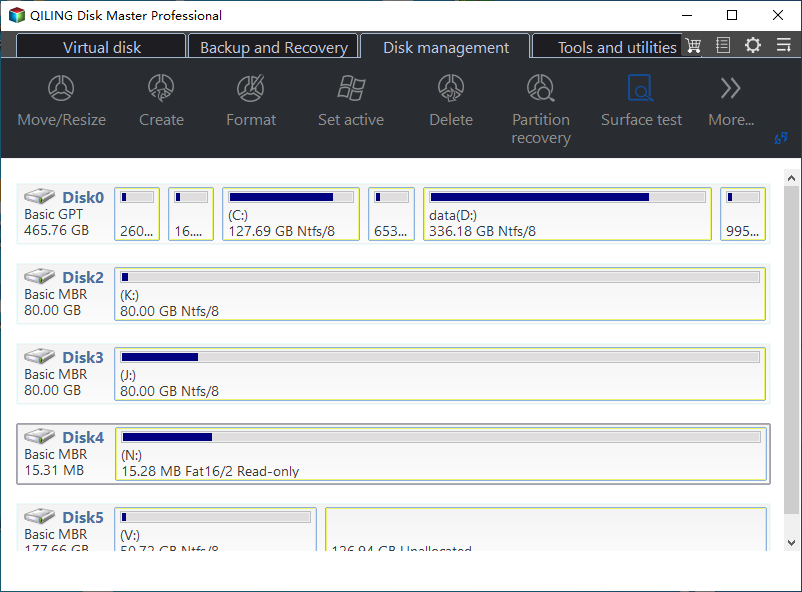
🎈Feature list of Qiling Disk Master:
- Partition Control: You can create and remove partitions on a hard drive in various formats, including MBR (Master Boot Record) and GPT (GUID Partition Table). This allows you to divide the drive into separate sections for different operating systems, data storage, or other purposes.
- Re-sizing: To change a partition's size without removing or creating a new partition, you can use a tool like GParted or the built-in disk management tools in Windows or macOS. These tools allow you to resize the partition by dragging the boundaries of the partition to the desired size, effectively adding or removing space from the partition without deleting or creating a new partition.
- Dividing: Divide a partition into several sections without removing any data.
- Cloning: To use another drive in imaging, you can copy a hard drive partition to it.
- Reporting: The tool provides detailed reports on hard drive partitions, offering insights into their health, used, and available storage space. This information can be useful for identifying potential issues with disk partitions and planning storage capacity.
👍🏻Pros and Cons:
| Pros | Cons |
|---|---|
|
|
🏅Review from Editors:
Qiling Disk Master Pro is the ultimate tool for dealing with partitions, formatting, converting from MBR to GPT without losing data or system, or migrating OS, making it the best solution for these tasks.
📝Summary:
Converting an MBR disk to a GPT disk is a simple process that can be done without removing any disk volumes using the free partitioning tool Qiling. This method is safer and more reliable than using Windows Disk Management or the Command Prompt.
#Qiling#MBR to GPT Conversion#Convert MBR to GPT#Windows
If you find this tool useful, please share it with your friends to help them convert their MBR to GPT without losing any data.
2. IM-Magic Partition Resizer
IM-Magic Partition Resizer is a top-notch free partition manager that allows you to extend, resize, and merge partitions with ease, without risking data loss. This robust and user-friendly software supports all file systems and can be used with any disk, making it a valuable tool for both personal and business use, saving you time and hassle in the process.
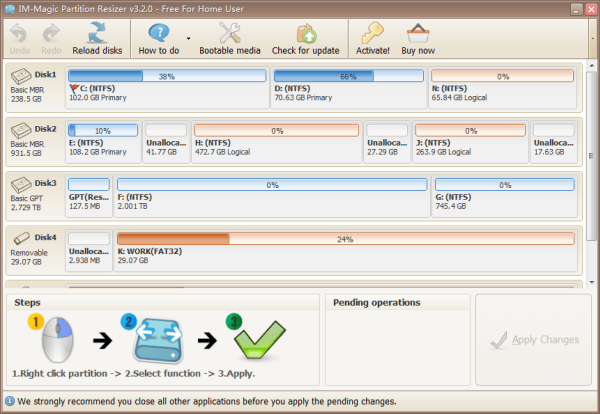
🎈Feature list of IM-Magic Partition Resizer:
- Modify partitions: Move, resize, and extend partitions.
- Conversion: Convert logical to primary, convert MBR to GPT, and more.
- Volume on disk: Easily manage disk space
- Cloning: Partition recovery and disk cloning are possible.
- File systems: Supports NTFS and FAT32 file systems.
👍🏻Pros and Cons:
| Pros | Cons |
|---|---|
|
|
#IM-Magic#MBR to GPT#Conversion
🏅Review from Editors:
The application is easy to install and use, with an intuitive interface that displays a map of the hard disk, showing available partitions and details about free space.
📝Summary:
IM-Magic Partition Resizer is a software that quickly converts GPT or MBR disks to free up space and eliminate unwanted data. It allows users to specify the exact dimensions of a partition and resize or move partitions by sliding them from left to right.
3. MiniTool Partition Wizard
MiniTool Partition Wizard is a versatile tool that allows users to create, delete, format, resize, merge, and split partitions. Additionally, it enables users to convert an MBR Windows disk to GPT, as long as the System, Boot, and Active partitions are on the same disk. To boot from the GPT disk, users must also support and enable UEFI mode.
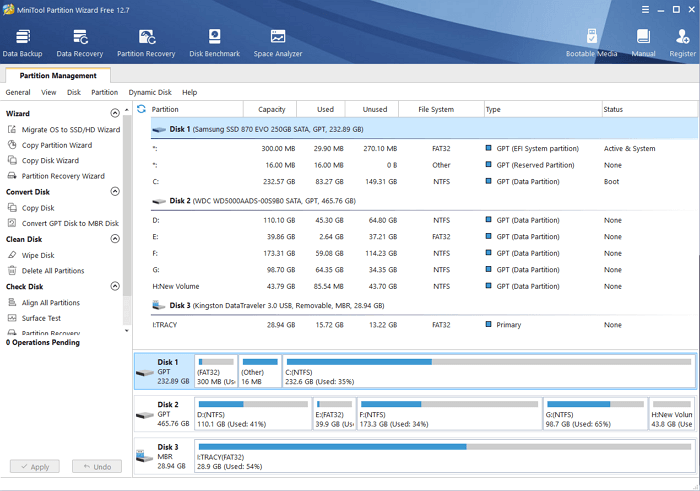
🎈Feature list of MiniTool Partition Wizard:
- Migrate OS to SSD or HDDTo boost computer performance, consider upgrading to a solid-state drive (SSD) or increasing the storage capacity of your hard drive to free up space and accommodate more files, allowing your computer to run more efficiently.
- Change Partition or Disk: You can transfer your file system without losing data by switching from FAT to NTFS, and also safely convert your MBR to a GPT boot drive on your Windows computer.
- Carry out Data Recovery: Thoroughly scan FAT/NTFS/exFAT drives and specific locations to recover files lost due to various reasons such as virus attacks, power outages, system crashes, and human error.
- Retrieve Missing Partition: Find partitions and files lost due to virus attacks, improper deletions, Windows updates, and damage to the partition table in a hurry.
👍🏻Pros and Cons:
| Pros | Cons |
|---|---|
|
|
#MiniTool#Convert MBR to GPT#Windows
🏅Review from editors:
This software tool simplifies the process of partitioning disks, managing files, and analyzing disk performance, making it a convenient solution for various disk-related tasks. (Source: TechRadar)
📝Summary:
This software offers essential disk management features at an affordable price, with a free version covering the basics and a paid pro version offering additional features, available for download from the company's official website.
4. MBR2GPT
MBR2GPT. EXE converts a Master Boot Record (MBR) disk to a GUID Partition Table (GPT) partition style without changing or erasing any data, and can be run from Windows OS with the /allowFullOS option.
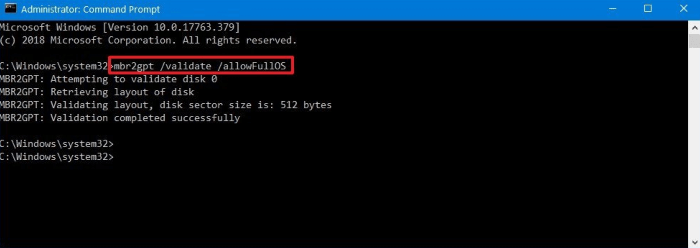
🎈Feature list of MBR2GPT:
- Transform any MBR-attached: The tool is unable to convert non-system disks from MBR to GPT format, but it can handle system disks that were previously formatted with GPT partition format.
- Use BitLocker to convert an MBR disk: When BitLocker protection is disabled, the existing encrypted volumes remain encrypted, but you'll need to erase and recreate the protectors after converting to continue using BitLocker.
- Use Microsoft Deployment Toolkit (MDT) or Microsoft Configuration Manager: Convert an operating system disk from MBR to GPT.
👍🏻Pros and Cons:
| Pros | Cons |
|---|---|
|
|
#MBR2GPT#Windows#Free
🏅Review from Editors:
MBR2GPT. EXE converts a disk from the Master Boot Record (MBR) to the GUID Partition Table (GPT) partition style without modifying or deleting data on the disk.
📝Summary:
Converting an MBR to GPT using the MBR2GPT tool is a straightforward process. To do so, the disk must be a system disk with an active partition, but this allows users to take advantage of the latest security and performance features with UEFI firmware and large disks over 2 TB by switching from the older MBR partition style to the newer GPT style.
5. Disk Management
To manage partitions in Windows without downloading and installing software, use Microsoft's built-in Disk Management tool. This can be accessed by pressing the "Windows key + X" and selecting "Disk Management".
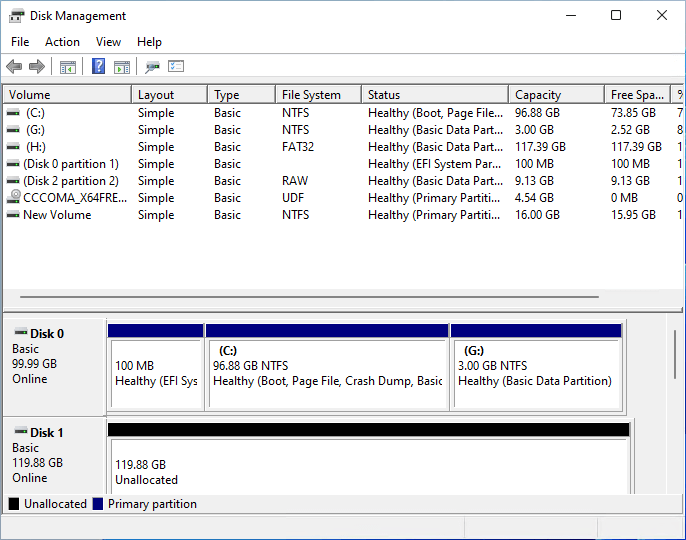
Users can check the health and status of their disks and perform tasks such as creating, shrinking, and expanding partitions using the Disk Management tool, which also allows them to assign drive letters and paths to organize their data effectively.
🎈Feature List of Disk Management:
- Format: RAW USB format to NTFS, FAT32, or exFAT.
- Disk management: maintains volumes and disk partitions.
- Change partitions: It can format, resize, create, and remove partitions.
- Disk health: It details the disk's condition and health.
👍🏻Pros and Cons:
| Pros | Cons |
|---|---|
|
|
#Microsoft#MBR to GPT#Windows
🏅Review from editors:
Disk Management is a system utility in Windows that allows for advanced storage operations, enabling users to set up a new drive, extend a volume, shrink a partition, change a drive letter, or assign a new drive letter.
📝Summary:
Disk Management allows Windows users to manage disk partitions, and its Convert to GPT feature enables the conversion of MBR disk partitions to GPT disk partitions.
6. CMD
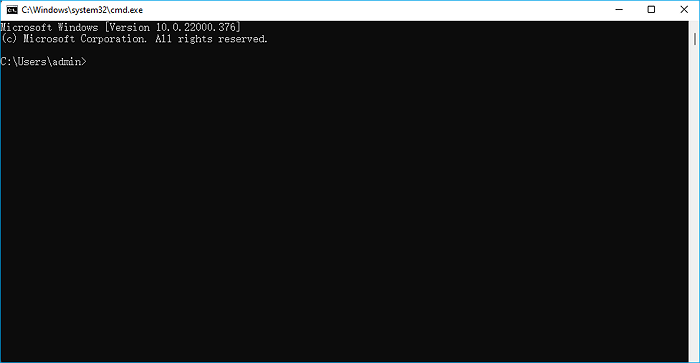
Microsoft added a tool to Windows systems, similar to Disk Management, allowing advanced users to fully utilize their disk drives. This tool, which converts an MBR disk to GPT, can be used by inputting command lines.
🎈Feature List of CMD:
- It converts MBR to GPT during Windows installation.
- The software is compatible with Windows 10, 8, 7, and various Windows Server versions, including 2019, 2016, 2012, and 2008.
👍🏻Pros and Cons:
| Pros | Cons |
|---|---|
|
|
#Microsoft#Convert MBR to GPT#Free
🏅Review from Editors:
The Command Prompt, also known as cmd.exe or cmd, is the default command-line interpreter for various operating systems, including OS/2, eComStation, ArcaOS, Windows NT and CE, and ReactOS.
📝Summary:
To convert MBR to GPT during Windows installation, follow these steps: First, ensure you have a backup of your data. Then, go to the Windows installation menu, select the disk you want to convert, and choose the "MBR to GPT" option. This process will automatically clean the data on the chosen disk, so you must have a backup before proceeding. Alternatively, you can use third-party software to convert MBR to GPT without losing data.
How Do I Define If an MBR to GPT Convert Tool Is Reliable
To determine if an MBRT to GPT convert tool is reliable, consider the following principles: check if it accurately preserves the original formatting, layout, and content; ensure it correctly converts MBRT files to GPT compatible formats; verify that it handles various file types and sizes without errors; test its ability to convert complex documents with multiple sections and formatting; and check if it provides clear instructions, support, and troubleshooting resources.
- 💵Price: Be sure to check that the cost of the MBRT to GPT convert tool is within your budget.
- 🎈Features: The convert tool should have features that enable users to convert their disk from MBR to GPT or vice versa, allowing them to switch between these two partition table systems. This should be done in a way that is safe and reliable, to prevent data loss or corruption during the conversion process.
- 💻OS Compatibility: Before running the MBR to GPT convert tool, ensure that the tool you have supports your current operating system.
- 🔢Complexity: Always make sure to keep your convert tool user-friendly and convenient for users' convenience. This means making it easy to use, intuitive, and accessible, so that users can quickly and easily convert what they need, without any hassle or frustration.
Bonus: How Qiling Selected MBR to GPT Conversion Tools
Qiling selected and tested the MBI to GPT convert tools based on their compatibility, effectiveness, and user-friendliness. They evaluated various tools, including `gdisk`, `parted`, and `fdisk`, and assessed their ability to convert MBI to GPT partitions without data loss.
| ⏳How long we tested: | 3 and half weeks |
| 💰How much we spent: | $695.95 |
| 💽How many disks we tested: | 25 |
| 💽What brands we tested: | Samsung, Toshiba, SanDisk, Kingston, WD, Raspberry, etc. |
Conclusion
Windows users can convert an MBR disk to GPT using various tools, with Qiling Disk Master being a safe and quick option.
Converting a disk from MBR to GPT ensures the safety and integrity of all volumes, data, and programs, while also maintaining the safety and integrity of all your volumes, data, and programs. This process can be done effectively by backing up all important disk content, regardless of the tool or technique used.
FAQs About MBR to GPT Convert Tool
Here is a list of relative questions about converting MBR to GPT, if you are interested, follow and find answers here: Can I convert MBR to GPT without losing data? What are the differences between MBR and GPT?
1. What tools can be used to convert MBR to GPT?
You can use built-You can convert MBR to GPT in Windows using tools like Disk Management or Command Prompt, or use third-party apps like Qiling Disk Master, MBR2GPT, IM-Magic Partition Resizer, MiniTool Partition Wizard, etc. to make the conversion.
2. Can CMD convert MBR to GPT without data loss?
To convert MBR to GPT using CMD without losing any data, make a disk backup in advance, as the process may result in data loss on the chosen disk.
3. What is the best app for converting MBR to GPT?
To convert an MBR disk to GPT without losing data, use Qiling Partition Manager. Choose the disk to convert, select "Convert to GPT" with a right-click on the MBR disk, and click "Apply" to finalize the modifications, with no need to format or delete partitions beforehand.
Related Articles
- Windows 10 Won't Boot After Update? Easy Fixes
- How to Boot Samsung Laptop From USB on Windows 10/11
To boot a Samsung laptop from a USB drive, start by creating a bootable USB drive using a tool like Rufus or Etcher. Next, insert the USB drive into your laptop, and enter the BIOS settings by pressing the key that corresponds to your laptop model (usually F2, F12, or Del). - C Drive Full, D Drive Empty – How to Fix
If your C drive is almost full and your D drive is empty, you can allocate free space from the D drive to extend the space on your C drive. By following the steps outlined in this article, you can learn how to do this and free up valuable space on your C drive. - Can't Merge USB Partitions? 2 Proven Fixes Here
If you're experiencing issues with merging two USB partitions to allocate more single space for data, this article provides two effective fixes to resolve the “Can't merge USB partitions” issue. - Set Up the Boot Mode in MBR for BIOS, Legacy or UEFI
The correct boot mode in MBR for BIOS is Legacy. Legacy boot mode is the traditional method used by BIOS systems, which is responsible for initializing the system hardware and loading the operating system. It uses a Master Boot Record (MBR) to store the boot loader and partition information. - MBR or GPT for SSD, Which Is Better and How to Choose?
Should I choose MBR or GPT for SSD? If you are confused about selecting partition type for a second or larger SSD, there are a few tips to decide gpt or MBR for SSD.
Products
Articles & Tutorials
- Data Recovery
- Data Backup
- File Recovery
- File Backup
- System Backup and Restore
- Disk and Partition Clone
- Technical articles
- Mobile articles
- Disk Master Help
- Windows Data Recovery Tutorials
- Windows Secure Delete Tutorials
- Windows Partition Management Tutorials
- Windows File Backup and Restore Tutorials
- Windows System Backup and Restore Tutorials
- Windows Disk Backup and Restore Tutorials
- Windows Clone Tutorials