C Drive Full, D Drive Empty – How to Fix
Due to its default role as the primary destination for file downloads, the C drive is more susceptible to running out of space. Users may encounter difficulties saving files, installing new applications, or updating existing software due to insufficient space on the C drive.
You're running low on space on your C drive, but have plenty of room on your D drive. One solution is to move some of your files to your D drive to free up space on your C drive. You can do this by selecting the files you want to move, right-clicking on them, and choosing "Move to" > "D:" (or whatever drive you're moving to). This will help free up space on your C drive and make it easier to manage your files.
The C drive is full and the D drive is empty, and you're wondering what to do. This issue often occurs when the C drive, which usually contains the operating system, programs, and user data, becomes overcrowded with files, logs, and other data, leading to a lack of available space. Meanwhile, the D drive, which is often used for storage, remains largely unused. To resolve this, consider moving frequently used programs and files to the D drive, using disk cleanup tools to remove unnecessary files, compressing files to free up space, and using cloud storage services to offload less frequently accessed files. These solutions can help you reclaim space on the C drive and make better use of the D drive.
How to Fix When C Drive Full, D Drive Empty - 4 Solutions
When the C drive is full, you may face issues installing or upgrading software, leading to decreased computer performance. To resolve the "C drive full, D drive empty" issue, consider the following four safe and solid methods, which can be implemented step-by-step. The first step is to check the basic information table to understand the current state of your drives. This will help you plan the best course of action.
| ⏱️Duration | About 10 Minutes |
| 💻Goal | To resolve the issue of a full C drive and an empty D drive, you can try cleaning up the C drive by deleting unnecessary files, uninstalling unused programs, and emptying the Recycle Bin. Additionally, you can expand the D drive by adding a larger storage device, such as an external hard drive or a solid-state drive, to store files that are currently taking up space on the C drive. This will free up space on the C drive and utilize the available space on the D drive. |
| 👩💻Suitable User | For all users: beginners and experienced users |
| 🧰Methods |
Method 1. Clean C Drive
To alleviate the space shortage on the C drive, users can regularly clean up unnecessary files, remove unused applications, or move files to other drives or cloud storage to free up space. This can be achieved by identifying and removing unused files, uninstalling unused applications, and utilizing cloud storage or external drives to store less frequently used files.
Option 1. Use Qiling Disk Cleaner
Qiling Disk Master offers various disk management tools, including DiskMark, Disk Health, and Clean Genius. The "Clean Genius" feature scans and removes junk files accumulated during system and computer operations, allowing you to select and delete unwanted files effectively, helping to free up hard drive space.
This tool can help users solve the yellow triangle warning on the C drive by identifying and fixing issues with disk space, disk errors, and other system problems.
Option 2. Run Disk Clean on C Drive
Beyond Qiling Disk Master, Windows also has a Disk Cleanup tool that can check available space and clean junk files on your hard drive. However, it can be a bit more complicated to use as it requires activation via File Explorer and more time and effort.
Step 1. Press "Windows + R" to enter File Explorer on Windows.
Step 2. In the File Explorer interface, click "This PC," right-click on the C drive and choose "Properties."
Step 3. Click on "OK" after selecting the unwanted files from the list.
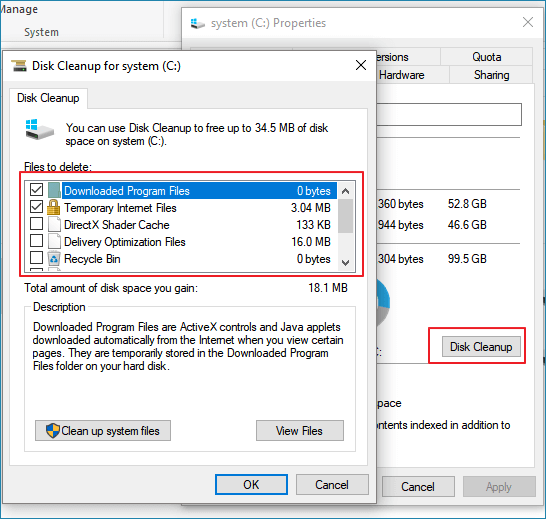
Please ensure you don't need this file anymore before deleting it, or you can back up the important data and store it on an external hard drive in advance.
There are four solutions mentioned in the article, which can be shared on social media to help others in need.
Method 2. Extend C Drive
To fix the issue of a full C drive and an empty D drive, you can either move some files from the C drive to the D drive or extend the space of the C drive. Qiling Disk Master can help you expand the C drive even without adjacent unallocated space, whereas Windows Disk Management can only do so when there is contiguous unallocated space, requiring you to delete other drives or risk losing data.
1. Extend C Drive With or Without Adjacent Unallocated Space via Qiling Disk Master
QILING Disk Master software breaks the Windows limitation, allowing users to extend the C drive with or without unallocated space, whether contiguous or non-adjacent, and also resize, move, create, and merge partitions without data loss.
Option 1. Extend System C drive with unallocated space
- 1. Right-click on the System C: drive and select "Resize/Move".
- 2. To combine the system partition with the unallocated space, drag the system partition end into the unallocated space. This will merge the two spaces and add the unallocated space to the C: drive, effectively increasing the size of the C: drive.
- 3. To proceed, the system will automatically extend the C drive by allocating space from the D drive. This will involve moving some files from the D drive to the C drive.
Option 2. Extend System C drive without unallocated space
- 1. Right-click a big partition with enough free space on the system disk, select "Allocate Space" to make more free space available on the system disk.
- 2. To allocate space for the System C drive, select the system drive at the "Allocate Space From (*) To" section and drag the end of the System C drive into the unallocated space.
- 3. To save the changes and extend the C drive, click "Proceed".
Extra Option. Extend C Drive Using Adjust with 1-click
Qiling Disk Master can automatically detect low-space drives and provide a one-click solution to adjust disk space, making it a powerful tool for managing disk space.
2. Extend C Drive With Adjacent Free Space via Disk Management
If you have adjacent unallocated space, you can try Disk Management. But remember to back up your files just in case because this process can harm them if anything goes wrong. Refer to the steps below to use Disk Management:
Step 1. To access the Disk Management utility, press the "Windows+X" keys on your keyboard, and a menu will appear where you can select Disk Management.
Step 2. Right-click on the C drive in the tool's interface and select "Extend Volume..." from the context menu.
Step 3. To finalize the C drive extending operation, follow the on-screen instructions. This typically involves a series of prompts guiding you through the completion of the process, ensuring that the changes are successfully applied to your system.
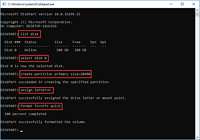
To extend the C drive, you can use Qiling Disk Master and Disk Management, but if you're familiar with Command Prompt, you can also use Diskpart to achieve the same result.

To manage partitions with Disk Partition CMD in Windows 11/10, open Command Prompt as administrator, type "diskpart" and press Enter. Use the "list disk" command to view all available disks, then select the disk you want to manage with "select disk #". Use "list partition" to view all partitions on the selected disk, and "select partition #".
This article will guide you through using the command line (cmd) to manage partitions, including creating, removing, and resizing partitions. It will provide a detailed step-by-step guide on how to perform these tasks.
Why does C Drive Full, D Drive Empty Happen?
The "C drive full, D drive empty" issue often arises due to the C drive containing the Operating System and system files, which take up significant space. Additionally, installing many programs, applications, and games on the C drive, which are usually saved to the default download location, can quickly fill it up. Furthermore, temporary files can accumulate and consume a lot of free space on the C drive, making it essential to regularly monitor its storage capacity and consider increasing the C drive space.
Conclusion
The "C drive full, D drive empty" problem can cause system and computer performance issues, making it difficult to use your computer. To resolve this issue, we recommend using Qiling Disk Master, which can help with various C drive-related problems. Additionally, this article provides four options to extend or clean up the C drive, ensuring that you can find a solution that meets your needs. By downloading Qiling Disk Master, you can easily fix the "C drive full, D drive empty" problem and get your computer running smoothly again.
FAQs of C Drive Full, D Drive Empty
C drive full and D drive empty: Frequently Asked Questions and Valuable Answers. Learn more about this phenomenon and discover the following questions and answers to gain a deeper understanding.
1. How to move space from D drive to C drive?
Qiling Disk Master allows you to easily move space from D drive to C drive using its "Allocate Space" feature. This feature enables you to allocate free space from one disk to another, effectively increasing the available space on your C drive. By utilizing Qiling Disk Master's "Allocate Space" feature, you can free up space on your C drive and make more room for your operating system, programs, and data.
Step 1. To free up space on your D drive, right-click on the drive and select "Allocate Space" from the context menu.
Step 2. To merge the free space from the D drive with the C drive, select the C drive and drag its end rightward to expand its size and include the unused space from the D drive.
Step 3. To free up space on the C drive, you can allocate some space from the D drive. Click the "Proceed" button to start the process.
2. Can I merge C and D drive?
You can merge the C and D drives if they are adjacent to increase the C drive's capacity, but be cautious if the D drive contains Windows boot files. After merging, you'll need to reallocate the disk partitions for both drives if you want to increase the space on the C drive.
3. Should I use a D drive instead of a C drive?
The system files can be stored on the C drive, while personal information and files can be kept on the D drive, allowing users to improve the physical memory of the Windows system. This differential approach enables users to save games on the D drive and store files on either the C or D drives, depending on their practical needs.
Related Articles
- How to Check Total Disk Space in Windows 11 [Best Solutions Here]
- Merge Partitions or Unpartition a USB Drive in Windows 11/10
- BitLocker Partition: How to Partition A BitLocker Drive on Windows 10
- How to Create Qiling Disk Master Bootable USB
- How Do I Clear My Laptop Before Selling It on Windows 10
You are going to learn the full guide on how to clear my laptop before selling it. To stop data leakage, you need to wipe and reset your laptop's hard drive. Thus, you can sell it without leaking privacy. - Clear/Reformat/Erase/Wipe SD Card & USB Flash Drive
You can learn how to clear, erase, wipe or reformat various types of storage devices, including SD cards, USB flash drives, hard drives, and disk partitions, through a step-by-step tutorial that aims to resolve your issue in the easiest and most efficient way possible.
Products
Articles & Tutorials
- Data Recovery
- Data Backup
- File Recovery
- File Backup
- System Backup and Restore
- Disk and Partition Clone
- Technical articles
- Mobile articles
- Disk Master Help
- Windows Data Recovery Tutorials
- Windows Secure Delete Tutorials
- Windows Partition Management Tutorials
- Windows File Backup and Restore Tutorials
- Windows System Backup and Restore Tutorials
- Windows Disk Backup and Restore Tutorials
- Windows Clone Tutorials