Why Can't I Update My Mac? Fix It and Update Mac to The Latest macOS Big Sur
If you're having trouble updating your Mac, whether it's due to Apple Software Update not working or issues installing the latest macOS version, Big Sur, don't worry. We'll guide you through the possible causes and provide fixes to resolve these issues, helping you successfully update to the latest macOS version.
Let's start here.
About macOS Update
On macOS or Mac OS X, the system automatically checks for and downloads software updates once a week. When an update is available, a notification message will pop up to inform all Mac users.
If the Apple Software Update isn't working on your Mac, you can try restarting your Mac, checking for any software conflicts, or using the built-in Software Update feature from the Apple menu. If these methods don't work, you can also try using the Software Update feature from the System Preferences, or visiting the Apple Support website to manually download and install the latest update.
- Manually download the update.
- Download a stand-alone update installer from Apple.
- Reset Mac or re-install the operating system, etc.
Why Can't I Update My Mac?
Many Mac users are unclear about why they can't find software updates or install downloaded macOS updates. There are several possible reasons for this issue, including several factors.
Causes:
- Apple Software Update tool fails
- Unstable network connection
- Insufficient storage space for installing the latest macOS update
- Mac is too old to update
- Mac doesn't detect or says no new update
Symptoms:
If you're experiencing issues with your Mac computer, check if you're showing any of the following symptoms: your Mac is slow, unresponsive, or freezing frequently; you're getting error messages or crashes; your Mac is overheating; your battery is draining quickly; or your Mac is unable to connect to the internet. If you identify with any of these symptoms, proceed to the next section for fixes to resolve the issue immediately.
- Mac freezes in downloading or installing macOS updates.
- Mac takes too long to download the new update: Downloading macOS **...
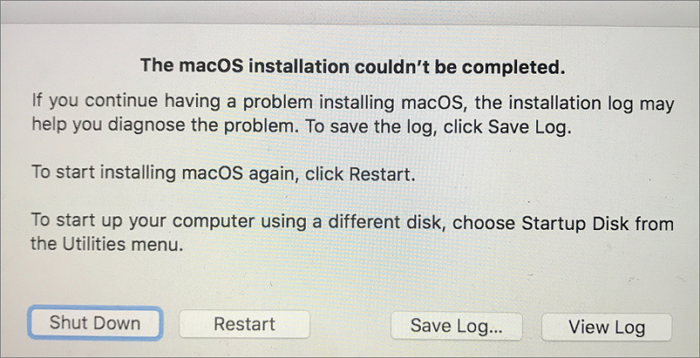
- Error message 1: The macOS installation couldn't be completed
- Error message 2: An error occurred while installing the selected updates
- To resolve the issue, you need to free up some space on your selected volume. You can do this by deleting unnecessary files, emptying the trash, or removing any large files that are taking up space.
How to Fix "Can't Update Mac to the Latest macOS Big Sur" Error? All Your Fixes Are Here
If the Apple software update, macOS installer, or resetting macOS doesn't work on your Mac computer, try the solutions offered in this part to get rid of the "Can't update Mac" error and install the latest macOS version, Big Sur, on your computer.
Method 1. Check Network Connections and Reboot Mac
Applies to Fix: Download taking too long
A weak network connection is the main cause of a computer being stuck with the "Downloading macOS **..." message.
How to Fix:
Step 1. Close the macOS downloading window.
Step 2. Disconnect Mac with your WiFi.
Step 3. Shut down and restart your router.
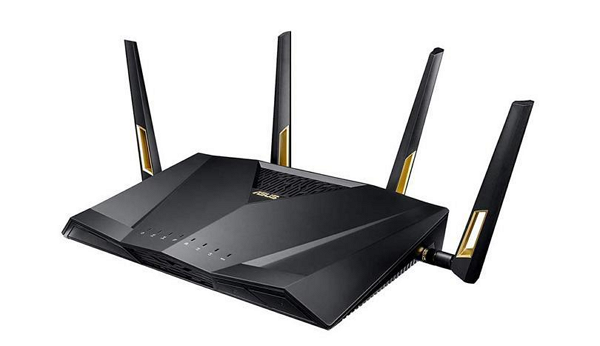
Step 4. Reconnect your Mac and other devices with WiFi.
Ensure that the WiFi connection is stable and working properly on both your Mac and other devices before troubleshooting further.
Step 5. Attempt to run a new software update:
To update your Mac, go to the Apple Menu, select System Preferences, click Software Update, and wait for the Mac to configure the new updates. Once the updates are ready, click Update Now to begin the installation process.
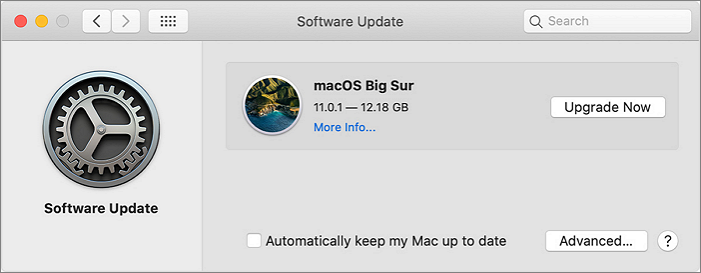
If the software update doesn't detect a new update, or the software update fails, restart the device in safe mode and then run the software update again.
Fix 2. Manually Update Mac to The Latest macOS Version
Applies to Fix:The Apple Software Update failed with an error message "The macOS Installation Couldn't Be Completed" due to a corrupted or incomplete installation process. This issue can occur when the installation is interrupted or the downloaded software is damaged.
How to Fix:
Step 1. Shut down and restart your Router.
Step 2. To troubleshoot the issue, ensure your Mac computer is properly connected to WiFi.
Step 3. Shut down Mac and restart Mac.
Step 4. Close all applications on Mac computer.
Step 5. Retry to manually update Mac:
To update your Mac, go to the Apple Menu, click on System Preferences, then click on Software Update. Let your Mac check for any available updates, and once found, click on each update to apply it and select Install Update or Install Now.
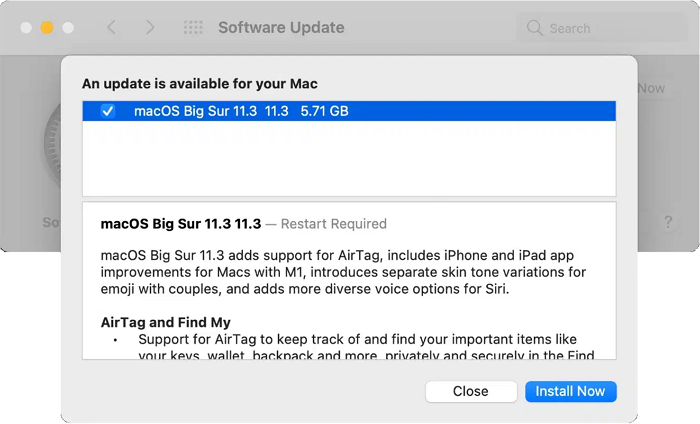
Fix 3. Try Stand-Alone Update (Download Updates from Apple Site)
Applies to Fix: Installation failed - "An error occurred while installing the selected updates. "
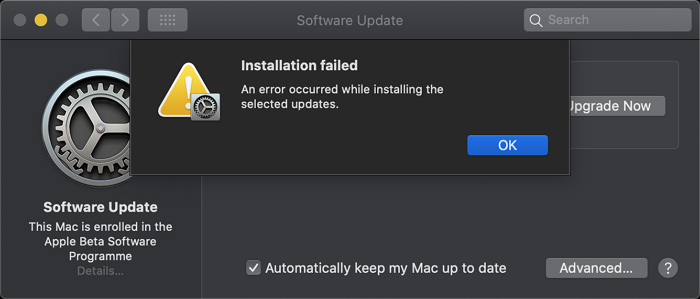
If Mac cannot detect a new update via Apple Software Update, you can try downloading the update directly from the Apple website instead.
How to Fix:
Step 1. Open the Apple Support Download site:
https://support.apple.com/downloads
Step 2. Select the desired update to install.
Step 3. Download and apply the update.

Please follow the onscreen guide to install macOS on your Mac computer.
Step 4. Wait for the update to install, once completes, restart Mac.
Fix 4. Clean Mac Disk and Re-download/Re-install macOS Update
Applies to Fix:You don't have enough free space on the selected volume to update the OS. You need to free up some space on that volume to perform the update.
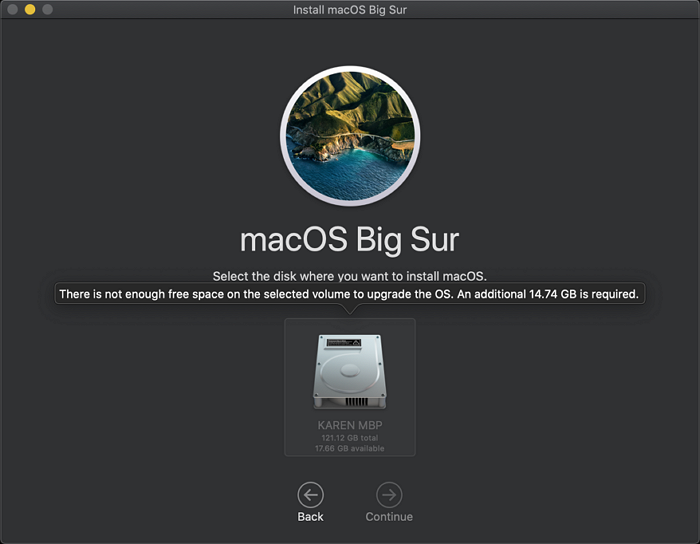
How to Fix:
Step 1. To clean Mac disk space, delete cached files and other large files. You can use the "About This Mac" feature to see how much storage space is being used and what types of files are taking up the most space. Look for files with large sizes, such as cached files, logs, and other unnecessary files, and delete them to free up space.
Saving big files to an external hard drive is a good idea, especially if you have files over 10GB.
When you accidentally delete files, reliable Mac file recovery software can help you recover them.
Step 2. Continue to check for new updates via Apple Software Update.
Or click to continue installing the downloaded Mac update.
Step 3. If a software update fails, you can download the latest update from the Apple download site.
How to Update/Reinstall macOS Without Losing Data
To update and install the latest macOS on your Mac without losing any data, follow the process outlined on this page. It covers the full process of installing macOS Big Sur, Catalina, Mojave, and others on your computer, ensuring that you don't lose any data in the process. By following the steps on this page, you can get the desired macOS installed on your Mac now.
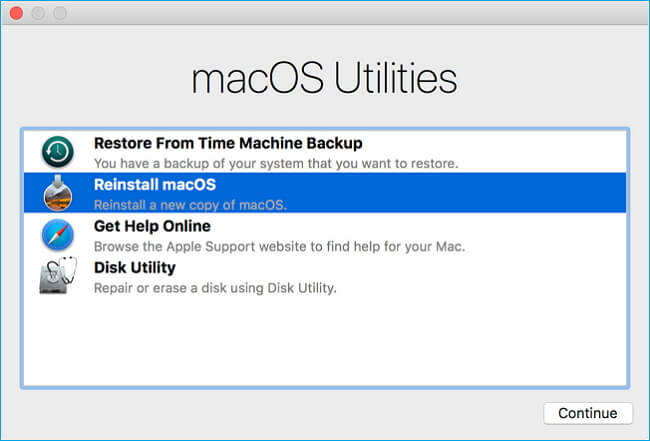
Fix 5. Reset Mac and Check for New Update
Applies to Fix: You're getting the "The requested version of macOS is not available" error on an outdated Mac. This means your Mac is no longer eligible for updates, likely due to its age.
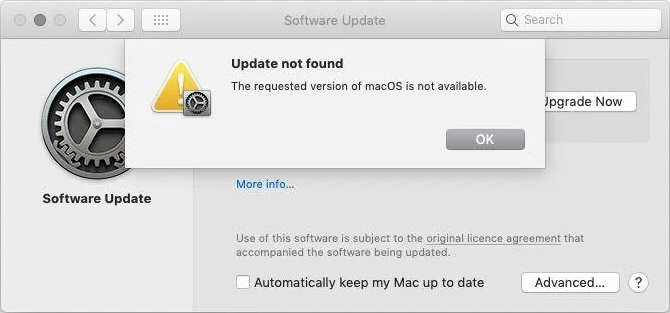
How to Fix:
Step 1. Restart Mac and hold Command + R, Option+Command+R, or Shift+Option+Command+R.
Step 2. When the Apple logo appears, release the pressed keys, select Disk Utility in the Recovery Mode.
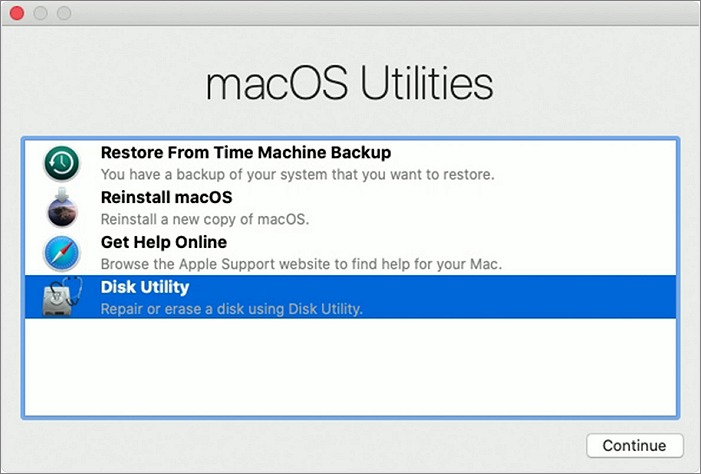
Step 3. Select Erase > Select the startup disk in Mac and click Erase.
Be aware that this process may result in the erasure and removal of important files on your Mac, so it's essential to back up all critical files in advance to avoid data loss. If you haven't done so, your last option for recovering your data is to use Mac file recovery software, as recommended.
Step 4. Select Quit Disk Utility and on the new window, select Install macOS.
Step 5. Follow the onscreen guide to install macOS on your computer.
Step 6. Restart Mac when the installation of macOS completes.
Step 7. To update your macOS, you can either run Software Update to check for any available updates or visit the Apple Download site to manually download and install the latest update.
Bonus Tip: Recover Lost Files After macOS Update
If you found previous files or data were missing on Mac after installing a new update, check if you have backups to recover them. If not, you can restore from Time Machine or iCloud. If you still can't find them, contact Apple Support for further assistance.
If you have a backup, you can restore missing files from it. This process allows you to recover deleted or lost files by replacing them with the backed-up versions. The steps for restoring files from a backup may vary depending on the backup software or method used, but generally, you can follow these steps:
If you've accidentally deleted files on your Mac, don't panic! If the answer is yes, stop using your Mac immediately. Then, turn to reliable Mac file recovery software like Deep Data Recovery for Mac for help.
Deep Data Recovery for Mac
- Recover deleted files on Mac after emptied Trash bin.
- Recover data when macOS update deleted everything.
- Recover files after factory reset Mac or re-installing macOS.
- Recover various types of files lost on Mac due to accidental deletion, formatting, macOS updates or reinstallation, and other reasons.
Step 1. Launch Deep Data Recovery for Mac, select the desired file types, and click "Fast Scan" to initiate the recovery process.

Note: You can choose different search modes based on where and why the data was lost.
Step 2. Select the disk location where you lost data and click the "Scan" button.

Step 3. Deep Data Recovery for Mac will immediately scan your selected disk volume and display the scanning results on the left pane, showing the files that can be recovered.

Step 4. To recover files from a scan, select the desired file(s) and click the "Recover" button. This will restore the files to their original location.
Can't Update Mac Error Is Fixed, Go & Install the Latest macOS on Your Mac Now
The "can't update my Mac" issue can be caused by various factors, including corrupted system files, outdated software, and compatibility problems. Symptoms of this error may include a Mac that fails to update, displays an error message, or freezes during the update process.
If you're unable to download a new update on your Mac, don't worry! First, back up all your important files to an external hard drive. Then, try the fixes listed here one by one - you'll likely be able to resolve the issue and successfully install the latest macOS update, such as Big Sur, on your computer.
If you've lost files, you can either restore them from backup or use Qiling Mac file recovery software to help recover them.
Related Articles
- How to Open External Hard Drive on Mac
- Recover Lost Mac Data with iMac Data Recovery Utility
- [Mac Guideline] How to Format SD Card on Mac
- How to Recover Data from Dead MacBook Pro Hard Drive in 2022
- External Hard Drive Keeps Freezing or Freezes Computer (3 Solutions)
If your external hard drive freezes, causing your computer or Windows Explorer to lock up, we have solutions to revive it. If the files are still there but inaccessible, Deep Data Recovery can help recover data from the frozen hard drive. - Fix External Hard Drive Not Initialized, I/O Device Error
To resolve the Disk Unknown Not Initialized error on an external hard disk, initialize the disk first. If the problem persists, consider using a disk repair tool or seeking professional assistance to recover data from the disk.
Products
Articles & Tutorials
- Data Recovery
- Data Backup
- File Recovery
- File Backup
- System Backup and Restore
- Disk and Partition Clone
- Technical articles
- Mobile articles
- Disk Master Help
- Windows Data Recovery Tutorials
- Windows Secure Delete Tutorials
- Windows Partition Management Tutorials
- Windows File Backup and Restore Tutorials
- Windows System Backup and Restore Tutorials
- Windows Disk Backup and Restore Tutorials
- Windows Clone Tutorials