How to Update/Reinstall macOS Without Losing Data
This page provides a step-by-step guide on how to update and install the latest macOS, including Big Sur, Catalina, and Mojave, on your Mac without losing any data. Follow the instructions on this page to successfully install the desired macOS on your computer, ensuring a smooth and data-preserving process.
| Workable Solutions | Step-by-step Troubleshooting |
|---|---|
| Phrase 1. Preparations | 2GB+ memory and 9GB+ storage space left on Mac > 45% + battery > Connect to internet...Full steps |
| Phrase 2. Change a USB port | Start Mac from macOS Recovery > Select "Reinstall macOS" > "Continue"...Full steps |
| Phrase 3. Recover Lost Data | After macOS installation, run Qiling Mac data recovery software > Scan and recover lost data...Full steps |
The software is compatible with macOS Big Sur, macOS Catalina, macOS Mojave, macOS High Sierra, macOS Sierra, and earlier Mac operating systems.
When you need to update or reinstall macOS, it's usually due to a new operating system release, slow Mac performance, or a system crash. Users main worry is losing data on their computer during the reinstall process.
If you follow the instructions to update your Mac Operating System, the chance of losing data is slim, but not zero, since reinstalling only creates a new OS copy and existing files won't be lost unless you choose to erase your startup disk.
To reinstall macOS without data loss, make a copy of your files before reinstallation, or use a data recovery tool to rescue your data afterwards.
Preparations you Need to Make Before You Reinstall macOS
To reinstall macOS on your computer smoothly, prepare your Mac by following these tips: ensure you have a backup of your important files and data, disconnect any external devices, and shut down your Mac. This will prevent any potential conflicts or issues during the installation process. Additionally, make sure your Mac meets the system requirements for the new macOS update, and have a valid Apple ID to access the App Store and download the necessary software.
- To ensure your Mac runs smoothly, leave at least 2GB of free memory and 8.8 GB of free storage space available. This will help prevent performance issues and allow your system to run efficiently.
- Leave at least 45% battery on your Mac
- Connect Mac to the internet or WiFi
- Update your Mac Apps to the latest versions
- Backup all your personal data and create backups for your present Mac data through Time Machine to ensure your files are safe and easily recoverable in case of any data loss or system failure.
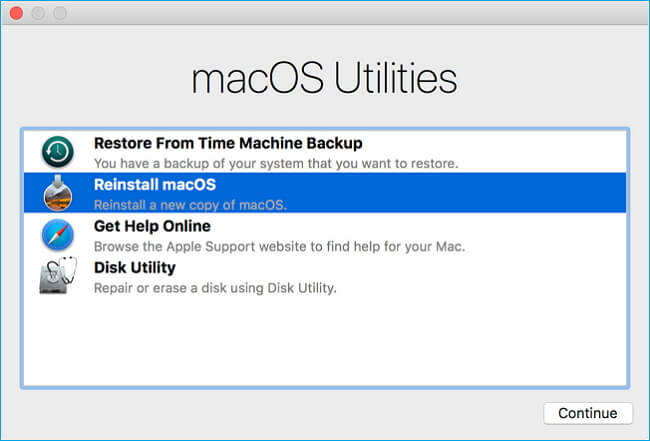
To prevent system update failure or unexpected troubles, back up your Mac to an external hard drive. Then, follow the detailed guide below to reinstall Mac OS via macOS Recovery mode, which allows you to reinstall macOS, restore your files from Time Machine, repair or erase a disk, and more.
How to Update & Reinstall macOS Without Losing Data
The best way to ensure that your Mac is ready for the macOS Sierra update is to take proactive steps before upgrading. This includes checking your Mac's compatibility, backing up your data with Time Machine, and ensuring you have enough free disk space for the installation.
Step 1. Start up your Mac from macOS Recovery
- To reset your Mac, turn it on and immediately press and hold one of the following combinations of keys: Command + R, Option + Command + R, or Shift + Option + Command + R.
- Hold the power button for at least 10 seconds to force shutdown, then release the keys when the Apple logo, a spinning globe, or a pop-up for a firmware password appears.
Step 2. Select "Reinstall macOS" from the Utilities Window and click "Continue".
Step 3. To install the OS, follow the onscreen instructions to select the hard drive you want to install it on and then start the installation process.
Step 4. During the installation process, keep your Mac awake and avoid closing its lid. It's normal for your Mac to restart several times or display a white screen, so just be patient and let the process complete.
If you've reinstalled macOS and experienced data loss, you can try recovering your missing files by following the steps below. If you've already backed up your data, you can restore it from the backup.
Recover Lost Data After macOS Reinstallation
If you have backed up your Mac, you can recover your data from Time Machine or an external hard drive. If you haven't made any backups, you can use Mac data recovery software like Deep Data Recovery to easily recover lost data due to macOS reinstallation.
Note: To increase the chances of successful data recovery, install the Qiling data recovery software on a separate disk, not on the original disk where the files were lost.
Step 1. Launch Deep Data Recovery on your computer, choose the file types you want to recover, and click "Fast Scan" to begin the recovery process.

Note: You can choose different search modes based on where and why the data was lost.
Step 2. To recover lost data, select the disk partition or storage location where the data was lost and click the "Scan" button.

Step 3. This recovery software will scan the disk to find lost and deleted files, and after the scan completes, you can filter the results by file type.

Step 4. Preview and restore lost Windows files by scanning them, previewing them, selecting the target data, and clicking the "Recover" button to save them to a safe location.
Deep Data Recovery is our top pick for Mac data recovery tools, supporting all macOS systems including the newest Big Sur, Catalina, Mojave, and more. This user-friendly tool allows you to easily restore lost data, including office files, music, videos, emails, and archives, with just a few clicks.
Related Articles
- Ransomware: The PC Viruses You Must Fight Against! [Full Guide]
- Fixed: Chrome Browser Not Open/Working in Windows 10 Creator
- How to Fix 'Windows Could Not Complete the Installation' Error
- How to Connect PC to WiFi and Fix PC Can't Connect to WiFi Issue
- How to Delete Apps on Chromebook
If you've got any apps you don't want on your laptop anymore, then knowing how to delete apps from a Chromebook will come in handy. Want to learn how to delete apps on Chromebook? Here are the steps for removing different apps based on device type. - How to Find Autodesk Product Key? Answer Is Here!
Want to find Autodesk product key? Locating any key of existing software can be easily extracted by a product key finder. Moreover, if you prefer to take the manual and free options, you are lucky to read this article. All methods we marked are available for Windows 11.
Products
Articles & Tutorials
- Data Recovery
- Data Backup
- File Recovery
- File Backup
- System Backup and Restore
- Disk and Partition Clone
- Technical articles
- Mobile articles
- Disk Master Help
- Windows Data Recovery Tutorials
- Windows Secure Delete Tutorials
- Windows Partition Management Tutorials
- Windows File Backup and Restore Tutorials
- Windows System Backup and Restore Tutorials
- Windows Disk Backup and Restore Tutorials
- Windows Clone Tutorials