[Solved] Fix Error Code 36 on Mac with 5 Available Solutions
If you're experiencing error code 36 on your Mac, there are several solutions you can try to resolve the issue. You can try restarting your Mac, resetting the System Management Controller (SMC), or using the built-in Disk Utility to repair permissions and rebuild the launch services database.
| Workable Solutions | Step-by-step Troubleshooting |
|---|---|
| Fix 1. Run dot_clean Command | Go to the Applications and select Utilities. Find the Terminal application and click it to launch...Full steps |
| Fix 2. Disk Utility First Aid | Go to Finder, select Applications, and then choose "Utilities". Click the Disk Utility app...Full steps |
| Fix 3. Check File Permission | Go to the drive and open the folder you want to copy. Now, select File, then click Get Info...Full steps |
| Fix 4. Delete .DS_Store Files | Open the Applications menu on your Mac and select Utilities. Find the Terminal app and...Full steps |
| Fix 5. Update macOS | Click the Apple logo in the top left corner of the Mac screen and select System Preferences...Full steps |
What Is Error Code 36 on Mac
Mac users may feel frustrated while dealing with error code 36 on Mac or error code 43 on Mac. Error Code 36 appears when the system cannot read/write the data of a file and prevent it from deleting, copying, or transferring, and this issue can be caused by a corrupted or damaged file, a faulty disk, a permissions issue, or an issue with the Mac's file system, among other potential reasons.
- The external drive is not connected correctly or corrupted itself.
- Read/Write permission for files or folders is not granted.
- The macOS base system is not updated.
- Your system is affected by malware or virus.
If you're experiencing error code 36 on your Mac, don't worry, there are five possible solutions to fix it. Firstly, you can try resetting the System Management Controller (SMC) and the Power Management Unit (PMU) to resolve any hardware-related issues.

How to Fix Error Code 36 on Mac [5 Solutions]
Here are five fixes for Mac error code 36: restart your Mac, install available software updates, check the file name and path, run First Aid in Disk Utility, or review System Report for hardware issues.
Fix 1. Run dot_clean Command in Terminal to Fix Error Code 36
To fix error code 36, you can use the Mac Terminal and execute a specific command. You'll need to open Terminal, navigate to the correct directory, and then run the command to resolve the issue.
Step 1. Go to the Applications and select Utilities.
Step 2. Find the Terminal application and click it to launch.
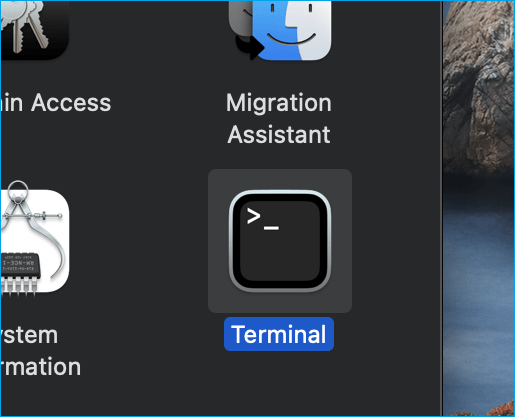
Step 3. Type or paste dot_clean in Terminal.
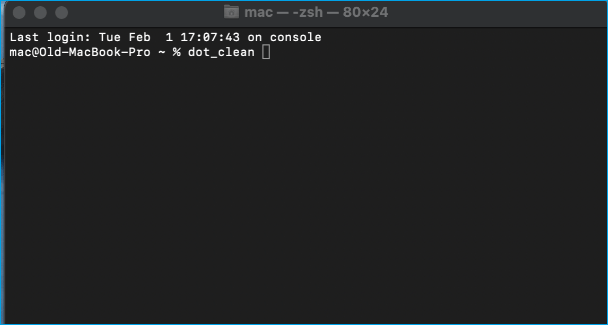
Note: Keep in mind to use this terminal command correctly. The wrong command may cause data loss.
Step 4. To execute the command, press the Space button at once and drag and drop the file path from the Finder into the Terminal window. This will insert the file path into the Terminal command, allowing you to execute the command with the correct file path.
Step 5. Once it is loaded successfully, press the Return key.
This command will resolve the error by merging all hidden files within the folder. To proceed, close the Terminal application and verify if you can copy files without encountering the error code 36.
Fix 2. Fix Error Code 36 on Mac with Disk Utility First Aid
Error code 36 can be caused by corrupted files or hard drive issues, but using Mac Disk Utility's built-in First Aid feature can help fix the problem. To do this, you'll need to utilize the First Aid feature, which can be accessed through Mac Disk Utility. This process can help resolve the issue and get your Mac back up and running smoothly.
Step 1. Go to Finder, select Applications, and choose "Utilities".
Step 2. To run Disk Utility on your Mac, click the Disk Utility app.
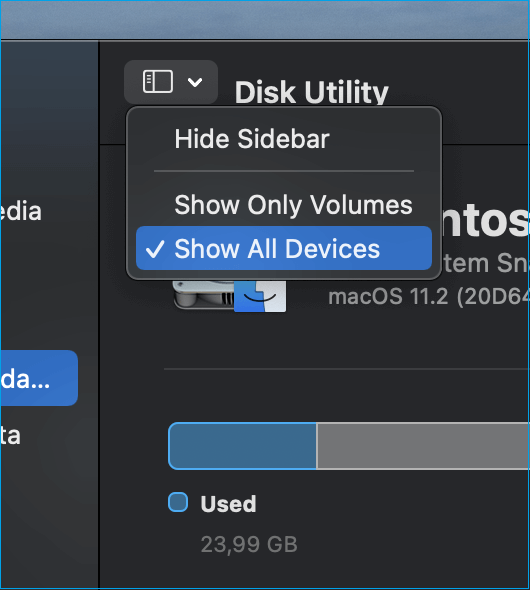
Step 3. To access the Show All Devices option, tap the View icon located at the top of the window and select Show All Devices from the dropdown menu.
Step 4. From the left side panel, select the drive in which you are facing the problem of code 36.
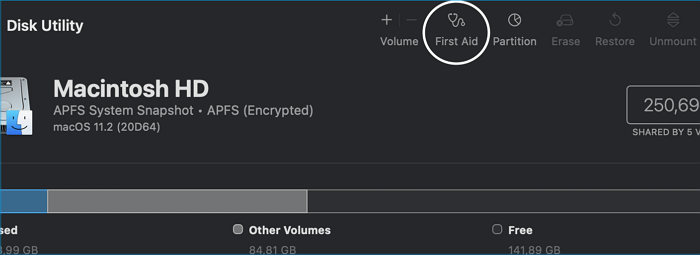
Step 5. Select First Aid and repair Mac disk with Disk Utility.
You can try to install the latest version of the package using pip. This will likely resolve the issue and provide you with a report about the problem.
Fix 3. Check the File Permission on Mac to Fix Error Code 36
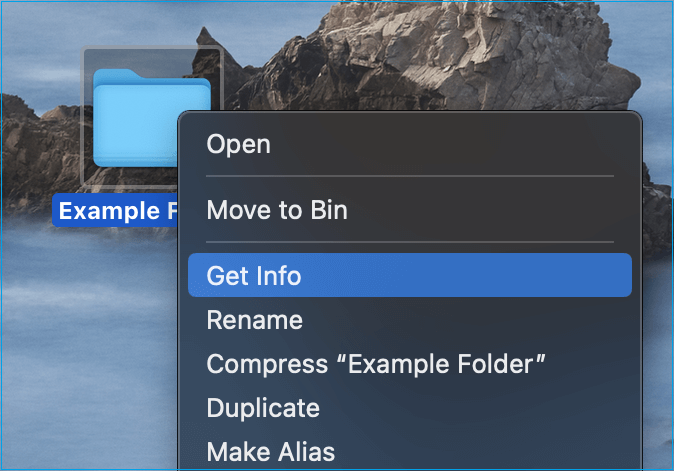
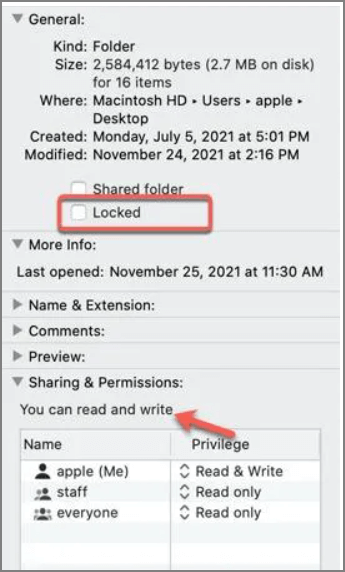
To resolve the issue of read/write permission not being granted to a file, follow these steps: Ensure that the file permission is set to allow read and write access. You can do this by right-clicking on the file, selecting "Get Info," and then clicking on the lock icon to make changes. Make sure the "Read & Write" permission is selected for the user you're trying to copy the file as. If the permission is not given, you can add it by clicking on the "+" button and selecting the user.
Step 1. To copy files from one location to another, start by navigating to the drive and opening the folder that contains the files you want to copy.
Step 2. Now, select File, then click Get Info.
Step 3. Select the Sharing & Permissions option.
Step 4. If the bottom right corner is locked, you'll need to enter your account details to change the permission settings.
Step 5. To change the permissions for a user or group in the "Name" column, click on the user or group option and select the correct setting from the displayed menu.
Step 6. Ensure that you have granted the Read & Write permission.
To troubleshoot the issue, close the window and try to copy the file you want to transfer. This will help determine if the error is fixed or not.
Fix 4. Delete the .DS_Store Files to Fix Error Code 36 on Mac
To resolve the error code 36, delete the corrupted .DS_Store files by running the following command in the Terminal: `find . -type f -name '.DS_Store' -delete`
Step 1. Open the Applications menu on your Mac and select Utilities.
Step 2. Find the Terminal app and click to launch it.
Step 3. To remove the .DS_Store file from your entire system, you can run the following command in your Terminal: sudo find / -name ".DS_Store" -depth -exec rm {} \; This command uses the `find` command to search for the .
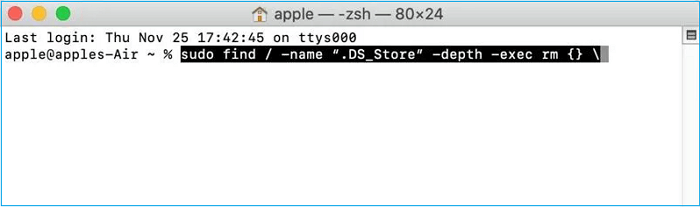
Step 4. To remove the .DS_Store files, press the Return button to initiate the process. This will allow you to start the procedure of deleting these files.
Step 5. To proceed, enter the administrator password and press the Return key.
Step 6. Wait to end the deleting process, then Reboot your Mac.
Now, check if this solution fixed the Code 36 error.
Fix 5. Update macOS to the Latest Version on Mac
If all the mentioned methods have not helped you to fix the error code 36, the problem might occur due to an outdated macOS version of your Mac. An outdated operating system creates bugs in the computer and potentially solves them after installing the latest version. To update to macOS 13 or download macOS Ventura, follow the given steps.
Step 1. Click the Apple logo in the top left corner of the Mac screen and select System Preferences.
Step 2. To update your Mac, go to About This Mac, select Software Update, and click the Update Now button if it's available. This will initiate the update process for your system.

Note: If your macOS is up-to-date, you won't see the "Update now" button, but you can click the link to troubleshoot the issue.
Recover Deleted Files While Fixing Error Code 36 on Mac
If you're experiencing error code 36 on your Mac, there are several methods to fix it, including restarting your Mac, checking for software updates, and using the built-in Disk Utility. However, these methods may result in data loss or corruption, particularly during the macOS Ventura upgrade process. To avoid this, it's recommended to use a comprehensive file recovery tool like Deep Data Recovery, which can recover and repair corrupted files on Mac while fixing error code 36.
Deep Data Recovery
- Repair and recover deleted files, documents, photos, audio, music, videos, and emails on your Mac with ease.
- Support data recovery for various situations, including sudden deletion, formatting, hard drive corruption, virus attacks, and system crashes, ensuring that important data is not lost due to unexpected events.
- The software supports recovery of data from various storage devices, including memory cards, external hard drives, and USB flash drives, making it a versatile tool for recovering lost data.
Deep Data Recovery for Mac is designed with wizard mode, making it user-friendly and compatible with all file systems. This software ensures safe and precise recovery with original file names and storage paths. The recovery process is straightforward, following steps that allow users to recover their data with ease.
Note: To create a backup, click "Disk Backup" on the left. The software will then extract corrupted files from the backup image and repair them, preventing further damage to your disk and files, making it safer and more reliable.
Step 1. Select your disk
Select the disk location where you lost the corrupted files, then click the "Search for lost files" button.

Step 2. Scan for corrupted files
Deep Data Recovery for Mac will immediately scan your selected device and scan for lost Word/Excel documents, videos, PDF files, and photos on the left pane.

Step 3. Repair and recover corrupted files
Select the files to preview in the scan results. If a file is corrupted, the software will automatically repair it and you can then preview it. After repairing, click the "Recover" button to recover the repaired files.

Summary
If you're experiencing error code 36 on your Mac, This article provides possible reasons behind the issue, along with five potential solutions to help you resolve it. In addition, we recommend using a reliable tool to recover any lost or corrupted files. Your feedback and suggestions are always welcome, so please feel free to share them with us through comments.
Error Code 36 on Mac FAQs
Fortunately, This guide provides all the potential reasons and fixes for error code 36, and if you have any additional questions, you can refer to the frequently asked questions section.
What causes code 36 on Mac?
The Mac Finder may fail to complete an operation due to issues with files that the system cannot read or write.
How do I delete a file that won't delete on macOS 13?
Right-To delete a file that won't delete, click on the file and select "Get Info". Then, in the General tab, look for the file lock and deselect it. After that, you can delete the file. If you're unable to delete the file, you can try recovering it using Deep Data Recovery for Mac.
- 1. Launch and scan your macOS Ventura.
- 2. Select deleted files on macOS 13.
- 3. Recover these files after previewing.
What to do if the dot_clean command not working?
The dot_clean command may not work if it can't find the file path on the drive. It's recommended to copy and paste the dot_clean command and file path on the terminal app.
How do I fix the Finder error on Mac?
To fix the Finder error on Mac, force quit and restart the Finder App by pressing the Command + Option + Escape keys, choosing the Finder app from the window, and then restarting your computer.
What is the easiest way to fix error code 36 on Mac?
To fix error code 36 on a Mac, open Disk Utility, select the drive, and click First Aid. This will run a diagnostic and repair any issues.
Related Articles
- Five Things You Need to Do Before Windows 10 Update
- Fixed: The Office Open XML Cannot Be Opened [Full Guide]
- How to Boot from USB Ubuntu? [Full Guide in 2023]
- How to Format External Hard Drive for PS4 [2023 Full Guide and Choice]
- (3 Easy Solutions) How to Safely Reset Registry Windows 10
Do you wonder how to reset registry Windows 10? This guide explains three ways to reset the registry in Windows 10. After reading, you can choose a way to reset the registry on Windows 10 computer. - Solved: System Restore Is Restoring the Registry Windows 11/10/8/7
Have you ever encountered a situation where your PC gets stuck at the System Restore moment, with System Restore restoring the registry? If so, you're not alone.
Products
Articles & Tutorials
- Data Recovery
- Data Backup
- File Recovery
- File Backup
- System Backup and Restore
- Disk and Partition Clone
- Technical articles
- Mobile articles
- Disk Master Help
- Windows Data Recovery Tutorials
- Windows Secure Delete Tutorials
- Windows Partition Management Tutorials
- Windows File Backup and Restore Tutorials
- Windows System Backup and Restore Tutorials
- Windows Disk Backup and Restore Tutorials
- Windows Clone Tutorials