(3 Easy Solutions) How to Safely Reset Registry Windows 10
Why Reset Registry in Windows 10
Windows 10 has a vast operating system with numerous settings in the Registry, which updates to reflect changes made to the OS or when installing programs. The Registry serves as a repository of data, containing information on how the operating system should function. Any modifications made to the system impact the Registry, leading to the addition, modification, or removal of values.
In today's guide, we'll cover how to reset the Windows 10 registry, provide information on a tool that can help retrieve lost data during the reset process, and answer some frequently asked questions.

Preparation for Resetting Registry in Windows 10
The Windows Registry stores information on the behavior of the Windows operating system, and resetting it will result in losing all the stored info. Therefore, before resetting the registry, it's essential to create a backup. In this situation, you can create a backup of your Windows 10 PC using third-party backup software, such as Qiling Backup, which would also involve the Windows registry in the system image.
Qiling Backup Home is a practical backup utility for Windows that offers all-around protection against data loss due to PC malfunction or registry resetting. It allows users to maintain a complete critical file or image file backup, making system backups, partition, disk, and even cloning M.2 SSD to a larger one, with 250G of free cloud storage.
Here are the detailed steps to create a system backup for Windows 10 computer in one paragraph:
Step 1. To start the backup process, launch Qiling Backup on your computer, navigate to the home screen, and select the "System Backup" option.

Step 2. To create a system image backup, Windows will automatically select your operating system information and all system-related files and partitions, so you won't need to manually select anything. Next, you'll need to choose a location to save the system image backup by clicking on the illustrated area.

Step 3. The backup location can be another local drive on your computer, an external hard drive, network, cloud, or NAS. We recommend using an external physical drive or cloud to preserve system backup files.

Step 4. Customization settings like enabling an automatic backup schedule in daily, weekly, monthly, or upon an event, and making a differential and incremental backup are available in the Options button. Click Proceed, and the Windows system backup process will begin, with the completed backup task displaying on the left side in a card style.

3 Methods to Reset Registry in Windows 10 Computer
If you've accidentally damaged your Windows 10 registry through manual error or another mistake, you might be wondering how to reset it to its original state. Fortunately, there are several methods for cleaning the Windows registry.
- Solution 1. Fully Reset the Registry by Resetting your Windows PC
- Solution 2. Reset Registry Changes via Registry Editor
- Solution 3. Reset Recent Registry Changes via System Restore
Solution 1. Fully Reset the Registry by Resetting your Windows PC
Although no hassle-The Windows 10 registry stores a vast amount of information on the specific configuration of Windows, making it difficult to reset to a clean state without making the machine unusable.
To fully reset the Windows registry to its default, the most authentic method is to reset the Windows PC itself. This involves following a series of steps to restore the system to its original settings, effectively erasing all changes made to the registry.
Step 1: To open Windows Settings, you can press the Windows key + I on your keyboard or navigate to the Start menu and click on the "Settings" icon, which resembles a gear.
Step 2: Go to Update and Security > Recovery.
Step 3: Opt for "get started" from the Reset this PC option.
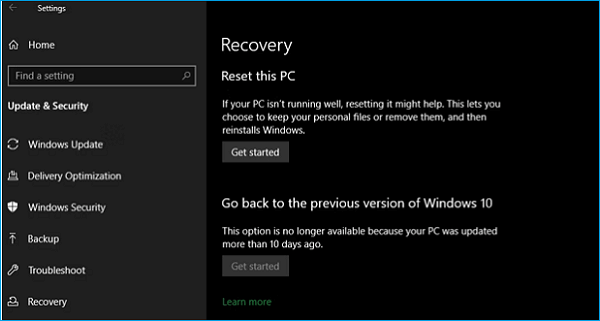
You can either wipe everything clean and start again, or reinstall Windows while keeping your existing files, which can be downloaded via the internet or recovered from your computer's recovery data.
Solution 2. Reset Registry Changes via Registry Editor
To reset registry changes, you can use the Windows Registry. This involves a series of steps, including accessing the registry, navigating to the relevant key, and resetting the changes made to it. The process allows you to revert back to the original state of the registry key, effectively undoing any modifications made to it.
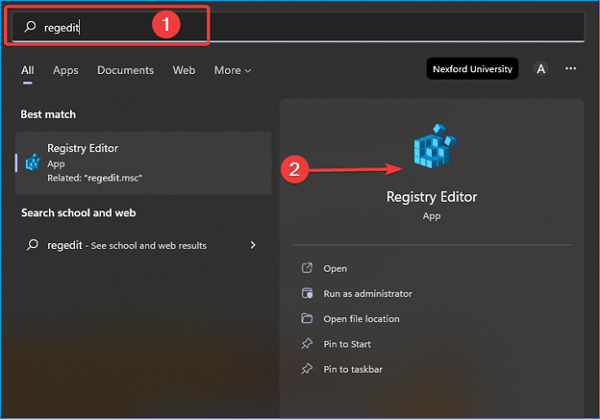
Step 1: To open the Registry Editor, press the Windows key, type "regedit" in the search bar, and select Registry Editor from the results.
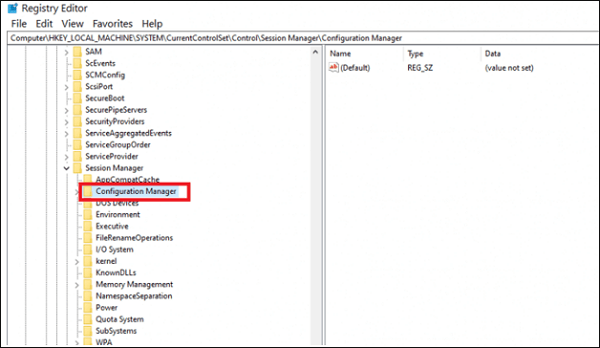
Step 2: Go down the path you see below.
The registry key HKEY_LOCAL_MACHINE \ SYSTEM \ CurrentControlSet \ Control \ Session Manager \ Configuration Manager is a part of the Windows registry that manages the configuration of the system's session manager. It contains settings related to the way the system handles user logins, logoffs, and session management.
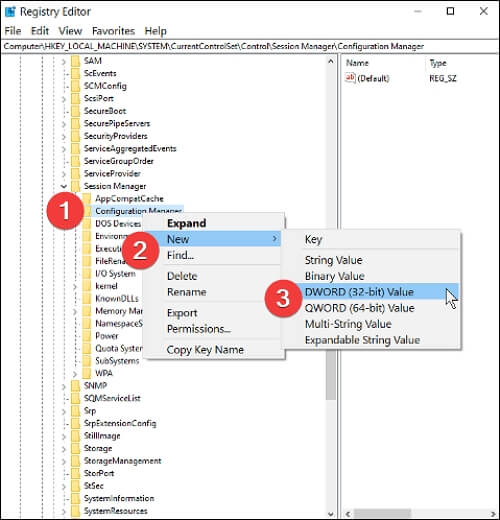
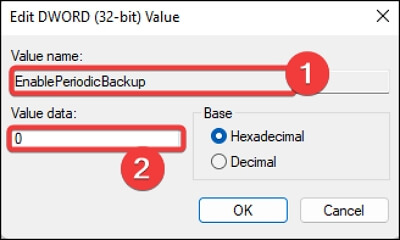
Step 3: To add a new DWORD (32-bit) value to the registry, you right-click on the "configuration manager" in the registry editor, then select "New" and choose "DWORD (32-bit) value" from the context menu. This will create a new DWORD value that can be named and assigned a value.
Step 4: Quit the Registry Editor after naming this registry variable "EnablePeriodicBackup" and setting its value to 1.
Step 5: Reboot your Windows 10 PC.
Step 6: Windows will make its initial backup after resuming.
Solution 3. Reset Recent Registry Changes via System Restore
System Restore is a Windows feature that allows you to revert your system to a previous state, known as a restore point, which is created automatically when you install new software or updates, or make significant changes to your system. This can be useful if you've made changes that cause problems and want to go back to a previous working state.
Restoring a system to a previous state using a restore point can undo changes made to software, drivers, and the operating system since the restore point was created. This process also reverses changes to the registry, allowing you to undo recent modifications to specific registry sections, effectively resetting the registry.
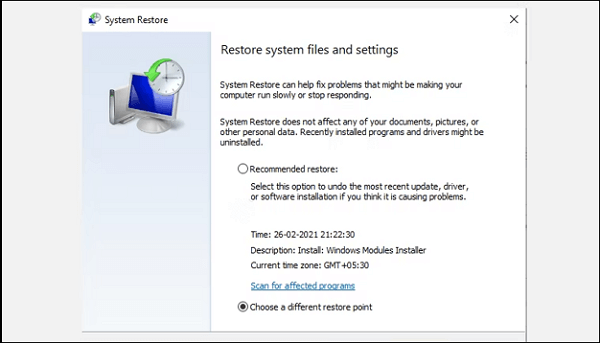
Windows 10 allows you to manually create a restore point, but if you're already experiencing issues, it won't be helpful. This means you can only reset the registry to its original state if you created a restore point immediately after setting up your PC, which might not be the case. If you've made modifications and want to reset the registry, you might not have a restore point from before those changes.
The Bottom Line
We've shown three effective ways to reset the registry on a Windows 10 computer. By executing these operations, you can reinstall the Windows 10 registry without needing backups. While restarting your computer is the best method for resetting the registry, other methods are also viable.
If data is lost during the registry reset process, using Qiling Backup is recommended. Have you encountered any issues with the above solutions? Please let us know in the comment section.
FAQs
1. Is it safe to clean the registry?
Don't try to clean the Windows Registry, as it contains important system information and deleting entries can damage your PC.
2. Does the registry slow down the computer?
The registry contains both essential and redundant keys, with some potentially being invalid or corrupted, which can negatively impact a PC's performance.
3. Why cleaning the registry is important?
The registry's size keeps growing, causing PC slowdowns and crashes, making it essential to clean it with top-notch registry cleaner software.
4. What causes registry issues?
Registry flaws can be caused by improperly uninstalled apps, which leave behind registry entries that can lead to start-up issues. Additionally, Trojans, viruses, and spyware can also cause registry issues by installing registry entries that are difficult to remove manually.
Related Articles
- How to Factory Reset Laptop without Password? [Everything You Should Know]
- Fixed Solutions: Can't Erase USB Drive on Mac [10 Ways]
- How Do SD Cards Work on Different Devices [Android/Camera/Switch/Laptop]
- Windows Update Troubleshooter Download Full Version [2022 Tips]
- What is Video Ram (VRAM)? How to Check and Increase VRAM in Windows 10
VRAM, or video random access memory, is a type of RAM used for graphics processing in computers, and checking it on Windows 10 involves a straightforward process. - What Is Werfault.exe and How to Fix Werfault.exe Error in Windows
If you're experiencing the Werfault.exe error on your computer screens, this article has got you covered with the best possible fixes to overcome this issue. Keep reading to learn more about the solutions to resolve this error.
Products
Articles & Tutorials
- Data Recovery
- Data Backup
- File Recovery
- File Backup
- System Backup and Restore
- Disk and Partition Clone
- Technical articles
- Mobile articles
- Disk Master Help
- Windows Data Recovery Tutorials
- Windows Secure Delete Tutorials
- Windows Partition Management Tutorials
- Windows File Backup and Restore Tutorials
- Windows System Backup and Restore Tutorials
- Windows Disk Backup and Restore Tutorials
- Windows Clone Tutorials