What is Video Ram (VRAM)? How to Check and Increase VRAM in Windows 10
What Is VRAM?
VRAM, also known as Video Random Access Memory, is a type of RAM specifically used for graphics processing in computers.
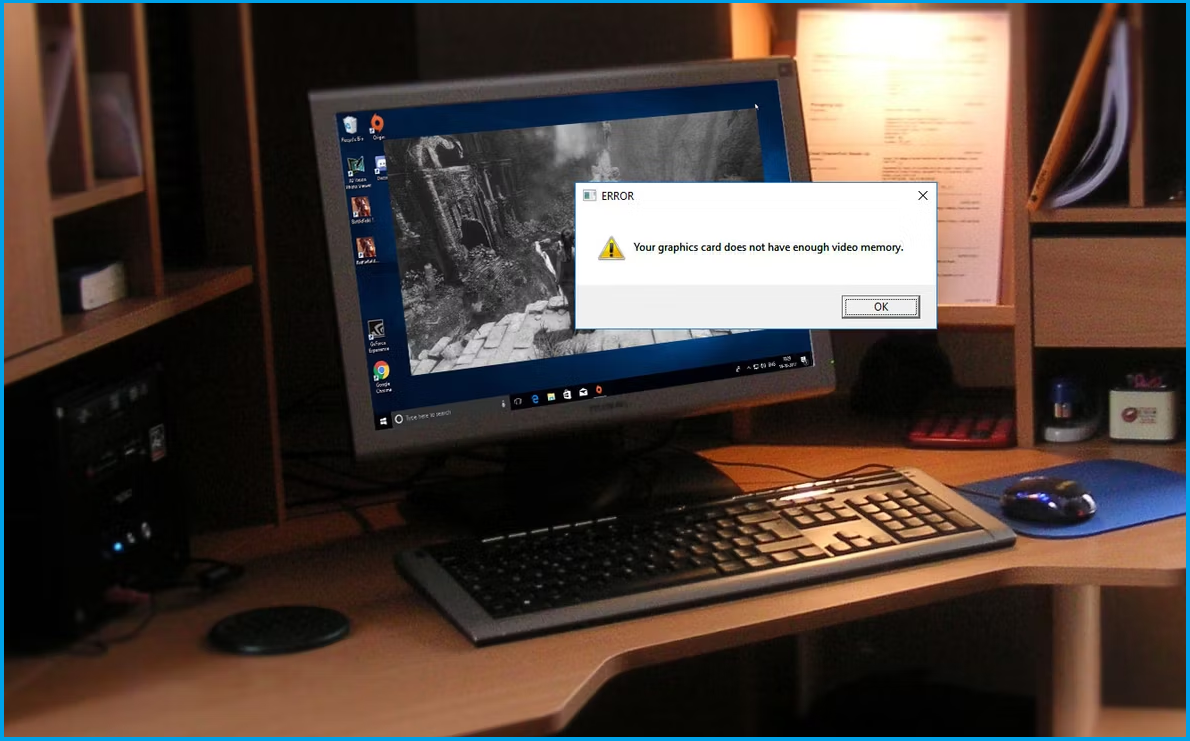
Dedicated graphics cards have RAM, known as VRAM, that stores images and graphic data for the computer display, with varying capacities between different models.
Different graphics cards have varying amounts of Video Random Access Memory (VRAM), which is essential for a smooth display of graphics. The availability of VRAM affects the ability to display complex image textures and render 3D structures, making it a crucial factor in applications such as video games and 3D graphic design programs.
Types of VRAM
There are different types of VRAM, explained as follows:
- SGRAM
SGRAM is a clock-SGRAM, or Synchronous Graphics RAM, is a type of DRAM that is synchronized with the system clock, allowing for smooth data handling. It operates as dual-ported memory, enabling simultaneous access to the same data from multiple sources. This makes SGRAM an ideal solution for graphics applications where fast and efficient data transfer is crucial.
- Rambus DRAM
Rambus DRAM is a type of memory that was developed by Rambus, and it features a Rambus bus that enhances data transfer speed.
- MDRAM
It is a high-MoSys' Multibank Dynamic RAM (MDRAM) is a high-performance RAM technology that offers affordability. It features 32KB memory banks, allowing for independent access to each component.
- WRAM
Window RAM provides more bandwidth, lower costs, and higher performance compared to standard VRAM.
Is VRAM Better Than RAM?
RAM (Random Access Memory) is the processor's memory that temporarily stores data while performing computations. VRAM (Video Random Access Memory) is a type of RAM specifically designed for graphics-related tasks, serving as the video RAM where the graphics processor stores data. Without a dedicated graphics card, the system relies on main RAM for graphics duties, leading to lag and performance issues.
Thus, for video-VRAM (Video Random Access Memory) is superior to regular RAM when it comes to handling graphics-intensive tasks. It stores visual data such as images and graphics while running heavy editing apps or playing games, allowing for smoother processing of massive graphics. The higher the VRAM capacity, the more efficiently it can handle tasks like rendering, physics emulation, and frame rates, making it a crucial component for demanding video-based applications.
How to Check Your VRAM in Windows 10?
To check VRAM on Windows 10, go to Settings, then Display, and finally, Display settings. In the Display settings, scroll down to the "Graphics" section and look for the "GPU" or "Graphics Card" information. This will show you the VRAM (Video Random Access Memory) capacity of your computer's graphics card.
Step 1: Press the Windows key on your keyboard or click on the Windows logo to open the Start Menu.
Step 2: Go to the search bar, type display, and press Enter.
Step 3: Click on Display and select Advanced Display.
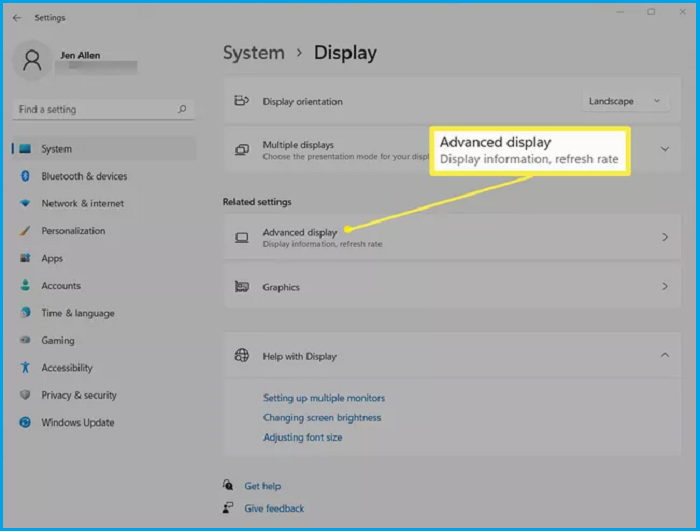
Step 4: Click Display Adapter Properties for Display 1.
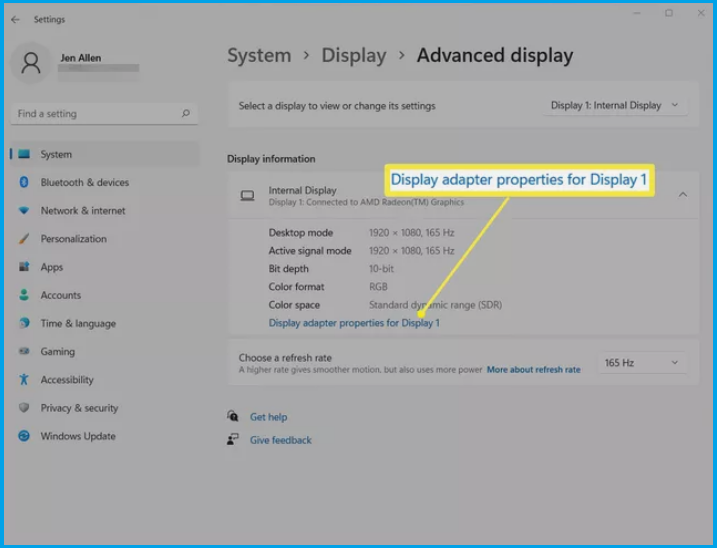
Note* You can follow the same steps to check other displays and graphics cards.
Step 5: The graphics card's VRAM will be shown next to Dedicated Video Memory.
How to Increase VRAM in Windows?
Increasing VRAM in Windows can be done in two ways: through BIOS settings or by editing the registry entry. However, using the registry entry is a safer option, especially for those unfamiliar with BIOS settings, as it avoids the risk of damaging Windows settings. By editing the registry entry, users can increase VRAM, making it a viable alternative to BIOS settings for achieving this goal.
To modify the VRAM values, we'll make Registry entries appear as if the VRAM has increased, which can help run heavy games on your Windows 10 system. This won't change the actual VRAM values, but it will give the illusion of increased VRAM, allowing you to run demanding games.
Note* To access registry entries, please proceed with caution and take a backup of your Registry Entries first. Open Registry Editor from the search bar and go to the desired location. If you're unsure about how to access registry entries, please don't skip any step, as it may harm your Windows installation. If you're ready to proceed, navigate to the desired location within the Registry Editor.File> Export> Create a backup file.
Please follow the given steps to modify Registry values.
Step 1: Press the Windows key+R, type Regedit, and press Enter.
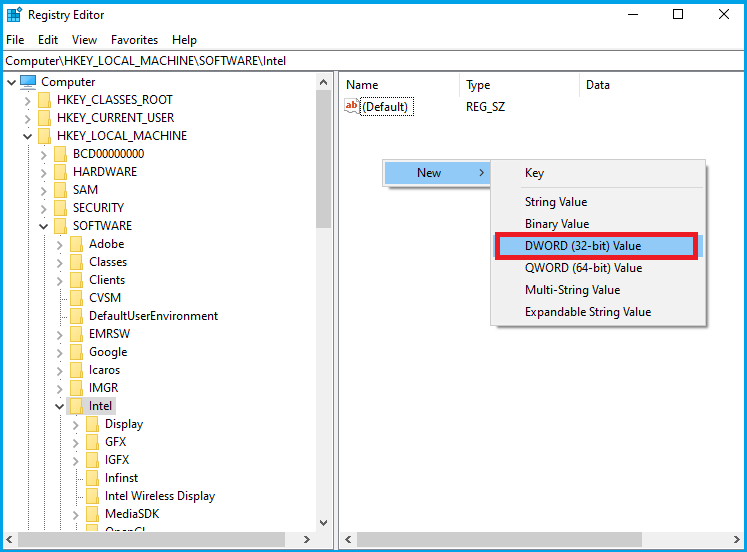
Step 2: Go to Computer> HKEY_LOCAL_MACHINE>SOFTWARE>Intel
Note* If you are using AMD graphics, replace Intel with AMD.
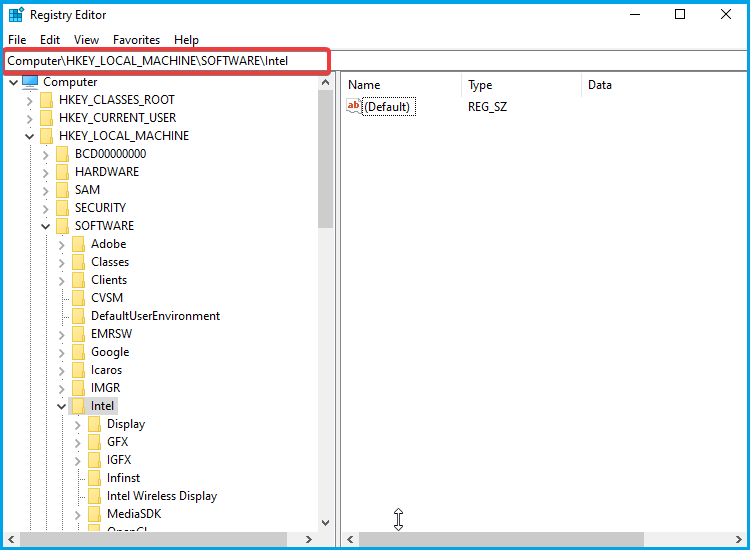
Step 3: When you right-click on the right-side panel, a "New" key option will appear, and selecting "DWORD (32-bit) value" will allow you to create a new key.
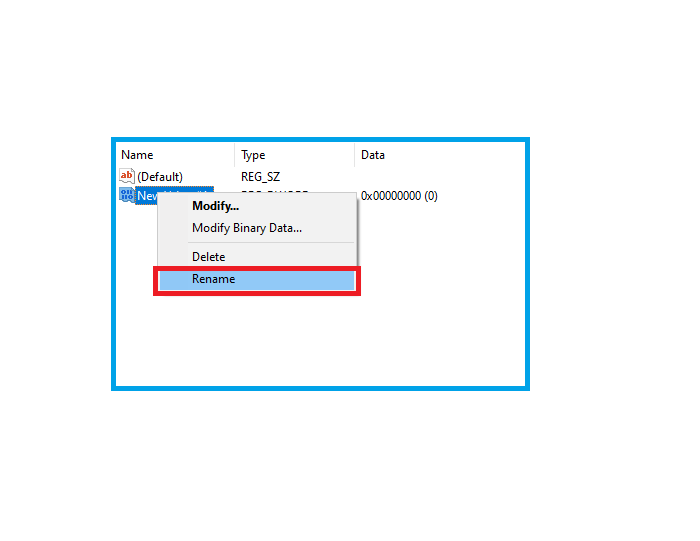
Step 4: Right-click on New Key and rename it as DedicatedSegmentSize.
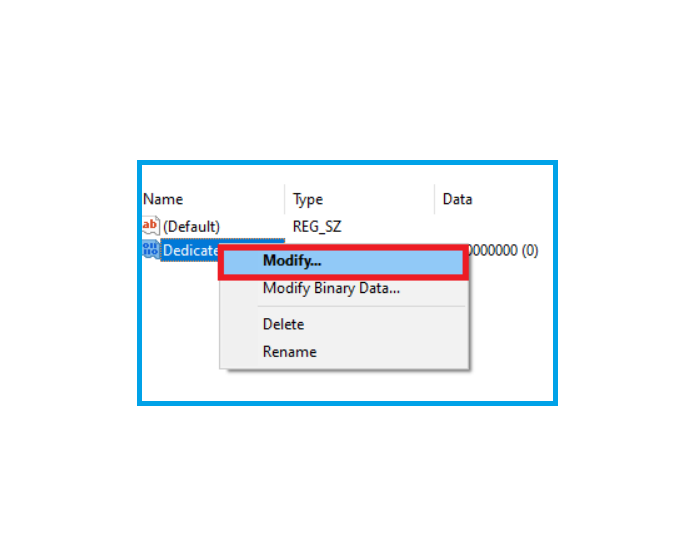
Step 5: Right-click on the key and click on Modify.
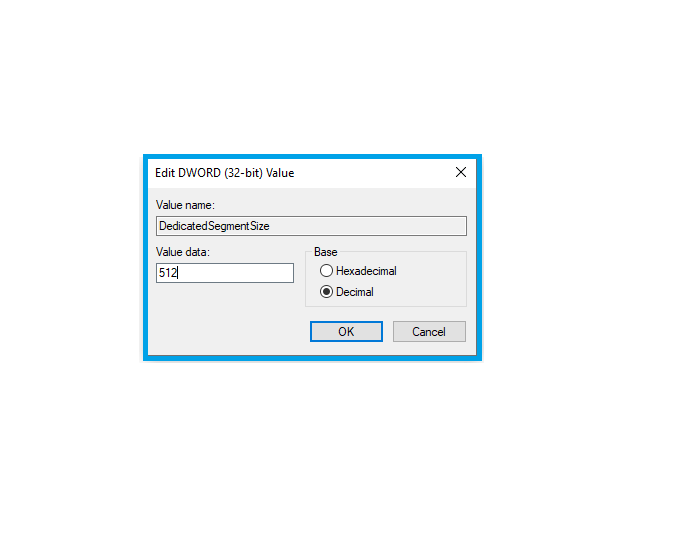
Step 6: In the Base section, select Decimal, and in the Value section, type 512.
Step 7: Now, Restart the system to enable the effects.
Note* The increased VARM can be checked using the method discussed earlier, which involves comparing the variance of the residuals with the variance of the errors. This comparison helps determine if the model is a good fit to the data and if the residuals are randomly distributed. If the variance of the residuals is significantly higher than the variance of the errors, it may indicate issues with the model, such as overfitting or underfitting.
Final Thoughts
We hope this article has been helpful in understanding VARM, including its types and how to test and boost it. Remember, VRAM is the graphics card's memory, which enhances the overall system performance. If you want to improve the real-time performance of your system, consider upgrading the graphics card and GPU. This will likely be the most effective way to increase system performance.
Related Articles
- What Is Virtual Memory? Everything You Need to Know about It.
- 0xC1900101 Error in Windows Update, Cannot Install Windows 11 [FIXED]
- What Is IOPS (Input/Output Operations Per Second) and How Do You Measure It?
- What is Windows PE and How to Use It
- Best NAS for Home Media (2024 Selected)🏅
Explore the top NAS solutions for home media storage in 2024. Here are the best NAS devices tailored to enhance your home entertainment experience. - BitLocker Recovery Screen: How to Fix It After Windows Booting
If you're stuck on the BitLocker recovery screen, you can try to bypass it or enter the recovery key to regain access to your system. This is crucial as without the key or bypass, you won't be able to recover data from the system.
Products
Articles & Tutorials
- Data Recovery
- Data Backup
- File Recovery
- File Backup
- System Backup and Restore
- Disk and Partition Clone
- Technical articles
- Mobile articles
- Disk Master Help
- Windows Data Recovery Tutorials
- Windows Secure Delete Tutorials
- Windows Partition Management Tutorials
- Windows File Backup and Restore Tutorials
- Windows System Backup and Restore Tutorials
- Windows Disk Backup and Restore Tutorials
- Windows Clone Tutorials