What is Windows PE and How to Use It
What is Windows PE
Looking to understand Windows PE? Let us help you understand what it is.
Windows Preinstallation Environment, or Windows PE, is a sub-version of Windows used for troubleshooting and development purposes, but accessing and understanding it can be challenging.
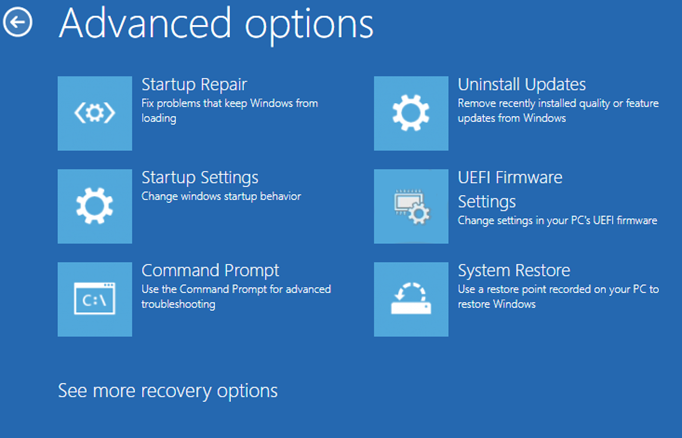
The section of Windows you're referring to is likely Windows PE (Pre-Execution Environment), a lightweight version of Windows that allows for basic operations like disk management, file system access, and running specific tools. It's not ideal for general usage, but rather a specialized environment for specific tasks. Windows PE is typically used for tasks like system recovery, disk imaging, and troubleshooting. To get Windows PE on a bootable drive, you can create a bootable USB drive or CD/DVD using tools like Rufus or Windows PE Builder, which will allow you to boot into the Windows PE environment and perform the desired tasks. Additional elements, such as drivers or specific tools, may be required to work properly, depending on the specific use case.
Part 1: What is Windows PE?
Microsoft describes Windows PE as a compact version of the actual operating system, employing the same behind-the-scenes elements as Windows but with cutout features to keep it lightweight.
Windows PE is a lightweight version of Windows that can load on computers with hardware and software issues, but its primary purpose is to install Microsoft Windows products, allowing for a more stable and reliable installation process.
· Installing Windows from a local or external drive
· Modifying the Windows to troubleshoot errors and problems with it
· Setting up system or data recovery tools
· Recovering data from various devices quickly
· Set up Hard Drives, including formatting, partitioning, etc.
· Troubleshooting Windows Startup issues
· Run a simple memory test
While there are certainly many more reasons, these are some of the main features/reasons it's employed by computer experts today.
Part 2: How Windows PE Works
Windows PE is a lightweight version of Windows that is designed for troubleshooting and setting up systems. It is a stripped-down version of Windows that can be used for a variety of purposes, including troubleshooting and setting up systems, depending on the user's needs and goals.
Windows PE (WinPE) offers a full-fledged UI design, unlike traditional troubleshooting methods like MS-DOS, allowing users to utilize various internet drivers. This enables users to troubleshoot and resolve issues more efficiently.
· It can be installed on a USB, DVD, CDs, etc.
· Windows Management Instrumentation allows you to control Windows API
· The system supports file sharing via TCP networks, including full-fledged usage of IP, allowing for efficient and reliable data transfer over the internet.
· The software supports Windows drivers for both x86 and x64 architectures, but the compatibility may vary based on the specific Windows PE version being used.
· Create partitions that support dynamic volume creation, including NTFS and FAT file systems.
While it can support drivers, this is limited to Windows 7 and later, meaning anything pre-Windows 7 will not have this feature. However, all later versions of PE support drivers and provide a more comprehensive troubleshooting experience.
Part 3: Windows PE Requirements
Windows PE is a lightweight version of Windows that can run without a hard disk or SSD drive, making it the least-requiring UI program ever built. It can operate on minimal hardware requirements, allowing it to run on a variety of devices.
· A 32-To run a 32-bit version of Windows PE, you need to configure your UEFI or BIOS settings to prioritize legacy boot mode. Here's a simplified explanation:
· A 64-UEFI (Unified Extensible Firmware Interface) and BIOS (Basic Input/Output System) are two types of firmware interfaces that allow a computer to start and run an operating system. To run the 64-bit version of Windows PE (Preinstallation Environment), a computer with UEFI firmware is required, as it supports the necessary 64-bit architecture.
· The computer needs to have at least 512 megabytes of working memory, as it runs from memory and not from a hard disk drive.
· Network adapter and storage drivers to ensure smooth operation
Having more elements, such as drivers, packages, or apps, requires more RAM to run smoothly. This means that the more you want to do with your system, the more memory you'll need to support it.
Part 4: Limitations WinPE
Windows PE is a lightweight version of Windows that can be used for troubleshooting and other specific purposes, but it's not suitable for general use like browsing the internet or listening to music.
Windows PE's lack of a Windows Shell makes it easier to troubleshoot, but it also restarts the Shell every 72 hours to keep memory clean, resulting in lost changes after a reboot. Therefore, it's essential to save any changes before this 72-hour period to prevent losing them.
Other limitations of PE include:
· Joining a network or domain
· Connecting to IPv3 or IPv6
· Remote desktop and its accessory features
· 32-bit and 64-bit apps can't run on each other's platforms. A 32-bit app can't run on a 64-bit system, and a 64-bit app can't run on a 32-bit system. This is because the architecture of the two systems is different, and the app's code is compiled for a specific architecture. To run a 32-bit app on a 64-bit system, you would need to run it in a 32-bit compatibility mode, and vice versa.
· Using DISM or Appxbundle packages
· Not supporting file or terminal serve use
Windows PE is a lightweight version of Windows that can run from a USB drive or CD/DVD, allowing users to access a basic Windows environment without the need for a full installation. While it may have some limitations, such as not being able to install drivers or run resource-intensive applications, its primary purpose is not to replace a full Windows installation, but rather to provide a minimalistic environment for tasks like recovering a system, troubleshooting, or running a minimal set of applications.
Part 5: Where to Download Windows PE
To download the Windows Preinstallation Kit, visit Microsoft's designated website for Windows PE. A bootable WinPE USB Flash drive is required for installation, which will be covered later.
To download the Windows ADK and Windows PE, visit the Microsoft website, download both the Windows ADK and Windows PE add-on, and ensure smooth operation by installing both.
Part 6: How To Create A Windows PE Bootable Drive
To create a Bootable Windows PE Drive, you can use a professional tool like Qiling Backup, which features a WinPE Bootable Disk that can be found on their website.
This program enables you to create bootable drives for any operating system.
Part 7: Conclusion
Creating a Windows PE bootable drive can be a useful tool for troubleshooting issues and creating a portable environment to fix your PC on the go. It's also ideal for development and testing purposes, providing a convenient and flexible solution for various technical needs.
To get Windows Preinstallation Environment (WinPE), follow the steps to secure it on a drive, which will enable various development and troubleshooting goals.
Related Articles
- SD Card Troubleshooting: How to Rescue A Damaged or Corrupt SD Card
- What is USB to HDMI Adapter? What Is It Used for?
- What Is RAID 10 and What Are Its Benefits?
- We Couldn't Install Windows 11 - Error Code 0x800f0830
- How to Solve Can't Delete Volume on USB [100% Working Solutions]
Are you facing issues of can't Delete Volume on USB in Windows? This article discusses the issue of why Disk Management does not delete the volume on USB and provides appropriate solutions with proper guidelines so that you can make space in your USB drive. - Can't Read From the Source File or Disk? Find Your Solutions Here
If you're experiencing the 'can't read from the source file or disk' error while opening or copying a file, it's a solvable issue that won't harm your file. This error can be resolved using various solutions, which are discussed in the article below.
Products
Articles & Tutorials
- Data Recovery
- Data Backup
- File Recovery
- File Backup
- System Backup and Restore
- Disk and Partition Clone
- Technical articles
- Mobile articles
- Disk Master Help
- Windows Data Recovery Tutorials
- Windows Secure Delete Tutorials
- Windows Partition Management Tutorials
- Windows File Backup and Restore Tutorials
- Windows System Backup and Restore Tutorials
- Windows Disk Backup and Restore Tutorials
- Windows Clone Tutorials