SD Card Troubleshooting: How to Rescue A Damaged or Corrupt SD Card
SD cards allow electronic devices to store more data by expanding their storage capacity, and are commonly used in smartphones, tablets, digital cameras, and computers, particularly those with Android operating system, which often have separate micro-SD slots.
The convenience of SD cards is undeniable, but they can also pose a risk if they become corrupted, which can happen unexpectedly. If this occurs, your device may no longer be able to read the card, potentially causing your computer to slow down or even freeze. Moreover, a corrupted SD card can result in the loss of valuable data, making it essential to take precautions to prevent such a disaster.
This predicament may not be all doom and gloom, as this article offers seven techniques to repair a malfunctioning SD card and avoid the worst-case scenario. Before diving into the solutions, it's essential to recognize the telltale signs that indicate your storage media needs to be remedied.
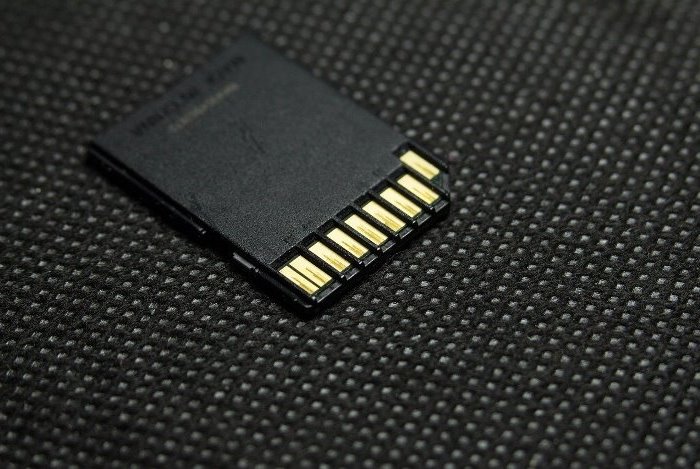
An SD card that's malfunctioning can cause devices to fail to read its contents, resulting in errors such as "The disk is not formatted" or "Location is not available" on Windows 10, or "The disk you inserted was not readable by this computer" on macOS.
If you notice your SD card is not being recognized, has stopped working, or is causing your device to freeze or crash, stop using it right away. Don't format it immediately, as this could make it harder to recover data. Try the methods below first.
1. Try a Different Card Reader or Insert the SD Card into Another Computer
A Windows 8 or Windows 10 computer may not recognize or read an SD card due to issues with the built-in SD card reader, so it's a good idea to check if it's properly installed and has the latest hardware drivers.
To troubleshoot a malfunctioning card reader, open the Device Manager, locate the card reader under the "Memory technology devices" section, and check if it has a yellow question mark next to it. If it does, try updating the drivers for this device to resolve the issue.
If the issue persists, try using a different SD card in the same slot to see if it's recognized. If not, try a different SD card reader or computer. If it works on another device, the SD card reader is likely faulty and needs to be replaced.
2. Use the Disk Management Utility to Check Your Unreadable SD Card
If a Windows machine fails to read an SD card, checking its condition in the Disk Management utility is a good first step. This tool provides information on the file system, drive letter, partition, and disk space, which can help identify the issue. Possible scenarios include the SD card being uninitialized, corrupted, or having a file system that's not compatible with Windows. If the SD card is uninitialized, it may need to be formatted.
The SD Card Has No Drive Letter
To address the issue where Windows doesn't assign a drive letter to an SD card, follow these steps: Right-click on "This PC" or "Computer" and select "Manage." In the resulting window, click on "Device Manager." In the Device Manager, find the SD card under "Disk drives" and right-click on it. Select "Change Drive Letter and Paths." In the next window, click on "Add" and select a drive letter that is not already in use.
- Right-click on "This PC" (or "My Computer"), select "Manage" in the context menu, proceed to "Storage," and click "Disk Management."
- To check if your SD card has a drive letter, insert the SD card into your computer's SD card reader, then go to File Explorer and look for the SD card on the list of your disks. If it appears with a drive letter, it is recognized.
- Right-click on the SD card and select "Change Drive Letter and Paths" from the context menu to modify the drive letter associated with the SD card.
- Click "Add" and follow on-screen prompts to assign a drive letter to the storage.
If you successfully complete the above procedure, your PC will be able to read the SD card. However, if the option to assign a drive letter to the storage is missing, you may need to try alternative methods to make your PC read the SD card.
RAW File System
A normally functioning SD card is usually formatted with a file system like NTFS, FAT32, or exFAT. However, if the Disk Management utility shows a RAW file system instead, it indicates that the storage is corrupted and has no file system that your computer can recognize.
If Windows is displaying an error dialog saying "You need to format the disk before you can use it", the only effective way to address this condition is to reformat the SD card.
The SD Card Is Showing Less than Its Full Size
If the SD card is not listed on the Disk Management interface, it means that the storage has physically failed, and the chances of your PC being able to read it are close to zero.
3. CHKDSK Command to the Rescue
CHKDSK is a native Windows tool that inspects disks for file system errors and other issues, and can also fix many disk bugs. If your SD card is corrupted, it's a good idea to try CHKDSK to repair it. To do so, you can use this tool to inspect and fix your SD card.
- Insert the SD card into your PC's card reader.
- To open Command Prompt, click the magnifying glass icon in the Windows taskbar, type "cmd" (without quotes) in the search area and hit the Enter key.
- Right-click on the "Command Prompt" app, then select "Run as administrator" from the context menu.
- Type "chkdsk volume: /f" in the Command Prompt, replacing "volume" with the drive letter of your corrupted SD card, and press Enter. For example, if the drive letter is "E", type "chkdsk E: /f".
Windows will then make adjustments to the SD card's file system, which may take a few minutes. Once done, the storage should become readable again.
4. Reformatting the Card Could Help
If your SD card's file system is severely damaged, CHKDSK may fail to repair it, triggering a pop-up saying "CHKDSK is not available for RAW drives." In this case, you'll need to reformat the storage to make it functional again. To do this, go to Disk Management, right-click the corrupted card, and select "Format."
A major downside of doing so is that all the data on the SD card will be completely obliterated. Therefore, before taking this route, consider leveraging a data recovery tool to restore the previously saved files. This technique will be described further down.
5. Check the Warranty Period of the SD Card
If you're experiencing issues with your SD card, such as readability bugs, check if the warranty period has expired. If it hasn't, contact the seller or manufacturer for a full refund or a replacement with a new card.
6. Reach Out to the Card Maker's Tech Support
If your SD card is not working, you can try contacting the manufacturer's support team to request a repair service. This will allow a technician to check the card and potentially fix the issue, getting it back in working order.
7. Use Data Recovery Software
If your SD card is severely corrupted or needs to be reformatted, valuable files may be lost. Before taking further action, use a data recovery tool like Deep Data Recovery to recover your files.

This tool can recover files from damaged, corrupted, and RAW storage media, including SD cards. Its free version allows you to recover up to 2GB of data without any cost or obligation. Simply launch a scan of the broken SD card and wait for the app to detect all recoverable files, including images, documents, and other formats.
The software offers advanced filters to quickly identify specific files and a file preview feature that allows users to visualize what they're about to recover, making it a user-friendly solution with great data revival potential.
How to Steer Clear of SD Card Corruption Issues Down the Line?
The most common causes of SD card corruption and subsequent data loss are when you remove the card from your device during a file transfer, or when you turn off your computer or digital camera while the card is in use.
Inserting and removing an SD card from a computer can potentially damage it, even if no files are being transferred, if done unsafely. To avoid this, click the safe media ejection option in the taskbar and wait for the prompt before pulling out the card. Frequent insertion and removal on different devices can also cause physical damage to the SD card over time.
If the formatting process is interrupted, the SD card may start acting up and potentially become RAW. Additionally, SD cards can be infected with malware when plugged into a compromised computer, which can cause further issues.
To keep your SD card safe, follow proper hardware removal and formatting hygiene, use a separate card for each device, and make sure you insert it into computers that have no malware on them.
Conclusion
SD cards are tiny, yet crucial components of digital life, but they can be vulnerable to various issues, making it essential to have a backup plan to prevent data loss.
To be better prepared for SD card damage or corruption, prioritize your data by keeping extra copies of the most valuable files in the cloud or on another storage device, in addition to basic SD card maintenance techniques.
Related Articles
- How to Use Device Encryption on Windows 11
- Windows 11 Installation Has Failed? Your Fixes Are Here
- Turn On Secure Boot for Windows 11 Installation
- What Is a TPM, How to Check and Enable TPM 2.0 for Windows 11 [Full Guide]
- What Is SD Card Reader? [You Must Know This]
You need an SD card reader when you want to use your computer to access files on an SD card. This article will detail what is SD card reader and recommend some of the best ones for you. Please continue reading this article and learn more useful information. - Target Disk Mode | How to Use Target Disk Mode on Mac
Learn what Target Disk Mode is on Mac, how to start it, and how to use another Mac to access, transfer, or recover files.
Products
Articles & Tutorials
- Data Recovery
- Data Backup
- File Recovery
- File Backup
- System Backup and Restore
- Disk and Partition Clone
- Technical articles
- Mobile articles
- Disk Master Help
- Windows Data Recovery Tutorials
- Windows Secure Delete Tutorials
- Windows Partition Management Tutorials
- Windows File Backup and Restore Tutorials
- Windows System Backup and Restore Tutorials
- Windows Disk Backup and Restore Tutorials
- Windows Clone Tutorials