How to Use Device Encryption on Windows 11
Fortunately, Windows users don't need to pay for third-party encryption tools, as the operating system has a built-in protection called Device Encryption that can encrypt devices, catering to the growing concern for personal privacy.
How to Turn On and Turn Off Device Encryption on Windows 11
To use Device Encryption in Windows 11, first, go to the Start menu and select the "Settings" app. In the Settings window, click on the "Accounts" option from the left-hand menu. Then, click on "Encryption" from the right-hand menu.
Step 1. To check if device encryption is available on your computer, click the Windows icon, go to Settings > Privacy & Security > Device encryption. If you can't find the Device Encryption option, it means it's not available on your computer, and you may be able to turn on standard BitLocker encryption instead.
Step 2. If you can see the Device Encryption option, click Turn on to enable it, or click Turn off to disable it.
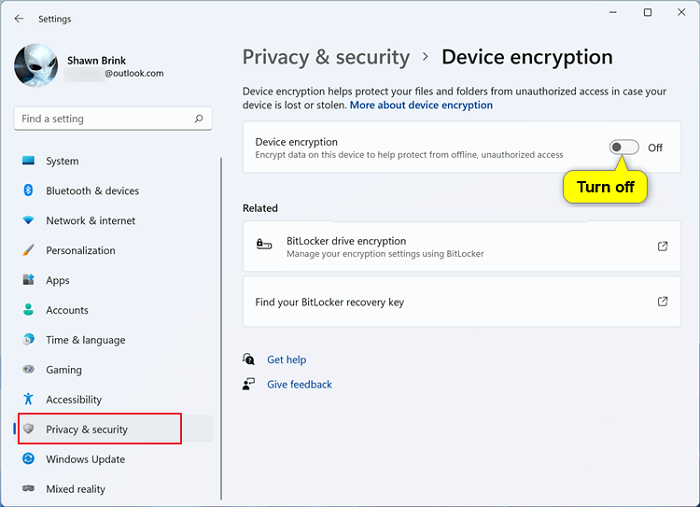
To turn on BitLocker, go to Settings, then Update & Security, and click on the Recovery Options tab. From there, click on the "Get started" button under the "Back up your recovery key" section. This will open the BitLocker setup wizard, where you can select the drive you want to encrypt and follow the prompts to complete the setup process.
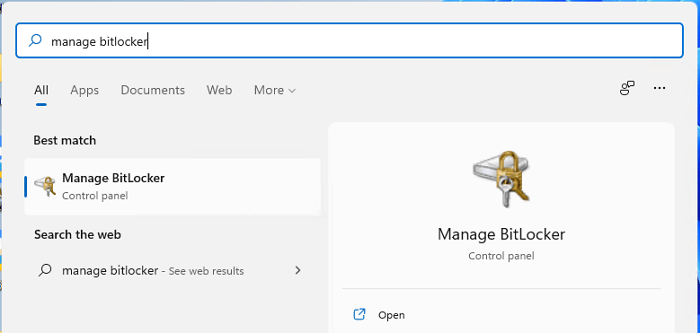
Step 1. To access the Manage BitLocker feature, you can simply enter "Manage BitLocker" in the search bar, and then select the best match that appears in the results. This will allow you to manage and configure BitLocker, a full-disk encryption feature, on your Windows device.
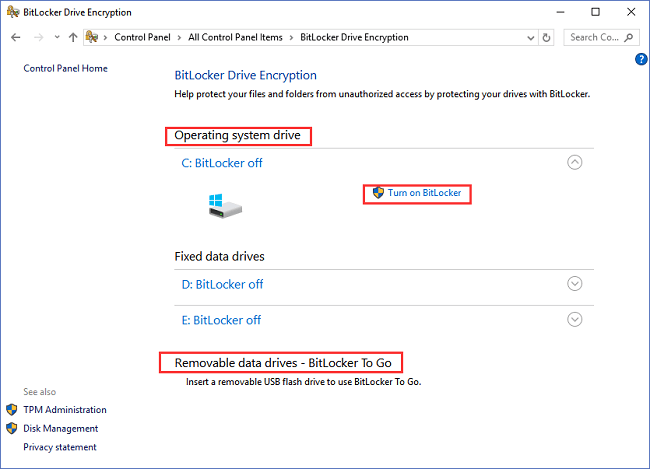
Step 2. Here, you can find the device you want to protect, both internal and external devices are available. This page displays the status of each device, allowing you to monitor their condition.
Step 3. To turn on BitLocker, click on it and choose whether you want to use a password or a smart card to protect your device. Set a password or insert the smart card, then click next.
What Is Device Encryption?
Device encryption is a security feature that protects your data by encrypting the entire device, including the operating system, applications, and data. This means that even if someone gains physical access to your device, they won't be able to access your data without the encryption key. However, not all devices have the Device Encryption option, as it requires specific hardware and software capabilities. Some devices, especially older ones, might not support device encryption due to hardware limitations or outdated software.
Device Encryption helps protect your data by only allowing authorized access to the data on your device. It's available on many Windows devices.
Some users may find that their computers do not support the instant on feature, which is due to the device not supporting Modern Standby or running a Windows 10 edition that is not compatible with this feature. Windows 10 has two power models: S3 and Modern Standby, with Modern Standby being the more advanced and capable of instant on functionality. However, this feature is only available on devices running Windows 11 editions.
Windows 11 Installation Has Failed? Your Fixes Are Here
If you're experiencing the frustrating error where Windows pops up a notice saying 'Windows 11 installation has failed' without providing a reason, you're not alone! This guide will help you troubleshoot and successfully install Windows 11 on your computer. By following these steps, you'll be able to resolve the issue and get your Windows 11 installation up and running smoothly.

Device Encryption vs BitLocker
Users without device encryption support on their computers can use BitLocker, a full device encryption feature with management controls, which can be applied on computers with Trusted Platform Module (TPM) 1.2 or later to protect devices.
Device Encryption and BitLocker have similar protection levels, with the latter having higher requirements for users' computers, including support for Modern Standby, a high version of TPM, and PCR7 binding. However, both methods provide the same level of protection for your device.
Conclusion
Windows 11's Device Encryption feature, powered by BitLocker, allows you to protect your device and data with encryption. To use it, go to Settings > Update & Security > Device Encryption, and follow the prompts to enable it. This feature provides an additional layer of security, ensuring that your data remains safe even if your device is lost or stolen. By understanding how Device Encryption works, you can take advantage of its benefits and enjoy a more secure computing experience. Additionally, Windows 11 has other features, such as requiring a GPT partition style, which can be converted from MBR to GPT for compatibility.
Related Articles
- Go Back to Previous Version of Windows in Windows 11 Even After 10 Days
- How to Fix High Memory Usage in Windows 11
- One PC Plays as Two: How to Dual Boot Windows 11 with Windows 10 Together
- How to Map a Network Drive in Windows 11? Your Complete Guide Is Here
- How to Fix My Computer Freezes When USB Plugged in Windows 11/10/7
Does your USB flash drive freeze computer when plugged in? If your computer freezes when a USB drive is plugged in Windows 11/10/7. This article will guide you to fix your problem with effective methods. Read on and follow the guide below. - My Laptop Keeps Crashing When Watching Videos
If you are trapped by a crashing laptop when watching videos, we can help. This post provides professional help for you to fix the 'laptop keeps crashing when watching videos' issue.
Products
Articles & Tutorials
- Data Recovery
- Data Backup
- File Recovery
- File Backup
- System Backup and Restore
- Disk and Partition Clone
- Technical articles
- Mobile articles
- Disk Master Help
- Windows Data Recovery Tutorials
- Windows Secure Delete Tutorials
- Windows Partition Management Tutorials
- Windows File Backup and Restore Tutorials
- Windows System Backup and Restore Tutorials
- Windows Disk Backup and Restore Tutorials
- Windows Clone Tutorials