My Laptop Keeps Crashing When Watching Videos
This article provides 6 useful fixes to address the issue of a laptop freezing when watching videos. The solutions are outlined in a table below, offering a concise and effective way to resolve this common problem.
| Workable Solutions | Step-by-step Troubleshooting |
|---|---|
| Fix 1. Run Video Playback | To make the necessary adjustments, open the Control panel on your computer, then change the "View by" option to Large icons, and finally click on the desired setting to make the necessary changes....Full steps |
| Fix 2. Update Adobe Flash Player | If YouTube keeps stopping and crashing, you can try uninstalling and reinstalling the Adobe Flash Player to resolve the issue. This simple fix can often resolve problems caused by outdated or corrupted Flash Player software, allowing you to continue watching your favorite videos on YouTube without any further interruptions....Full steps |
| Fix 3. Update Display Adapters Driver | Press the Windows key + X key and click "Device manager". From there, click on "Display Adapters" and then right-click on your graphics driver to access additional options....Full steps |
| Fix 4. Disable Hardware Acceleration | YouTube crashing to a blue screen when trying to play a video suggests an issue with the compatibility between the web browser and the graphics card, potentially due to outdated or incompatible drivers....Full steps |
| Fix 5. Run System File Checker | Qiling free partition master can check system files that cause computer crashes when watching....Full steps |
| Fix 6. Boot Computer in Clean Boot | Type msconfig In the search box, type "services" and click on "System Configuration". Then, click on the "Services" tab....Full steps |
"I've had my Asus laptop Windows 10 for around a year, and I've never had this problem before. When I watch a video on YouTube after 5 minutes or so, the screen will freeze, and the laptop will make a buzzing noise before it gets crashed. Sometimes the rate changes like I was able to watch 25 minutes' show when it crashed. I'm not able to click anything. It has happened while watching a video on the full screen and normal size. It only happens when watching a video. I don't know what is wrong, and I want to fix it as soon as possible."
Why does my computer keep stopping when watching videos?
When watching YouTube videos, whether downloaded or online, your PC may crash or freeze, often due to compatibility issues between your web browser and graphics card. Additionally, other unknown reasons such as corrupted Windows system files, user profile, services disabled on the PC, or software conflicts may also be contributing factors to the computer crashes.
If your HP or Asus laptop freezes when watching videos, try installing all pending Windows updates and check if the issue persists. If the problem continues, you can try other practical solutions, such as checking for software updates, running a virus scan, disabling unnecessary startup programs, and updating your graphics drivers. These steps may help resolve the issue and prevent your laptop from freezing when watching videos.
Method 1. Run the Video Playback Troubleshooter
Windows 10 has a built-Run the Windows Update Troubleshooter to identify and resolve issues with the update process. This tool checks for problems that might be preventing your Windows updates from installing correctly. If it finds any issues, it will attempt to fix them, allowing you to successfully install the latest Windows updates.
Step 1. Open the Control panel on your Windows 10 computer.
Step 2. To troubleshoot video playback issues, select the "View by" option and choose Large icons. Then, click on the "Troubleshooting" option, followed by clicking on "View all" in the left panel. Finally, run the "Video playback" option.
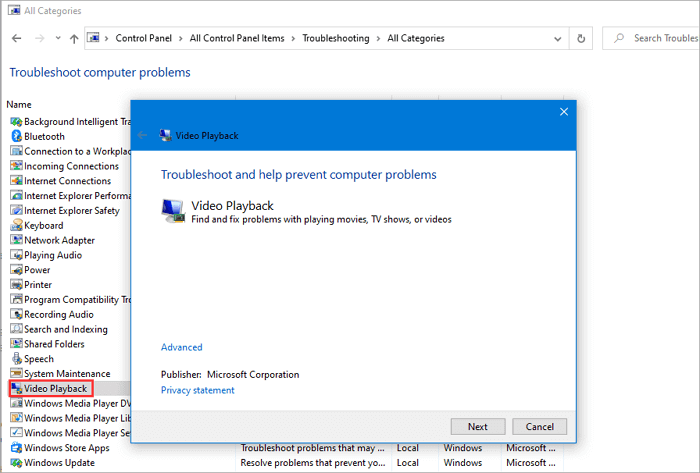
When the process finishes, restart your system and check if the issue has been resolved.
Method 2. Re-install or Update Adobe Flash Player
To fix YouTube keep stopping and crashing, you can try uninstalling and reinstalling the Adobe Flash Player, and also ensure you're using the latest version of Adobe Flash Player to ensure proper video playback.
Method 3. Update Drivers of Display Adapters
You can check and update graphic drivers and check if it helps. Follow the steps given below.
Step 1. Press Windows key + X key and click "Device manager".
Step 2. To update the graphics card driver, go to Device Manager, click on "Display Adapters", right-click on the graphics card and select "Update driver".
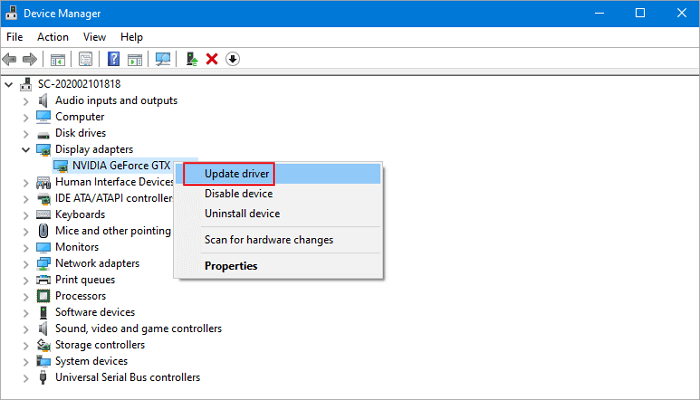
Launch the Update Driver Wizard for the selected device and complete the upgrade.
Method 4. Disable Hardware Acceleration
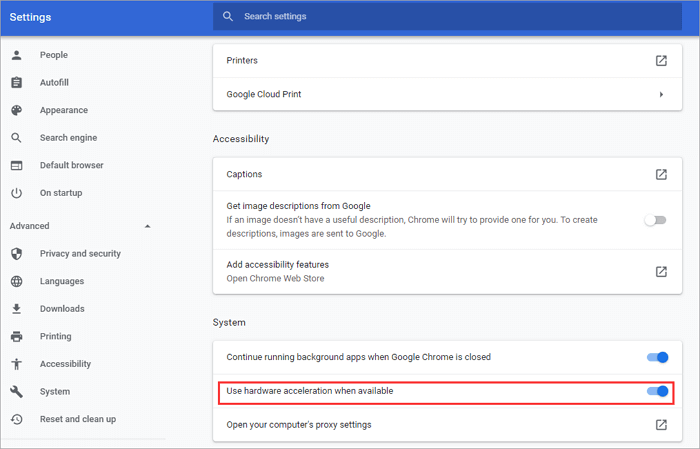
YouTube crashing to a blue screen is often caused by compatibility issues between your web browser and graphics card. Disabling hardware acceleration for videos may resolve this issue.
For Chrome users
To disable hardware acceleration in Google Chrome, click the three dots menu icon at the top right, select "Settings", then show advanced settings. In the advanced settings, find the "System" section and untick the box next to "Use hardware acceleration when available".
For Firefox users
To disable hardware acceleration in Firefox, go to the three dots menu icon at the top right, select "Options" (or "Preferences" on a Mac), then click on "Advanced". In the "General" tab, untick the box that says "Use hardware acceleration when available".
For Edge users
To resolve the issue, go to the Control Panel, then click on "Internet Options", followed by "Advanced". From there, select the box next to "Use software rendering instead of GPU rendering".
Method 5. Run System File Checker (SFC)
System File Checker (SFC) allows you to scan for corruptions in Windows system files and restore corrupted files. However, using the pre-installed SFC utility in Windows by running the sfc / SCANNOW command may not be effective in fixing laptop freezes when watching videos, as it can detect file corruption but not repair it.
To check the file system and repair corrupted Windows 10 system files and user folder with ease, you can use Qiling free partition master to effectively check bad sectors in a Windows system that causes computer crashes when watching videos. This competent partition manager software allows you to check the file system in just 1-click.
Step 1. Click the target partition that has a problem.
Step 2. Choose "Surface test" in "Disk management" page.
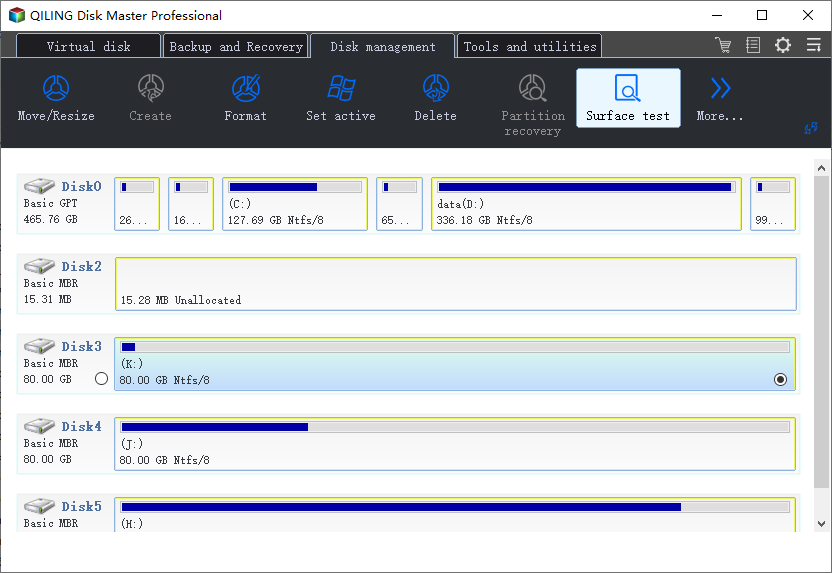
Step 3. Click the "Proceed" button to initiate the operation, which will immediately mark bad sectors as red.
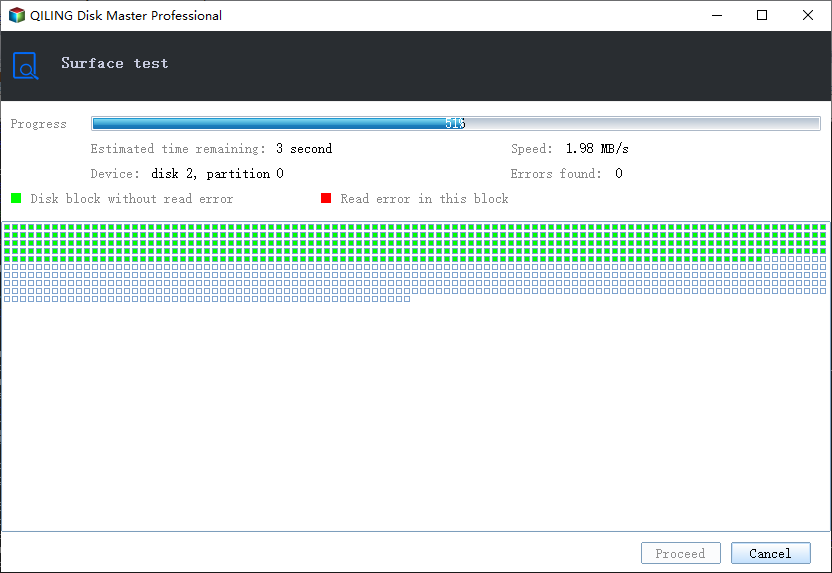
Qiling free partition manager is an ultimate tool that can help users resize/move partition, create/delete/format partition, convert NTFS to FAT32, check file system, wipe data, clone partition on various storage devices.
Method 6. Boot Computer in Clean Boot
Computer crashes when watching videos on Windows 10 may also be caused by issues with installed third-party applications or programs. If the solutions in this guide don't help, you can try booting your computer in Clean Boot state to see if the problem persists.
How to perform a clean boot
Step 1.To access the System Configuration utility, sign in to the computer as an administrator and type `msconfig` in the search box, then click "System Configuration" from the results.
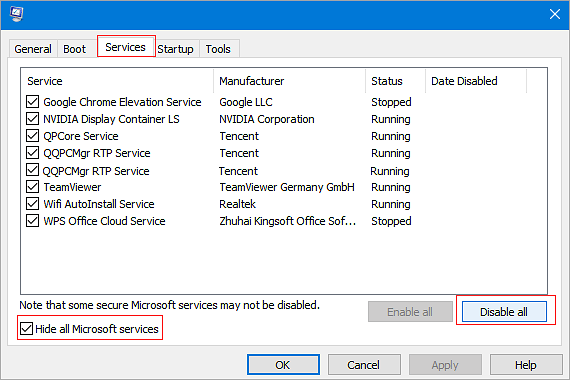
Step 2. To disable all Microsoft services, click the "Services" tab, tick the box next to "Hide all Microsoft services", and then select "Disable all" from the list of services.
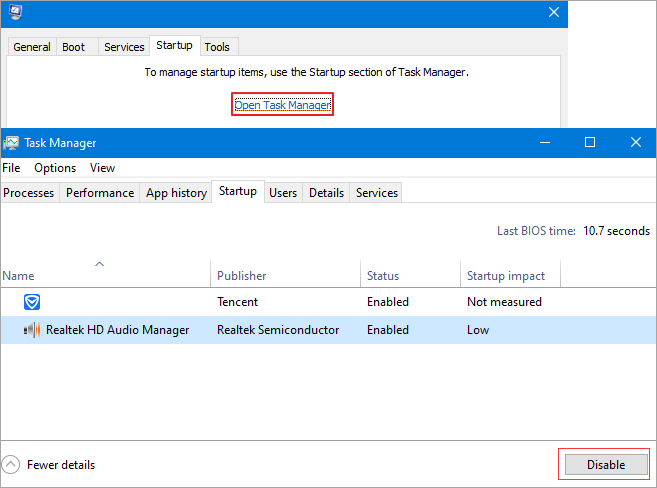
Step 3. To disable startup items, click the "Startup" tab in Task Manager, select each item, and then select "Disable" for each one. Once you've disabled all the items, close Task Manager and click "OK".
If you restart your computer, it will be in a clean boot environment. Try watching videos to see if your laptop still freezes. If it doesn't freeze, this suggests the issue is with a program or service that was running in the background. You can then reset your computer to its normal state and it should function normally again.
Conclusion
This article covers six practical methods to fix the issue of computer crashes when watching videos on Windows 10. If your problem is still unresolved after you try these solutions, or if you have any problems with Qiling Partition Master, you can contact our technical support team via live chat or email for more help.
People also ask
1. Why does my computer keep stopping when watching videos?
Your computer keeps stopping when watching videos due to a variety of reasons, including conflicts between installed applications, compatibility issues between your web browser and graphics card, and corrupted Windows system files.
2. Why does my downloaded video keep freezing?
Videos downloaded from the internet may freeze due to various reasons, including driver issues, hardware problems such as insufficient RAM, a malfunctioning graphics card, or a failing hard disk, display resolution issues, coding problems, or corrupted files.
3. How do I fix video freezing problems?
To resolve video freezing issues caused by outdated graphic card drivers, outdated flash player, or incorrect screen resolutions, update your graphic card drivers, update your flash player, and adjust your screen resolution to a more suitable setting.
4. How do I fix my laptop from freezing?
Your laptop or desktop computer keeps freezing, causing frustrating problems like the black or blue screen of death, random freezing, system crashes, or even boot disk failure. If you're experiencing these issues, you can find solutions to fix Windows 10 computer freezing problems by reading on.
Related Articles
- How to Extend Windows Server Partition [Server Guide]
- [Full Guide] How to Rebuild MBR | Fix Damaged MBR
- [Solved] Diskpart Delete Partition Override Not Working
- Free Partition Manager on Windows Server 2008
- How to Fix Windows Stuck on Diagnosing Your PC -10 Ways👍
If your PC is stuck on the 'Diagnosing Your PC' screen, there are fixes for this issue on Windows 10/11. You can try restarting your PC, checking for updates, or running the Windows Update troubleshooter to resolve the problem. - 6 Ways to Fix Winload.efi Missing on Windows 11/10
This guide provides essential information about the common Windows 11/10 error 'Winload.efi Missing.' It offers solutions and insights into the causes of this issue, helping you resolve it effectively. - LiveKernelEvent 141 in Windows 11: Causes and Fixes (2026)
Products
Articles & Tutorials
- Data Recovery
- Data Backup
- File Recovery
- File Backup
- System Backup and Restore
- Disk and Partition Clone
- Technical articles
- Mobile articles
- Disk Master Help
- Windows Data Recovery Tutorials
- Windows Secure Delete Tutorials
- Windows Partition Management Tutorials
- Windows File Backup and Restore Tutorials
- Windows System Backup and Restore Tutorials
- Windows Disk Backup and Restore Tutorials
- Windows Clone Tutorials