What Is Virtual Memory? Everything You Need to Know about It.
Virtual memory is a key essential of computer memory management. So, what exactly is it?
Computers rely on various components to operate smoothly, and one key factor is virtual memory. This essential component ensures that data is accessible and available for the user, enabling the computer to handle day-to-day operations efficiently.

Understanding virtual memory is a complex topic, but essentially it's a system that allows a computer to use storage space on a hard drive as if it were physical memory, or RAM. This is different from physical memory, which is the actual memory inside a computer, and is used to store data temporarily while a computer is running. Virtual memory works by temporarily moving data from physical memory to the hard drive when the computer runs low on RAM, freeing up space for other data to be stored. This process is crucial for multitasking and running resource-intensive programs, making virtual memory a vital component of a computer's architecture.
What Is Virtual Memory?
Virtual memory, also known as virtual storage, is a memory management technique that allows a computer to use more memory than its physical storage capacity, making it appear larger than it actually is. It does this by taking chunks from physical storage and presenting them as part of the main memory. This technique is useful for ensuring that computer devices have enough memory to run applications and processes efficiently.
The operating system achieves this through its techniques over the years, allowing it to map virtual memory towards the main memory using a mix of software and hardware methods.
The system/virtual memory is the same one that fix your computer is low on memory changing to speed up your computer, and it hides the fragmentation of physical memory by making application programming easier.
Here's an example in DXDIAG command in Run:
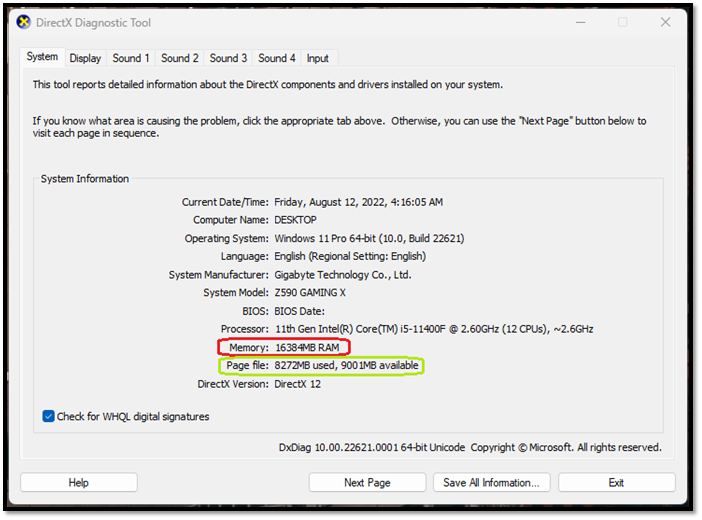
Marked in red is the system's physical memory, aka RAM, and in green is the shared memory from our device to our RAM for smooth operation, which is crucial for any computer system.
In modern computers, virtual memory is typically referred to as paged memory, which divides a chunk of storage into smaller segments. These segments are then allocated to physical memory, effectively increasing its capacity and providing a buffer against running out of space.
The virtual memory, also known as the swap space, is a mechanism that assists the physical memory by temporarily moving data to a hard drive when the physical memory is overloaded. This can increase the effective memory size by up to twice the actual physical memory, depending on the bus size of the RAM and the CPU.
If you have 8GB of physical RAM installed, you can manually allocate a larger paging file size, such as 8.5GB, to ensure smooth operation.
It's worth noting that taking a snapshot of a drive can temporarily reduce available storage space, which can impact system performance if the drive is already running low on space. This can lead to slower operations or stuttering on systems with smaller primary storage.
Virtual Memory vs. Physical Memory
Virtual memory is a space on a hard drive or solid-state drive (SSD) that a computer uses to store data that it can't fit in its physical memory (RAM). Physical memory, on the other hand, is the actual RAM in a computer that temporarily stores data and program instructions that the computer is currently using. In other words, virtual memory is a "swap" space on the hard drive that the computer uses to store data that it can't fit in its physical memory, allowing the computer to run more programs simultaneously. This is a key difference between the two.
| Virtual Memory | Physical Memory |
| Virtual memory is a storage space on a hard drive, where data from the computer's RAM is temporarily stored when it's not being used, using a paging file. | Physical memories are chips that you purchase and install in the computer to increase its storage capacity.DIMM sloton your motherboard |
| Virtual memory is used when physical memory or RAM is occupied, allowing the computer to access data stored on the hard drive as if it were in RAM. | A computer uses physical memory, also known as RAM (Random Access Memory), as its primary memory from the moment it starts up. |
| Virtual memory, which is a combination of RAM and hard disk space, is slower than physical RAM because it relies on the speed of the hard disk drive (HDD) or solid-state drive (SSD) to access and retrieve data, as opposed to the much faster access times of physical RAM. | Physical memory is designed to provide fast access to data, allowing for quicker and more efficient operations compared to other storage types. |
| Virtual memory can be increased in size manually by allocating more hard drive space, allowing for more applications to run simultaneously without running out of memory. | Physical memory, also known as RAM (Random Access Memory), is limited to the size of the chips present on a memory module, which determines the maximum amount of data that can be stored and processed at any given time. |
| Virtual memory places information on the hard drive in the form of pages, hence the term "paging file". | Physical memory, such as RAM, holds data temporarily until an operation is completed, after which it is erased, similar to how data is cleared from a document when it's closed. |
| Adding more virtual memory won't make a visible difference | Adding more physical memory to a computer can lead to a noticeable improvement in its performance, as it allows for more data to be processed at once, reducing the need for the computer to access slower storage devices and increasing overall system speed. |
The differences between physical and virtual memory lie in their speed and purpose. Physical memory is faster and designed for memory usage, while virtual memory acts as a backup when physical memory is fully utilized, but it does not significantly improve performance by allocating more space.
While virtual memory and RAM are often compared, the answer is simple: one isn't better than the other. Instead, they complement each other. Physical memory (RAM) is essential for smooth performance, but it's often insufficient on its own. That's where virtual memory comes in - it provides a buffer, allowing your system to perform effectively even when physical memory is limited. In other words, you can't have one without the other.
How Much Virtual Memory Should You Set?
In Windows 10 and 11, the operating system automatically decides the virtual memory or paging file size, but if you need more, you can manually adjust it.
- The minimum recommended paging file size is 1.5 times the size of the physical memory, ensuring that the system has sufficient virtual memory to handle heavy usage and prevent memory-related issues.
- The maximum paging file size is set to be 4 times the size of the physical memory, which means that if you have 8 GB of RAM, the maximum size of the paging file will be 32 GB. This is a recommended setting to ensure that the system has enough virtual memory to run applications smoothly, but it can be adjusted based on specific system requirements.
To determine how much allocated disk space to give to your virtual memory, refer to the recommended guidelines: small systems may need 1-2 GB, medium systems 2-4 GB, large systems 4-8 GB, and extra-large systems 8-16 GB or more depending on workload requirements.
| Physical Memory Size | Minimum Paging File Size | Maximum Paging File Size |
| 8GB | 12GB | 32GB |
| 16GB | 24GB | 64GB |
| 32GB | 48GB | 128GB |
It's best to leave the paging file size to the operating system to decide, as not everyone has 32 gigs of Ram and 128GB of storage to spare. This way, the OS can allocate the necessary space for the paging file based on the system's actual needs.
The paging file increases over time as you use your computer, as the operating system automatically expands virtual memory size when the computer's memory is pushed to its limits.
How to Increase Virtual Memory on Windows 10?
To manually increase virtual memory, go to Settings > System > About, click on "System info" and then click on "Advanced system settings" on the right. In the Performance section, click on "Settings" and then select the "Advanced" tab. Under "Performance Options", click on the "Change" button next to "Virtual memory". Select the drive where your system is installed and click "OK".
Step 1:Head to System settings
Step 2:Under Device specifications, find and click Advanced System Settings
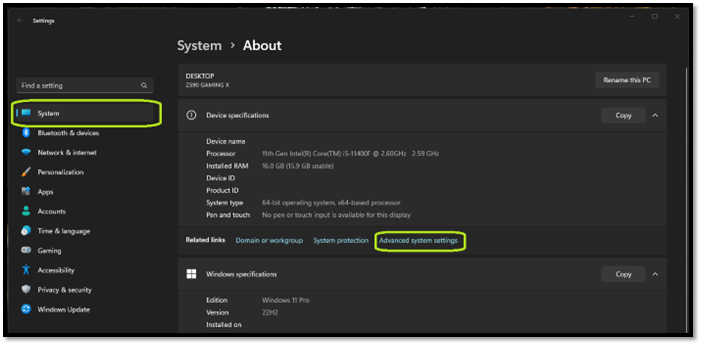
Step 3: Click on Settings under the Performance banner
Step 4: To adjust the virtual memory settings, go to the Advanced Tab and click on the Change option under Virtual memory.
Step 5: Uncheck "Automatically manage paging file size for all drives."
Step 6: To resize the browser, click the Custom size button and set the Initial size to 1.5x, and the Maximum size to 4x the size of your RAM.
Step 7: Click OK
To increase virtual memory, users with less than 16GB RAM should manually set the paging file size to 1.5 times the physical RAM, and then adjust it as needed based on performance. This ensures the system can handle heavy loads without running out of memory.
Bottom Line
We hope this article clears up any confusion and questions related to virtual memory, and also discussed the differences between virtual and physical memory, which are incomplete without each other.
Related Articles
- All Information About WannaCry Virus [Updated 2022]
- A Mini USB - Things You Need to Know
- Fix: Operation Failed with Error 0x0000011b (Windows 10/11)
- What Is CD-RW? Compact Disc Re-Writable Explained
- MOV Repair: Top 6 Ways to Repair Corrupted MOV Files
Learn how to repair corrupted MOV files with 6 proven methods. Fix MOV videos that won't play on Windows, Mac, or online using VLC, QuickTime, and top repair tools. - What Is MTBF? Mean Time Between Failures Explained
In today's fast-paced world, breakdowns and technical failures matter more than ever. These flaws result in missed deadlines, late deliveries, financial losses, and project delays. To avoid that, you should have a sound understanding of MTBF.
Products
Articles & Tutorials
- Data Recovery
- Data Backup
- File Recovery
- File Backup
- System Backup and Restore
- Disk and Partition Clone
- Technical articles
- Mobile articles
- Disk Master Help
- Windows Data Recovery Tutorials
- Windows Secure Delete Tutorials
- Windows Partition Management Tutorials
- Windows File Backup and Restore Tutorials
- Windows System Backup and Restore Tutorials
- Windows Disk Backup and Restore Tutorials
- Windows Clone Tutorials