What Is Force Quit Mac Shortcut? Ways to Force Quit Mac
Overview: Force Quit Mac Shortcut
While Mac computers are known for their usability and longevity, applications can still freeze or slow down, forcing users to quit them. Many tech giants prefer Mac for increased productivity and user satisfaction.
However, the occasional freeze or slowdown can be frustrating, highlighting the need for a reliable way to handle unresponsive apps.
To force quit on a Mac, press the keys Option (or Alt), Command, and Esc (Escape) simultaneously. This is a quick and efficient way to close any program that is not responding or is causing issues.

Pressing the Command + Option + Esc keys together will open a window, and from there, select the unresponsive app and click "Force Quit".
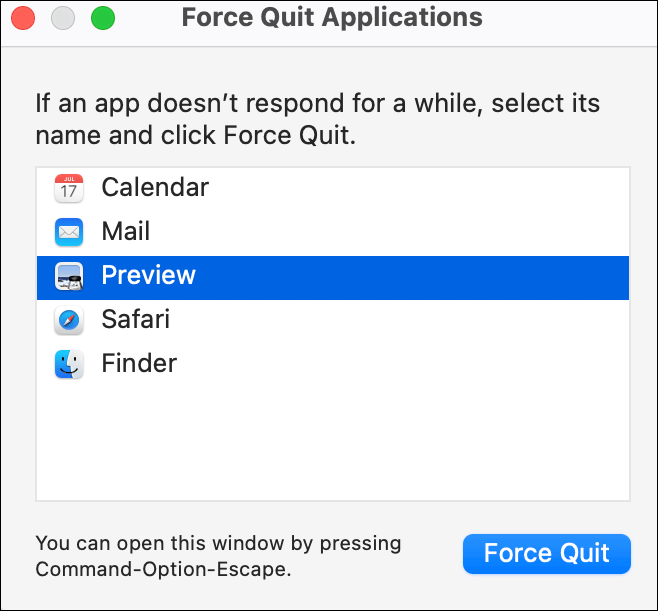
Force quitting a Mac application immediately stops the app from consuming system resources and prevents further data loss. This is especially helpful when an app becomes unresponsive and you need to regain control of your system.
You can force quit by holding down the Command + Option + Esc keys, which opens the Force Quit Applications window. From there, select the unresponsive app and click Force Quit to close it.
If the default force quit Mac shortcut doesn't work for you, or you want a custom shortcut to force quit all apps, you can create one in System Preferences.
Go to Keyboard > Shortcuts > App Shortcuts, set the menu title to "Force Quit All Applications," and assign a key combination like "Cmd + Option + Esc." Click Add to save your custom shortcut.
Other Ways: Force Quit on Mac
If you're experiencing a spinning beach ball on your Mac, it can be frustrating to interact with the menu bar. If the keyboard shortcut to force quit doesn't work, try other methods to shut down the unresponsive app.
Use the Activity Monitor to identify and close the problematic process, or explore alternative approaches to regain control of your system.
- Fix 1. Force Quit via the Dock
- Fix 2. Force Quit via the Apple Menu
- Fix 3. Force Quit via Activity Monitor
Fix 1. Force Quit via the Dock
Step 1. Go to the Dock at the bottom of the screen.
Step 2. Find the icon of the app.
Step 3. Right-click to bring up the pop-up menu.
Step 4. Click the Quit option at the bottom to close the app.
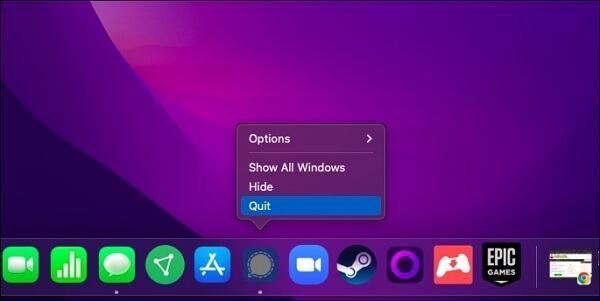
If the program doesn't close, when the menu appears, press the Alt key, and the Quit option will change to Force Quit. Selecting it will immediately close the program.
You can read this related article to solve the problem of your Dock being gone or not visible.
How to Fix a Disappearing Dock in macOS Ventura/Monterey/Big Sur
When your Mac Dock disappears from the Desktop, one of these things usually causes it: it's set to hide automatically, the dock size is set to zero, or the setting to hide when the touch bar is shown is enabled. To make the dock visible again, go to System Preferences, click on Dock and Menu Bar, and deselect "Automatically hide and show the Dock." Alternatively, press Command + Option + D to toggle the dock on and off.
Fix 2. Force Quit via the Apple Menu
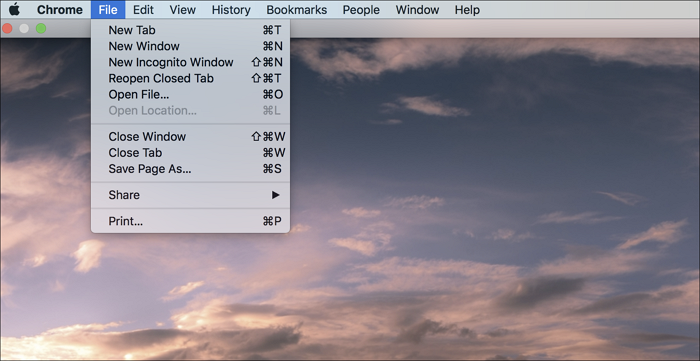
To force quit an app, you can also hold down the Option (⌥) key while clicking on the Apple Menu. This will give you the option to force quit the app, which will close it immediately.
Step 1. Switch to an app that is working fine.
Step 2. Now click on the Apple icon.
Step 3. Select the "Force Quit" option from the drop-down list.
Step 4. Select the frozen one (s), and click "Force Quit".
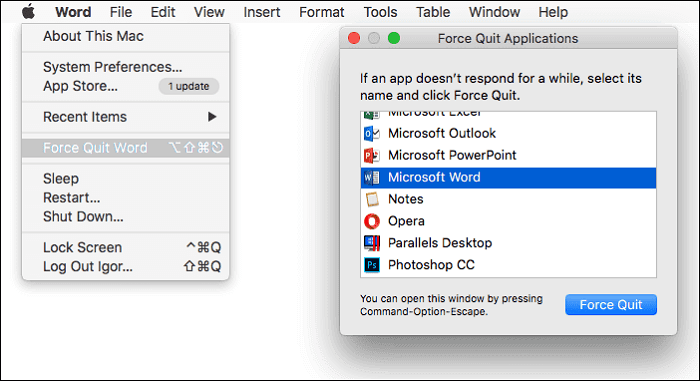
When you're at step 3, don't worry, it won't force quit the app you're currently using; it will simply give you a list of all open apps, from which you can select the frozen or unresponsive one(s) to shut down.
Fix 3. Force Quit via Activity Monitor
If you're experiencing issues with your system, such as the spinning beach ball appearing more than usual, you can use the Activity Monitor to see what's happening.
Step 1. To view all the apps and services using the CPU, Memory, and Network, launch Activity Monitor. It will display a list of all the processes currently running on the computer, including their CPU, Memory, and Network usage.
Step 2. Double-clicking on any app will open a separate window showing more information about the app and its current demands.
Step 3. The app will give you a report of its activities over a short time after sampling it, but the results may be difficult to understand due to the technical nature of the procedure.
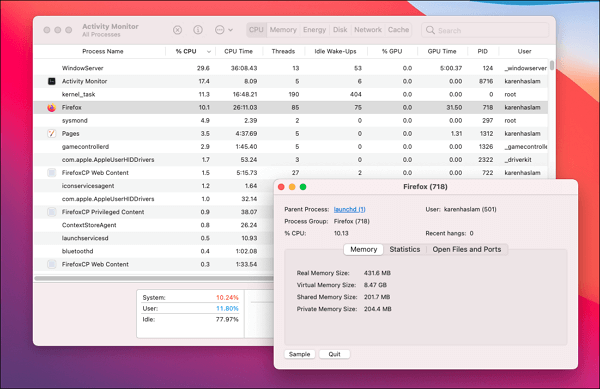
Step 4. The Quit button is the most helpful command as it will close the app.
If any of the solutions above can solve your problem, please share this article with your friends and colleagues on social media platforms like Twitter, Instagram, and Facebook.
Solutions: Force Quit Not Working
If an app causes your Mac to freeze, try hard restarting or force shutting down the device. This step is taken when other solutions like the force quit Mac shortcut fail to resolve the issue. The process involves shutting down the Mac using the power button, rather than closing applications through the usual shutdown process. This approach can help resolve the unresponsiveness and get your Mac running smoothly again.
- Method 1. Control + Command + Power
- Method 2. Control + Power
- Method 3. Control + Option + Command + Power
- Method 4. Press the Power Button
- Method 5. Drain the Battery
Method 1. Control + Command + Power
Press the combination of Control and Command buttons and hold them until you see a black screen, then press the Power button. Hold all three for a few seconds until you see a black screen.
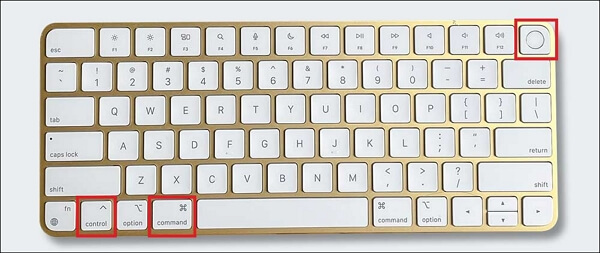
This keyboard shortcut is particularly useful when your Mac is completely frozen and you cannot access the Force Quit Applications window or any other menu options.
Method 2. Control + Power
When you press Control + Power, a shutdown window will appear asking if you want to restart, shut down, or put your Mac to sleep.
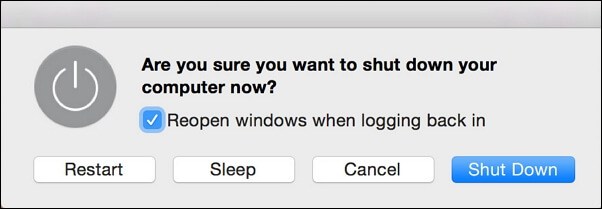
Method 3. Control + Option + Command + Power
Pressing the four keys simultaneously on a Mac will force shut it down and close all apps, prompting a save request in open windows with unsaved changes.
Method 4. Press the Power Button
To shut down your Mac, press the power button for several seconds, then select Shut Down from the dialog box that appears. If the dialog box doesn't appear, try holding the power button down for longer, which may force the system to shut down. However, if the system is severely crashed, this option might not be available.
Method 5. Drain the Battery
If the above methods fail, you can try draining the battery by removing the power supply for MacBook Air or MacBook Pro, or unplugging the power cable for other Mac models, and waiting until the battery dies. This can help force shut down your Mac.
The system will automatically power off when the battery is completely discharged. After this, plug it in, charge it for a few minutes, and then press the Power button for 10-12 seconds to turn it on.
When using a Mac, it's generally recommended to use the force shut down option as a last resort, as it can result in losing unsaved documents and potentially corrupting system files. However, if data is lost during this process, you can try using Deep Data Recovery for Mac to attempt to recover the lost data.
Conclusion
It's frustrating when a Mac app freezes, and you need to close it. To force quit a frozen app on your Mac, you can use the Force Quit function in the Apple Menu, press Command + Option + Esc, or use the Activity Monitor to identify and quit the app. This can save you time and help you use your system more effectively.
Related Articles
- Intel-Based Mac | What Is Intel Mac and Why Differs from Apple Silicon
- M2 Pro vs M2 Max | Price, Battery Life, CPU, and GPU
- EFS (Encrypting File System): Good Helper to Protect Confidential Data
- Windows 11 Is Affecting Performance on AMD CPUs, Fixes Are Coming Soon
- [Quickly & Easily] How to Update BIOS with USB in 2023
Learn how to update BIOS with a USB drive safely. Prepare the BIOS file, create a bootable USB if needed, and follow motherboard update steps. - 2 Available Ways | How to Update BIOS Without USB
If you're wondering how to update your BIOS without using a USB, you're in the right place. This article will guide you through the process in two different ways, making it easy to update your BIOS on your own.
Products
Articles & Tutorials
- Data Recovery
- Data Backup
- File Recovery
- File Backup
- System Backup and Restore
- Disk and Partition Clone
- Technical articles
- Mobile articles
- Disk Master Help
- Windows Data Recovery Tutorials
- Windows Secure Delete Tutorials
- Windows Partition Management Tutorials
- Windows File Backup and Restore Tutorials
- Windows System Backup and Restore Tutorials
- Windows Disk Backup and Restore Tutorials
- Windows Clone Tutorials