Windows 11 AMD Performance Issues and Fixes
Quick navigation of this article on Windows 11 AMD performance issue:
| Workable Solutions | Step-by-step Troubleshooting |
|---|---|
| Windows 11 AMD Performance Issues | Windows 11 is available for download, but the performance of some AMD Ryzen devices suffers...Full steps |
| Windows 11 Gaming Performance | Estimated performance impact of 10-15% in affected games "typically used in eSports"...Full steps |
| Should I Upgrade to Windows 11 | Microsoft recommends that you wait until you are notified the upgrade is ready for your PC...Full steps |
| Install Windows 11 in 3 Ways | Install Windows 11 by using Windows 11 Installation Assistant or Windows 11 bootable USB...Full steps |
Starting October 5th, 2022, hundreds of millions of PCs and laptops running Windows 10 became eligible for a free upgrade to Windows 11. Previously, only a few thousand people could upgrade through the Windows Insider Program.
Many users are eager to upgrade to Windows 11, but it's causing performance issues on AMD Ryzen processors, exposing a series of problems with the new operating system.
Windows 11 Performance Issues on AMD PCs
AMD and Microsoft found that Windows 11 performs poorly on AMD processors, with multiple performance degradation issues. AMD identified two issues: a 3x increase in L3 cache latency, causing 3-5% performance drops and up to 10% in gaming, and memory subsystem access issues affecting time-sensitive applications.
Another problem is the FOXI-The C2 compiler optimization level may not prioritize scheduling threads on the fastest core of a processor, which can lead to performance issues in programs that rely heavily on the performance of individual CPU threads.
AMD and Microsoft are working together to fix issues with Windows 11, with a software update scheduled for October 19 to address L3 cache latency problems.
A patch for the Preferred Cores (UEFI-CPPC2) bug is scheduled to be released on October 21, 2022, through an AMD driver update.
Windows 11 Gaming Performance
The Windows 11 update is causing AMD performance to slow down by 3-5% in some applications and up to 10-15% in eSports games.
For gamers with AMD Ryzen-based PCs, it's recommended to wait until the Windows 11 issue is resolved before installing the new operating system.
Should I Upgrade to Windows 11
Windows 11 and Windows 10 share the same core features, but with some design changes in the interface, and have had no major bugs reported on Intel-based or ARM-based devices, except for affecting computers running AMD processors.
Usually, the new version has the following advantages:
- More powerful comprehensive performance
- Higher support for new software and hardware
- More user-friendly interface
- Better compatibility, more stable operation
When a new version of Windows is released, it's best to wait a bit before upgrading, as the initial versions can be unstable and have compatibility issues, but eventually, Microsoft will iron out these problems, making it a good time to upgrade to the latest version, such as Windows 11.
If you're upgrading from Windows 10, Microsoft suggests waiting until Windows Update notifies you that the upgrade is ready for your PC.
How to Download and Install Windows 11 in 3 Ways
Before upgrading to Windows 11, you can use the Windows 11 Checker app to verify that your device meets the minimum system requirements for Windows 11.
Before updating to a new operating system, back up your PC to avoid data loss, and consider using professional data recovery software if you experience loss without a backup.
Step 1. Download Qiling Windows 11 Upgrade Checker.
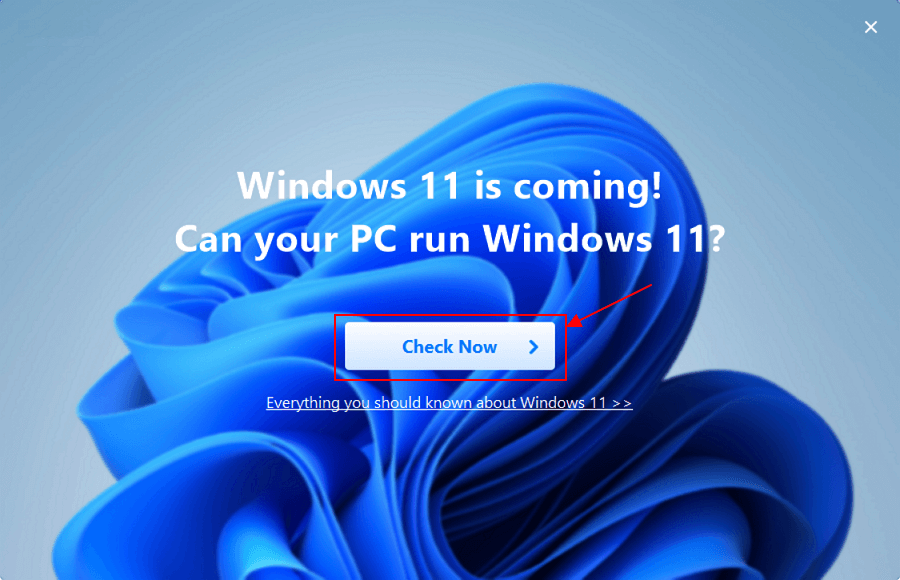
Step 2. Click the Check Now button to start.
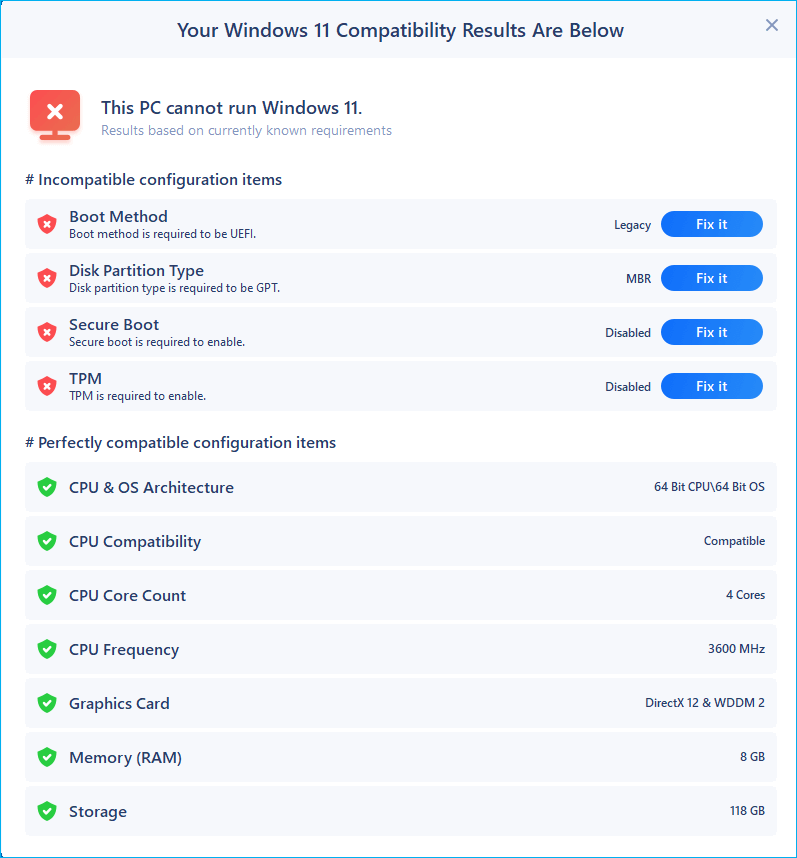
Step 3.The Windows 11 compatibility result window will soon appear, listing all incompatible and compatible configuration items.
1. Use Windows 11 Installation Assistant
To install Windows 11 on a device, go to Microsoft's Download Windows 11 webpage and use the Windows 11 Installation Assistant. This is the easiest way to install Windows 11 on the device you are using.
Step 1. Open Microsoft's Download Windows 11 webpage.
Step 2. To download and install Windows 11, click "Download Now" and follow the on-screen instructions to download and install the operating system on your PC or laptop.
2. Create Windows 11 Installation Media
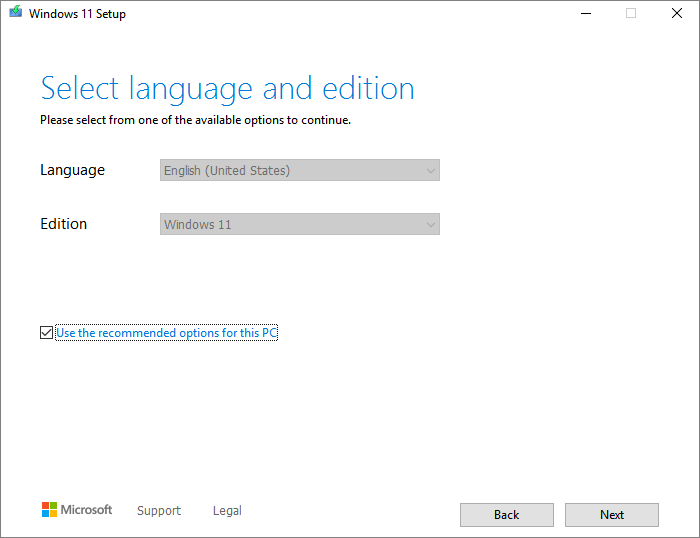
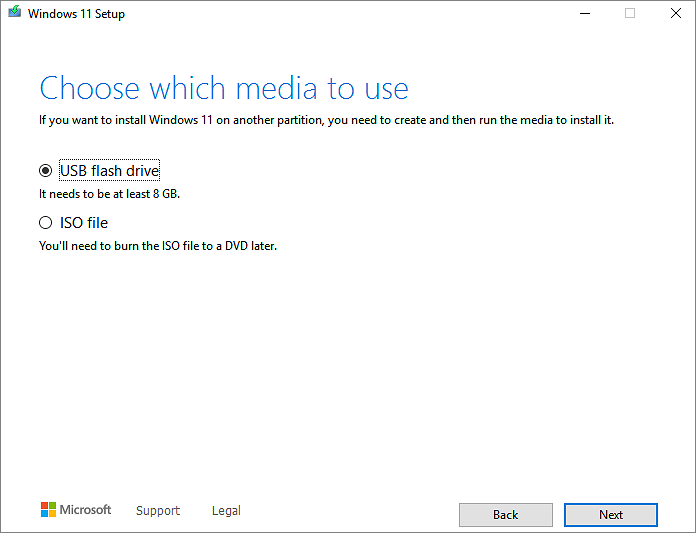
To install Windows 11 on another or a new PC, create the Windows 11 Installation Media on a blank USB flash drive (at least 8GB) or DVD.
Step 1. Download Windows 11 Media Creation from Microsoft.
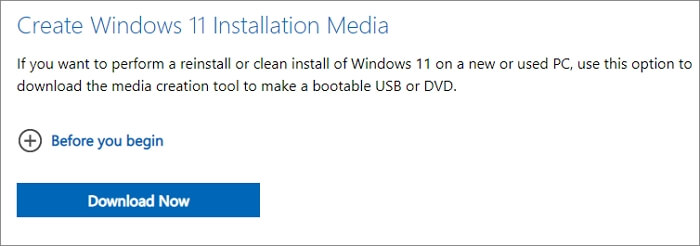
Step 2. Follow the on-screen steps in the Media Creation Tool to create a bootable USB or DVD.
Step 3. Insert a bootable USB into the PC you want to install Windows 11, and then restart it.
Step 4. Press a key such as F2, F12, Delete, or Esc (the specific key may vary depending on the computer manufacturer) as soon as you turn on the computer to access the boot menu and select the option to boot from a USB drive or CD/DVD.
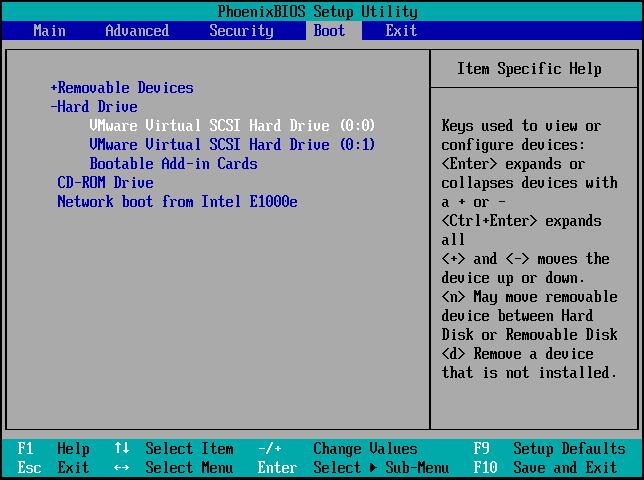
Step 5. Follow the instructions to finishing installing Windows 11.
3. Install Windows 11 from Bootable USB with Qiling Win11Builder
Another simple way to install Windows 11 from USB is using Qiling Win11Builder, a free tool that helps you download Windows 11 ISO files and create a bootable USB drive to install Windows 11.
Step 1. The Win11 builder is integrated with the Qiling OS2Go software, allowing users to download and launch the program after installation.
Step 2.The name of the software was changed from WinToGo Creator to Windows Install Drive Creator, and it supports the creation of Windows 11, 10, and 8.1 installations. The software provides real-time system information on its home screen, which updates continuously.
Step 3. To create a Windows 11 installation USB, connect your USB flash drive to the computer. Win11 builder will automatically detect your USB device, so all you need to do is click the "Create" button.
Step 4. The software will erase the data on your used USB drive once you download and run it. Simply wait for the download to complete, or take a break while it finishes, and then proceed with your own tasks.
Step 5. After successfully downloading the Windows 11 iso image file to a USB drive, you can proceed to install Windows 11 by booting your computer from the USB drive and following the installation wizard step by step.
Closing Thoughts
The launch of Windows 11 brought a stylish interface upgrade and compatibility with Android apps, attracting many users to upgrade. However, issues with Windows 11, such as poor ADM performance, cannot be ignored. To avoid bug problems, users who have already upgraded should update to the latest version, while those who haven't upgraded yet may want to wait for a stable release before making the switch.
Related Articles
- We Couldn't Install Windows 11 - Error Code 0x800f0830
- Rollback from Windows 11 to Windows 10 - 2 Methods
- Windows 11 Installation Has Failed? Your Fixes Are Here
- How to Stop Windows 11 Update (Block It Forever)
- 6 Solutions to External Hard Drive Not Initialized in Windows 10, 8, 7
Sometimes, you may find your external hard drive is not initialized and cannot be opened. Refer to this post, it will demonstrate 6 solutions to "external hard disk not initialized" in Windows 11, 10, 8, 7. - Shrink Volume with Disk Management in Windows 11, 10, 8, 7
Many people may want to know how to use Disk Management to shrink volume. This article explains how to do it and provide other solutions.
Products
Articles & Tutorials
- Data Recovery
- Data Backup
- File Recovery
- File Backup
- System Backup and Restore
- Disk and Partition Clone
- Technical articles
- Mobile articles
- Disk Master Help
- Windows Data Recovery Tutorials
- Windows Secure Delete Tutorials
- Windows Partition Management Tutorials
- Windows File Backup and Restore Tutorials
- Windows System Backup and Restore Tutorials
- Windows Disk Backup and Restore Tutorials
- Windows Clone Tutorials