How to Turn off System Restore Windows 10 [Three Ways]
Why Do We Need to Turn off System Restore?
The System Restore feature can be problematic and needs to be stopped for several reasons. Firstly, it can cause system instability and crashes, especially if it's enabled on a system with limited disk space.
- Sometimes, you might need to turn off System Restore, such as when deleting infected files detected by Kaspersky products in the Restore folder.
- The longer you use System Restore, the more space it will take up, potentially slowing down your computer.
- In case of system crashes or disk crashes, System Restore will become useless since it doesn't contain the system and boot files needed to boot Windows. Therefore, it's wise to stop System Restore and create a system backup in Windows 10.
Is It Safe to Stop System Restore?
System Restore is a built-in feature in Microsoft Windows that allows users to revert their computer's state to a previous point where it works fine, helping to recover from system malfunctions or other problems. It continuously monitors the system's activity and creates system restore points when a particular activity occurs.
Turning off System Restore will prevent you from rolling back changes, making it a bad idea to disable it.
To prevent data loss when stopping System Restore, you can use built-in tools like System Restore to create a system snapshot before disabling it, or use third-party backup software to create a full system backup. This way, you can restore your computer to a previous state or recover your data if needed.
Back up a Windows 10 Computer System with Powerful Backup Software
To turn off System Restore, it's crucial to have a reliable backup option, such as Qiling Backup Free, to create a system backup, which can safeguard your system and data in case of any issues.
Qiling Backup is a powerful and free backup software that allows you to automate system backup, file backup, disk backup, and more, making backups of various file types and different types of backups. Additionally, it offers 250G of cloud storage, enabling you to store backups in the Cloud and save space on your computer.
- High compatibility. The software is compatible with various Windows operating systems, including Windows 11, 10, 8.1, 8, 7, XP, and Vista.
- Multi-path storage options. This system enables users to save backups in various locations, including local drives, a secure zone, network-attached storage (NAS) devices, and cloud storage services.
- Different backup modes. It allows you to create full, incremental, and differential backups.
Guide: How to Create Windows 10 System Backup with a Free Backup Tool
The steps for creating Windows 10 system backups are as follows.
Step 1. Launch Qiling Backup and select "System Backup" on the home page to initiate a system backup.

Step 2. The system partition will be automatically selected, requiring only the selection of the location.

Step 3. You can save backup files to your local drive, cloud storage, or network-attached storage (NAS), and also connect an external hard drive to store system backup files.

Step 4. You can customize the settings in "Options" at the left bottom, then click "Proceed" to start the process.

After completing the backup process, you can check the backup status, recover, open, or delete the backup by right-clicking the backup task on the left.
Turn off System Restore with Three Possible Ways
- Solution 1. Turn off System Restore via System Protection
- Solution 2. Disable System Restore Using Local Group Policy Editor
- Solution 3. Stop System Restore from Windows Command Line
To disable system restore in Windows 10, you can use one of the following methods. You can disable system restore by going to the System Protection settings in the Control Panel, or by using the Windows Settings app. Alternatively, you can also disable system restore by running a command in the Command Prompt as an administrator, or by editing the registry directly.
Solution 1. Turn off System Restore via System Protection
To stop System Restore in Windows 10, you can follow these steps. First, open the Control Panel and click on "System and Security". Then, click on "System" and select "System Protection" from the left-hand menu.
Step 1. To access System Protection, follow these steps: Click the Start button, then select Control Panel. From the Control Panel, choose System, and then select System Protection.
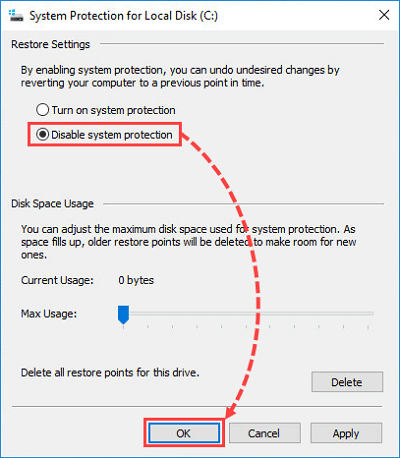
Step 2. The process involves selecting the disk you want to stop System Restore on and then clicking on Configure.
Step 3. Select Disable system protection and click on OK.
Solution 2. Disable System Restore Using Local Group Policy Editor
The Local Group Policy Editor is only available in the Professional, Enterprise, and Education editions of Windows 10, and can be used as an alternative method to enable the Windows Subsystem for Linux. If your computer runs one of these operating systems, you can try this method, otherwise, you should go back to the first method.
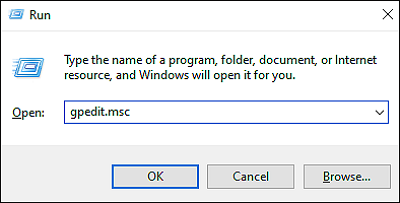
Step 1. To open the Local Group Policy Editor, press the Windows key + R keys simultaneously to open a Run dialogue box, and then type "gpedit.msc" and click on "OK".
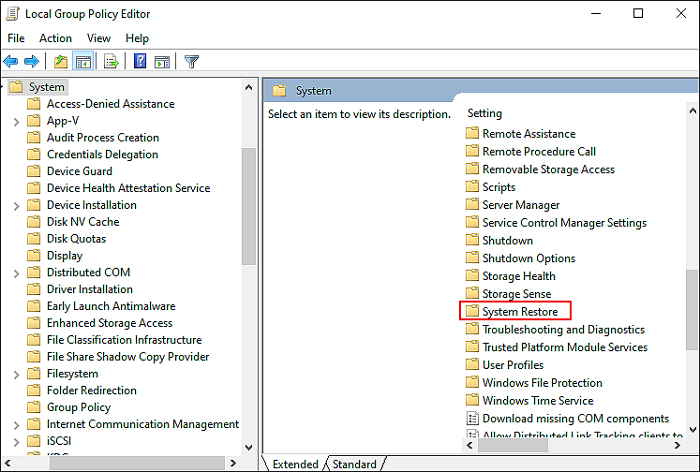
Step 2. To access the System Restore settings, go to Computer Configuration > Administrative Templates > System > System Restore in the newly opened window.
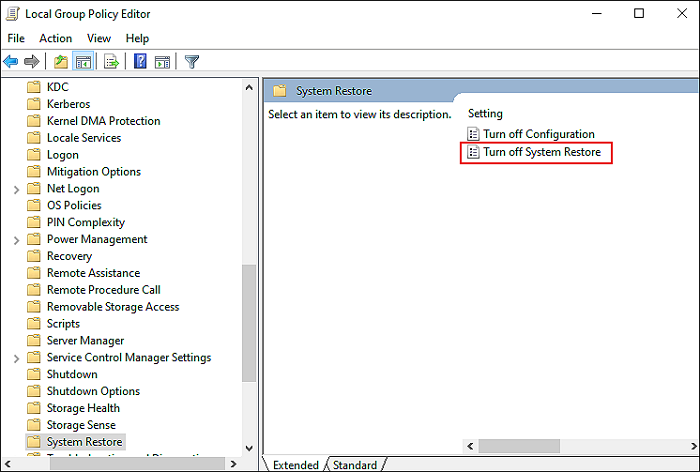
Step 3. Click on Turn off System Restore, select Enabled, and click "OK".
Solution 3. Stop System Restore from Windows Command Line
Here is a one-paragraph summary:
To stop the system restore service from the command line, you can use the command `net stop winmgmt` followed by `net start winmgmt` and then `vssadmin resize /maxsize:1` to resize the system restore to 1 GB. However, please note that this command will not stop the system restore service, but rather resize it. If you want to stop the service, you can use `net stop winmgmt` and then `net stop systemrestore`.
sc config srservice start= disabled
The command to stop the system restore service, but not stop it in the current session, is used to ensure that the service is not running when the system is restarted. This does not change the current running status of the service, so if it is currently running, it will continue to run until the system is restarted. At that point, the service will not be started. The command is typically used to troubleshoot or configure the service, and is not intended to stop the service in the current session.
Conclusion
The above-To disable Windows 10 System Restore, consider the three practical methods mentioned earlier, but first make sure to create a Windows 10 system backup, such as with Qiling Backup Free, to ensure you can recover your data in case something goes wrong.
Qiling Backup Free provides a straightforward way to back up and restore Windows systems, and also allows for other tasks such as backing up an SSD to an image and creating a complete system image.
FAQs
1. What happens after System Restore?
System Restore takes snapshots of system files and registry, saving them as Restore Points. In case of install failure or data corruption, it can restore the system to a working state without reinstalling the OS.
2. Does System Restore delete programs?
System Restore won't delete or modify any files on your hard drive, including uploaded pictures and documents, but it will change system files, updates, and programs.
3. What happens if I interrupt System Restore Windows 10?
If System Restore is interrupted, it may not complete properly, leaving system files or registry backups incomplete. This can cause issues such as the system becoming unbootable or Windows 10 Reset taking a long time, often requiring a shutdown, which can be frustrating.
4. Is System Restore a good idea?
System Restore is a useful feature that allows you to return your Windows computer to an earlier point, which can be a big lifesaver in many situations. It's considered good practice to create system restore points from time to time.
Related Articles
- What Is Ubuntu Format Disk Command Line? How to Use It [Your 2022 Fresh Guide]
- Fix: There Was a Problem Resetting your PC in Windows 10/8.1/8
- Will System Recovery Delete My Files? Answered Here!
- How to Repair Your Drive in Windows 10 Without Losing Your Data
- Best NAS for Home Media (2024 Selected)🏅
Explore the top NAS solutions for home media storage in 2024. Here are the best NAS devices tailored to enhance your home entertainment experience. - How to Solve Bitlocker Keeps Asking For Recovery Key? [Full Guide]
If Bitlocker keeps asking for a recovery key and you're not sure why this is happening suddenly, we have the explanation and solution for you! The issue can be resolved, and we'll guide you through the process to fix it completely.
Products
Articles & Tutorials
- Data Recovery
- Data Backup
- File Recovery
- File Backup
- System Backup and Restore
- Disk and Partition Clone
- Technical articles
- Mobile articles
- Disk Master Help
- Windows Data Recovery Tutorials
- Windows Secure Delete Tutorials
- Windows Partition Management Tutorials
- Windows File Backup and Restore Tutorials
- Windows System Backup and Restore Tutorials
- Windows Disk Backup and Restore Tutorials
- Windows Clone Tutorials