What Is Ubuntu Format Disk Command Line? How to Use It [Your 2023 Fresh Guide]
Ubuntu is a Debian-Ubuntu is a user-friendly and widely used Linux distribution, suitable for a variety of applications including internet of things (IoT) gadgets, servers, workstations, and cloud computing. The key difference between Ubuntu and Linux is that the former is a specific operating system, while Linux is a broader family of operating systems built on Unix.

The Ubuntu format disk command line can read and write files on partitions using Windows formatting, which are often formatted with NTFS, but occasionally with FAT32, and may also show FAT16 on other devices.
To format a disk or partition in Ubuntu, you can use the command line tool `mkfs` which stands for "make file system". This tool is used to create a file system on a partition or disk, effectively formatting it for use. The basic syntax for using `mkfs` is `mkfs -t
Why You Might Need Ubuntu Format Disk Command Line
Ubuntu offers two primary ways to interact with its operating system: the Command Line Interface (CLI) and Graphical User Interface (GUI). The CLI is the fundamental method for interacting with the system's processor and memory, allowing users to perform all operations that a GUI can, making it a versatile and powerful tool for various activities.
Formatting a hard drive is a common hardware operation, and in Ubuntu Linux, it's made easy with the GParted program, a graphical partition and format manager. When adding a new drive or partition to your Linux system, formatting is required, and GParted's simple interface allows anyone to format a disc for use in Linux, Windows, or both.
Ubuntu typically recognizes and mounts most hard drives and USB-connected devices, allowing access through the file manager.
While Ubuntu is generally a reliable and user-friendly operating system, occasional issues can arise that require troubleshooting. To resolve these problems, users may need to access the command-line terminal and enter specific commands, often with the help of online forums or knowledgeable individuals.
Ubuntu allows you to read and write files on partitions formatted with Windows, such as NTFS or FAT32, using the built-in programs or Terminal. You can also use the Disk Utility to format your USB drive, which takes a few minutes to complete. This means you can easily format your USB device using Ubuntu.
Ubuntu uses ZFS as its default file system for containers, and also features a sophisticated Raid-Z capability that's better for recovering from disk failures and more reliably distributes data. This feature is not available on other file systems like Ext4, BtrFS, or Reiser.
How Do I Format a Drive with Ubuntu Format Disk Command Line
Formatting a USB device via the command line is a straightforward process. To do so, simply follow the commands listed, which will guide you through the process of formatting a USB disc.
1. To prevent accidentally formatting another device, you can identify the USB drive using the Terminal application. Launch Terminal using Dash or the Ctrl+Alt+T keyboard shortcut, then enter the command `lsblk` to list all block devices, or `fdisk -l` to list all disk partitions, and look for the USB drive's identifier, usually its size and mount point, to confirm it's the correct device to format.
df -h
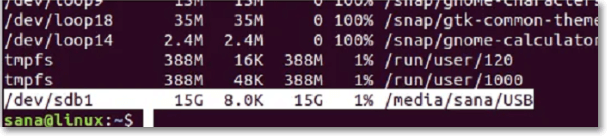
The USB drive is identified as /dev/sdb1 in the output's final line.
2. To format a USB drive using the VFAT file system, you can use the `mkfs.vfat` command in the terminal.
sudo mkfs.vfat /dev/sdb1
The output of the df -h command will indicate the location of the disk usage statistics, which can be used to determine the location where the file system usage is being reported. This location can then be used as the basis for further analysis or actions.
3. "The disk is not empty. It is recommended to empty the disk before formatting.
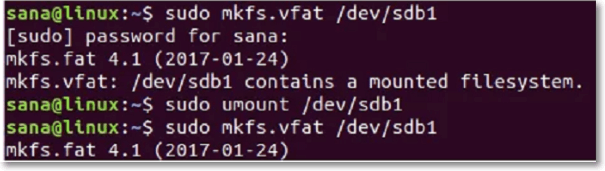
To unmount the drive, run the command `sudo umount /mnt` in your terminal.
sudo umount /dev/sdb1
Executing the formatting command as a root user will correctly format your USB device.
Conclusion
This article explains how to format a disk using Ubuntu, either through the built-in Disks application or the GParted tool, which can be used if the Disks tool is not working or if the partition is damaged. If you found this helpful, be sure to share it and let me know if you have any questions in the comments below.
FAQs
What is the purpose of the first question?
1. How do I format a Drive in Ubuntu?
- Gather details about your new hard disc.
- Partition Editor, commonly referred to as "GNOME Partition Editor," can be found by clicking "System," selecting "Administration," and then accessing the program.
- The disk's settings should be checked.
- Based on the usage you anticipate, choose the drive format.
- Press "Apply."
2. Can you format a disk from CMD in Ubuntu?
Windows has a built-in tool called Diskpart that can be used from the command line to format a disc.
3. What is the best Format for a disk in Ubuntu?
FAT32 is often recommended for sharing between Ubuntu and Windows, but NTFS also works well.
Related Articles
- 4 Ways to Fix Windows System Backup Failed in Preparing the Backup Image
- Fix: Scanning and Repairing Drive Stuck at 0, 10, 100... in Windows 10
- Best Free SyncToy Alternative Software for Windows 10/8/7
- (Solved!) How to Backup Gmail Emails with Attachments for Windows 11/10/8/7
- Call of Duty Modern Warfare 2 File Location [All You Should Know]
Find Call of Duty: Modern Warfare 2 file locations, including save, config, and document files, and learn how to back them up. - Can I Clone a Damaged Hard Drive [Detailed Guide]
You can clone a damaged hard drive, but it may not be a straightforward process. The article provides a step-by-step guide on how to do it, and recommends a professional cloning tool to help with the process. This tool can help recover data from a damaged hard drive and clone it to a new one.
Products
Articles & Tutorials
- Data Recovery
- Data Backup
- File Recovery
- File Backup
- System Backup and Restore
- Disk and Partition Clone
- Technical articles
- Mobile articles
- Disk Master Help
- Windows Data Recovery Tutorials
- Windows Secure Delete Tutorials
- Windows Partition Management Tutorials
- Windows File Backup and Restore Tutorials
- Windows System Backup and Restore Tutorials
- Windows Disk Backup and Restore Tutorials
- Windows Clone Tutorials