[3 Easy Ways] How to Backup Google Photos to Hard Drive
To free up space in your Google Photos account, you can back up your photos to an external hard drive. This is especially useful when the allowed storage set by Google ends. Three methods exist to download all images and videos from Google Photos to your computer, allowing you to keep thousands of photos without taking up space in your account.
Why Do You Backup Google Photos to Hard Drive
You should back up your Google Photos to external hard drives for various reasons. One reason is to prevent photos loss in case you lose your Google account credentials or experience a disaster. Another reason is that Google no longer offers unlimited storage, so backing up your photos ensures you have a safe space for them. Additionally, backing up your photos can also protect them from being lost if your computer is affected by a virus or malware attack.
You may need to back up your Google Photos to a hard drive, but downloading them one by one is a tedious process. Fortunately, you can download all your Google Photos at once by following a few easy steps. This eliminates the hassle of manually downloading each photo, saving you time and effort.
🧩If you want to know how to backup Google Drive to hard drive, this post provides a detailed instruction.
How to Move Photos from Google Photos to Hard Drive
To keep your photos and videos safe and free up space in your account, you can download them to your computer or hard drive.
- Method 1. Using Google Takeout Feature
- Method 2. Manually Transferring Photos from Google Photos to Hard Drive
- Method 3. Sync Google Photos with Hard Drive
Method 1. Using Google Takeout Feature
Google Takeout is a feature that enables you to download and export your Google account data, gathering them in one place. This feature allows you to create a backup by downloading all your stored data, including photos, documents, videos, and more, giving you a centralized repository of your online content.
Step 1. Visit takeout.google.com and sign in to your account.
Step 2. Click "Deselect all".
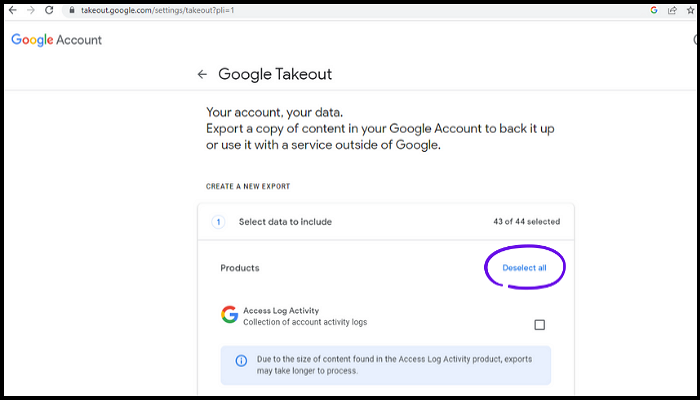
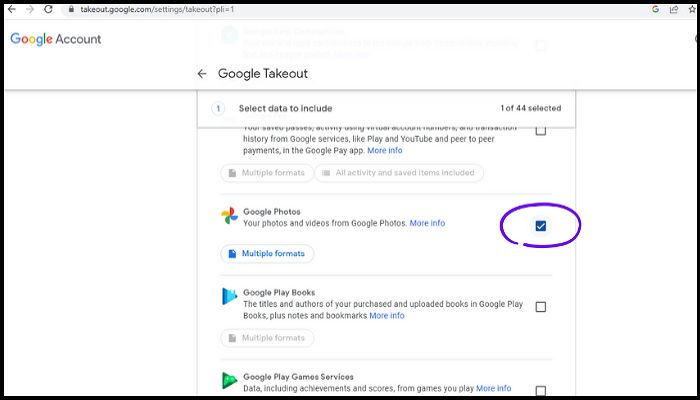
Step 3. Scroll down and select Google Photos from the checklist.
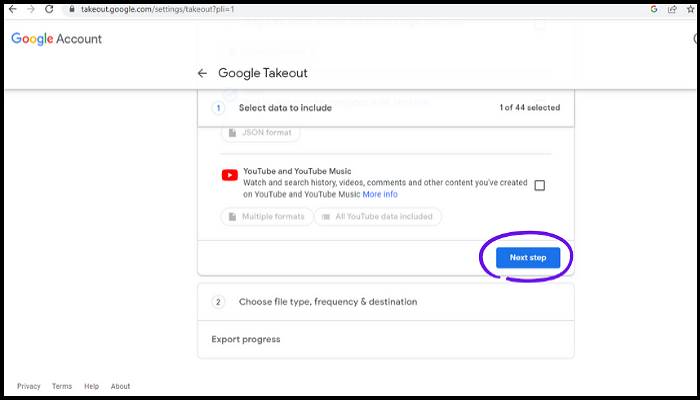
Step 4. Scroll down and click "Next".
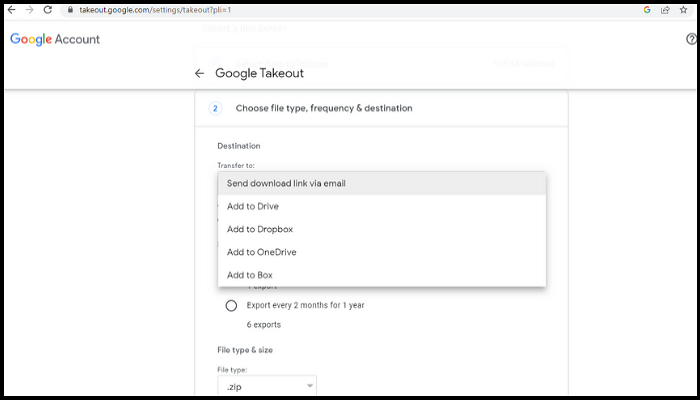
Step 5. You have several options to download, such as file type, frequency, and destination. It's recommended to keep the default settings, but you can also customize according to your needs. In my case, I chose "Send download link via email" to back up to my hard drive.
Step 6. Click "Create export" and wait for a few minutes for the processing to complete.
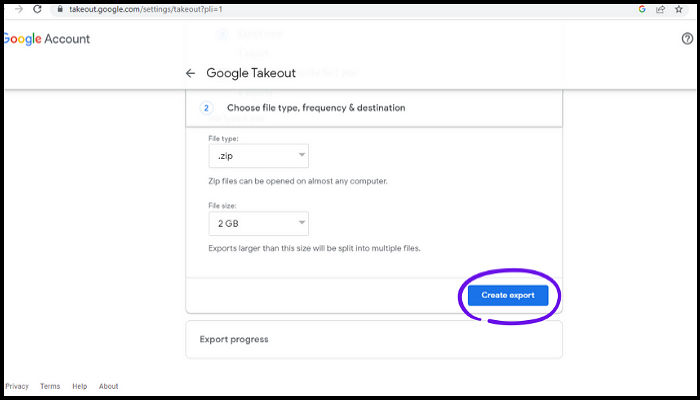
Step 7. To save your Google Photos, go to the Google Photos website, sign in with your account, and click on the "Download" button. Follow the prompts to select the quality of the photos you want to download and the storage device you want to save them to.
Method 2. Manually Transferring Photos from Google Photos to Hard Drive
You can download all your Google Photos manually by selecting the "Backup & Sync" option, which will transfer all your photos to a hard drive. This process involves going to the Google Photos settings, clicking on "Backup & Sync," and following the prompts to download all your photos to a local storage device. Once you've completed the download, you can store the photos on a hard drive for safekeeping. This approach allows you to maintain control over your photos and ensure they are not deleted due to Google's storage policies.
Step 1. Open Google Photos and select all photos.
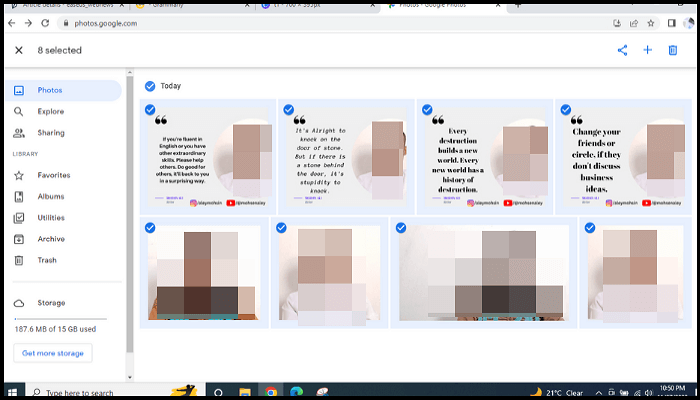
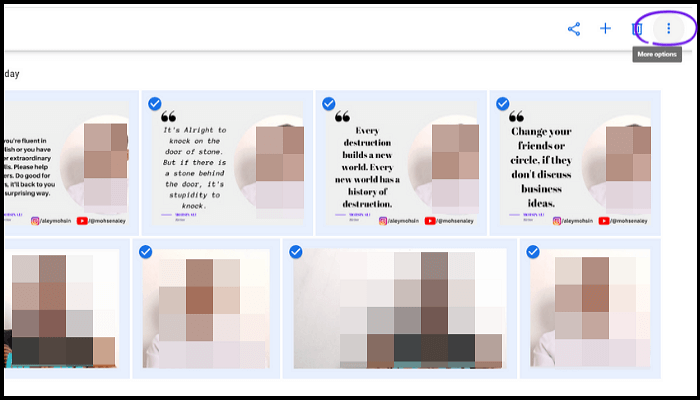
Step 2. Click on three little dots from the top-right.
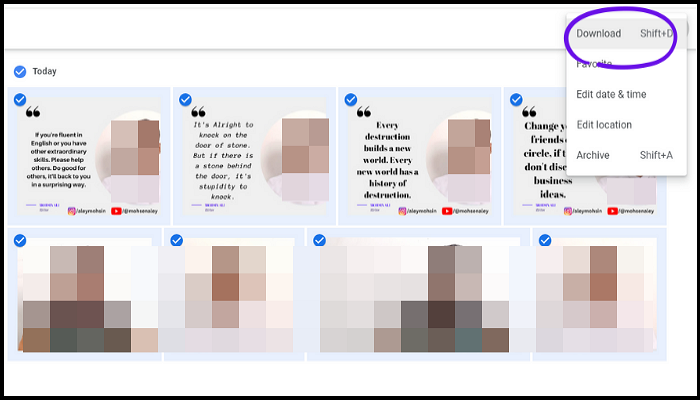
Step 3. After clicking Download, wait a few minutes for the selected photos to be downloaded in a zip file to your PC's download folder. Once downloaded, you can unzip the file and back up all the photos on your hard drive.
Method 3. Sync Google Photos with Hard Drive
To automatically get all your Google Photos on your hard drive, download the Google Drive desktop app and sign in to your Google account. Once downloaded and logged in, follow the simple steps to access your Google Photos on your hard drive.
Step 1. Click "Add Folder", select "Backup to Google Photos" and click "Done".

Step 2. Select the photos folder you want to backup and click "Save" to proceed with the backup process.
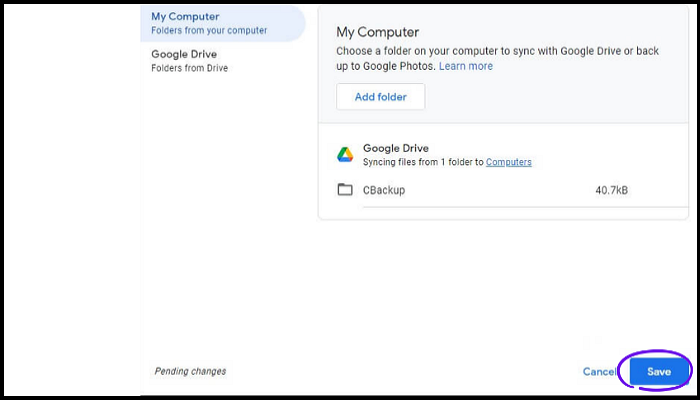
Step 3. To enable direct syncing of your hard drive with Google Drive, go to the Settings tab, select the Upload size tab, and choose "Upload size" from the options available. This will allow your hard drive to be synced directly with Google Drive.
A Better Way: Backup Photos via Photo Backup Software
Google's 15 GB of free storage space is shared across Google Drive, Gmail, Google Photos, and other services, including WhatsApp backups. This means that your data across these services counts towards your total storage space, and running out of space can be inconvenient.
Don't worry, we'll introduce Qiling Disk Master, a photo backup software that allows you to back up your photos and save memorable moments.
Qiling Disk Master Pro is a powerful backup and recovery utility for Windows that allows automatic file backup, system backup, and disk backup, offering features such as scheduled, incremental, and differential backups, as well as creating an ISO image and reinstalling Windows without losing games, with 250G free cloud storage space.
The following are the detailed steps to back up your photos.
Step 1. To start the backup process, click on the "Backup and recovery" tab page.

Step 2. There are four main categories of data backup: File, Disk, OS, and Mail.

Step 3. On the left side of the screen, lists of both local and network files are displayed, allowing you to expand the directory and select the files to back up.

Step 4. To store the back up, follow the on-screen instructions and select the desired storage location.

To ensure your backup is secure, encrypt it by clicking "Options" in "Backup Options". You can also set a schedule for the backup by clicking "Options" in "Backup Scheme". This allows you to customize the backup process to suit your needs.

Step 5. You can store the backup file either on your computer, in Qiling's cloud service, or on a network-attached storage device (NAS).

Step 6. Qiling Disk Master allows customers to store backup copies of their files on a third-party cloud drive or the company's own cloud storage.
To back up your data on a third-party cloud drive, select Local Drive, scroll down to add Cloud Device, and fill in your account information.
Step 7. Click on "Proceed" to initiate the backup process. Once the backup is complete, it will be displayed as a card on the left side of the screen. You can right-click on the backup card to access additional information and options for managing the backup job.
Final Words
We've discussed the importance of backing up Google Photos to a hard drive, the backup process and methods, and how to secure them in different locations, devices, and clouds. Tools like Qiling Disk Master can help protect our valuable and memorable photos, allowing us to access them from anywhere, and also offer features like repairing Windows 10 installations and backing up SSDs to images. Ultimately, the choice of backup method depends on individual convenience.
FAQs
1. Where are Google Photos stored?
When you upload or sync your photos to your Google account, they are stored in photos.google.com, regardless of whether you uploaded them manually or used Google Photos to sync them from a device. If you want a hard drive backup, you can download your photos and store them wherever you like on your computer or hard drive.
2. What are the disadvantages of Google Photos?
Google Photos is a great app for storing and organizing photos, but it also has some drawbacks.
- Google only offers 15 GB of free storage space, which can be quickly consumed if you have a large collection of photos, videos, and other data to store in Google, limiting the ability to backup unlimited photos or other data.
- The main drawback is that the photo editing options are very limited and basic.
3. What happens if I delete photos from Google Photos?
If you delete photos from Google Photos, they will remain in the Trash for 60 days, allowing you to recover them within that timeframe. After 60 days, they will be permanently deleted, even from the Trash, and cannot be recovered.
4. Why is my Google storage full after deleting everything?
If your Google storage is still full after deleting all data, check your Trash folders, which retain deleted files for 30-60 days. Manually empty these folders for each Google service, such as Google Photos and Google Drive, to clear storage.
Related Articles
- How to Stop Windows 10 Deleting Files Automatically
- Office 365/2016/2013 Won't Open with 'Stopped Working' Error
- Fixed: The Office Open XML Cannot Be Opened [Full Guide]
What do you know about the Office Open XML file? This article features an overview of the file format and provides a guide on what to do if the Office Open XML cannot be opened. With the provided details, you can resolve the particular issue. - How to Fix Overwatch Voice Chat Not Working on Windows 11/10
Are you facing the Overwatch voice chat issue? Now you can fix Overwatch voice chat not working by using the practical solutions we suggested. - 2022 Official Ways to Find Camtasia License Key: How to Find Camtasia Product Key
How to find Camtasia license key? Once you've to reinstall Camtasia to another device or occasionally format the existing partition or disk. this article can explain how to find Camtasia product key. - How to Find CCleaner Product Key on Windows 11 (2 Easy Ways)
If you've misplaced your CCleaner Pro product key, it's easily recoverable. You can find it on Windows 11 using two simple methods.
Products
Articles & Tutorials
- Data Recovery
- Data Backup
- File Recovery
- File Backup
- System Backup and Restore
- Disk and Partition Clone
- Technical articles
- Mobile articles
- Disk Master Help
- Windows Data Recovery Tutorials
- Windows Secure Delete Tutorials
- Windows Partition Management Tutorials
- Windows File Backup and Restore Tutorials
- Windows System Backup and Restore Tutorials
- Windows Disk Backup and Restore Tutorials
- Windows Clone Tutorials