5 Best Photo Backup Software for PC in 2022
Photos Backup is a service that allows you to store and protect your digital photos and videos. By backing up your photos, you can ensure that they are safe from being lost or deleted due to hardware failure, software corruption, or other unforeseen events. This service also provides a convenient way to share your photos with others, and to access them from anywhere. Additionally, many photo backup services offer features such as automatic uploads, photo organization, and editing tools, making it easy to manage and enhance your photo collection.
Capturing photos is a regular activity for many of us, serving as a way to preserve memories. With advancements in technology, digital photos have become a popular alternative to physical ones, offering added convenience and security features, such as backing up photos to cloud storage like Google Drive.
Losing photos at any stage can be devastating, making a perfect back up system essential. A reliable backup system not only grants access to your cherished memories but also provides flexibility in accessing them, giving you peace of mind.
This guide will help you find answers to your questions and provide information on the top photo backup tools for PC.
Why Should We Backup Photos Regularly
Photos on devices can be vulnerable to various threats, including physical damage, malware, and virus attacks, which can cause permanent deletion or damage to the images.
Here are some of the most prominent threats that can affect your access to photos:
- A cyber attack such as viruses or malware infection
- A system crash, also known as a blue screen of death, error code, or black screen, occurs when a computer's operating system or hardware experiences a critical failure, causing the system to shut down abruptly and display an error message. This can be due to various reasons such as overheating, driver conflicts, software glitches, or hardware malfunctions.
- A hard drive failure can occur due to various reasons such as bad sectors, HDD controller failure, or an invalid partition table. These issues can prevent the hard drive from functioning properly, leading to data loss or corruption.
- PC or laptop theft or damage
Some common computer issues, such as software glitches, hardware failures, and syncing problems, can cause significant stress and frustration, particularly when it comes to losing access to important files like photos and videos. These issues can make all of your digital memories inaccessible or disappear at any time, posing a threat to their safety. Even when syncing is attempted, it may not work out, leading to further anxiety and concern for the security of your digital assets.
You may be interested in 8 Solutions for Google Photos Not Backing Up Issue
To avoid losing your photos, create backups on multiple sites and regularly update them to ensure they're safe and accessible.
Popular And Simple Ways To Backup Photos
Accessing and backing up solutions has never been easier, especially for those new to them. To make it convenient, we've compiled a list of the five best photo backup software to simplify the process.
But before leading further with that, we are here to provide you two most common solutions for backing up your photos.
Method 1: Backup Photo to Cloud
Cloud storage offers a convenient and automatic way to back up photos, keeping them online and accessible from anywhere. However, if not secured properly, these data files can be vulnerable to hackers, highlighting the need for proper security measures.
To backup a Windows 10 image to the cloud, you can use the built-in Windows Backup feature, which allows you to create a system image and save it to an external drive or cloud storage. Alternatively, you can use third-party backup software like Qiling Disk Master, which offer cloud backup options.
Backing up data to cloud is now a straightforward process, with detailed guides available online that can be accessed with just a few clicks.
Method 2: Backup Photo to External Hard Drive
Backing up your photos to an external hard drive is a great way to free up space on your computer and keep your photos safe from hackers. By doing so, you'll not only save storage space but also ensure that your photos are secure. To add an extra layer of protection, consider backing up your photos to multiple locations, such as an external hard drive and a cloud storage service, so that you can access them even if one location is damaged.
5 Best Photo Backup Software for PC
Here are the top five best backup software options:
1. Qiling Backup
It is a wonderful one-Click Backup is a quick recovery solution that provides effortless disk imaging and secure backups. It's designed to be simple and easy to navigate, with no extra charges for access. This globally recommended tool offers instant recovery to users, making it a high-efficiency solution for those who need to quickly recover their stored data.
Main Features:
- One-click backup solution
- Instant recovery option
- High-efficiency tool
- Provides 250GB of cloud storage for free
Pros:
- Works well on macOS platforms
- Ensures decent cloud storage effortlessly
- A free version of the product can be offered to enable users to check its features and functionality before committing to a paid subscription, allowing them to make an informed decision and increasing the chances of a successful sale.
- Great value for money option
Cons:
- The speed is a bit lower during the image creation
Editor's Suggestion: This tool provides a simple solution for all types of backups, cloning, and data features, with the added benefit of cloud backup.
2. FBackup
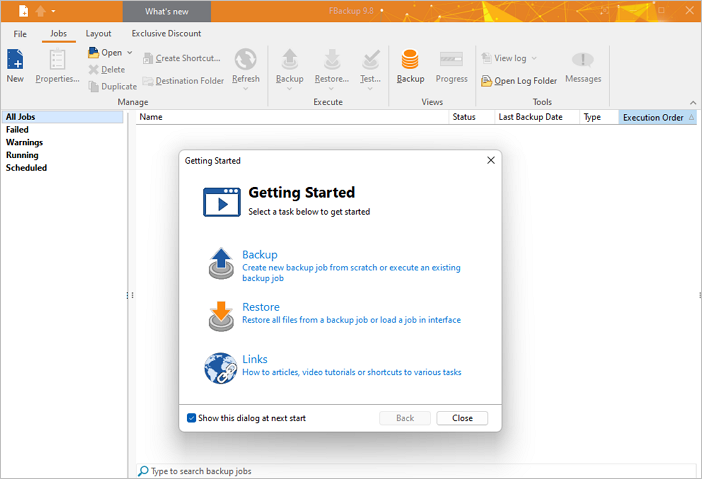
FBackup is a reliable backup solution that securely stores photos, videos, and other data online. Its user-friendly interface makes it easy for anyone to use, and it's free to download with the option to upgrade to a premium version at a low cost.
Main Features:
- Free commercial and personal access
- Ensured automatic backup
- Backup with standard zip compression
- Multi-Language support
Pros:
- Easy-to-go interface
- Absolute protection from all kinds of threats
- Automatic updates
- Feature loaded option
Cons:
- Pricing is a bit higher
Editors' Suggestions: If you're looking for a straightforward backup tool, this is a good option. It notifies you about successes, failures, and errors in a readable format, making it easy to track your backups.
3. Wondershare UBackit
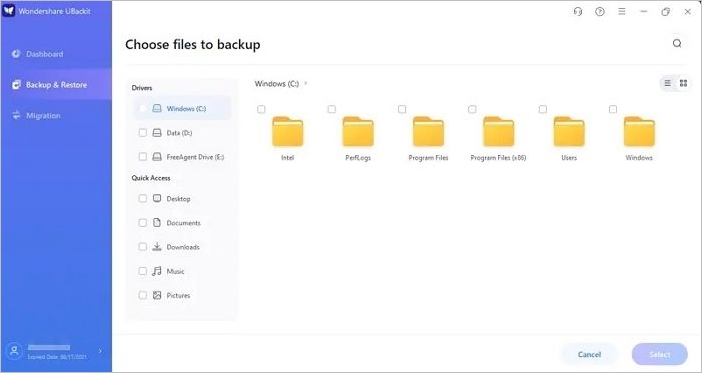
Wondershare UBackit is a reliable backup software that allows users to conveniently back up essential files. It creates copies of the original files and saves them according to user preferences, enabling users to restore files whenever and wherever needed. The platform supports various file formats, including photos, audio, videos, and documents.
Main Features:
- Backup to different file formats
- Partition backup to the users effortlessly
- Provides disk imaging without any hassle
- A great option for file migration between PC
Pros:
- Safe and secure option to use on
- Multi-language software
- Easy and straightforward to integrate interface
- Speedy installation and setup
- Real-time back up partition solution
Cons:
- It doesn't feature any Linux version
Editors Choice: The tool supports all types of backups and restore methods, including migration, but its cost is relatively high.
4. Acronis Cyber Protect Home Office

Acronis Cyber Protect Home Office is an all-in-one protection tool that safeguards your digital world from various threats. It's a top-notch backup solution that allows you to restore your files and folders seamlessly, whenever and wherever you need to. With its user-friendly interface and efficient performance, it keeps your data safe without causing any lags.
Main Features:
- True cyber protection
- Easy backup and antivirus
- Efficient all-in-one protection
- Quick backup and recovery
- Easy management option
Pros:
- Local and cloud backup solution
- Protects against malware and ransomware
- Full disk image backup and restore option
- Fully featured backup tool
Cons:
- Performance is not up to the mark
Editors' Suggestions: The tool is quite complex and may be challenging for those with intricate requirements to navigate.
5. NTI Photo Backup
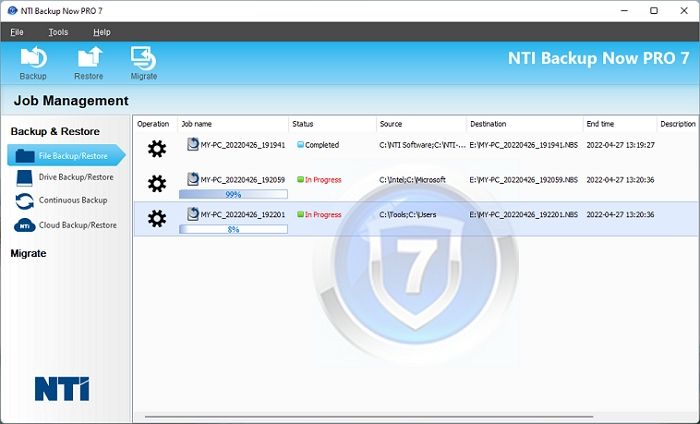
NTI Photo Backup is a comprehensive solution for digital media applications, offering a complete backup of your entire computer and quick access to back up files. It features an echo option to create an exact copy of your computer's HDD, and also enables photo archive, migration, backup, and other tasks, making it a powerful tool for your digital media needs.
Main Features:
- Multimedia option for perfect back
- Easy cloning
- Seamless migration over the different platforms
- Ensures a simple and easy photo archive
Pros:
- Ensures drive migration
- User-friendly interface for smooth access
- Ensured consistent backup
- Creates startup rescue USB drives and discs effortlessly
- Ensured fast folder backup
Cons:
- The disk image backup is a bit slow
Editor's Suggestion: Acronis True Image is a powerful backup tool that can handle large files, but may experience performance issues due to this.
How to Back Up Photos with Qiling Software
Qiling Backup is a reliable solution to safeguard your photos, videos, and other data from unexpected events. This one-click backup tool offers a seamless and cost-free experience, making it an ideal choice for users. With its user-friendly interface, you can easily access and recover your data in just a few steps, providing peace of mind and protection for your valuable digital content.
Step 1. To begin the backup process, click the File backup button.

Step 2. On the left-hand side of the screen, lists of both local and network files are displayed, allowing you to expand the directory to select the files you want to back up.

Step 3. You can choose to store the backup on an external hard drive, a cloud storage service like Google Drive or Dropbox, or a network drive. Choose the place where you want to store the backup.

Step 4. To ensure your backup is secure and runs on a regular schedule, click on "Options" within the "Backup Options" section and set the backup encryption and schedule accordingly.

In the Backup Scheme, you can choose to start the backup at a certain time by clicking Options, and explore other customizable options.

Step 5. You can store the backup file either on your computer, in Qiling's cloud service, or on a network-attached storage device (NAS).

Step 6. Qiling Backup allows customers to store backup copies of their files on either a third-party cloud drive or the company's own cloud storage.
To back up your data on a third-party cloud drive, select Local Drive and scroll down to add Cloud Device, then fill in your account information.
Step 7. To start a backup, click on the "Proceed" button. Once the backup process is complete, it will be displayed as a card on the left-hand side of the screen. You can right-click on the backup job to view more information and options for handling it.

Conclusion
Having a backup of our photos and data is crucial to ensure we can recover them in case of any damage or loss. Regularly backing up our files provides an assurance that we can access our cherished memories and videos without any issues. To achieve this, it's essential to select a reliable and trustworthy data backup software that meets our needs and preferences. This way, we can stay connected with our favorite photos and videos, even in the event of unexpected data loss.
Related Articles
- How to Download Windows 11 for HP Laptop (2022)
- What Is A System Image? Everything You Need to Know About Creating System Image Backups
- How to Fix Windows 10 System Restore Stuck (100% Works)
- Is Windows 10 Backup Any Good? Check the Answer
- A Disk Read Error Occurred on a Laptop | 4 Fixes + 1 Tip
This tutorial analyzes the issue that a disk read error occurred on a laptop and provides effective solutions to the error. Prime backup software is offered for system recovery. - Easy Fix to A Shadow Copy Could Not Be Created Error
The error: "a Shadow Copy could not be created" will cause the failure of backup. You may want to know why it happens and find out how to solve this error in Windows.
Products
Articles & Tutorials
- Data Recovery
- Data Backup
- File Recovery
- File Backup
- System Backup and Restore
- Disk and Partition Clone
- Technical articles
- Mobile articles
- Disk Master Help
- Windows Data Recovery Tutorials
- Windows Secure Delete Tutorials
- Windows Partition Management Tutorials
- Windows File Backup and Restore Tutorials
- Windows System Backup and Restore Tutorials
- Windows Disk Backup and Restore Tutorials
- Windows Clone Tutorials