How to Download Windows 11 for HP Laptop (2022)
If you're due for a new laptop or an upgrade from your older one, Windows 11 is sure to leave you impressed with its speed. Microsoft has reported a faster upgrade rate for Windows 11 compared to Windows 10, with some users experiencing a significant boost. If you're already running Windows 10, you're in luck - the upgrade to Windows 11 is free! However, if you're wondering how to download Windows 11 for your HP laptop, we're here to help you out with that.
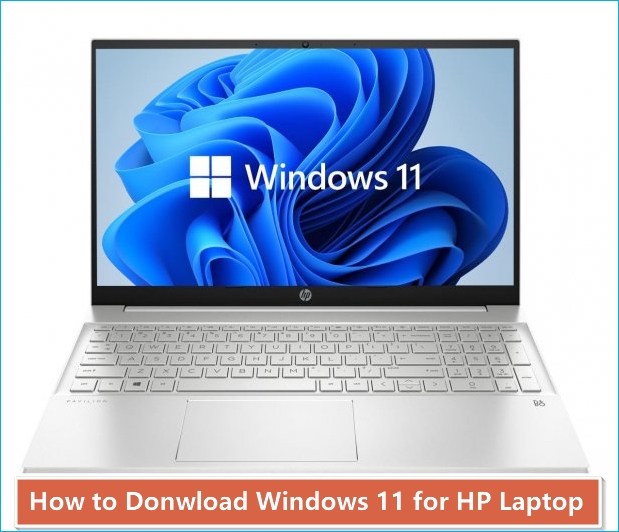
To download Windows 11 for HP laptop, you need to ensure your device passes the compatibility test, which includes a 64-bit processor, 4GB of RAM, and a 64GB storage device. Additionally, you should have a UEFI Secure Boot enabled and a Trusted Platform Module (TPM) 2.0. You can check these requirements on your HP laptop and proceed with the download if your device meets the necessary specifications.
HP Windows 11 Compatibility List
To see if your HP laptop model supports a Windows 11 upgrade, it must meet the following requirements:
| Serial no. | Basis | Requirements |
| 1. | Processor | Your HP laptop must have a System on Chip or 64-bit processor that is at least 1GHz and has a minimum of 2 cores. |
| 2. | RAM | At least 4GB. |
| 3. | Storage | The HP laptop should have a minimum storage capacity of 64 GB. |
| 4. | System Firmware | Your HP laptop needs to have a secure boot capable UEFI system. You can check this on Microsoft's official website. |
| 5. | TPM | You must fulfill a certain to get your HP laptop checked for being a Trusted Platform Module in the 2.0 version. |
| 6. | Graphics Card | The software must be compatible with at least DirectX 12 or above and have a 2.0 driver for WDDM. |
| 7. | Display | A high-definition display with a minimum diagonal size of 9 inches and a resolution of 720p, meeting the 8-bit standard for each color channel. |
| 8. | Microsoft account and Internet Connection | The new Windows 11 home edition requires a good internet connection and a Microsoft account, even in S mode, for downloads, updates, and accessing some features, with a Microsoft account needed for a few upgraded features. |
Two Ways to Download Windows 11 for HP PCs and Laptops
Since you've determined whether your HP laptop is eligible for a Windows 11 upgrade, it's essential to take a backup of your important data before proceeding with the upgrade or reinstalling the latest software. To ensure a proper backup, consider using Qiling Backup Free, a reliable and effective software for this purpose.
Features:
- It protects your user data with a click.
- The HP laptop backup recovery tool helps in instant recovery of your HP laptop's backup, ensuring that your data and system are restored quickly and efficiently.
- With growing data, you can schedule timely backups to ensure your data is secure and easily recoverable in case of any unexpected events.
- Data recovery software helps recover deleted data that was lost due to a system crash, unexpected event, or ransomware attack.
- This software helps create a backup even for the partition of your SSD or HDD.
How to back up data with Qiling free backup software:
Step 1.To backup Open Qiling, go to the Backup and recovery page and select "Disk Backup".

Step 2.Qiling Backup allows you to choose between backing up an entire disk or a specific partition, giving you flexibility in your backup needs.

Step 3.Select the destination where you want to save the backup. You can choose to save the backup to a local drive or to a network-attached storage (NAS) device.

Step 4.After completing the backup process, click "Proceed". You can then right-click on any task to further manage your backup, such as recovering it or creating an incremental backup.
To download Windows 11 on your HP laptop, you can either download it from the Microsoft official website or use the Windows Update feature on your laptop.
Method 1. Free upgrade from Windows 10 to Windows 11
For this, you need not look for any external source or website as you can follow these simple steps to get an upgrade from Windows 10 to 11.
Step 1: To access the Settings icon, click on the start menu and then click on the Settings icon.
Step 2: To access the Updates and Security settings, you will be redirected to the settings page, where you can click on the Updates and Security option.
Step 3: You will see a button saying 'check for updates,' which easily checks recent updates.
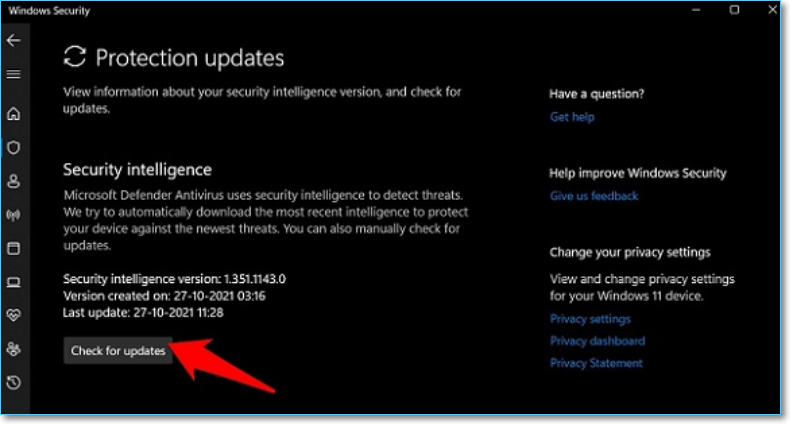
Step 4: You will see multiple updates displayed, from which you can select the one you want to proceed with or install.
Step 5: Once you've found the Windows 11 upgrade, select it and click on the "Download and install" option.
Method 2. Download Windows 11 on the Official Website
If you want to download Windows 11 from the official website, you have three options to choose from, each catering to different needs: the first option, the second option, and the third option, which allow you to select the best one for your specific requirements.
Option 1. Use Windows 11 Installation Assistant
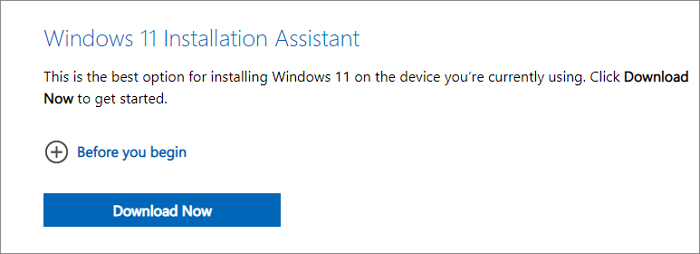
Once you download the installation assistant, follow the given steps:
Step 1: After the download is completed, click on the Run option while ensuring you are an administrator.
Step 2: Once the tool has confirmed the compatibility of the hardware, you will be prompted to accept and install the license terms.
Step 3: When the tool is ready, click on the button saying "Restart Now" to complete the installation procedure.
Step 4: To ensure a successful HP laptop reset, you'll need to restart your PC a few times. This process may take a few minutes, but it's essential to avoid turning off your laptop during this time to guarantee the reset is completed successfully.
Option 2. Create Windows 11 Installation Media
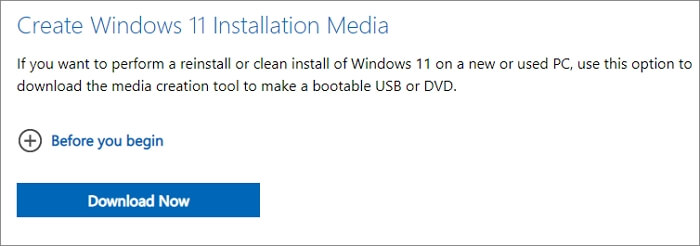
To reinstall Windows 11 on your HP laptop, whether it's new or used, you can follow these steps: create a bootable DVD or USB drive using the Media Creation Tool, which can be downloaded to prepare a fresh installation of Windows 11.
Step 1: Once the download is complete, run the Media Creation Tool as an administrator to start the installation process.
Step 2: Then, Accept the license terms.
Step 3: You will be redirected to a page asking "What do you want to do?" where you need to select the "Create installation media for another PC" option and click on Next.
Step 4: To install Windows 11, you must select the applicable language edition and 64-bit architecture for the new operating system.
Step 5: Now, you need to select the media to be used as the input for the model. This will determine the type of data that the model will process and generate output from.
- ISO File: The software allows you to save an iDO file on your HP device and even create a bootable DVD format. Once downloaded, you can either locate the file or proceed by clicking the "Open DVD Burner" option and follow the instructions that follow.
- USB flash drive: To use the USB flash drive, you'll need to have at least 8GB of free space on the drive. Please note that any data currently on the flash drive will be erased.
Once you have created installation media, you can check for any updates by going to the Start button, then Settings, followed by Windows Update, and finally clicking on "check for updates".
Option 3. Download Windows 11 Disk Image (ISO)
To create a bootable installation media or an ISO file for Windows 11, you can follow these steps: First, download the Windows 11 installation media creation tool from Microsoft's official website. Then, run the tool and select the language, edition, and architecture you want to create. Next, choose whether to create a bootable DVD or USB drive, or an ISO file. After that, select the location where the file will be saved. Finally, click on 'Download' to start the download process. You will need a product key to unlock the correct edition of Windows 11.
For installation through DVD:
Step 1: To download the Windows 11 ISO, go to Microsoft's official website and follow the instructions to download the correct version of Windows 11. Once the download is complete, you will have an ISO file that you can use to install Windows 11 on your computer.
Step 2: To create an installation DVD, you'll need to use Windows Disk Image Burner. Right-click on the ISO file, go to properties, and then select the General Tab, Change, Open with, and Windows Explorer to apply. This will allow you to burn the disc image. Once you've done this, right-clicking on the ISO file will display it.
Step 3: If you want to use a third-party program for DVD burning, you can proceed with the ISO file by right-clicking on it and selecting "Open".
For Installation through ISO:
The mounting of the ISO file will create an upgrade to Windows 11. For mounting:
Step 1: To access the ISO file, start by going to the location where you downloaded the ISO file. Once you're there, right-click on the ISO file and select "Properties" from the context menu.
Step 2: To change the default program that opens when you click on a file, click on the General tab, then click on "opens with" and select Windows Explorer, and finally click on Apply.
Step 3: ISO file > right click > Select Mount.
Step 4: To upgrade to Windows 11, double click on the virtual bootable disc to view hidden files, and then double click on the setup.exe option to initiate the setup process.
Note: It's recommended to wait for a Windows Upgrade notification before upgrading from Windows 10.
People Also Ask
1. Is Windows 11 free for an HP laptop?
You can get free Windows 11 on laptops pre-loaded with Windows 10, as long as they meet the requirements, which can be checked on Microsoft's official website.
2. Can my HP laptop be upgraded to Windows 11?
If your HP laptop is eligible, you will receive a Windows update. To check if you've received it, look on the official HP or Microsoft website.
3. Should I upgrade my Windows 10 laptop to Windows 11?
There is no requirement to upgrade from Windows 10 to 11, but if you want to take advantage of some improvements and faster software, you can proceed with the upgrade.
4. What's an HP Windows 11 laptop price?
HP offers Windows 11 laptops starting at a price of $1,549.99 with the HP Spectre and $919.99 with the HP Pavilion.
Conclusion
This guide will help you download Windows 11 on your HP laptop, and with Qiling Backup Free, you can quickly backup your important data. This will allow you to enjoy the updated Windows 11 on your HP laptop, which should run more smoothly and quickly.
Related Articles
- How to React to Windows 11/10/8/7 Defender Security Warning
- How to Downgrade Windows 10 to Windows 8
- System Image Recovery vs. System Restore in Windows 11/10/8/7
- New Protection Strategy: Protect Backups from Ransomware
- How Long Does it Take to Install Windows 10/11
The installation time for Windows 10/11 typically ranges from 2.5 to 3 hours, depending on your computer's specs, and it's essential to keep your computer running during the process to avoid damaging the software. - How Do I Create and Use Windows Restore Point in Windows 10/8/7 [Beginners' Guide]
What is Windows Restore Point? How to create and make use of it on a computer? On this page, you'll learn everything about Windows Restore Point. If you are looking for a simple guide, follow this page to create a system restore point and protect your system with it anytime.
Products
Articles & Tutorials
- Data Recovery
- Data Backup
- File Recovery
- File Backup
- System Backup and Restore
- Disk and Partition Clone
- Technical articles
- Mobile articles
- Disk Master Help
- Windows Data Recovery Tutorials
- Windows Secure Delete Tutorials
- Windows Partition Management Tutorials
- Windows File Backup and Restore Tutorials
- Windows System Backup and Restore Tutorials
- Windows Disk Backup and Restore Tutorials
- Windows Clone Tutorials