How to Fix Windows 10 System Restore Stuck (100% Works)
Windows 10 System Restore is a built-in utility that allows you to restore your computer to a previous state. However, sometimes it can get stuck and not work properly, but there are solutions to fix the problem.

Why Windows 10 System Restore Stuck
System Restore might get stuck on a computer due to a corrupted system file, System Restore service issue, bad disk sectors, or conflicts with other applications or software.
If System Restore is not working on your computer, there are a few methods you can try to fix the issue. One possible solution is to run the System File Checker tool, which can help identify and replace any corrupted system files that may be preventing System Restore from working. To do this, open Command Prompt as an administrator, type "sfc /scannow" and press Enter.
How to Fix Windows 10 System Restore Stuck – 5 Fixes
Fix 1: Using System Restore from Safe Mode
When Windows 10 system restore gets stuck, it could be due to a corrupted file or process. To resolve this, try running System Restore from Safe Mode, which boots your computer in a minimal environment and allows System Restore to function properly.
Here is a step-by-step guide:
Step 1. Restart your computer and press F4 or Shift+F4 to enter Safe Mode.
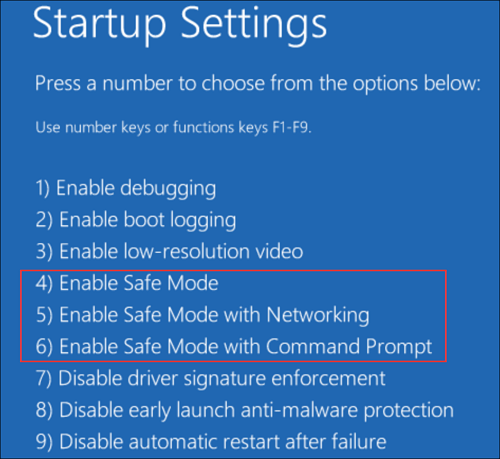
Step 2. Once in Safe Mode, go to Settings > System > About > Related settings > System protection, and click Next.
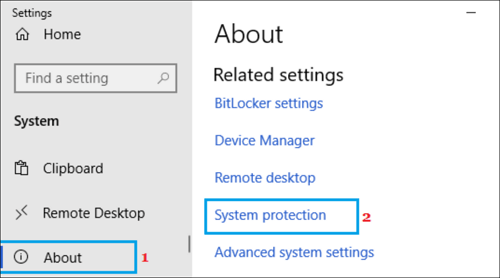
Step 3. To restore your computer to a previous state, click the "System Restore" button, then follow the on-screen instructions to complete the process.
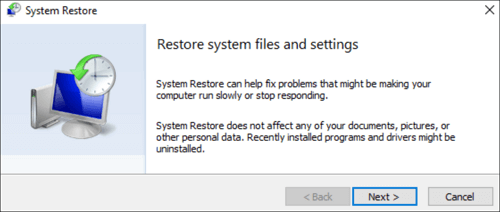
Fix 2: Try Another Restore Point
If System Restore isn't working, try selecting a different restore point. This will allow you to pick a different date to restore your computer. To do this, follow the steps of selecting a different restore point, which may resolve the issue.
Step 1. Open the Control Panel, go to the "System and Security".
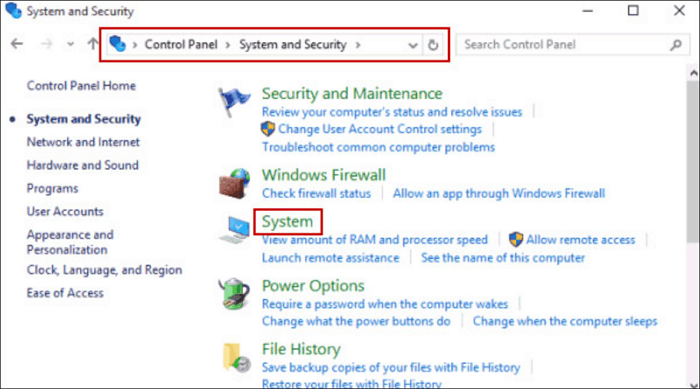
Step 2. To access System Protection, click on the "System" option from the left-hand side menu.
Step 3. To restore your computer, tap on the "System Restore" button, and then follow the instructions on the screen to complete the process. This will return your computer to a previous state, reverting any changes made since the restore point was created.
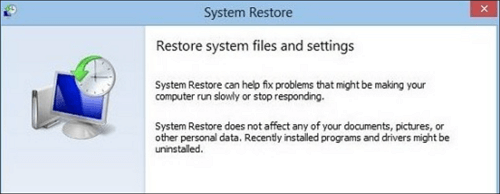
Step 4. When you get to the "Select a restore point" page, select a different restore point from the list and see if that works.
Fix 3: Use the System File Checker(SFC) Tool
The System File Checker (SFC) is a utility that helps identify and repair problems with your system files, which can be useful if System Restore is stuck due to a corrupted system file. To use this tool, follow the guide.
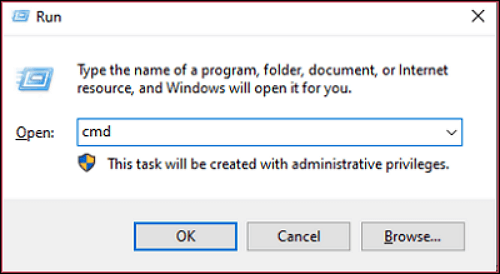
Step 1. To open a Command Prompt window as Administrator, press Windows key + R to open the Run dialog box, type "cmd" and press Enter, then select "Run as administrator" from the dropdown menu.
Step 2. In the pop-up window, type "sfc /scannow", then press Enter.
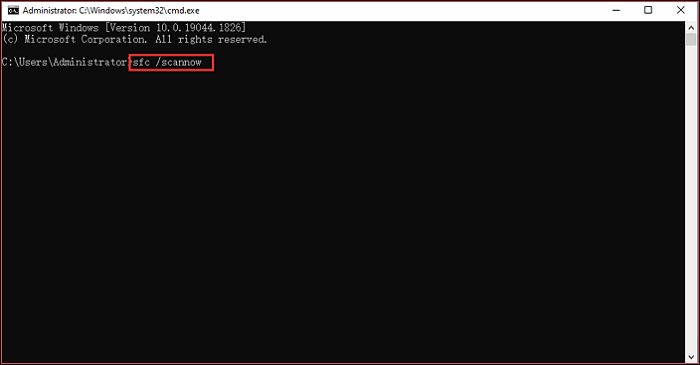
Step 3. Run the System File Checker (SFC) tool to scan and repair corrupted system files. This tool will scan your system for corrupted files and repair them if possible. Once it's finished, try using System Restore again and see if it works.
Fix 4: Perform a Clean Boot
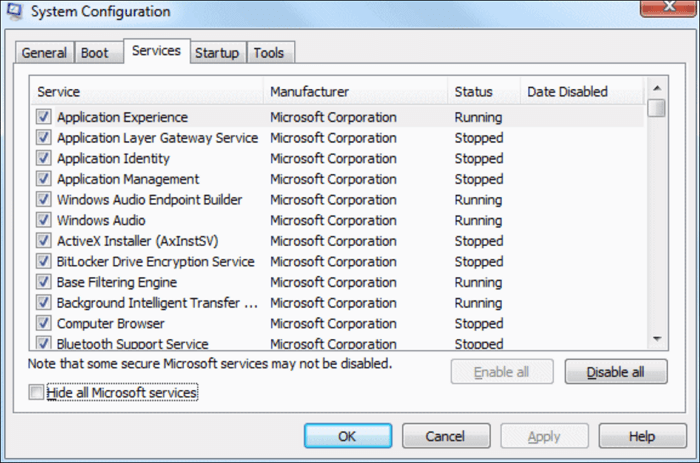
To perform a clean boot, start by opening the Start menu and searching for "msconfig." Once the System Configuration window opens, click on the "Services" tab. Check the box next to "Hide all Microsoft services" to only show third-party services. Then, click on the "Disable all" button.
Step 1. To access the System Configuration Utility, open the Run dialog box by pressing the Windows key + R, then type "msconfig" and press Enter.
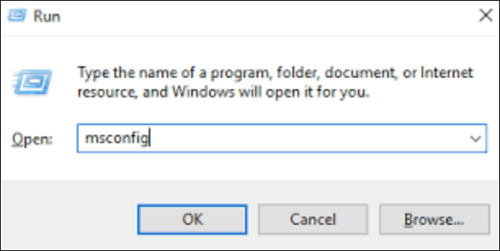
Step 2. Go to the "Services" tab, select the box to "Hide all Microsoft services" so that Microsoft services don't interfere with System Restore.
Step 3. Click on the "Disable all" button to disable all other non-Microsoft services.
Step 4. To access the Task Manager, go to the "Startup" option and tap on the "Open Task Manager" button.
Step 5. To disable startup items in the Task Manager, go to the "Startup" tab, click on any item, and then click the "Disable" button. Repeat this process for each item you want to disable.
Step 6. Close Task Manager and finally click on the "OK" button.
Step 7. Restart your computer and try using System Restore again.
Fix 5: Perform Startup Repair
If other solutions haven't worked, you can try using Startup Repair, a built-in Windows tool that can fix some common problems. To use it, follow these steps:
Step 1. When starting your computer, press the F8 key repeatedly to go to the "Advanced options" page.
Step 2. On the Advanced options page, select "Repair your computer".
Step 3. On the next page, select "Startup Repair".
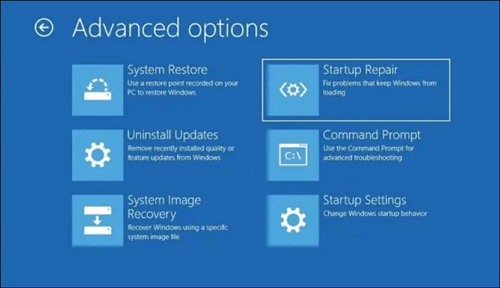
Step 4. Startup Repair will scan your computer for problems and try to fix them, then restart your computer to see if System Restore works afterwards.
Windows 10 System Restore Alternative – Make Windows OS Restore Easier
Microsoft Windows offers System Restore, Backup and Restore, and system image recovery, but these features have separate and complex operating steps, and cannot be used together to create a seamless backup and restore process.
Qiling Backup Home Qiling Backup is a better alternative to Windows 10 System Restore and Backup and Restore, which integrate these two features into one software. It offers various backup options, including disk/partition backup, file backup, system backup, and more, and also provides system restore capabilities, making it a comprehensive backup and restore solution. It allows users to create a full backup of their computer, schedule automatic backups, and even back up just the operating system. This makes it easier to manage backups and ensure data safety.
If you want to restore your computer to an earlier date, you can choose a restore point and click "Restore" to go back to that time using Qiling Backup Home, which will restore your computer to the previous state without affecting your current files.
Final Verdict
Windows 10 System Restore gets stuck due to various reasons. To resolve the issue, you can try restarting your computer, disabling the antivirus software, or running the System Restore tool in Safe Mode. If the problem persists, you can try using the System File Checker tool to scan and replace any corrupted system files.
You can use Qiling Backup, a simpler alternative to Windows 10 System Restore and Backup and Restore, to protect your Windows computer with ease.
Windows 10 System Restore Stuck FAQ
1. How long should a Windows 10 System Restore take?
The time a System Restore takes depends on how many files are on your system, and if the restore point was created recently, it should take around 25 to 40 minutes, but if it was created earlier, it may take longer, but not more than a few hours.
2. Why does System Restore fail or get stuck?
System Restore may fail or get stuck due to various reasons such as hard drive errors, startup program errors, or errant scripts. If you're unsure about the specific cause, you can try the solutions mentioned or use Qiling Backup to protect and restore your Windows system.
3. How do you know if Windows Restore is stuck?
If your Windows System Restore is stuck, you can judge it by the flashing frequency of the screen, which is every 5 to 10 seconds.
Related Articles
- Fix Windows Error Code 0x0 0x0 in Four Ways
- System Repair Disc vs Recovery Drive: Same or Not?
- Windows 11 Pro Download Full Version Direct Link (Tested and Trusted)
- 5 Reasons to Download Qiling Free Backup Software
- Outlook Data Files PST Usage is Disabled on This Computer[Fixed]
If you're encountering the issue of Outlook Data File (.pst) usage being disabled on your computer, it can be frustrating as it prevents access to all Outlook data files, impacting your work. To resolve this issue, consider professional solutions that can quickly and efficiently fix the problem. - How to Restore When Outlook Favorites Misssing[2022 Guide]
If your Outlook favorites have gone missing, this article has the solutions.
Products
Articles & Tutorials
- Data Recovery
- Data Backup
- File Recovery
- File Backup
- System Backup and Restore
- Disk and Partition Clone
- Technical articles
- Mobile articles
- Disk Master Help
- Windows Data Recovery Tutorials
- Windows Secure Delete Tutorials
- Windows Partition Management Tutorials
- Windows File Backup and Restore Tutorials
- Windows System Backup and Restore Tutorials
- Windows Disk Backup and Restore Tutorials
- Windows Clone Tutorials