How to Fix Error Code 41 Mac When Coping Files on macOS 13/12/11
Error code 41 on a Mac is typically related to a problem with copying files. It can occur due to various reasons such as file system corruption, permissions issues, or other system-related problems. To resolve this issue, you can try restarting your Mac, checking the file permissions, running a disk utility to repair the file system, or using the Terminal to reset the permissions of the affected files.
| Workable Solutions | Step-by-step Troubleshooting |
|---|---|
| Fix 1. Restart Your Mac | Restarting your mac is the first thing you should do if your Mac is having issues or...Full steps |
| Fix 2. Reinstall macOS | Reinstalling macOS removes bugs, malware, and viruses and resets everything on Mac...Full steps |
| Fix 3. Update Outdated Software | If you haven't updated your macOS in a long time, this can also be a culprit for causing...Full steps |
| Fix 4. Run Disk Utility | The error code 41 is caused by a problem with the file or the drive. What you can do...Full steps |
| Fix 5. Restart Mac Safe Mode | Use Mac Safe Mode, a streamlined version of the Mac operating system, to identify...Full steps |
macOS is just another program built using various programming languages, making it prone to crashes, freezes, and errors, just like other operating systems. What sets Mac apart is its optimized hardware and software, which distinguishes it from other operating systems.
Error code 41 is a common issue that can be frustrating to deal with. In this article, we'll explore what error code 41 means and provide step-by-step instructions on how to fix it, so you can get back to what you were doing without any further interruptions. Keep reading to learn more!
Explanation: What Is Mac Error Code 41
macOS is generally intuitive, fluid, and reliable, but like most operating systems, you can also run into issues with it. The error code 41 on Mac occurs when you try copying files to another location but cannot due to incorrect permission settings or a file error.
The error code 41 on your Mac can occur when trying to copy files from an internal disk to an external disk or from an internal disk to another location on an internal disk, causing annoyance if not resolved.
Some users have reported that this error causes their Mac to crash and slow down, especially on macOS.
First-Aid: Recover Your Data When You See the Error Code
Due to error code 41, it's impossible to restore lost files while moving. However, you can recover lost files using Deep Data Recovery, a powerful data recovery software.
You can restore a lost file using Deep Data Recovery for Mac, whether it was deleted due to a system error or malfunction, or accidentally deleted. This easy-to-use program allows people of all ages to recover deleted files in just a few seconds.
Here are some other features of Deep Data Recovery for Mac:
Deep Data Recovery for Mac
- When errors occur on a Mac, applying document recovery, email recovery, photo recovery, and other data recovery methods can help retrieve lost or corrupted files. This process involves using built-in features like Time Machine, iCloud, and the Mac's built-in recovery tools to restore deleted or lost files.
- You can recover data from a Mac hard drive to either a PC or the internal hard drive if your Mac crashes, allowing you to salvage your important files.
- Data recovery software can help recover lost data in various situations, including sudden deletion, formatting, hard drive corruption, virus attacks, and system crashes. It provides a solution to retrieve important files and folders that were lost due to unexpected events, allowing users to recover their valuable data and minimize downtime.
Possible Reasons: What Causes Error Code 41 on Mac
There are several reasons why you might be seeing error code 41, including:
- Due to malware or a virus
- Due to corrupted system files
- The file on the disk has become unreadable
- The software or the hardware has become outdated
- A sudden interruption when the Mac file read/write process is active. This can cause issues with the file system, leading to data loss or corruption.
5 Fixes: How to Solve the Mac Error 41
If you're experiencing error code 41 on your Mac, don't worry - we've got the solution. We know how frustrating it can be, but with our guidance, you can easily fix the issue and get back to using your Mac with ease.
Here are five solutions to fix "Error code 41":
- Restart Your Mac
- Reinstall macOS
- Update Outdated Software
- Run Disk Utility First Aid
- Restart Mac in Safe Mode
Let me briefly show you the steps for all the above solutions to fix and solve Mac Error 41.
Fix 1. Restart Your Mac
If your Mac is experiencing issues or showing errors randomly, the first step to resolve any problems or performance-related matters is to restart your computer. This simple action can resolve many issues and get your Mac running smoothly again.
Restart your Mac and check if you see error code 41. If you still see the error, try booting in safe mode and then restart normally.
Here's how to restart your Mac:
Step 1. Click on the Apple logo on the top-left of the menu bar.

Step 2. Select "Restart."
Step 3. Allow a few seconds for your Mac to restart.
Fix 2. Reinstall macOS
Reinstalling macOS removes bugs, malware, and viruses and resets everything on your Mac, which can help fix error code 41.
On Intel-based Macs, go to the Apple menu and select Restart. Immediately hold down the Command (⌘) and R keys. Keep holding them until the Apple logo appears.
- Here's how to reinstall macOS on an Apple silicon Mac:
Step 1. Turn off your Mac and press and hold the power button. This will initiate a shutdown of the computer, and then you can release the power button.
Step 2. The "Startup Options" window will now open. Select "Options."
Step 3. Choose "Reinstall macOS" and then click on "Continue."
Step 4. Follow the prompts and complete the reinstallation.
- Here's how to reinstall macOS on an Intel-based Mac:
Step 1. Please turn off your Mac and then turn it on.
Step 2. To restart your Mac, press and hold the power button until you see the Apple logo, then release the button. Alternatively, you can hold down the Command (⌘) and R keys simultaneously and release them once you see the Apple logo.
Step 3. Choose "Options" under the "Startup Options" window.
Step 4. To reinstall macOS, go to the "Options" window and select the "Reinstall macOS" option, then click on "Continue."
Step 5. Follow the prompts to complete the reinstallation.
Fix 3. Update Outdated Software
If you haven't updated your macOS in a long time, this can also be a culprit for causing the error code 41 on your Mac. Update your macOS to fix error code 41.
Here's how to update your Mac:
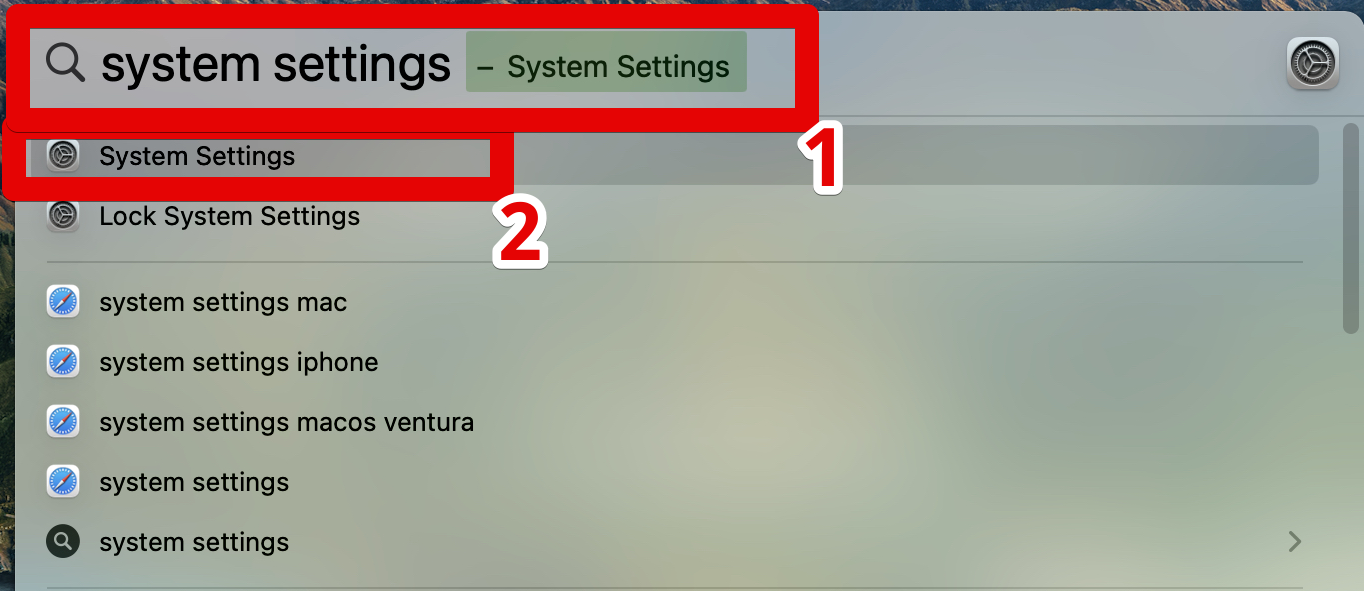
Step 1. Open Spotlight and search for "System Settings."
Step 2. Click on "General."
Step 3. Now, select "Software Update."
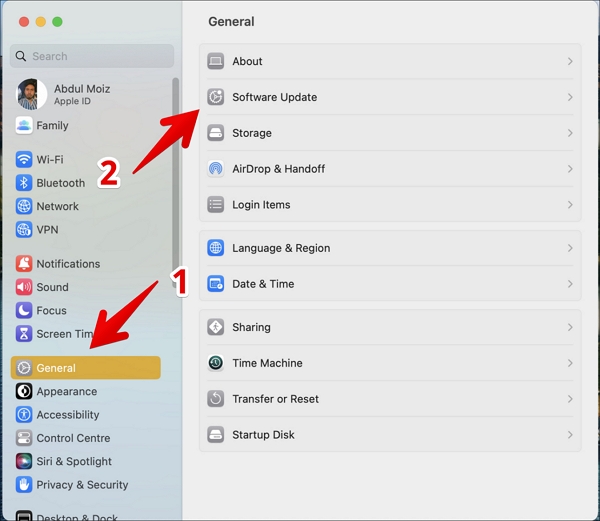
Step 4. The Mac will automatically check for any available updates, allowing you to stay up-to-date with the latest software and security patches. This process typically takes a few seconds, during which the system will search for any new updates to install.
Step 5. Update your Mac with the latest available updates.
Fix 4. Run Disk Utility First Aid
The error code 41 is caused by a problem with the file or the drive. You can run the disk utility first aid to repair the file or the drive if there's any corruption.
Here's how to run disk utility first aid:
Step 1. Restart your Mac
Step 2. Press and hold CMD+R.
Step 3. Select "Disk Utility" under the macOS Utilities window.
Step 4. Click on "Continue."
Step 5. Select your drive and click on the "First Aid" option.
Step 6. Now, click on "Run" then "Continue."
If your Command + R is not working, it's likely due to an issue with your browser or the website you're trying to reload. Try clearing your browser's cache, restarting your browser, or checking the website's status to see if it's down or experiencing technical difficulties.
Fix 5. Restart Mac in Safe Mode
To identify and repair issues with your Mac, use Mac Safe Mode, a streamlined version of the Mac operating system.
The Apple silicon-based Mac and the Intel-based Mac have different ways of starting up in safe mode. On an Apple silicon-based Mac, you can start up in safe mode by restarting your Mac, then immediately holding down the Shift key.
To start both versions of macOS in safe mode, we'll first demonstrate how to boot Intel Macs into safe mode, followed by the process for Apple silicon Macs.
- Safe mode startup for the Intel version of macOS:
Step 1. Turn off your Mac.
Step 2. Turn on your Mac, and press and hold the "Shift" button. This will prevent your Mac from booting into its normal operating system and instead boot into the Recovery HD partition, where you can access the Disk Utility and other tools to help you with your problem.
Step 3. To start your Mac in safe mode, simply restart it and hold down the Shift key as it boots up. Allow a few seconds for the process to complete, and your Mac will start in safe mode.
- Safe mode startup for the Apple-Silicon version of macOS:
Step 1. Press the power button on your Mac to turn it on.
Step 2. Hold the power button on your Mac until you see the Startup Volumes and Options screen.
Step 3. Choose "Startup volume" and press and hold the "Shift" key.
Step 4. Select "Continue in Safe Mode."
Final Thoughts
Apple, once renowned for its exceptional product quality and seamless software experience, is now experiencing a decline in user satisfaction, with more frequent issues and errors reported, rendering the idea that a Mac is superior to other computers increasingly irrelevant.
The Mac differentiates itself through its hardware, but struggles with software.
We'll continue to provide you with our articles until Apple addresses its software issues and resolves our problems. We're committed to helping you until Apple takes action.
Mac Error Code 41 FAQs
Here are some more answers to your questions about error code 41:
1. How do I fix error code 41 on Mac when copying files?
The error code 41 on a Mac can be frustrating, but there are steps you can take to resolve it. First, try restarting your Mac in safe mode to see if the issue persists. If that doesn't work, check for any software updates and install them.
2. Why can't I copy files on my Mac?
If you're unable to copy a file on your Mac, it may be due to the file being protected or a bug. To resolve this, try changing the permission settings for the file, and if that doesn't work, restart your Mac and attempt to copy the file again.
3. Why did my copy and paste stopped working on Mac?
This is primarily a software-To resolve the issue of copy-paste not working on your Mac, try restarting your Mac. This simple step can often resolve the problem, and you should be able to use the copy-paste functionality again after restarting.
4. What is the other standard error code?
Here are some other standard error codes for Mac that you can also come across:
- Error code 8003
- Error code 50
- Error code 36
- Error code 2003f
Related Articles
- Fixed: Windows 10 Reset Stuck or Windows 10 Fails to Reset
- How to Fix Microsoft Excel Has Stopped Working 2007/2010/2013/2016
- How to Fix 'It Looks Like You Don't Have Permission to Save Changes to This File' on Windows 11/10
- How to Sync Two External Hard Drives in Windows 10 [Two Nice Tips]
- How to Turn off Windows Defender on Windows10 [A Complete Guide]
Windows Defender, now called Windows Security on Windows 10 and 11, is the default anti-malware program that comes with the Windows system. - What Is Ubuntu Format Disk Command Line? How to Use It [Your 2023 Fresh Guide]
Learn how to format a disk in Ubuntu using command line tools. Use lsblk, fdisk, mkfs, and mount commands to prepare a drive safely.
Products
Articles & Tutorials
- Data Recovery
- Data Backup
- File Recovery
- File Backup
- System Backup and Restore
- Disk and Partition Clone
- Technical articles
- Mobile articles
- Disk Master Help
- Windows Data Recovery Tutorials
- Windows Secure Delete Tutorials
- Windows Partition Management Tutorials
- Windows File Backup and Restore Tutorials
- Windows System Backup and Restore Tutorials
- Windows Disk Backup and Restore Tutorials
- Windows Clone Tutorials