How to Fix 'It Looks Like You Don't Have Permission to Save Changes to This File' on Windows 11/10
You're facing the issue of "It looks like you don't have permission to save changes to this file" when saving an edited file in Windows? This error occurs due to various reasons, but the good news is that it's easily resolvable. In this post, we'll guide you through the process of resolving this error and provide a detailed explanation of why it happens in the first place.
| Workable Solutions | Step-by-step Troubleshooting |
|---|---|
| 1. Run as an Administrator | Find out your photo editing application and right-click on it. Click on the Run as administrator ...Full steps |
| 2. Unlock the Target Photo on PC | Go to the file location of your image, right-click on the image, and select Properties from the...Full steps |
| 3. Use the SFC and DISM Command | On the Windows search bar, type CMD. Now right-click the Command Prompt option and select...Full steps |
| 4. Reset Windows Photos Application | Press Windows + I keys simultaneously to open the Settings page. Click on the Apps section from...Full steps |
| Other Solutions | Press the Ctrl+Shift+Esc keys simultaneously to open the task manager. Click the Start-up apps tab...Full steps |
What Causes 'It Looks Like You Don't Have Permission to Save Changes to This File'
Here are four possible reasons why the "It looks like you don't have permission to save changes to this file" error occurs:
- Access to the user account is constrained.
- The modified image is stored in a read-only format.
- The available space is insufficient to store the file.
- A picture that can't be downloaded from its origin is being blocked.
We'll learn how to successfully resolve the error in the next part, so read the post till the end for a better understanding.
How to Fix 'It Looks Like You Don't Have Permission to Save Changes to This File' in 6 Ways
To resolve the "It looks like you don't have permission to save changes to this file" issue, you can try six different methods. Follow the exact steps provided in the guide to get the best result. Let's get started without wasting more time.
- 1. Run your photo app as an administrator on Windows
- 2. Unlock the target photo on your computer
- 3. Use the SFC and DISM commands in CMD
- 4. Reset the Windows photos application to fix issues
- 5. Disable antivirus software to save changes in the file
- 6. Disable the user account controller on Windows
To fix the error, we will use one of the six methods discussed in detail below. Each method should be followed exactly as outlined in the guide to resolve this issue.
You can share this post on your Facebook, Twitter, or Reddit to help more people who encountered this Windows issue.
Method 1. Run Your Photo App as an Administrator on Windows
If you're facing the "It looks like you don't have permission to save changes to this file" issue, it might be due to trying to edit a file without admin access, even if you have admin access, permission is limited by default. To resolve this, you must run your photo app as an administrator on Windows, which can be achieved by following the steps below.
Step 1. Find out your photo editing application and right-click on it.
Step 2. Select the "Run as administrator" option from the list.
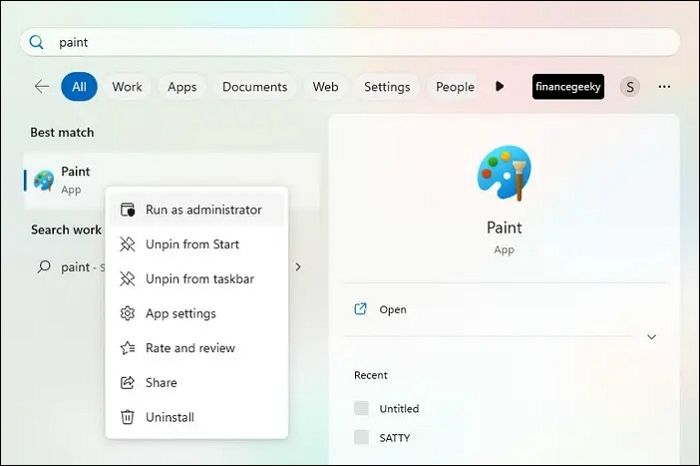
Step 3. To resolve the issue of not being able to open JPG files, click on Yes on the pop-up dialogue box that appears after making the necessary changes. This approach can also be effective in addressing the problem of not being able to open JPG files.
Method 2. Unlock the Target Photo on Your Computer
When moving a photo from one drive to another, users may encounter permission issues. To resolve this problem effectively, follow these steps.
Step 1. Right-click the image in its saved location, and select Properties from the context menu.
Step 2. To unblock a website, click on the General tab at the bottom of the page, and uncheck the box next to the message that says "Blocked" or similar, which will have an "Unblock" option.
Step 3. To fix the issue, you need to uncheck the Read-only box near the Attributes section and click Apply > OK. This should resolve the problem.
You can't access or edit files on Windows due to a physically locked USB drive, requiring you to unlock the USB drive to resolve the issue.
Method 3. Use the SFC and DISM Command in CMD
If method two is not working, you can resolve the issue via SFC and DISM commands in CMD. To do this, open the Command Prompt as administrator, type the following commands one by one, and press Enter after each command: sfc /scannow, dism /online /cleanup-image /restorehealth, and then sfc /scannow again. This will scan and replace any corrupted system files, and then restore the system files to their original state.
Step 1. To open the Command Prompt as an administrator on Windows, type "CMD" in the search bar and right-click on the Command Prompt option that appears, then select "Run as administrator".
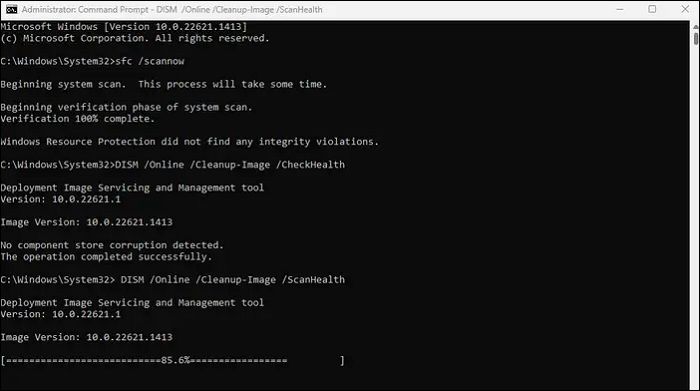
Step 2. To troubleshoot and repair corrupted system files, type the commands `sfc /scannow`, `DISM /Online /Cleanup-Image /CheckHealth`, `DISM /Online /Cleanup-Image /ScanHealth`, and `DISM /Online /Cleanup-Image /RestoreHealth` on the command prompt screen, pressing enter after each command.
After running the SFC /scannow command and DISM command, check if the issue is resolved. If not, further troubleshooting steps may be necessary.
Method 4. Reset Windows Photos Application to Fix Issues
If you are still facing the issue, it's time to repair the Microsoft Photos application on your PC. This is a self-execution process that can identify any problems and fix them. If it doesn't work, then you must reset the photos application. Follow the exact steps given below to execute the process.
Step 1. To open the Settings page on Windows, press the Windows key and the I key at the same time. This will open the Settings page, where you can access various system settings and options.
Step 2. To access Microsoft Photos, go to the Settings page, click on the Apps section from the left-side panel, then click on the Installed Apps section, and search for Microsoft Photos.
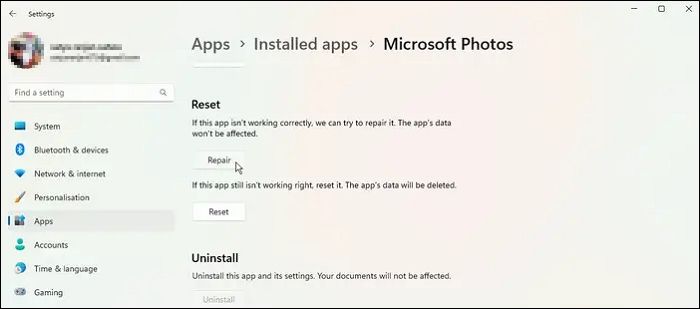
Step 3. To access advanced options for an application, click on the three dots next to the application name and select Advanced Options from the dropdown menu. This will open a new page with additional settings and features.
Step 4. Try the Repair and Reset options on the new page to see if they resolve the issue.
If you're unable to reset the software, you might want to try a factory reset, but make sure to back up your data first.
Method 5. Disable Antivirus Software to Save Changes in the File
When attempting to make changes to a file or folder, antivirus software often restricts users due to the potential for computer viruses. To resolve this issue, you may need to temporarily disable the antivirus software, which can be done by following a series of steps.
Step 1. Press the Ctrl+Shift+Esc keys simultaneously to open the task manager.
Step 2. Click the Start-up apps tab icon from the left side panel to view the list of apps that are set to start up automatically when your computer boots up. This allows you to easily manage and disable any apps that you don't want to start up automatically.
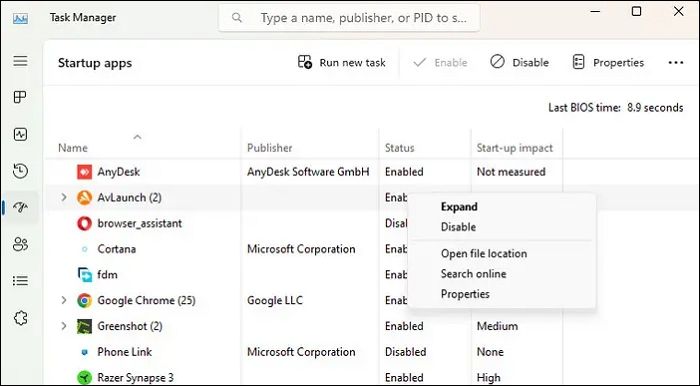
Step 3. To temporarily disable your antivirus, right-click on its icon in the system tray, then select the "Disable" option. This will temporarily turn off the antivirus software.
Method 6. Disable User Account Control on Windows
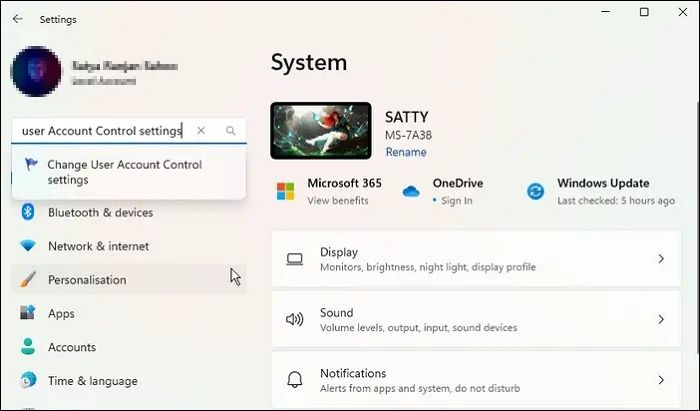
Disabling User Account Control (UAC) on Windows can resolve the error by preventing applications from requiring admin settings, which may be causing the issue. This can be done through Windows settings.
To disable User Account Control (UAC) on Windows, follow these steps: Click on the Start button and type "Change User Account Control settings" in the search bar. Click on the result to open the UAC settings window.
Step 1. Press the Windows key and the "I" key at the same time to open the Settings page.
Step 2. On the Settings search bar, search for "Change User Account Control settings" and click on it.
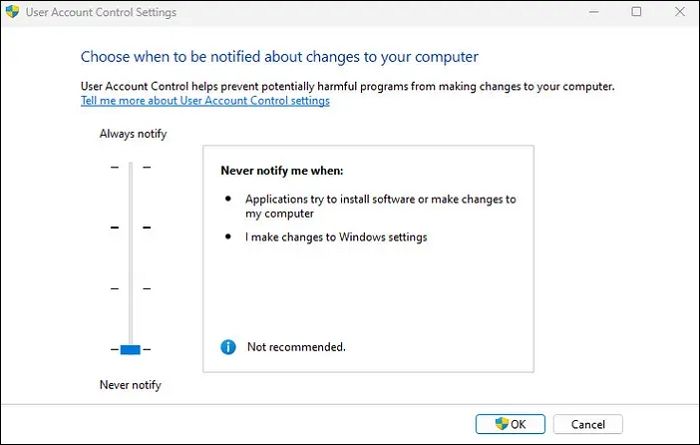
Step 3. On the left side, you can find Always notify and Never notify points. Drag down the bar on the Never notify option and click OK.
Recover Lost Photos After Fix It Looks Like You Don't Have Permission to Save Changes to This File
There's a risk of losing data while fixing the "It looks like you don't have permission to save changes" issue, potentially leading to accidental deletion of photos during the troubleshooting process. However, if this happens, don't worry - you can quickly recover deleted files with the help of a reliable data recovery tool like Deep Data Recovery.
This advanced and intelligent recovery tool boasts a range of useful features, making it one of the most sophisticated recovery tools available.
- Recover deleted photos from a formatted hard drive, a corrupted hard drive, or an emptied Recycle Bin with ease.
- Retrieve images, documents, emails, videos, and audio from various storage devices like SD cards, USB drives, and external hard drives.
- Losing files after a factory reset laptop or PC, or a Windows update, can be frustrating. Fortunately, there are programs available that can help you recover your lost data.
- Recover data from a dead hard drive by using a powerful recovery tool that can help you rescue data from an unbootable PC or laptop.
Conclusion
Here, we've outlined six methods to resolve the "it looks like we don't have permission to save changes to this file" error, suggesting trying each one to see which works best. It's essential to note that there's a risk of data loss during the process, and using a reliable data recovery tool like Deep Data Recovery can help recover data if needed.
It Looks Like You Don't Have Permission to Save Changes to This File FAQs
Here we will answer some frequently asked questions that might clear your doubts. So read this section carefully!
Why don't I have permission to access my folder?
The reasons behind the "you don't currently have permission to access this folder" issue may be different, but common causes include file system corruption, incorrect file permissions, malware or viruses, outdated operating system or software, and issues with the user account or profile.
- Deleting a user or group from the Group or user names on the Security tab of the folder results in the loss of access to that folder for the user or group. This is because the permissions and access rights associated with the user or group are removed, effectively revoking their access to the folder.
- An explicit "Deny" is applied to the user or group.
- The conflicting NTFS rights and share permissions are causing issues with access control and data security. This is due to the fact that NTFS permissions are being overridden by share permissions, leading to inconsistencies in what users can and cannot access.
How to fix the It looks like you don't have permission to save changes to this file issue?
You can fix the "you do not have permission to save changes to this file" issue in several ways, such as checking the file's permissions, running the application as an administrator, or editing the file in a different text editor.
- By running the SFC/DISM commands in CMD.
- By disabling antivirus software.
- disable windows account control on Windows
- Reset windows application
How do I give permission to save a file in C drive?
To save a file in the C drive, ensure the user has access to the drive. Check the drive's properties, go to security, and add the user with edit permission. This allows them to save files in the C drive.
Why is the Word saying I don't have permission to save?
If you are facing the issue I do not have permission to save, then it's because your permissions are limited by default.
Related Articles
- Not Enough Space for macOS Sonoma on MacBook Pro/Air [4 Proven Fixes]
- How to Factory Reset Dell Laptop [Step-by-Step Guide]
- TF Card vs. SD Card: 10+ Things You Want to Know
- Fix File Explorer Not Responding on Windows 11/10 | 8 Plans
Is the file explorer not responding on Windows 11/10? This article will help fix the issue with easy-to-follow methods! - How Many CPU Cores Do I Have [Fixed]
A CPU (Central Processing Unit) is the primary component of a computer that performs most instructions that the computer executes. The number of cores in a CPU affects its performance, but it's not the only factor. - How Much Storage Do I Need on My Laptop [Windows/Mac]
This post will guide you on how to check the laptop's storage on your Windows/Mac. We will tell you the appropriate storage for your laptop. I hope this article can help you with your questions.
Products
Articles & Tutorials
- Data Recovery
- Data Backup
- File Recovery
- File Backup
- System Backup and Restore
- Disk and Partition Clone
- Technical articles
- Mobile articles
- Disk Master Help
- Windows Data Recovery Tutorials
- Windows Secure Delete Tutorials
- Windows Partition Management Tutorials
- Windows File Backup and Restore Tutorials
- Windows System Backup and Restore Tutorials
- Windows Disk Backup and Restore Tutorials
- Windows Clone Tutorials