Fix File Explorer Not Responding on Windows 11/10 | 8 Plans
| Workable Solutions | Step-by-step Troubleshooting |
|---|---|
| 1. Restart File Explorer to Fix File Explorer Not Responding | To initiate the Task Manager, press "Ctrl + Shift + Esc" in the first step. After that, right-click on Windows...Full steps |
| 2. How to Restart Windows File Explorer with CMD | Boot Command Prompt on Windows 10 by typing "cmd" in the Cortana search box and selecting the...Full steps |
| 3. Clean the Windows File Explorer History to Fix Issues | Type "Control Panel" and search for it on the taskbar in the bottom menu. In the Control Panel, search...Full steps |
| 4. Fix Windows File Explorer by Reverting Display Settings | Open Windows Settings by clicking the windows logo or using the "Windows + I" shortcut...Full steps |
| Other Solutions | Open File Explorer and click "This PC" or "My Computer". Right-click on the system drive...Full steps |
What Causes File Explorer Not Responding on Windows 11/10
The File Explorer not responding on Windows 11/10 can be caused by various factors, including outdated drivers, corrupted system files, and issues with the Windows Search service, among others. To resolve the issue, users can try restarting the File Explorer, running a System File Checker (SFC) scan, disabling and re-enabling the Windows Search service, or updating drivers to the latest version. Additionally, checking for malware and viruses, and running a disk cleanup and disk defragmentation can also help resolve the issue.
- Large Files or Folders: If you have many files or folders in your system, File Explorer may take longer to load, causing it to respond incorrectly.
- Outdated or Corrupted Drivers: Outdated or corrupted drivers can also cause File Explorer to stop responding. This is because drivers are responsible for facilitating communication between your hardware and software, and if they become outdated or corrupted, they can interfere with this process, leading to issues like File Explorer freezing.
- Malware or VirusMalware or viruses can also cause File Explorer errors, by slowing down your system and corrupting files, leading to unresponsiveness.
- Conflict with Third-Party Apps: Conflict with third-party apps installed on your system can cause File Explorer to stop responding, as these apps may interfere with its normal functioning.
- Faulty Hard Drive: A faulty hard drive can cause File Explorer to stop responding, corrupt files, and interfere with the normal functioning of your system.
However, several methods can help fix the File Explorer not responding issue, ranging from restarting File Explorer to restarting Windows, clearing the system drive, and running SFC to find error causes, each with varying complexity depending on the issue's cause.
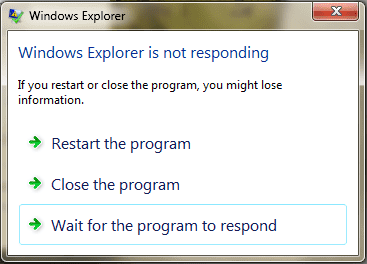
1. Fix File Explorer Not Responding with Task Manager
To restart File Explorer with Windows Task Manager, follow these steps: press Ctrl + Shift + Esc to open Task Manager, click on the "Processes" tab, find and select the "Windows Explorer" process, click on the "End Task" button, and then click on the "File" menu and select "Run new task" and type "explorer" in the "Open" field, and click "OK". This will restart File Explorer and resolve any issues with it not working.
Step 1. To initiate the Task Manager, press "Ctrl + Shift + Esc" in the first step.
Step 2. To end the Windows Explorer process, right-click on it in the Task Manager and select "End task".
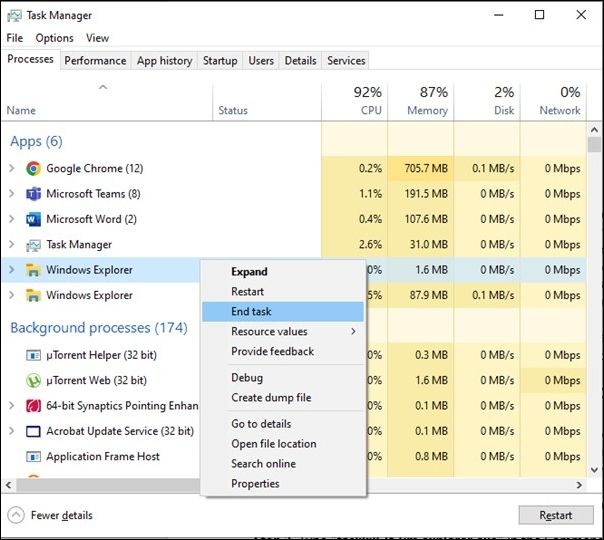
Step 3. To start a new task, click the "File" option located in the top left corner of the screen and select "Run new task" from the dropdown menu.
Step 4. In the fourth and final step, type "explorer.exe" in the field and press Enter to confirm.
2. Fix File Explorer Not Responding with CMD
The Command Prompt (CMD) is a command-line interface in Windows used to execute commands and perform tasks. Restarting File Explorer with CMD can resolve issues where File Explorer is not responding by terminating and restarting the File Explorer process. To accomplish this, follow the easy steps provided.
Step 1. To boot Command Prompt on Windows 10, simply type "cmd" in the Cortana search box and select the "Command Prompt" option.
Step 2. Type "taskkill /f /im explorer.exe" in the Command Prompt window and hit Enter to terminate the File Explorer process.
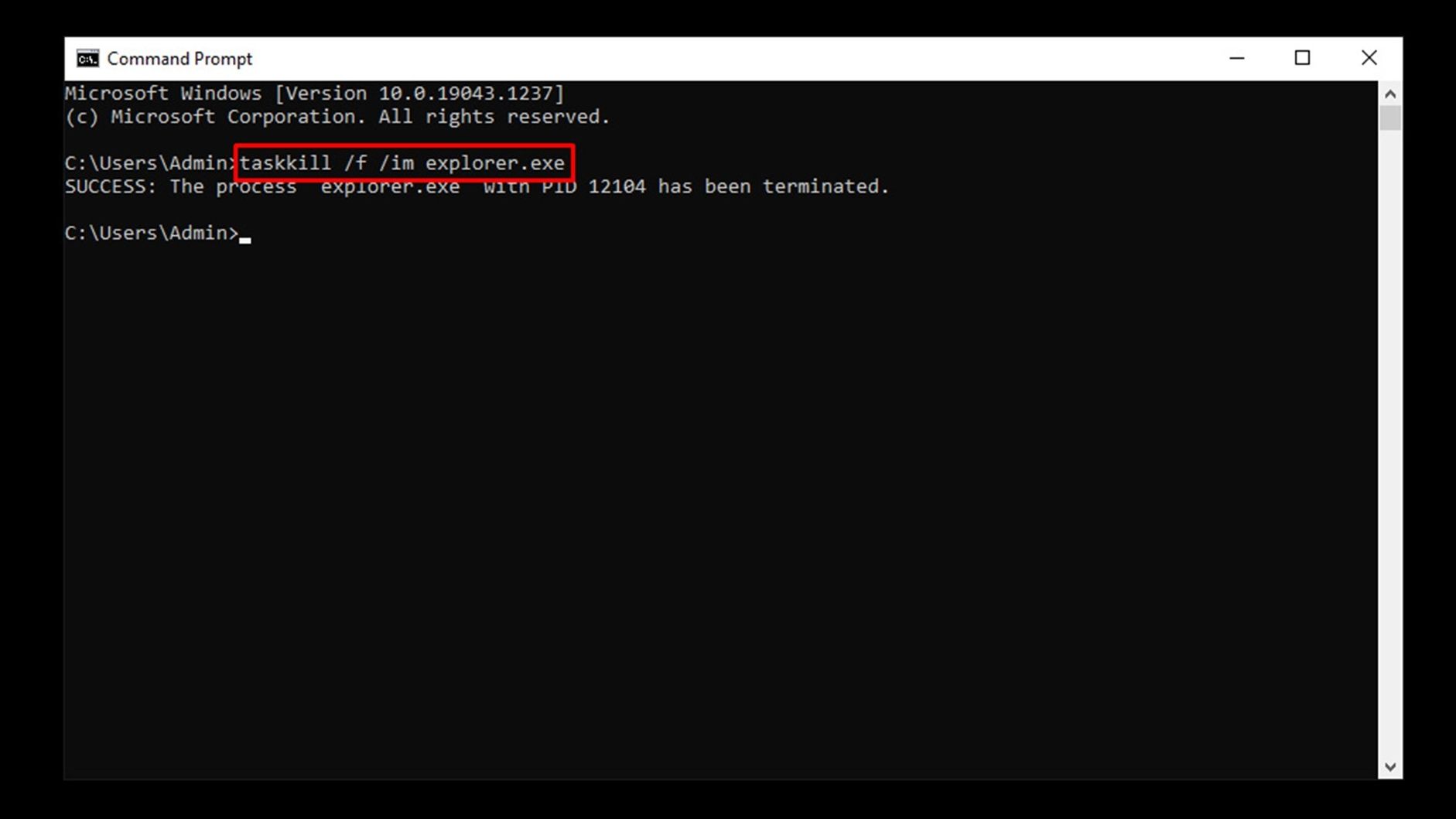
Step 3. To restart File Explorer, open the Command Prompt window and type "start explorer.exe", then press Enter. This will restart File Explorer.
Step 4. After completing the process, close the Command Prompt window and check if the issue is resolved.
Have you fixed Windows File Explorer not responding issue with the two methods above? Don't forget to share this post with your friends!
3. How to Clean Windows File Explorer History to Fix Issues
Cleaning the Windows File Explorer History involves deleting records of previously opened files and folders, which can improve File Explorer's performance and maintain user privacy by preventing others from viewing their file access history.
Step 1. To access the Control Panel, you can type "Control Panel" in the search bar located on the taskbar at the bottom of the screen, and then select it from the search results.
Step 2. To access File Explorer Options, go to the Control Panel, search for "File Explorer Options", and click on it from the top navbar.
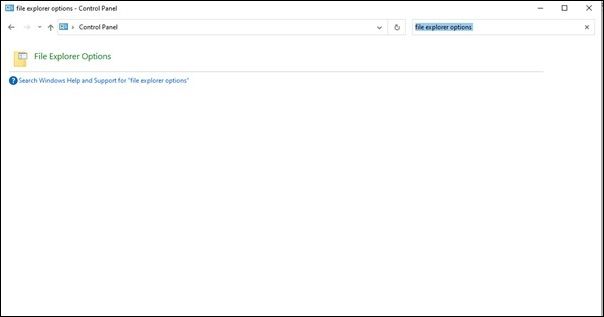
Step 3. To clear your browsing history, go to the "General" tab, find the "Privacy" portion, and click the "Clear" button.
Step 4. Click "OK" to confirm and clear the File Explorer history.
4. Troubleshoot Windows File Explorer by Reverting Display Settings
Display settings refer to the options in Windows that allow users to adjust their screen resolution, scaling, orientation, and other settings. Reverting to the previous display settings can restore the screen to its old state and resolve any issues that may have arisen. To do this on a laptop, follow the easy steps mentioned below.
Step 1. Open Windows Settings by clicking the windows logo or using the "Windows + I" shortcut.
Step 2. Click on the "System" option.
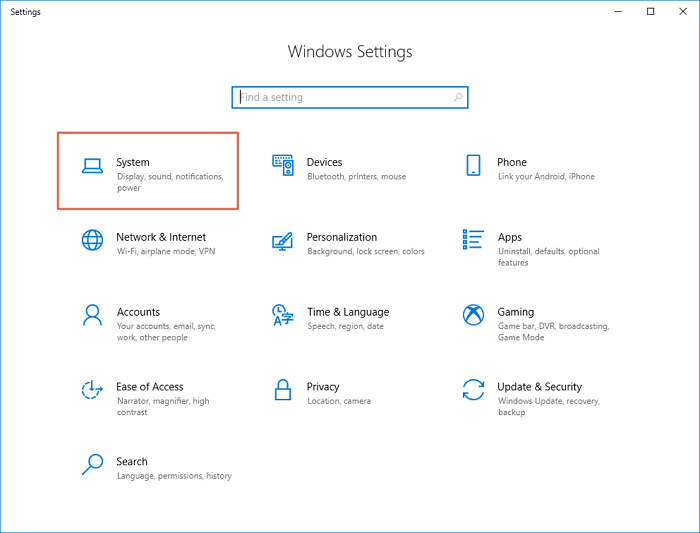
Step 3. Now go to the "Display" tab.
Step 4. To resolve the issue of text, apps, and other items being too small on your screen, try setting the scaling to 100%. This can usually be done by going to Settings > Display > Scale and layout, or by searching for "Change the size of text, apps, and other items" in the Start menu.
5. Clean System Space to Fix Windows File Explorer Not Responding
Clearing up system drive space can help resolve the issue of Windows File Explorer not responding, as a low system drive can affect computer performance and cause various issues, including File Explorer freezing. To address this, you can follow the steps to clear your system drive space.
Step 1. Open File Explorer and click "This PC" or "My Computer".
Step 2. Right-click on the system drive (usually C:) and select "Properties."
Step 3. Select "Disk Cleanup" from the properties window and wait until it calculates the files. A list of files will appear, including temporary files, system files, and other items that can be safely deleted.
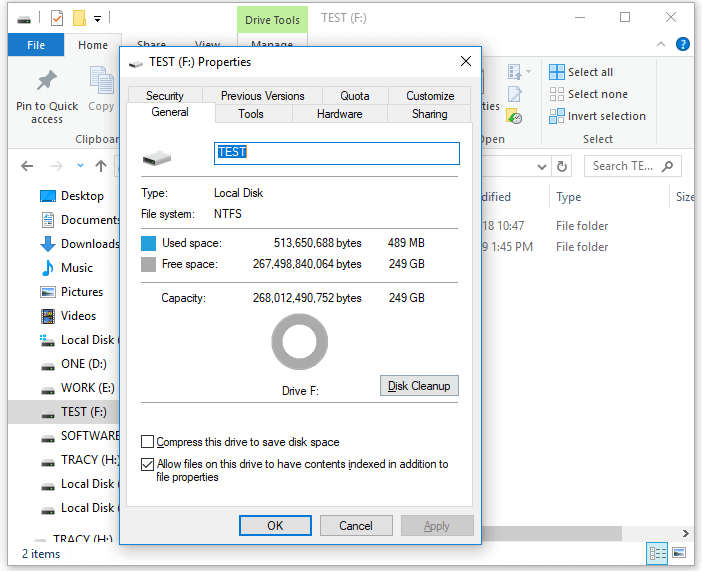
Step 4. Select the files you want to delete, such as temporary and recycle bin files, and click "OK" to start the cleanup process.
6. Run SFC Command in CMD to Find Errors Causes Windows File Explorer Not Responding
System File Checker (SFC) is a Windows utility that scans and repairs corrupted or missing system files, ensuring the stability and smooth functioning of the operating system. It checks the integrity of critical system files and replaces any corrupted files with cached copies from the Windows component store. Running the SFC /scannow command is necessary to fix issues such as File Explorer not responding, and can be done using the simple steps provided.
Step 1. To open the Run utility, press the Windows key + R on your keyboard. Next, type "cmd" and press Ctrl + Shift + Enter to launch the Command Prompt with administrative permissions. This will allow you to run commands with elevated privileges.
Step 2. Type the command "sfc /scannow" and press enter.
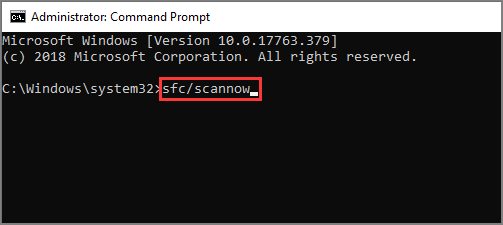
Step 3. The System File Checker (SFC) scans your computer for errors and attempts to fix them automatically if any are detected, potentially resolving related issues.
Step 4. Once the scanning and fixing process is complete, close the Command Prompt.
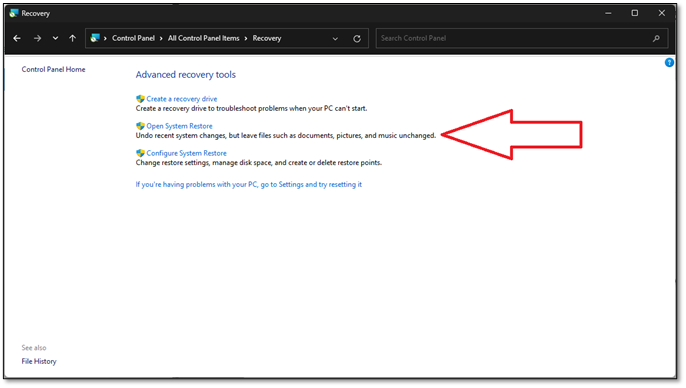
7. Restore Windows OS to Previous Data to Open File Explorer
To revert Windows 11 to a previous state, follow these steps:
Step 1. Press the "Windows + I" keys to open the Settings app.
Step 2. Click on "Update & Security" and then "Recovery".
Step 3. Under "Advanced Startup," click "Restart Now" to restart your computer.
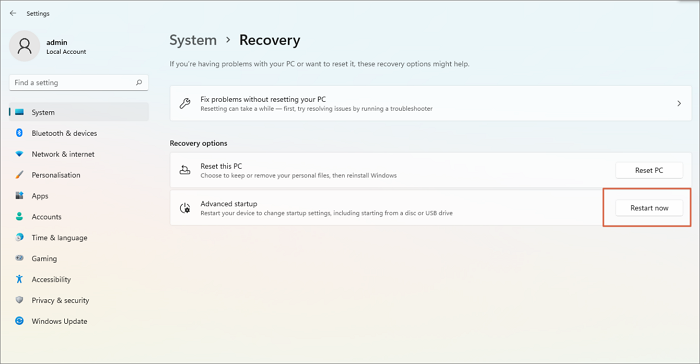
Step 4. To resolve the issue, go to Settings > Update & Security > Troubleshoot > Advanced Options > System Restore. Follow the prompts to select a restore point and restore your system to a previous state.
To fix System Restore Is Initializing in Windows 11/10, try running the System File Checker (SFC) tool, DISM tool, or checking for corrupted system files. You can also try running the Windows Update Troubleshooter, resetting the Windows Update components, or creating a new user account.
If you're trying to restore Windows to a previous version, you may encounter various issues. To troubleshoot these problems, you can refer to the post that provides solutions to fix restore issues.
8. Update/Reinstall Windows 11/10 Can Troubleshoot File Explorer Not Responding
Updating or reinstalling the Windows Explorer can sometimes resolve File Explorer's unresponsive issue. To do this, follow these simple steps: update or reinstall the Windows Explorer, which can be done by searching for 'Windows Explorer' in the Start menu, right-clicking on it, and selecting 'Update' or 'Repair', or by going to the Settings app, clicking on 'Apps', and selecting 'Optional features', then clicking on 'Add a feature' and selecting 'Windows Explorer'.
Step 1. To open the settings on your device, press the "Windows + I" keys together on your keyboard.
Step 2. Click on the "Update & Security" option from other options on the screen. In the Update & Security window, click on the "Troubleshoot" option from the left menu.
Step 3. To check for Windows updates, go to the Start menu, select "Settings", then click on "Update & Security", and finally choose "Windows Update" from the menu on the left. Look for any updates available to be downloaded.
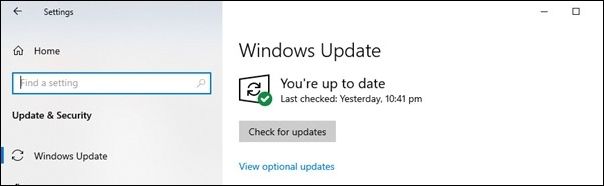
Step 4. If updates are found, install them.
Recover Lost Files After Fixing File Explorer Not Responding
While trying to fix the File Explorer not responding issue, users may accidentally lose important files or data, such as during a Windows restore or reinstall. However, Deep Data Recovery can help retrieve lost files and data in such situations.
Deep Data Recovery
- Recover deleted files, documents, photos, audio, music, and emails with this software, which effectively recovers most file types.
- Recover deleted Recycle Bin files and restore data from formatted hard drives, memory cards, flash drives, digital cameras, and camcorders.
- Data recovery tools can help recover lost data in various situations, such as sudden deletion, formatting, hard drive corruption, virus attacks, and system crashes.
The Deep Data Recovery tool is a powerful and efficient tool that can help users recover lost files or documents due to various reasons, such as accidental deletion, system crash, or other issues, and assist in recovering recorded images, movies, and other files in an effortless and swift manner.
Bottom Line
To fix the issue of File Explorer not responding in Windows 11/10, try restarting the Explorer, checking for viruses/malware, ending the File Explorer task, and checking for faulty applications. If these basic solutions don't work, more advanced methods like disabling startup programs, checking for corrupted system files, and resetting File Explorer can be tried. In case of data loss, Deep Data Recovery can be a reliable tool to recover lost files. Users are recommended to download this software and keep it handy.
File Explorer Not Responding FAQs
What is the difference between a business and a company? What is the difference between a company and an enterprise? What is the difference between a company and a corporation?
1. How to fix File Explorer won't open on Windows 11/10?
If File Explorer won't open on Windows 10/11, try restarting the File Explorer process, resetting File Explorer, running a System File Checker scan, or checking for corrupted system files. Additionally, you can try running the Windows Update troubleshooter, resetting the Windows Explorer shell, or using the built-in System Restore feature to revert to a previous system state.
- Restart File Explorer
- Reboot your computer.
- Empty File Explorer history
- Disable Quick Access
2. Why is my Windows File Explorer not responding on Windows 10?
Here are the reasons why Windows File Explorer may stop responding on Windows 10:
- Outdated or corrupt device drivers
- Malware infections or system errors
- Insufficient system resources or conflicting software
- Issues with the file system or hard drive.
3. How to clear Windows File Explorer cache Windows 11?
The Windows File Explorer cache is a temporary storage location where Windows stores frequently accessed data to improve File Explorer performance, holding icons, thumbnails, and other data for frequently accessed files and folders. To clear the cache in Windows 11, follow these easy steps.
Step 1. Press the "Windows key" + "R" on your keyboard to open the Run dialog box. This will allow you to quickly access various system utilities and tools.
Step 2. Type in "shell: cache" and hit Enter.
Step 3. Select all the files in the folder and delete them.
4. After fixing File Explorer not responding, my data is lost. How to recover it?
If you lost data while trying to fix the File Explorer not responding issue, you can use a data recovery tool like Deep Data Recovery to recover your lost files, including photos, documents, videos, and more. The software is user-friendly and can help you recover your lost data.
Related Articles
- (Top 8 Ways) How to Fix Windows 10 Black Screen with Cursor
- PowerShell Get Disk Space on Windows 10/11 [Full Tutorial]
- [Quick Fixed] No Login Screen on Windows 10/11 Issue
- How to Fix DXGI_ERROR_DEVICE_REMOVED on Windows 10/11 [Fixed]
- What Is Toshiba Boot Menu | Get Clear Ideas Here!🏆
Learn how to open the Toshiba boot menu, choose a boot device, enter BIOS, and boot from USB for repair or installation. - Ubisoft Game Save Folder (Everything You Need to Know)
People often use Ubisoft to save game files when their games don't support Cloud, or they prefer local storage for backup purposes. - Fix Windows 11 File Explorer Not Working (2026 Guide)
Products
Articles & Tutorials
- Data Recovery
- Data Backup
- File Recovery
- File Backup
- System Backup and Restore
- Disk and Partition Clone
- Technical articles
- Mobile articles
- Disk Master Help
- Windows Data Recovery Tutorials
- Windows Secure Delete Tutorials
- Windows Partition Management Tutorials
- Windows File Backup and Restore Tutorials
- Windows System Backup and Restore Tutorials
- Windows Disk Backup and Restore Tutorials
- Windows Clone Tutorials