What Is Toshiba Boot Menu | Get Clear Ideas Here!🏆
Toshiba is a well-known laptop brand, and the Toshiba Satellite is one of the most widely used laptops globally. The boot menu is a crucial feature of Toshiba laptops, and with this post, you can learn everything about accessing it.
What Is Toshiba Laptop Boot Menu
The Toshiba boot menu is a feature on Toshiba laptops that allows users to select which operating system or boot option to use when starting up their computer. It provides a list of available boot options, enabling users to choose from different operating systems, such as Windows or Linux, or to access the BIOS settings.
This menu is usually accessed by pressing a specific key, like F2 or F12, when the laptop is starting up. The Toshiba boot menu serves as a convenient way to switch between different operating systems or to troubleshoot issues with the laptop's boot process.
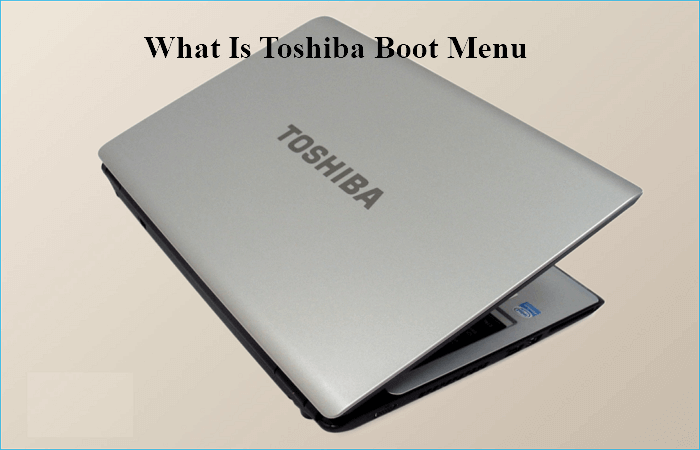
When you turn on your computer, a splash screen will appear, informing you that pressing F2, F12, or other keys will launch the BIOS setup, but this is only visible for a short time.
When powering on a computer, the operating system on the hard drive boots up. However, if the computer gets stuck on a blue or black screen, it needs to be booted from an external media such as a system installation CD, USB flash drive, or other objects, like a Toshiba laptop.
To change the boot order or boot device of your Toshiba laptop, you need to enter the BIOS settings and access the boot menu. This allows you to select a different device or order for booting your laptop.
If you cannot access the boot menu using the standard keys, you may need to try alternative methods such as using the Toshiba HWSetup Tool or disabling Fast Startup in Windows, which can sometimes interfere with the boot menu key detection.
How to Get to Toshiba Boot Menu
To access the Toshiba boot menu, you can choose one of two scenarios based on your laptop's current state. If your Toshiba laptop is booting normally, you can access the boot menu by pressing a specific key during startup, such as F2, F12, or Del, depending on your model.
If your laptop is unable to boot properly, you may need to use a different method, such as using a bootable USB drive or CD/DVD, to access the boot menu and troubleshoot the issue.
Case 1. Access Toshiba Boot Menu When the PC Boots Properly
When your computer boots properly, you can quickly access the Toshiba laptop boot menu by pressing F2 or F12.
If you are able to boot into Windows but need to access the boot menu, simply restart your computer and press the appropriate key as soon as the Toshiba logo appears on the screen. Then, follow the steps below to access the Toshiba boot menu.
Step 1. Shut down the Toshiba laptop.
Step 2. Restart the Toshiba laptop, then follow the on-screen prompts until you reach the Toshiba boot menu.
Step 3. To access the Toshiba Satellite's boot menu, you can also enter the BIOS setup. Follow the steps to open the Phoenix BIOS Setup Utility window, then navigate to the Boot tab by clicking the appropriate keys, and locate the boot menu.
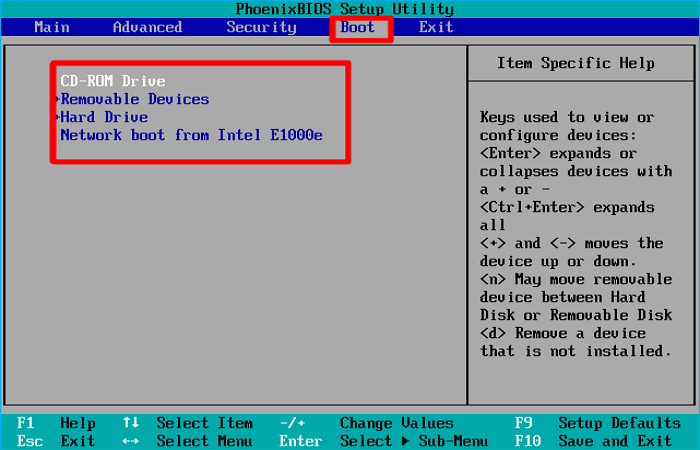
If you're unable to enter the system and are locked out of Windows, you can still access the Toshiba boot menu. This allows you to boot into a different operating system or run a diagnostic test, even if you're unable to access your primary system.
Case 2. Enter Toshiba Boot Menu When the PC Is Unbootable
If your Toshiba computer cannot boot normally, you must prepare a bootable USB drive. Follow the steps below to enter the Toshiba boot menu.
Step 1. Connect a bootable USB to your Toshiba computer, turn it on by pressing the Power button until it boots.
Step 2. To access the Toshiba boot menu, press and hold the Toshiba boot menu key (the key you need to press when the computer first boots) until the BIOS setup window appears.
Step 3. To change the boot sequence on a PC, navigate to the Boot tab using the arrow keys on the keyboard, then press +/- and the up/down arrow keys to select the desired boot order.
Step 4. To save the modifications and execute the operation, press F10 and then tap Enter.
If the boot menu isn't working on your Toshiba laptop, you can try using the Toshiba HWSetup Tool to configure it or disabling Fast Startup, which might resolve the issue.
If you like this article, post it on social media:
To Sum Up
The Toshiba boot menu, also known as the BIOS, is a crucial feature that allows users to access and configure various settings on their laptop, including the boot order. To access the Toshiba boot menu, users can press specific keys during the boot-up process, such as F2, F12, or Del, depending on the model.
This menu provides options to change the boot order, enable or disable devices, and troubleshoot boot-related issues, making it essential for users who need to resolve booting problems or want to customize their laptop's settings.
Related Articles
- Windows 11 Free Upgrade from Windows 10 [How-to] Step by Step
- How to Use Device Encryption on Windows 11
- Qiling Disk Drives Stats 1 (Size/Brands/Type) for 2023
- 4 Ways | How to Stop Windows 11 Update Pending Restart
If you're seeing a 'Windows 11 update pending restart' message under the Windows updates menu and aren't sure how to stop it, this article is here to help. We'll guide you through the process of stopping the Windows 11 update pending restart. - How to Repair Raw Drive in Windows 10/11 [Efficient Solutions]
Repair a RAW drive in Windows 10, recover important files, and convert or format the drive safely when needed. - Repairing Disk Errors This Might Take an Hour - How to Fix?
If you're experiencing the 'repairing disk errors this might take an hour' error, this article has got you covered. To fix this issue, simply follow the steps outlined here to resolve the problem and get your computer up and running smoothly again.
Products
Articles & Tutorials
- Data Recovery
- Data Backup
- File Recovery
- File Backup
- System Backup and Restore
- Disk and Partition Clone
- Technical articles
- Mobile articles
- Disk Master Help
- Windows Data Recovery Tutorials
- Windows Secure Delete Tutorials
- Windows Partition Management Tutorials
- Windows File Backup and Restore Tutorials
- Windows System Backup and Restore Tutorials
- Windows Disk Backup and Restore Tutorials
- Windows Clone Tutorials