How to Fix 7 Days to Die Corrupted Save on PC (2024 New Guide)
7 Days to Die 7 Days to Die is an open-world survival horror game available on multiple platforms. Players must survive in a random world, fighting against zombies, injuries, and illness. However, some players are experiencing issues with loading saved games, resulting in errors at the top left edge of the screen, preventing the game from loading.
Many users are frustrated because the game isn't allowing them to access their game progress, which they've invested hundreds of hours in. If you're also experiencing this issue, you know how stressful it can be. To help, we've listed possible solutions to fix the 7 Days to Die corrupted save file issue on your PC.
Why 7 Days to Die Saves Corrupted on PC
7 Days to Die game saves can become corrupted due to sudden system shutdowns, unstable internet connections, or other unexpected events, leading to game data loss.
When the game suddenly closes, the main.ttw and main.ttw.bakk files become corrupted, causing the error when trying to load a saved game. This issue occurs when the computer or game abruptly crashes, resulting in the corruption of these two critical game files.
This issue may be caused by shutting down your computer while the game is still running, which can lead to corrupted game files or a mismatch between the game's save state and the system's shutdown process. To fix this, you can try reinstalling the game, checking for any corrupted files, or verifying the game's integrity through the Steam client. If the problem persists, you can also try resetting the game's configuration files or seeking help from the game's community or support team.
How to Fix 7 Days to Die Corrupted Saves on PC
Now that we've explored possible causes for the 7 Days to Die corrupted saved files issue, it's time to move on to the solutions. The best workarounds to fix this issue are listed below. You can try these solutions to easily eliminate the problem and get your saved files working again.
To troubleshoot the issue with 7 Days to Die, we recommend backing up the current game files before making any changes to prevent data loss. This will ensure that you have a safe copy of your game data in case anything goes wrong during the troubleshooting process.
You can use a third-7 Days to Die users can use Qiling Disk Master to easily back up their game files, including save game files, for safekeeping. This tool allows for quick generation of large backups that can be stored in cloud storage, protecting data from ransomware and viruses.
Here are some of the key features of the Qiling Disk Master that can help you along backing up the game files:
- Direct Backup to Cloud Storage
- Basic Scheduled Backup
- Disk & Partition Clone
- Secured Password-Protect Backups
- Multi-Path Backup Storage
- Full/Differential/Incremental Backup
- Backup Files, System & Hard Drive to Cloud Drive
You can download the Qiling Disk Master tool on your Windows PC by heading to the attached link. Once all the game files have been backed up, try the workarounds mentioned below on 7 Days to Die.
1. Quit the Game & Restart the Device
Most users faced this issue due to a sudden or improper system shutdown. To resolve this, start with the most basic solution: quit the game and restart your computer. Simply follow the steps to do the same.
1. Launch the 7 Days to Die game on your PC and open the game menu by pressing the Esc key on your keyboard.
2. To exit the game, click on the "Quit" option from the game menu, or if that doesn't work, press Ctrl + Alt + Delete to open Task Manager and force quit the app.
3. After quitting the video game, shut down the PC to end all the processes of the 7 Days to Die game.
4. Once the computer is properly closed, restart it again, launch 7 Days to Die, and try to load the same corrupted game file again to check the issue's status.
We hope the issue is resolved now with the computer. Before moving to the next solution, we want to remind you that you should never force close it by directly shutting down the console. Please keep this in mind.
2. Create A New Game With the Same Settings
If restarting the system doesn't solve the problem, we recommend replacing the corrupted main.ttw and main.ttw.bakk files with the working ones. This issue occurs when the main.ttw file fails to load properly or becomes corrupted. To resolve this, create a fresh game and replace the new world data with the corrupted world data.
Note: This troubleshooting method may resolve the issue, but it will reset the game to its first day, and you will retain all your collected resources and builds, allowing you to start from day 1 with everything intact.
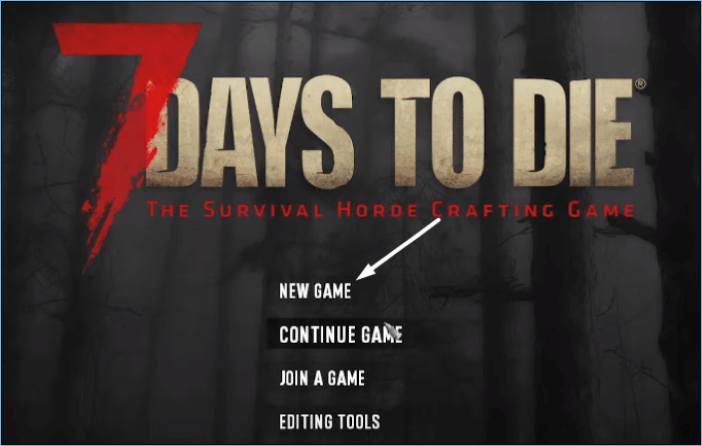
Step 1. Launch 7 Days to Die on your computer, click on New game on the entry screen, and start a new game.
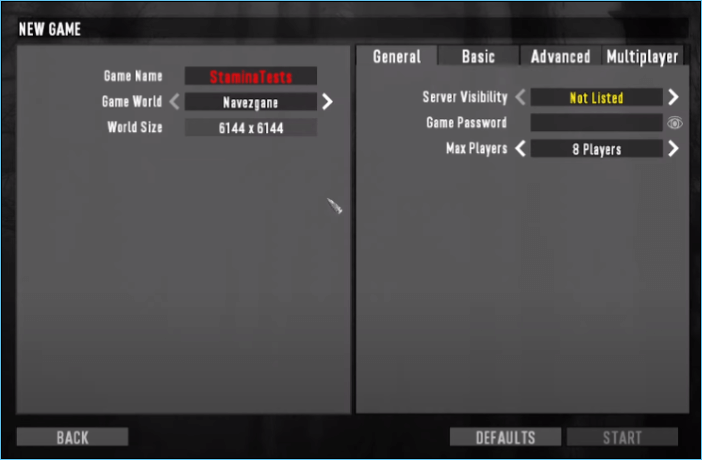
Step 2. Now, create a new name with the same settings as the corrupted game. For instance, the game name, game world, world size, and all other settings should be the same as the previously corrupted game file.
Step 3. Once you've created the new world in the game, quit the game and open File Explorer on your Windows PC.

Step 4. Navigate to the 7 Days to Die's Saves subfolder by copy-pasting the below-mentioned directory path in the top search box. C:\Users\YourUsername\AppData\Roaming\7DaysToDie\Saves. Replace "YourUsername" with your actual Windows username.
C\:Users\YourUsername\AppData\Roaming\7DaysToDie\Saves

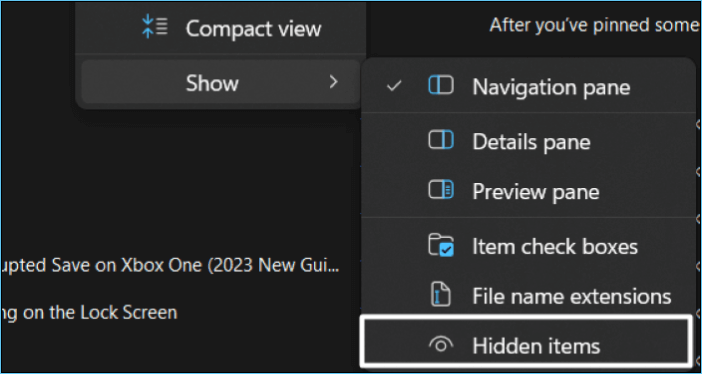
Step 5. To view hidden items in File Explorer, click on "View" in the ribbon menu, hover the arrow on "Show", and select the "Hidden" items option.
Step 6. The saved game files are now displayed by seed world name in the Saves subfolder, and can be viewed by double-clicking on the seed name.
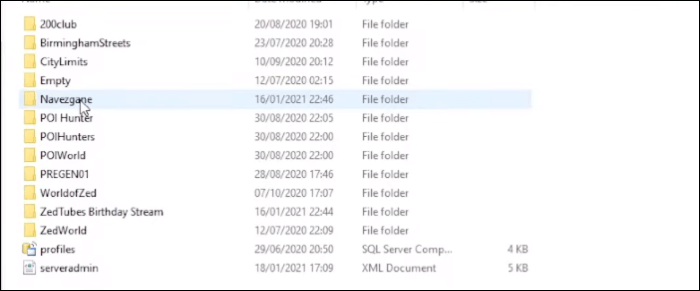
Step 7. Once the map folder is opened, double-click on the saved game that isn't opening properly.

Step 8. Then, delete the below-mentioned files from the corrupted saved game folder and head to the newly created game folder in the Saves subfolder.
- main.ttw
- main.ttw.loadFailed
- main.ttw.bakk
- main.ttw.bakk.loadFailed
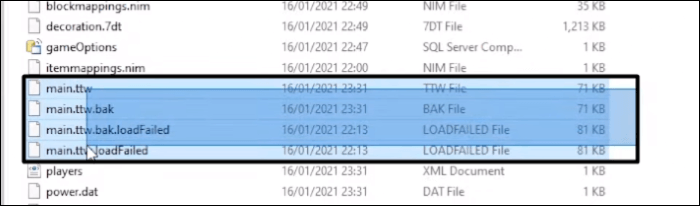
Step 9. Copy the main.ttw and main.ttw.bakk files from the newly created game folder and paste them into the corrupted saved game folder.

To resolve the game's saved game file loading issues, restart the computer, then launch the game. Once launched, attempt to load the previously problematic saved game file, which should now open correctly without errors.
The Bottom Line
7 Days to Die players who cannot load saved game are facing a frustrating experience. They are unable to continue their progress, which they made after playing for several hours. This is a significant setback for them, as they cannot afford to lose their progress. The inability to load the saved game is a major issue that needs to be addressed. Players should be able to load their saved game without any issues, allowing them to continue their progress without interruption.
They're getting different errors when trying to open the saved game in 7 Days to Die on PC, but fortunately, the issue is fixable, and some solutions have been shared to help resolve the corrupted save issue.
FAQ on 7 Days to Die Corrupted Saves on PC
If you still have doubts about today's topic, you can refer to the frequently asked questions about 7 Days to Die Corrupted Save PC, which we hope will clear up any confusion.
1. Where Is the Saves Folder of 7 Days To Die?
To access the Saves folder of 7 Days To Die on your Windows PC, open the Run utility using the Windows + R shortcut, type %AppData%, and press Enter to open the AppData folder. From there, navigate to the 7DaysToDie folder and double-click on the Saves folder to view your saved game files.
2. Why Does My Save Keep Getting Corrupted?
The saved file corruption in the game is likely due to several reasons, with improper computer shutdown being a prevalent cause. This can occur when the computer is shut down forcefully by pressing the Power button, leading to corrupted saved files. Other possible causes include viruses and malware, as well as sudden power cuts.
3. What Happens if You Delete Saved Data for a Game?
If you delete the game's saved data, you'll lose all your progress, including achievements and in-game content, and it won't be recoverable unless it's stored on cloud servers.
4. Does 7 Days To Die Have Backup Saves?
7 Days to Die has a real-time cloud sync feature that automatically saves the game while playing, allowing for easy backup and restoration of saved files through the Steam app, and the saved files can also be accessed in the Saves subfolder of the main game folder.
C\:Users\YourUsername\AppData\Roaming\7DaysToDie\Saves
Related Articles
- How to Fix SanDisk SSD Slow Error [2024 Ultimate Guide]
- Does BitLocker Slow Down SSD? Yes, up to 45%
- 3 Ways to Factory Reset Samsung Laptop on Windows 10/8/7
- [6 Quick Fixed] Computer Turns On But No Signal to Monitor
If your computer turns on but there's no signal to the monitor, it's likely due to driver or power issues. Fortunately, there are 6 simple fixes that can resolve the problem and get you back to work quickly. - [All You Should Know] How to Save Sims 4 While Frozen
Learn what to do when Sims 4 freezes and how to protect your saves. Try recovery steps, backup tips, and fixes to reduce future freezes. - 4 Ways | How to Stop Windows 11 Update Pending Restart
If you're seeing a 'Windows 11 update pending restart' message under the Windows updates menu and aren't sure how to stop it, this article is here to help. We'll guide you through the process of stopping the Windows 11 update pending restart.
Products
Articles & Tutorials
- Data Recovery
- Data Backup
- File Recovery
- File Backup
- System Backup and Restore
- Disk and Partition Clone
- Technical articles
- Mobile articles
- Disk Master Help
- Windows Data Recovery Tutorials
- Windows Secure Delete Tutorials
- Windows Partition Management Tutorials
- Windows File Backup and Restore Tutorials
- Windows System Backup and Restore Tutorials
- Windows Disk Backup and Restore Tutorials
- Windows Clone Tutorials