How to Save Sims 4 While Frozen
The Sims 4 game is a simulation game that lacks exciting shooting scenes and action effects, but it still experiences freezing issues. During events like weddings or parties, the game screen will suddenly freeze, and no matter how the player tries to interact with it by moving the mouse or clicking the screen, it will not respond.

For PC gamers, a frozen game can be frustrating, especially when it happens in the middle of a Sims 4 session. If the game freezes, players often struggle to save their progress, leading to a loss of previously saved game time. However, with the right guidance, Windows and Mac users can learn how to save their Sims 4 game even when it's frozen, making it easier to recover their progress and avoid starting over from scratch.
Maybe you're also interested in:
How to Unfreeze Sims 4 Without Losing Data
If Sims 4 freezes, it's likely that shutting it down is the only solution, with a small chance that it might recover on its own.
While it's not possible to save game data by unfreezing Sims 4, you can still save your game before ending the game. For Windows and Mac users, we have provided effective solutions to help you achieve this.
How to Save Sims 4 While it Frozen with Keyboard
If your Sims 4 game is frozen, you can easily recover it by pressing a few buttons on the keyboard. To do this, you can press Ctrl+Shift+Esc or Ctrl+Alt+Del to open the game-saving window, from which you can save your progress and exit the game. Alternatively, you can press Ctrl+Shift+Esc or Ctrl+Alt+Del to open the Task Manager, and then click on the "Processes" tab to find and close the Sims 4 process.
- How to Save Sims 4 When Frozen on Windows
- How to Save Sims 4 When Frozen on Mac
- Common Approach for Both Windows and Mac
How to Save Sims 4 When Frozen on Windows
- Press Alt+F4
To exit Sims 4 without losing game progress, press Alt+F4 to save and exit the game, allowing you to resume from the frozen progress when starting again.
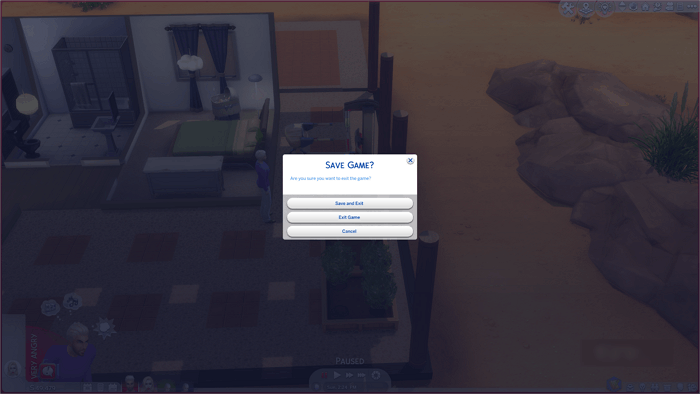
How to Save Sims 4 When Frozen on Mac
- Press Command+Q
To recover a frozen Sims 4 game on a Mac, press Command+Q, which will prompt a window to save your progress before exiting. Click "Save and Exit" to safely end the game without losing data. Restarting the game will return you to the frozen state, allowing you to continue normally.
Common Approach for Both Windows and Mac
To save the game while it's frozen, you can open the Sims 4 command box and enter the quit command, which can be done on both Windows and Mac systems.
Here is the detailed tutorial.
Step 1. Press Ctrl+Shift+C
Step 2. To quit the game, simply type "quit" in the command box that appears in the upper right corner of the screen. This will exit the game and return you to the launcher.
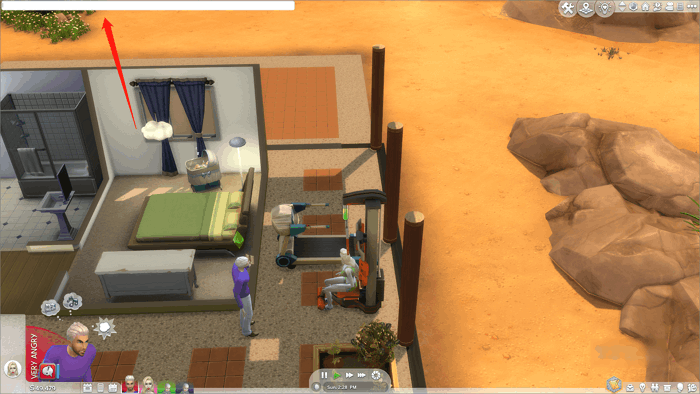
Step 3. Press Enter key and the game-saving window will pop up.
Step 4. Save your progress, shut down the game, and then restart it to resolve the issue.
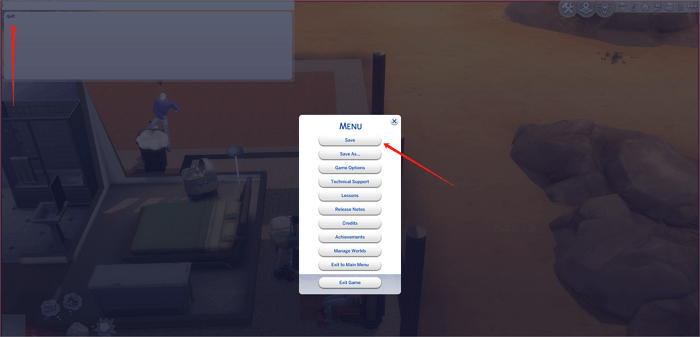
After successfully avoiding losing your game progress, you still need to remain vigilant to ensure a smooth gaming experience. The game freezing can be frustrating, so it's essential to investigate the causes of the issue and find a solution to prevent it from happening again. If the game continues to freeze, it can significantly impact your overall gaming experience.
Reasons for Sims 4 Freezes and the Repair Plan
Here are 3 reasons for Sims 4 Freezes you should pay attention to:
Computer Hardware Problems
If you don't check the system requirements before downloading the game, and your computer's hardware can't meet them, Sims 4 may freeze up due to exceeding your computer's normal ability.
The Sims 4 system requirements include a 64-bit operating system, a minimum of 4 GB of RAM, and a 4 GB of free space in the hard drive. The game also requires a 2.0 GHz Intel Core 2 Duo or AMD Athlon 64 Dual-Core 4000+ processor. Additionally, the game needs a 128 MB of video memory and a 128 MB of dedicated video memory.
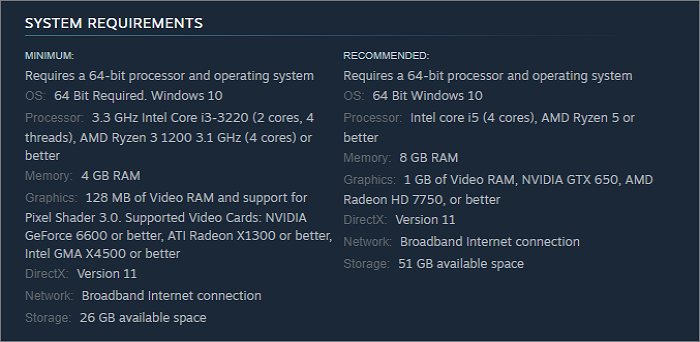
If your computer configuration only meets the minimum requirements, you can try reducing the game image quality, which may help prevent game freezing.
Mods and CC Problems
If you've installed mods and custom contents (CCs) to Sims 4, you'll need to check if they're compatible with the current game version after each update. If not, they can cause game code confusion, leading to problems like freezing, so it's a good idea to check their compatibility regularly.
To resolve the issue, you can check the website where you downloaded the Mods or CC to see if the designer has updated the new version and replaced the original file, which might be causing the game to run abnormally.

Graphics Card Problem
If your computer meets the Sims 4 system requirements and the mods file you added is working fine, check if your graphics card is up-to-date.
Here is the guide to updating your graphics card:
- Open Device Manager
- Click the current graphics card in the Display Adapters
- To complete the update of the graphics card, select "Update Driver" from the available options.
After following the steps to disable the Origin overlay, remove mods, and update the game, launch The Sims 4 and check if the freezing issue is resolved.
How to Prevent Sims 4 Data Loss
To prevent game data loss and establish a more secure game environment, we recommend using backup software like Qiling Disk Master Pro to protect your Sims 4 saves data.
Qiling Disk Master Pro is a reliable helper for PC game saves backup, allowing you to customize a scheduled backup plan and safely store your game data in the free 250 GB Cloud storage space or a prepared disk. It also features differential and incremental backup functions, enabling automatic backup of the latest save files when updating game progress, thereby preventing data loss due to game crashes or freezing.
To backup your Sims 4 saves, simply locate the "Documents" folder on your computer, navigate to the "EA Games" folder, and then find the "The Sims 4" folder. Inside, you'll find a "Saves" folder where all your game saves are stored.
Step 1. Start game data backup by clicking "File Backup".

Step 2. To back up the Sims 4 game saves and configuration, navigate to the apps data backup section and select the Sims 4 game saves.

Step 3. Choose a backup location, such as an internal or external drive, to store game data saves. For added security, consider keeping an additional backup copy on Qiling cloud or NAS devices.

Conclusion
If your Sims 4 game is frozen, don't worry, This guide offers the solution for you. It also explains why the game might be freezing. Once you've resolved the issue, be sure to take precautions to prevent data loss. You can use Qiling Disk Master Pro to easily backup your Sims 4 saves and be prepared for any data crises that may arise.
FAQs
1. Does Sims 4 AutoSave?
To ensure your game is saved, press the Esc key and hit the Save button before shutting down your Sims 4 game. This will prevent any loss of progress.
2. Can I uninstall Sims 4 without losing saved games?
To backup your Sims 4 saves file, navigate to the Documents > Electronic Arts > The Sims 4 > saves folder and copy the files to a safe location. This will allow you to keep your saves safe even if you uninstall the game, as the Sims 4 files will not be affected.
Related Articles
- Fixed: Xbox One Not Reading Disc [2023 Complete Guide]
- How to Use Diskpart to Set Boot Partition in Windows 10 [2023 New Guide]
- How to Downgrade from Monterey to Big Sur [macOS 12 to 11]
- How to Fix Slow USB Transfer Speed and Speed Up USB in Windows 10/8/7
- How to Enter BIOS in Windows 10/11 on HP, Dell, Lenovo, Acer, Asus
Learn how to enter BIOS on Windows 10/11 for HP, Dell, Lenovo, Acer, and Asus. Step-by-step guide using function keys (F2, F10, Del) and Windows Settings. Includes BIOS key reference table. - How to Find Autodesk Product Key? Answer Is Here!
Want to find Autodesk product key? Locating any key of existing software can be easily extracted by a product key finder. Moreover, if you prefer to take the manual and free options, you are lucky to read this article. All methods we marked are available for Windows 11.
Products
Articles & Tutorials
- Data Recovery
- Data Backup
- File Recovery
- File Backup
- System Backup and Restore
- Disk and Partition Clone
- Technical articles
- Mobile articles
- Disk Master Help
- Windows Data Recovery Tutorials
- Windows Secure Delete Tutorials
- Windows Partition Management Tutorials
- Windows File Backup and Restore Tutorials
- Windows System Backup and Restore Tutorials
- Windows Disk Backup and Restore Tutorials
- Windows Clone Tutorials