How to Backup Sims 4 Saves in 2023 (Fully Protect Game Data)
The Sims 4 remains a popular simulation game with a large fan base, regular DLCs, and an active mod community. Since EA made the base game free in October 2022, more players have joined and created new saves.

More players also means a greater need to back up Sims 4 saves. Game crashes, broken mods, custom content conflicts, or device problems can damage save files. A backup helps you restore progress or move saves to another computer.
This article provides step-by-step guides for backing up Sims 4 saves on Mac, Windows PC, PlayStation, and Xbox.
Maybe you're interested in:
The Importance of Backing Up Sims 4 Saves
Here are some reasons why Sims 4 save backup is important: it lets players restore game progress after crashes, file corruption, mod conflicts, or device issues, and it prevents the loss of hours or days of gameplay.
Data Loss
When your computer is invaded by viruses or encounters hardware failures and system crashes, Sims 4 game files may be damaged, causing you to lose saved game data. To prevent this, regular backups of your game saves are recommended. This can be done using cloud storage services like Google Drive or OneDrive, or by creating local backups on an external hard drive.
Install Mods and CC to Sims 4
Adding rich mods and customized content (CC) to Sims 4 can greatly enhance gameplay, but it can also cause issues when the game is updated or patched, making it impossible to run.
Regularly backing up Sims 4 saves and mods files can prevent save damage and help identify problematic mod files, ensuring a smooth gaming experience.
Transfer Sims 4 to Another Device
To continue playing Sims 4 on a new device, you'll need to transfer the saved game files from the old device. To make this process smoother, consider backing up your Sims 4 files to an external hard drive, USB, or cloud storage space in advance. This will allow you to quickly transfer your saved game to the new device and get back to playing without any interruption.
Solutions to Backup Sims 4 on Multiple Platforms
If you're looking for ways to back up your Sims 4 saves, you're in luck! We've got methods for Mac, Windows PC, PS, and Xbox users, so you can rest easy knowing your progress is safe. And if you're looking for an alternative, we've got a backup plan for you too!
- How to Backup Sims 4 Saves on Mac
- How to Backup Sims 4 Saves on Windows PC
- How to Backup Sims 4 Saves on PlayStation
- How to Backup Sims 4 Saves on Xbox
- The Best Alternative Backup Plan for Sims 4
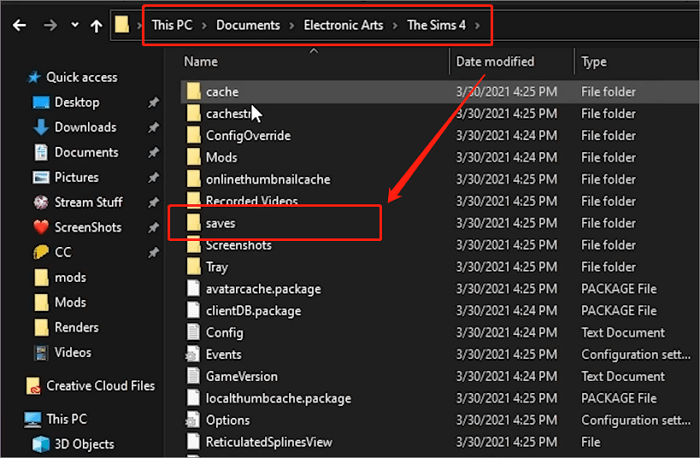
The Sims 4 saves file location is in the "Document > Electronic Arts > The Sims 4 > saves" folder, with Windows and Mac having slightly different file navigation methods due to system differences.
How to Backup Sims 4 Saves on Mac
Step 1. Open Finder and hit "Document"
Step 2. Select Electronic Arts > The Sims 4
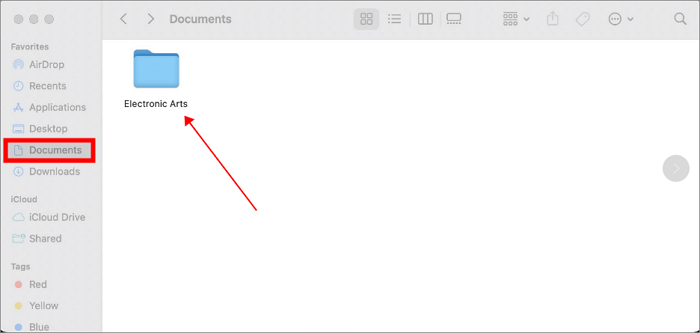
Step 3. To create a backup of your saves file, select the saves file, copy it, and then paste it to a different location on your device. This will ensure that your progress is safe and can be restored if needed.
How to Backup Sims 4 Saves on Windows PC
Step 1. Open File Explorer and hit "Document"
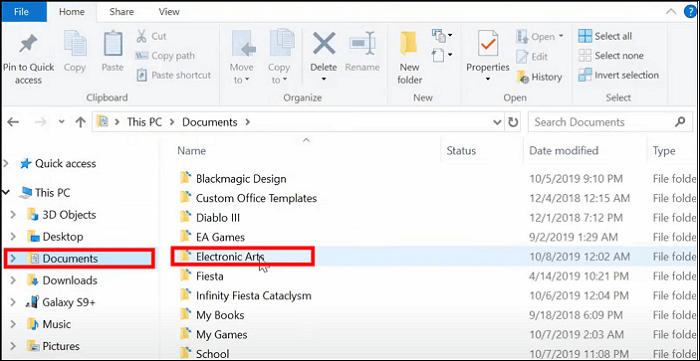
Step 2. Select Electronic Arts > The Sims 4

Step 3. To create a backup of your saves file using the command prompt, follow these steps:
- Tip
- The Mods and Trays files contain data on clothes, hairstyles, accessories, Households, Lots, Rooms, etc., that you've added. To continue your previous Sims 4 progress on another computer or avoid data risks, it's a good idea to back up these files as well.
How to Backup Sims 4 Saves on PlayStation
PS provides users with manual and automatic game backup solutions
Automatic Backup
PlayStation offers automatic game file backup for Plus members, who get 100GB of Cloud storage, allowing them to automatically backup Sims 4 save data.
Here are some steps to enable this function.
Step 1. Navigate to Settings >Application Saved Data Management
Step 2. Hit the Auto-Upload option and check Enable Automatic Uploads
Step 3. The PS system will automatically back up Sims 4 saves while in rest mode, similar to how the Sims 4 on PC backs up saves. This is a convenient feature that ensures your game progress is safe and easily recoverable in case of any issues or system restarts.
Automatic backup on the PS4 requires an active internet connection to function, which means your console must be online for the feature to work.
Manual Backup
If you don't have a PS Plus subscription, you can manually back up Sims 4 saves by going to Settings > System > Back Up and Restore > Back Up PS4, then backing up the Sims 4 data to an external hard drive.
How to Backup Sims 4 Saves on Xbox
Unlike PS, Xbox doesn't require a subscription to additional services for automatic saving. Instead, Xbox can provide expanding Cloud storage for games and synchronize Sims 4 saves to the Cloud for secure backup, as long as a network connection is established.
The Best Alternative Backup Plan for Sims 4
Backing up Sims 4 saves is a straightforward process, but keep in mind that your saves will continue to evolve as your game progresses, so you'll need to periodically update your backups to ensure you have the latest versions of your saves.
The above methods require manual operation, which can be difficult for PC players and non-PS Plus subscribers. A better solution is to use Qiling Disk Master Pro, a backup plan that can automatically save Sims 4 game data. This can be especially useful for PC players who may not have the time or technical expertise to manually back up their game data.
Qiling Disk Master Pro is a professional offline backup software that can easily complete backup tasks for systems, files, disks, and App data. This makes it an ideal helper for game players to backup their game saves.
- Supports Automatic backup
- Offer 250 GB Free Cloud Storage
- Supports Differential and Incremental Backups
- Helps system image recovery and system restore
- Can backup hard drive for game console users
The following are simple steps to back up the Sims 4 saves file with Qiling Disk Master Pro.
Step 1. To start the game data backup, click on "Backup and recovery" and then select "File backup".

Step 2. Navigate to the apps data backup section, where you can find the Game Saves section. Select the Sims 4 game saves and configuration to proceed.

Step 3. Choose a backup location, such as an internal or external drive, to store game data saves, and consider keeping an additional backup on a cloud service like Qiling or a NAS device for extra security.

Conclusion
Learning how to back up your Sims 4 saves is crucial. This article will guide you to the Sims 4 saves file location and introduce 5 backup methods suitable for different platforms. To minimize backup stress and enhance your gaming experience, we suggest using Qiling Disk Master Pro to set up an automatic backup plan for your game.
FAQs
1. Can I transfer my Sims 4 saves to another computer?
You can transfer your Sims 4 saves to another computer by copying the saves file from the Document > Electronic Arts > The Sims 4 > saves folder and pasting it to a USB or external hard drive, then transferring it to the new computer. Don't forget to also copy the Mods and Tray files if you have any installed mods and custom content.
2. Does Origin backup Sims 4 saves?
Origin doesn't back up Sims 4 saves, but you can manually back them up by copying the saves folder in the Documents > Electronic Arts > The Sims 4 directory, or use a software like Qiling Disk Master Pro for automatic backups.
Related Articles
- How to Automatically Backup Files to An External Hard Drive | 3 Ways
- Top 2 Ways to Transfer OS from Laptop to Desktop🔥
- How to Backup Files to QNAP NAS (Quick & Easy)👍
- How to Backup Windows 11 to Synology NAS (3 Working Ways)👍
- Top 10 Best OS Imaging Software for Windows 10/11 [Free Trials]
- Windows File Backup - 4 Efficient Ways for You to Protect Data
- Qiling Disk Master Pro 6.0 Full Version Crack
Qiling Disk Master Pro 6.0 full version crack is of great danger. Download full version of Qiling Disk Master Pro 6.0 on Qiling website to migrate unlimited data and programs from one PC to another. See the newest 6.0 version.
Products
Articles & Tutorials
- Data Recovery
- Data Backup
- File Recovery
- File Backup
- System Backup and Restore
- Disk and Partition Clone
- Technical articles
- Mobile articles
- Disk Master Help
- Windows Data Recovery Tutorials
- Windows Secure Delete Tutorials
- Windows Partition Management Tutorials
- Windows File Backup and Restore Tutorials
- Windows System Backup and Restore Tutorials
- Windows Disk Backup and Restore Tutorials
- Windows Clone Tutorials