How to Save Game on FIFA 23 Career Mode
FIFA 23, the final game in the FIFA series, marks the end of an era. The game offers a wide range of excellent gameplay modes, with developers making significant improvements to player data, resulting in a more fluid and engaging gaming experience.
The FIFA series, being a large game, has its own notable issues. Many players had hoped that FIFA 23 would address these problems, but unfortunately, the game still falls short in providing a more enjoyable experience.

The FIFA 23 career mode has seen a surge in new players starting their careers, but the frustration of not being able to save their progress has been a major issue. Fortunately, this article will guide you on how to save your FIFA 23 career mode and provide additional ways to back up your game saves, ensuring that your progress is secure and easily retrievable.
Here are some posts you may be interested in:
Solutions to Save FIFA 23 Career Mode on PC/PS/Xbox
In FIFA 23's career mode, you can save your progress automatically or manually across PC, PS4/5, Xbox One, and Xbox Series X/S.
Auto Save
Regardless of the game platform, whether it's Steam on PC or game consoles like PS and Xbox, they all offer an automatic saving feature. However, due to existing bugs, this feature can sometimes be unreliable, so it's recommended to manually save your FIFA 23 career mode before ending the game.
Manual Save
For PS4
- In the career mode, press the Square button, navigate to the list of career mode saves, and save a new game from here.
For PS5
- To access the manual save page on the PS5 for FIFA 23 career mode, you need to go to the CUSTOMISE option and save your progress. This is different from the PS4, which had a shortcut key for this feature.
For Xbox one or Xbox Series X/S
- Press the X button and navigate to the manual save page.
For PC
- Click HOME> CUSTOMISE> PROFILE>SAVE FIFA 23 PROFILE
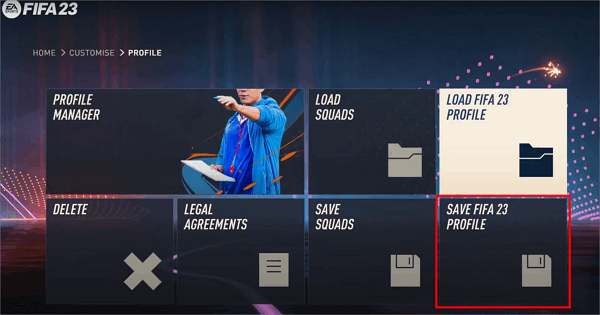
If you've saved your FIFA 23 career mode game but the saves have disappeared, you can try the following steps to recover them. First, check if the saves are still in the game's save folder, which is usually located in the Documents folder.
Why is FIFA 23 Career Mode Not Saving
Many FIFA players are frustrated that they can't save their career mode progress in FIFA 23, a feature that was available in previous versions of the game. This has led to a lot of discussion and frustration on various gaming forums.
Players who want to continue a game from where they left off will be unable to find or load their previous saves, forcing them to potentially rebuild their career and losing all their previous progress.
FIFA 23 Career Mode Not Working
To prevent the nightmare of game-saving not working in FIFA 23 career mode, you can try restarting your device and game, checking for updates and a stable internet connection, changing the calendar date, clearing game cache data on PS or Xbox, and verifying the integrity of game files on PC, among other troubleshooting steps.
FIFA 23 Career Mode Personal Settings 1 Error
The error in FIFA 23's career mode personal setting 1 can lead to a failure in accessing the game, resulting in a negative experience for players.
When your screen displays an error message about personal setting 1, ignoring it and continuing to play may result in lost game progress. To resolve this, restart the game, confirm your network connection, and ensure the game is allowed in your antivirus software.
FIFA 23's career mode may not save due to two main reasons: corrupted game files or a saved game that is incompatible with the current game version. To resolve this issue, you can try repairing the game files or deleting the saved game and then re-creating it.
Way to Backup FIFA 23 Career Mode
To avoid unexpected data losses when you're unprepared, we recommend setting a scheduled backup plan for your FIFA 23 career mode saves, and Qiling Disk Master Pro can assist you with that.
For gamers, Qiling Disk Master Pro is the ultimate PC game saves backup software. It creates a unique automatic backup plan for FIFA 23 and offers multiple backup modes, freeing up device storage space. The software also provides a 250 GB free cloud storage to store all saves files, ensuring data security. Additionally, it can backup game console hard drives, providing comprehensive protection for all your gaming data.
To back up your FIFA 23 career mode saves, first, open the game and go to the main menu. From there, navigate to the "Career Mode" section and select the "Save Game" option.
Step 1. To start a game data backup, click on the "Create Backup" button and then select the option for "Apps data".

Step 2. Navigate to the apps data backup section, select the FIFA 23 game saves and configuration, and click OK.

Step 3. To ensure your game data saves are safe, you'll need to choose a backup location. You can use either an internal or external drive, but for added security, it's recommended to keep an extra backup copy on a Qiling cloud or NAS device.

Conclusion
This post provides guidance on saving and troubleshooting issues in FIFA 23's career mode, but to ensure data safety, consider using professional backup software like Qiling Disk Master Pro to protect your game files.
FAQs
1. Does FIFA 23 career mode autosave?
You can save your FIFA 23 career mode automatically on each platform.
2. How do I save my career mode progress?
Here are 3 ways to save your career mode progress.
Method 1. Manually save from the in-game menu
Use the manual save option in the career mode menu to save your progress at any time. For added protection, use Qiling Disk Master Pro to create a backup for the saves file, allowing for easy recovery in case of data loss or corruption.
Related Articles
- How to Create Clonezilla USB with Rufus (2023 Easy Guide)👍
- How to Repair Windows 7 Without CD in 3 Possible Ways
- Azure File Backup: How to Backup Files in Azure & Find Best Alternative
- How to Make External Hard Drive Bootable in Windows 10/Windows 11
- How to Backup Windows 10 Image to Cloud [Backup Strategy in 2023]
- Ultimate Guide on Windows 10 Restore from Backup
- How to Backup and Restore Thunderbird Emails (Windows & Mac Guide)
If you are looking for a way to back up and restore Thunderbird emails, you are in the right place. This article covers three working ways to back up and restore Thunderbird emails with a steps guide. Whether you are using a Windows or macOS computer, you can find your solution here.
Products
Articles & Tutorials
- Data Recovery
- Data Backup
- File Recovery
- File Backup
- System Backup and Restore
- Disk and Partition Clone
- Technical articles
- Mobile articles
- Disk Master Help
- Windows Data Recovery Tutorials
- Windows Secure Delete Tutorials
- Windows Partition Management Tutorials
- Windows File Backup and Restore Tutorials
- Windows System Backup and Restore Tutorials
- Windows Disk Backup and Restore Tutorials
- Windows Clone Tutorials