How to Repair Windows 7 Without CD in 3 Possible Ways
You can repair Windows 7 without a CD by booting into the Windows Recovery Environment (WinRE) and using the built-in System Restore or System File Checker tools to fix startup issues. Alternatively, you can create a bootable USB drive with a Windows 7 installation media and use it to repair or reinstall the operating system. If you're unable to boot into Windows, you can try using a third-party bootable USB drive creator software like Rufus to create a bootable USB drive. Additionally, you can also try using the Windows 7 installation media on a different computer to create a bootable USB drive. If none of these methods work, you may need to consider reinstalling Windows 7 from scratch.
Can I Repair Windows 7 Without a CD
If your Windows 7 computer has trouble booting or starting up, it will automatically launch Startup Repair to help resolve the issue, and the Windows Error Recovery screen will appear, allowing you to select Launch Startup Repair to run the repair.
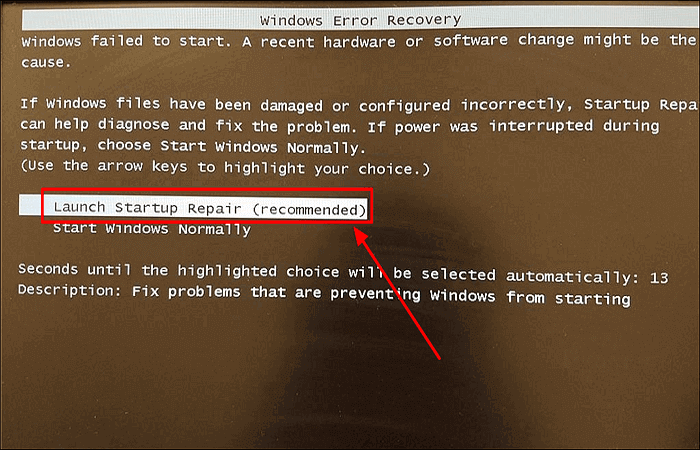
You may encounter a Windows 7 Startup Repair issue or the Windows Error Recovery screen may not display due to various reasons. In such cases, you can try to start the Startup Repair using a Windows 7 installation CD. However, if you don't have a CD, the good news is that you can still fix Windows without one, and the answer lies ahead.
When Should You Repair Windows 7
If you see a drop in performance or encounter intermittent system crashes on your computer, it's time for you to fix Windows 7. Here is a list of situations and scenarios for repairing your Windows 7.
- Crashes.
- Slow boot.
- Long app launch time.
- Lag.
- Bugs.
- Screen freezes.
- Missing apps or features.
- Unreadable files.
If you're experiencing problems with your Windows 7, it might be time to repair your installation. This process can help resolve issues, fix corrupted files, and restore your system to a previous working state.
3 Ways to Repair Windows 7 Without CD
To repair Windows 7 without a CD, you can use one of three options: using professional backup software, utilizing advanced boot options, or creating a Windows 7 bootable USB drive. These methods allow you to troubleshoot and fix issues with your Windows 7 installation without needing a physical CD. Each option has its own process, but they all provide a way to access the Windows 7 recovery environment and perform repairs.
- Solution 1. Using Professional Backup Software (Easiest Way)
- Solution 2. Using Advanced Boot Options
- Solution 3. Creating a Bootable USB Drive
Solution 1. Using Professional Backup Software (Easiest Way)
When your Windows 7 computer has startup or boot issues, you can use third-party backup software like Qiling Backup to fix Windows 7 without a CD, thanks to its universal restore feature that allows instant recovery in case of a system crash or hardware failure.
Qiling Backup Home is an ideal backup and recovery tool for computer users, allowing automatic backup of files, systems, partitions, and disks on Windows 11/10/8/7. It also enables the creation of an iso image from a hard drive or existing operating system.
- Create a system image on USB in Windows 10/8/7.
- Restore and repair Windows 7.
- Create a WinPE emergency bootable disk.
- Security zone to protect essential data.
- Backup and restore solutions.
- Clone the Windows system to SSD.
- 250GB free cloud storage.
This software provides a convenient and quick way to resolve any issues related to your Windows system.
Detailed steps to perform a universal restore are as follows:
Part 1. Creating a Windows 7 system image.
Step 1. Launch Qiling Backup on your computer, click System Backup on the home screen, and start the backup task.

Step 2. In the backup process, Windows will automatically select all system-related files and partitions, eliminating the need for manual selection. Next, you'll need to choose a location to save the system image backup by clicking on the illustrated area.

Step 3. The backup location can be another local drive on your computer, an external hard drive, network, cloud, or NAS. It's recommended to use an external physical drive or cloud to preserve system backup files.

Step 4. The Windows system backup process allows users to customize settings such as enabling automatic backup schedules in daily, weekly, monthly, or upon an event. Additionally, users can make differential and incremental backups. To initiate this process, users click the "Proceed" button, and the completed backup task will be displayed on the left side in a card style.

Part 2. Restore the system image to your computer.
To perform system recovery on a non-bootable machine, you can try booting the computer through the recovery mode by following the manufacturer's instructions, such as pressing a specific key like F2, F12, or Del during boot-up. This will take you to a menu where you can select the recovery mode, which will load a minimal set of drivers and allow you to access the recovery tools.Qiling Backup emergency disk.
Step 1. Launch Qiling Backup, click "Browse to Recover".

Step 2. To proceed, navigate to your backup destination and select the system backup file you need, which is typically a .fvd file created by the Qiling Backup system.
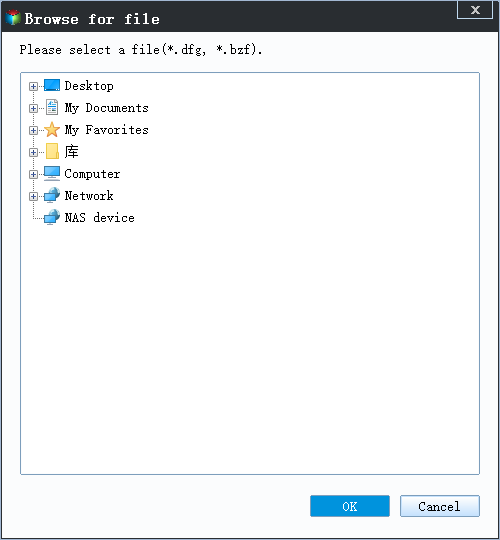
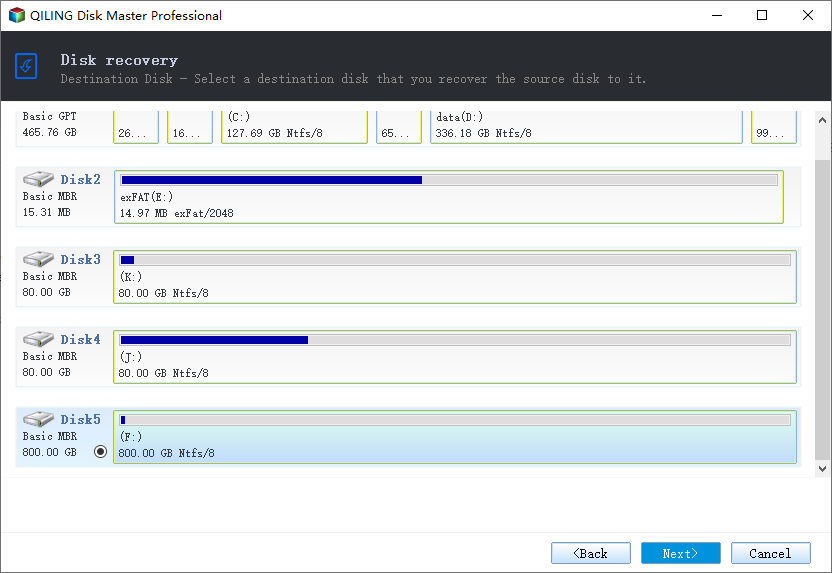
Step 3. Select a recovery disk with the same partition style as the source disk to ensure a smooth cloning process. (Note: This response is a rewritten version of the original text in a concise and clear manner, condensed into a single paragraph.)
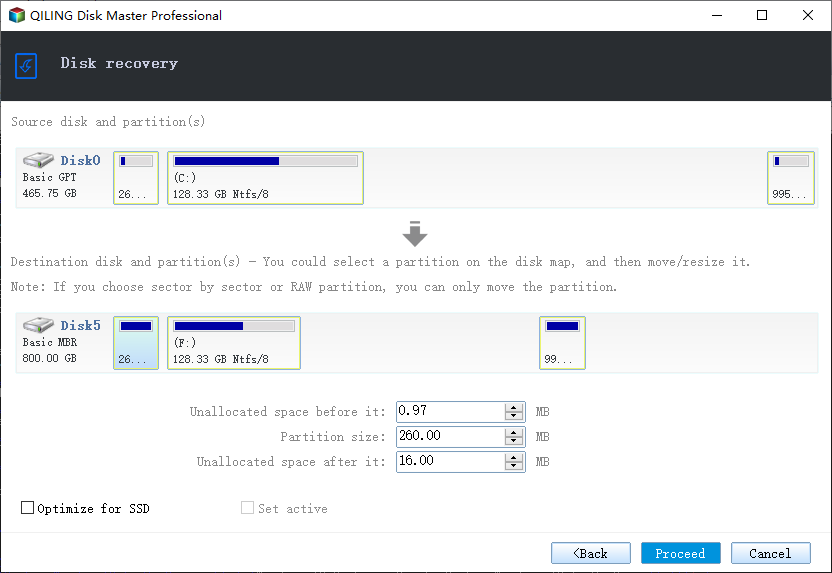
Step 4. You can customize the disk layout according to your needs, then click "Proceed" to start system backup recovery.
Solution 2. Using Advanced Boot Options
If your Windows 7 computer doesn't display the Windows Error Recovery screen, you can repair it manually, but you may need a Windows 7 installation CD to fix your computer, as the Startup Repair option is sometimes unavailable.
Step 1. Start the computer.
Step 2. Press and hold down "F8".
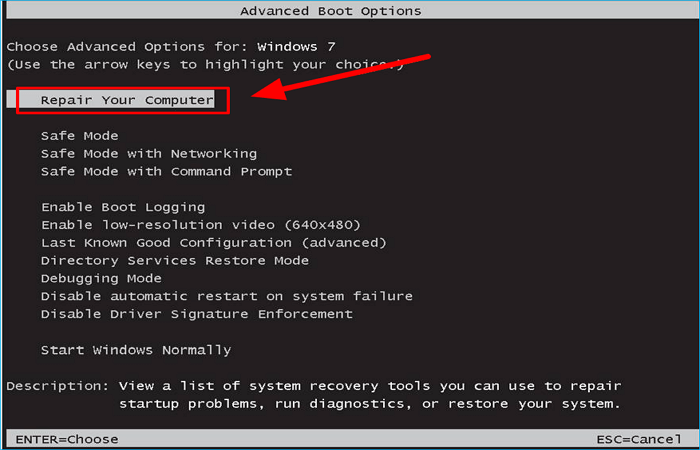
Step 3. The Advanced Boot Options screen will appear, and selecting "Repair Your Computer" will run Startup Repair.
Solution 3. Creating a Bootable USB Drive
To create a bootable Windows 7 USB drive as a repair tool, you'll need a Windows 7 ISO file, a USB drive, and the Windows 7 USB/DVD Download Tool. Follow the steps carefully to create a Windows 7 repair USB drive that can help fix various problems with your Windows 7 installation.
Step 1. Download Windows 7 ISO file from Windows 7 download page.
Step 2. Download and install Windows USB/DVD Download Tool.
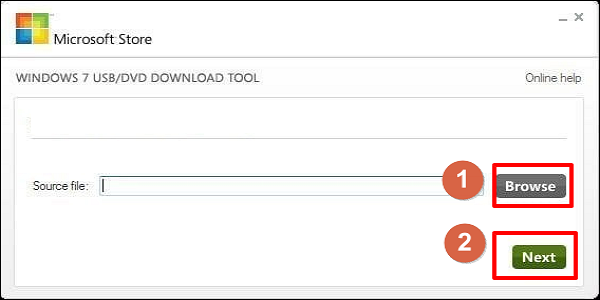
Step 3. To install Windows 7, plug your USB drive into your computer, then click Browse to select the Windows 7 ISO file you've downloaded and click Next.
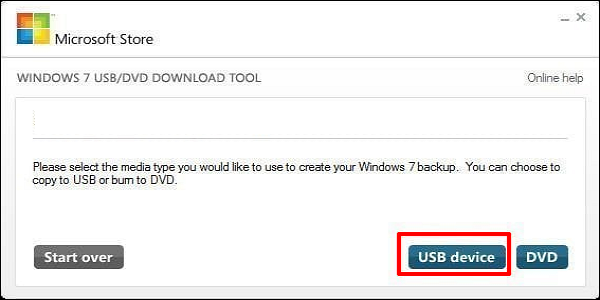
Step 4. Select USB device.
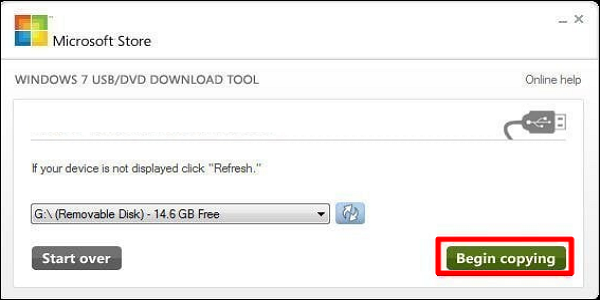
Step 5. Select the USB drive you plan to use from the drop-down option, and click Begin copying.
Step 6. Wait for the process to be done and exit the tool when it finishes.
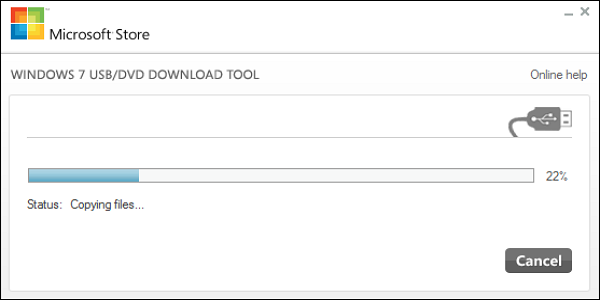
Now you can launch Startup Repair from the bootable USB.
Step 1. Insert the bootable USB drive into the computer and start the Windows 7 PC from it. The computer will automatically detect the USB drive and prompt you to boot from it.
Step 2. Press any key according to the prompt.
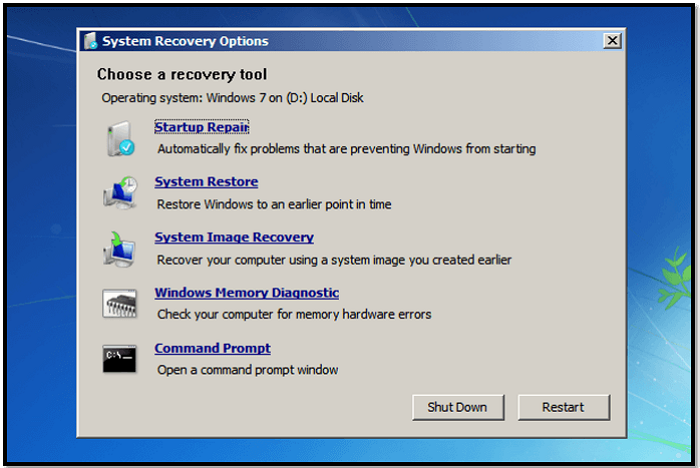
Step 3. After Startup Repair completes scanning your computer, select "Repair your computer" and then choose your operating system.
Step 4. The System Recovery Options will appear, allowing you to select Startup Repair or any other option that suits your needs.
Final Verdict
You can repair Windows 7 without a CD by using Qiling Backup, advanced boot options, or a bootable Windows 7 USB. This allows you to fix issues with your Windows 7 installation without needing a physical CD.
Using Qiling Backup is the best way to fix Windows 7 as it is easy to operate and doesn't require many computer techniques, allowing you to also perform other backup and recovery tasks.
FAQs
1. How do I get to advanced boot options in Windows 7?
To access advanced troubleshooting modes in Windows, start your computer and press the F8 key before Windows launches, which will bring up the Advanced Boot Options menu.
2. Can you reinstall Windows without disk?
You can reinstall Windows 10 with or without a CD/USB drive, and install a brand-new copy of the OS on your system if you have Windows 10 installer media, such as a CD or USB drive.
Related Articles
- Clone SSD to HDD with SSD to HDD Cloner for Windows 10/11
- Ultimate Guide on Windows 10 Restore from Backup
- Compare Windows 11 and Windows 10: Five Facts You Should Know and common FAQs
- 2022 How to Copy Text That Cannot be Copied: Seven Tips 100% Working
- Qiling Partition Master Full Version Free Download with Serial Code/Key[New 2021]
Qiling Partition Master has been upgraded to version 5.5/5.0 and is now available for download with new features. You can obtain the full version with a serial code or key to easily manage partitions. - How to Recover Deleted or Lost Partition in Windows 10
You can run lost partition recovery within 4 steps with Qiling. Partition Recovery Wizard in Qiling Partition Master can recover deleted or lost partition in Windows XP/Vista/7/8/8.1/10 and Windows Server 2003/2008/2012.
Products
Articles & Tutorials
- Data Recovery
- Data Backup
- File Recovery
- File Backup
- System Backup and Restore
- Disk and Partition Clone
- Technical articles
- Mobile articles
- Disk Master Help
- Windows Data Recovery Tutorials
- Windows Secure Delete Tutorials
- Windows Partition Management Tutorials
- Windows File Backup and Restore Tutorials
- Windows System Backup and Restore Tutorials
- Windows Disk Backup and Restore Tutorials
- Windows Clone Tutorials