Compare Windows 11 and Windows 10: Five Facts You Should Know and common FAQs
Windows 11 has been rolled out and is gaining traction, with many users switching to experience its immersive features. Although Windows 10 remains a popular choice due to its extensive features and design interface, Windows 11 is slowly but steadily gaining ground. Microsoft is implementing a phased rollout of Windows 11, with the aim of making it available to all users by the end of 2022.
To compare Windows 11 and Windows 10, consider the five key aspects: user interface, system requirements, performance, security, and features. Windows 11 offers a more modern and streamlined interface, while Windows 10 has a more customizable experience.
| Comparison Aspects | Step-by-step Troubleshooting |
|---|---|
| Windows 11 vs. Windows 10 |
1. Compare marketshare...Full steps 2 Compare hardware requirements...Full steps 3. Compare speed test...Full steps 4. Compare security features...Full steps 5. Compare gaming performance...Full steps |
| Reasons to Stay with Windows 10 | If you are on Windows 10 for a long time, you must not shift into Windows 11 in a hurry...Full steps |
| Reasons to Upgrade to Windows 11 | Windows 11 offers intriguing multi-desktop support with individual backgrounds...Full steps |
| Common FAQs |
Q1. Does Upgrading to Windows 11 Erase My Computer? To downgrade from Windows 11 to Windows 10, you can use the built-in feature called "Go back to Windows 10" which is available within 10 days of upgrading to Windows 11. If you've exceeded the 10-day window, you can use a third-party tool or a USB drive with a Windows 10 installation media to perform the downgrade. Alternatively, you can also use the Windows 10 Media Creation Tool to create a bootable USB drive, which can help you install Windows 10 on your device. It's essential to note that downgrading may require you to reinstall your applications and settings. |
Windows 11 Vs. Windows 10: Marketshare
Source: https://reports.adduplex.com/#/r/2022-01
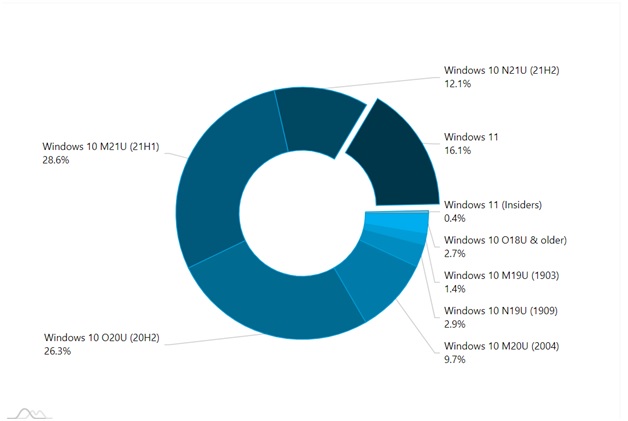
Windows 11 quickly gained traction after its launch in October 2021, capturing a 9.6% market share soon after. However, its market share nearly doubled to 16.1% in a short period, according to a recent survey by AdDuplex. Despite this growth, Windows 10 still holds a significant lead, with Windows 10 21H1 maintaining a 28.6% market share. Microsoft's aggressive promotion of Windows 11 has contributed to its growth, but the older operating system remains popular.
Windows 11 Vs. Windows 10: Hardware Requirements
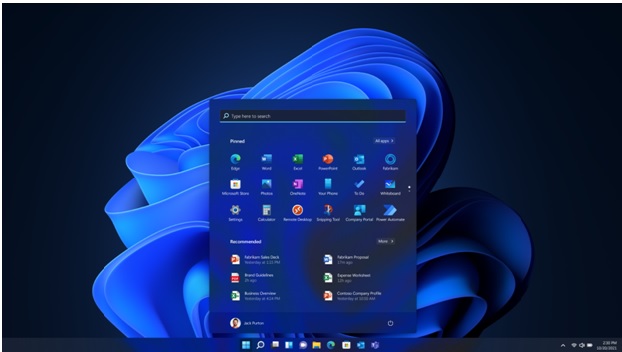
To upgrade to Windows 11, you need a 1GHz processor with 2 cores, 4GB RAM, 64GB storage, and a DirectX 12 compatible graphic card, and be running Windows 10 version 2004 or later. Alternatively, you can upgrade from Windows 10 with 1GB RAM, 16GB storage, and a DirectX 9 compatible graphic card, or from Windows 8.1 with the same specs, but with a 720p display.
Upgrading to Windows 11 from Windows 10 is not a significant change, but certain features like UEFI, Secure Boot Cable, and others are necessary for running Windows 11. Additionally, features such as spatial sound, Auto HDR, snap, and Voice Typing are required for the upgrade.
Windows 11 Vs. Windows 10: Security Features
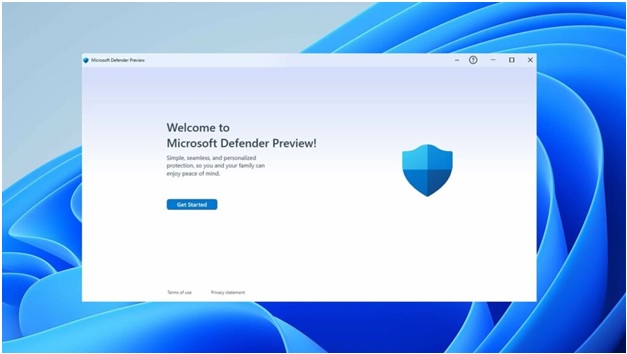
Windows 11 and Windows 10 are considered top-notch operating systems by Microsoft, boasting robust security features. Windows 10 initially had features like secure boot, defender device guard, SmartScreen, WDA, and Bitlocker, but despite these, some vulnerabilities remained. Microsoft has since addressed these gaps and upgraded security features in Windows 11, including UEFI secure boot, TPM module, virtualization-based security, and Hypervisor-protected code integrity (HVCI), making it a more secure option compared to its predecessor.
Windows 11 Vs. Windows 10: Speed Test
Upgrading to Windows 11 may have raised concerns about reduced system performance, but the reality is that Windows 11 actually outperforms Windows 10 in terms of CPU performance, thanks to its virtualization-based security (VBS) platform, and even slightly surpasses it in read and write memory performance.
Windows 11 Vs. Windows 10: Gaming Performance
Related: How to optimize Windows 11 for gaming
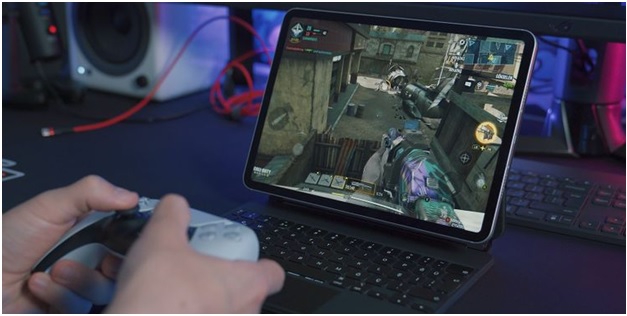
Windows 11 is a gaming enthusiast's dream come true, with features like Auto HDR and DirectStorage from Xbox consoles that enhance the gaming experience. Unlike Windows 10, Windows 11 is specifically designed to meet the needs of gamers, offering an improved and elevated user experience.
Reasons You Should Stay with Windows 10
Some individuals may not want to upgrade to Windows 11 due to the reliability and ease of use their existing setup provides, and instead prefer to stick with Windows 10, which they find modern and inviting. Reasons for this include.
●Windows 11 requires extensive hardware requirements: If you want to stick with Windows 10, you can do so as it doesn't have the same hardware requirements as Windows 11, which mandates TPM 2.0 and higher CPU requirements.
●Windows 11 Lacks Polish: Windows 11 has enhanced features, but Windows 10's interface and features still appeal to many users, and the phased rollout of Windows 11 may lead to future changes.
●Windows 11 is Identical to Windows 10: Microsoft initially planned to release Windows 11 as a Windows 10 update, codenamed "Sun Valley", but instead accelerated the process and launched it as a new version.
●Windows 10 will have support Till 2025: Microsoft will continue to support Windows 10 until 2025, providing regular updates with new features, bug fixes, and other improvements.
If you are on Windows 10 for a long time, you must not shift into Windows 11 in a hurry.
Reasons You Should Upgrade to Windows 11 Over Windows 10
To free upgrade from Windows 10 to Windows 11 without losing data, follow these steps: ensure your device meets the system requirements, check for updates, and install Windows 11 from the Microsoft website, or use the built-in "Update & Security" feature in Windows 10 to upgrade. Make sure to back up your files and data before upgrading, and consider creating a system image or using a cloud backup service to ensure your data is safe.
Upgrading to Windows 11 offers several compelling reasons, including the reasons below.
●Interface: Microsoft has revamped the Windows 11 interface to provide a more immersive experience for users, featuring a centered taskbar and glass-like transparency that creates a sleek and appealing visual effect.
●DirectX 12 Compatibility: Windows 10 offered DirectX 9 compatibility, but Windows 11 has improved this by offering DirectX 12 compatibility, benefiting gamers with higher graphic settings.
●Enhanced Multi Desktop Support: Windows 11 provides a feature that allows users to have multiple desktops, each with its own background and level of customization, offering a unique way to organize and personalize their workspace.
●Auto HDR: Windows 11 automatically applies HDR to newer games, enhancing their graphics and performance.
●Android App Compatibility: Windows 11 allows users to run Android apps directly on their PC, with access to the Amazon Appstore and other stores, and the ability to integrate these apps seamlessly into the Windows taskbar.
FAQs
Q1. Does Upgrading to Windows 11 Erase My Computer?
Upgrading to Windows 11 will automatically preserve your data and won't delete anything, but it's recommended to create a backup of your data beforehand.
Q2. How To Downgrade from Windows 11 to Windows 10 at any time?
You can use the Qiling Backup software to downgrade from Windows 11 to Windows 10. This popular Windows upgrade kit allows users to switch operating systems, and downgrading to Windows 10 from Windows 11 is possible with just five simple steps.
Qiling Backup Free
- Create data backup of an entire computer
- Support disk/partition backup, file backup, OS backup
- Available to set up customized backup schedules
- One-click recovery of personal files and operating system
- Downgrade Windows 11 to Windows 10 at any time
Q3. How To Run Windows 10 on Windows 11 Computer?
To run Windows 10 on a Windows 11 computer, you can use the Qiling Backup software, which has a clone function that allows you to create a portable Windows 10 USB drive that can be used anywhere.
Q4. How To Dual Boot Windows 10 and Windows 11?
To dual-boot Windows 10 and Windows 11, you need to create Windows installation media and then create a partition to install each operating system separately. This involves creating a virtual division of your hard disk for different purposes, allowing you to install Windows 10 and Windows 11 on separate partitions.
Once the dual boot process is finished, your PC will restart, and you can find the option of selecting Windows 11 and Windows 10 as per your requirement.
Q5. How To Download Windows 11 ISO to Install?
You can obtain Windows 11 ISO files using one of three methods.
- Downloading ISO file from Microsoft
- Creating Windows ISO file using UUP Dump
- Bypassing TPM to download Windows 11 ISO
You can download the Windows 11 ISO file using any one method, and then use various tools to create a USB portable drive. Once the process is complete, you can use the USB to install Windows 11 on your system.
Related Articles
- How to Use System Restore in Windows 10
- Qiling Backup License Code 2022 (100% Official)
- Is Vimm's Lair A Safe Site to Download Games?
- How to Factory Reset PC Without Losing Data in Windows
- Backup Synology NAS to Cloud/External Hard Drive
Don't know how to back up your Synology NAS to the cloud or an external hard drive? This tutorial will guide you through the process step-by-step, teaching you how to safely store your data in the cloud or on an external hard drive for added peace of mind. - How to Backup to OneDrive Without Sync? Step-by-step Guide
OneDrive is a cloud storage service and enables file hosting and synchronization. This page covers the importance of backing up and how to back up to OneDrive without sync. Hope it can help with your backup issues.
Products
Articles & Tutorials
- Data Recovery
- Data Backup
- File Recovery
- File Backup
- System Backup and Restore
- Disk and Partition Clone
- Technical articles
- Mobile articles
- Disk Master Help
- Windows Data Recovery Tutorials
- Windows Secure Delete Tutorials
- Windows Partition Management Tutorials
- Windows File Backup and Restore Tutorials
- Windows System Backup and Restore Tutorials
- Windows Disk Backup and Restore Tutorials
- Windows Clone Tutorials