How to Create Clonezilla USB with Rufus (2023 Easy Guide)👍
In today's digital age, ensuring data protection and system management is crucial, and creating a Clonezilla bootable USB drive helps achieve this. Clonezilla, a powerful open-source disk cloning and imaging solution, allows users to secure and manage their data, making it an ideal tool for upgrading storage, enhancing data security, or streamlining system deployment, and the process begins with creating a Clonezilla bootable USB drive.
To create a Clonezilla USB with Rufus, follow the steps below. Alternatively, you can use Qiling Disk Master, which offers a more effective and effortless way to create a bootable Clonezilla USB without manual steps.
📕Preface: An Overview of Clonezilla USB
Clonezilla USB is an open-source software solution that helps users avoid data loss by creating replicas of their drives, partitions, or entire systems, thereby allowing them to control their data and system management. It offers multiple features such as disk cloning, data backup, and system imaging, providing users with a safeguard against significant setbacks caused by hardware failures, accidental deletions, or system crashes.
Clonezilla USB is a bootable USB drive that enables users to securely save data and simplify system management, allowing for disk-to-disk cloning, disk-to-image backup, and support for multiple file systems.

✅Pros: The Benefits of Creating Clonezilla Bootable USB
Creating a Clonezilla bootable USB drive offers reliable data backup and restore, disk cloning, and system management solutions. It provides a convenient and portable way to access Clonezilla's features, making it an ideal tool for system administrators and users alike. The pros of using a Clonezilla bootable USB include its ability to create a bootable clone of a system, allowing for quick and easy restore of a system to a previous state, as well as its ability to clone disks, making it a valuable tool for upgrading or replacing hardware.
- Portability and Accessibility: A Clonezilla bootable USB drive transforms any compatible computer into a powerful cloning and data backup tool, allowing users to easily access and clone their data across various devices without the need for complex installations.
- Data Protection: Clonezilla creates precise copies of drives, partitions, or entire systems, safeguarding your important data against potential loss due to hardware failures, accidental deletions, or system crashes.
- Versatility: Clonezilla is a free and open-source disk imaging and cloning program that supports multiple platforms and file systems, making it ideal for upgrading, changing devices, or accessing data across various devices.
- Incremental Backups: Clonezilla provides incremental backup, which optimizes storage space and reduces backup time by updating new data in previously backed-up files.
- Data Compression: Clonezilla's compression options enable users to compress backup images, reducing their size without compromising data integrity.
- Security: Its encryption features add an extra layer of protection against unauthorized access and prevent data corruption.
🙌Step Guide: How to Create Clonezilla Bootable USB with Rufus
Rufus is a software that allows you to create bootable USB drives quickly, and it's widely used for installing operating systems, updating firmware, and more. To create a Clonezilla bootable USB with Rufus, you can follow a step-by-step guide that involves using Rufus to create a bootable USB drive with Clonezilla, which can then be used to clone and backup your computer's hard drive.
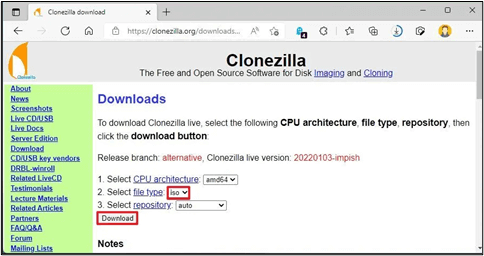
Step 1. Download the Clonezilla ISO file from the official Clonezilla website.
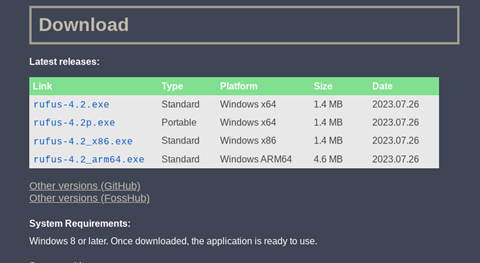
Step 2. Download Rufus from the official Rufus website and install it.
Step 3. Insert a USB flash drive (at least 1GB) into your computer and launch Rufus by running the executable file.
Step 4. To use Rufus to create a bootable USB drive, click on the "Device" option in the software and select your USB drive from the dropdown menu. Ensure that you choose the correct drive, as Rufus will erase all data on the selected drive.
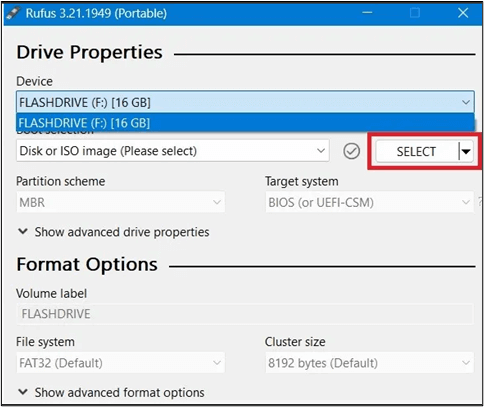
Step 5. Select the downloaded Clonezilla ISO file under Boot selection.
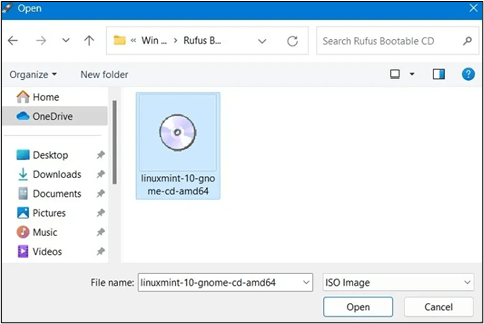
Step 6. Configure Rufus Settings:
- In the Partition scheme, choose MBR (Master Boot Record).
- In the File system, select FAT32.
- For Cluster size, continue with the default setting.
- You can optionally give a name to your USB drive by entering it in the Volume label field.

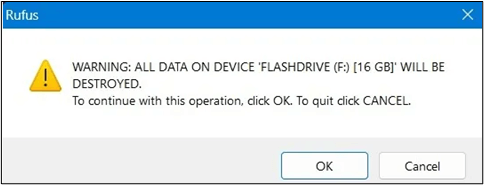
Step 7. Click the "Start" button after double-checking your settings, and a warning will pop up, stating that all data on the selected USB drive will be erased. Click "OK" to confirm and proceed.
Step 8. Once Rufus has finished creating the bootable USB drive, you'll see a "READY" message at the bottom of the Rufus window, indicating the process is complete. You can then close Rufus.
🎉Bonus: Create a Bootable USB Easily With Qiling Disk Master
Rufus is a tool for creating bootable USB drives, but it has limitations, including a steep learning curve for new users and a lack of built-in disk cloning or imaging capabilities, requiring users to manually download the Clonezilla ISO file.
An alternative and more user-friendly approach to creating a Clonezilla bootable USB drive is using Qiling Disk Master, a comprehensive backup and recovery solution that surpasses Rufus in this regard. With its user-friendly interface and powerful features, Qiling Disk Master simplifies data protection and system management, making it an excellent choice for both beginners and experts.
| 🧠Intelligent Cloning | Qiling Disk Master efficiently copies data from the source drive to the target drive, ensuring high speed and accuracy in a single operation. Sector-by-sector cloning allows users to manage their computer's space and makes it easier to clone their operating system to a smaller SSD. |
| 💁♂️VSS Service | The Hot Clone feature of Qiling Disk Master enables consistent and reliable backups, ensuring data integrity and regulating data usage even when backup files are in use. |
| ⌨️SSD Alignment | Qiling Disk Master optimizes SSD performance by aligning partition boundaries with the optimal block size, resulting in improved performance and longer SSD lifespan. |
| 🔥Flexible Cloning Options | Users have the flexibility to choose from various cloning options. Disk cloning, partition cloning, and system cloning are just a few examples of cloning operations that can be performed to replicate a computer system's configuration, settings, and data. |
| 📻Bootable Media Creation | Qiling Disk Master offers a user-friendly tool to create bootable USB drives, CDs, or DVDs, making it easy for users to create a bootable USB effortlessly without installing additional software. |
| 📀Disk Cloning and Imaging | Users can clone entire disks or individual partitions, making it an efficient all-in-one solution for data backup and recovery, as well as system maintenance and troubleshooting. |
| 🔒Encryption and Compression | Qiling Disk Master offers encryption options to secure backups and compression settings. |
To create a bootable USB with Qiling Disk Master, follow these steps: Insert the USB drive into your computer, download and install Qiling Disk Master, launch the software, select the USB drive as the target device, choose the bootable option, and follow the on-screen instructions to complete the process. This will ensure that the USB drive is properly formatted and configured to boot your computer.
Step 1. Prepare a USB drive which can be written and read.
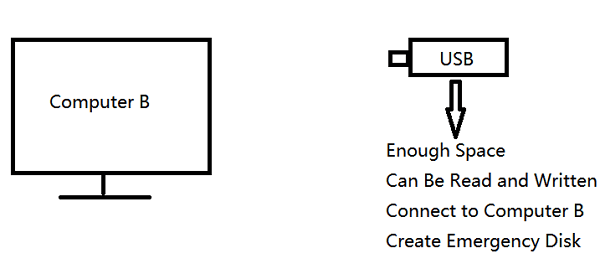
Step 2. Launch and install Qiling Disk Master on the Computer B.
Step 3. Find and click "Tools" and choose "Create Emergency Disk".

Step 4. Choose the location where you want to store the bootable disk, which can be an ISO file, a bootable USB drive, or a CD/DVD disc.

Step 5. Then click "Create" to start.
🎀Final Verdict
Clonezilla USB is a powerful tool for data backup, disk imaging, and system cloning. It can be created using Rufus, but this process requires some technical expertise and lacks built-in disk cloning features.
Qiling Disk Master stands out as the best solution for creating a Win PE bootable disk and offers extensive disk cloning and imaging features, making it an inclusive data management solution with options like incremental backups, scheduled backups, and system migration. Whether you're a beginner looking for simple data backup or an advanced user looking for robust disk cloning, Qiling can help.
❓FAQs on How to Create Clonezilla USB with Rufus
Creating a backup of your data can prevent sudden data loss, and using a Clonezilla USB created with Rufus can be a helpful tool in this process.
1. How do I create a USB image with Rufus?
To create a Clonezilla USB image with Rufus, first download and install Rufus on your computer. Next, insert a USB drive of at least 4GB capacity into your computer.
- Insert your USB drive into your computer's USB port.
- Download Rufus from the official website and run the Rufus executable file.
- Click Device and select your USB drive from the drop-down menu.
- In the Boot selection menu, click the Select button to locate and choose the ISO file.
- Configure Settings and Start the Process.
2. Is Clonezilla UEFI or Legacy?
Clonezilla is compatible with both UEFI and Legacy BIOS systems, allowing for creation of bootable media for both types.
3. Can Rufus create a Linux bootable USB?
Rufus can create a bootable USB drive for various Linux distributions. To create a Linux bootable USB with Rufus, choose the Linux distribution's ISO file in the Rufus boot selection, and follow the same process as for Clonezilla Bootable USB.
Related Articles
- Norton vs McAfee: Ultimate Comparison to Decide Which to Use
- How to Back up Windows 10 to Network Drive: 3 Ways Explained
- How to Fix the Task Image Is Corrupted or Tampered With (4 Ways)
- Exclusive Tips for How to Reset Lenovo/HP/Acer Laptop
- In-depth Guide | How to Update BIOS Without CPU🔥
- Top 10 Reasons to Download Qiling Disk Master
- Best Samsung T7 Backup Software Recommended | Never Miss
Samsung T7 backup software is a topic of debate for T7 SSD users. This article helps find an alternative to Samsung's backup software and explains why backing up your T7 SSD is important.
Products
Articles & Tutorials
- Data Recovery
- Data Backup
- File Recovery
- File Backup
- System Backup and Restore
- Disk and Partition Clone
- Technical articles
- Mobile articles
- Disk Master Help
- Windows Data Recovery Tutorials
- Windows Secure Delete Tutorials
- Windows Partition Management Tutorials
- Windows File Backup and Restore Tutorials
- Windows System Backup and Restore Tutorials
- Windows Disk Backup and Restore Tutorials
- Windows Clone Tutorials