How to Backup Files to QNAP NAS (Quick & Easy)👍
For many computer users, especially professionals, a reliable backup solution is essential. QNAP NAS provides network storage that can help store, share, and protect important files.
Backing up data is important, but backing up files to a QNAP NAS can feel complicated if you are not familiar with NAS settings. This guide highlights three practical ways to complete the task.
Here are some points to consider before you start:
- 👩👩👧👧To ensure safe data backup on your QNAP NAS, it's recommended to manage user access and permissions carefully, and consider implementing a backup strategy that includes regular backups of important data. This can be done using the QNAP NAS's built-in backup features, or by using external backup software.
- 🔐It helps you keep data safe from technical errors in your computer.
Let's begin with QNAP NAS setup and the file backup process.
How to Set Up QNAP NAS Before Backup
To set up QNAP NAS for backup, follow the setup instructions carefully and confirm that the NAS is connected, accessible, and has enough free space for your backup files.
Step 1. Turn on the QNAP NAS without the HDDs of your system.
Step 2. To get started with QNAS, download and install it from the official platform, which will automatically detect your NAS and prompt you to proceed.
Step 3. Plug in your HDDs and select either the Factory Settings or Initialize System option from the screen.
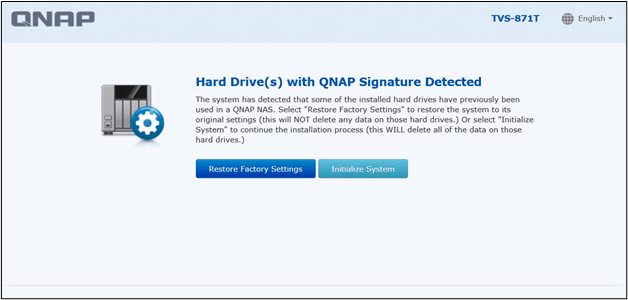
Step 4. Set your username and password on the newly opened screen and click next.
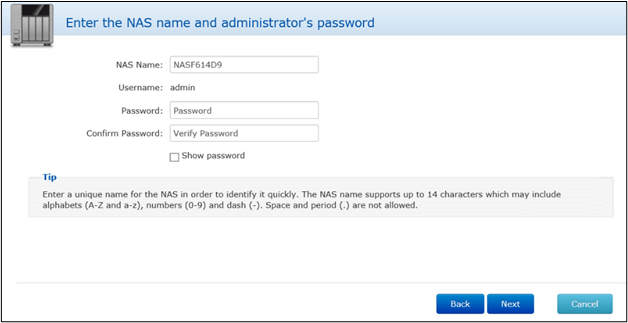
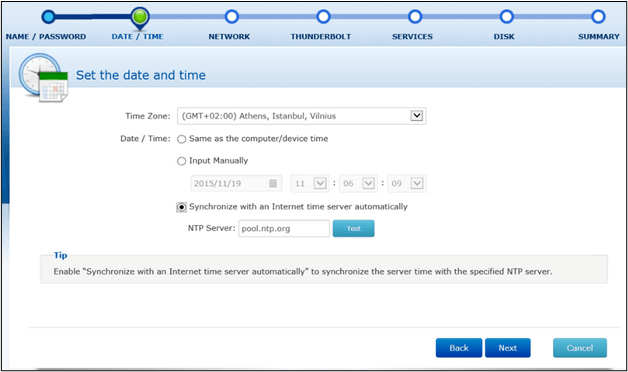
Step 5. Choose your Time format on the next screen.
Step 6. Insert your QNAP IP Address.
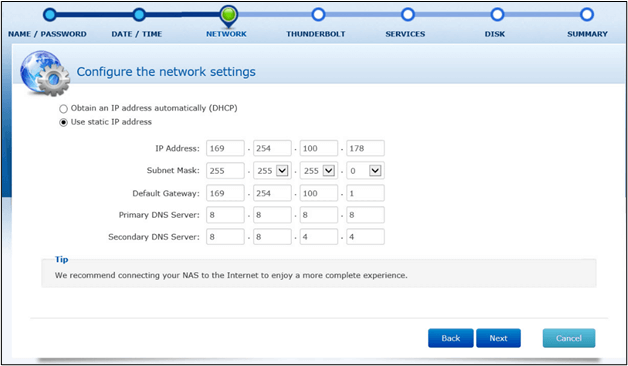
Step 7. The user should follow the on-screen instructions and tap on the Apply button when shown after the last custom settings page.
Be cautious and follow the steps in the same pattern we've shared. Failing to do so may lead to installation issues with QNAP NAS, resulting in problems like inappropriate real-time backup, technical difficulties, and more.
📖You may be interested: To back up your QNAP NAS, you can use the built-in QNAP backup software, QNAP Turbo NAS, or third-party software like Qiling backup.
Back-Up Files to QNAP NAS with 3 Working Ways
To access your QNAP NAS for network storage, you've likely followed the setup steps. Now, it's time to learn how to back up files to your QNAP NAS using various methods, with 3 effective approaches shared to accomplish this task.
| Methods | Effectiveness | Time | Difficulty |
|---|---|---|---|
| Creating backups is simple and can be scheduled to ensure all files are saved in a secure location.cloud storage space | 5-10 minutes for the first set up | ⭐ | |
| File History | To prevent data loss, restore files to a specific network on the system. This involves identifying the network drive or folder where the files were originally saved and copying them back to that location. | 10-15 minutes | ⭐⭐⭐ |
| Backup & Restore | To get your system back to its previous working state, restore all files from the drives at the time when it was working smoothly. This will help you regain a stable system environment. | 10-15 minutes | ⭐⭐⭐ |
Method 1. Save Files to QNAP via Qiling Disk Master
Whether you're looking to backup shared folders or the whole disk from your QNAP NAS, Qiling Disk Master is the best option. It's one of the most advanced backup software available, ideal for your needs.
Using the QNAP NAS, you can easily create a data image backup of your system, and in its premium versions, it enables you to schedule backup and perform many other advanced features such as creating a data image backup.
| Feature | Description |
| Centralized Backup | This backup software allows you to manage all your devices from one central location, preventing technical errors, saving time, and minimizing extra effort. |
| Customized Settings | Qiling Disk Master enables users to customize data backup settings, allowing them to select specific files and folders to be backed up and restored on Windows. |
| Scheduled Backup | In its premium version, QNAP users can schedule backups, automatically saving files without manual effort, eliminating the need to manually transfer data from QNAP to the software. |
| Cloud Backup | QNAP NAS can use RAID (Redundant Array of Independent Disks) to reduce the risk of data loss. Because data is distributed or duplicated across multiple disks, the NAS may remain accessible even if one disk fails. This redundancy adds another layer of protection for important files. |
To back up your files and folders to NAS with Qiling Disk Master, simply follow these steps: connect your NAS to Qiling Disk Master, select the files and folders you want to back up, and then choose the NAS as the backup destination. You can also schedule automatic backups to ensure your data is always up to date.
Step 1. When using Qiling Disk Master for the first time, you need to click on the "Backup and Recovery" tab page to start the backup process.

Step 2. To back up files and folders on your computer, select the "File backup" backup mode, which allows you to choose pictures, videos, documents, and other types of files to back up.

Step 3. Select the files, folders or directories you want to back up, following their paths, and then proceed with the backup process.

Step 4. You should select a secure and reliable location to save and retain the backup, such as an external hard drive, cloud storage, or a network drive, to ensure the backup is safely stored and can be easily accessed when needed.

Step 5. Qiling Disk Master allows users to save backup files to various devices, including local hard drives, external USB drives, SD cards, network drives, and NAS drives, as well as Qiling's cloud drive. We recommend choosing the cloud drive for important backups due to its greater accessibility, flexibility, and safety.

Step 6. If you're interested in an automatic and intelligent backup schedule for the next file backup task, go to the "Options" setting. There, you can encrypt confidential files, compress the backup image size, or customize a backup scheme to specify when to start the next backup.
Customize an advanced and automatic backup task here:
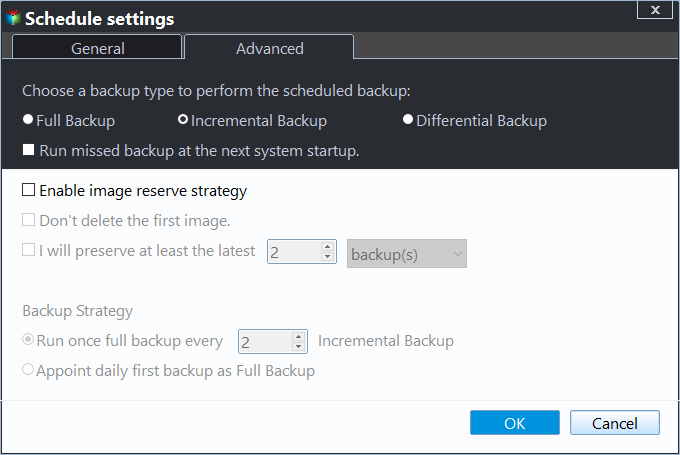
Step 7. Click "Proceed" to start the file backup process, and your completed backup files will be displayed on the left in a card format.
Method 2. Back Up Files to QNAP NAS with File History
Windows OS has a built-in feature called File History that allows users to back up files without needing a third-party tool. While many users may be unaware of this feature, it can be used to back up files to a QNAP NAS, making it a convenient option for those looking to safeguard their data.
Step 1. To reach Backup in Windows 10, go to Settings > Update and Security > Backup.
Step 2. Tap on More options given below Add a drive.
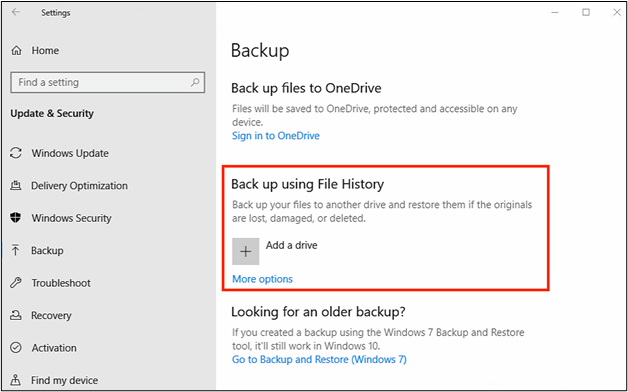
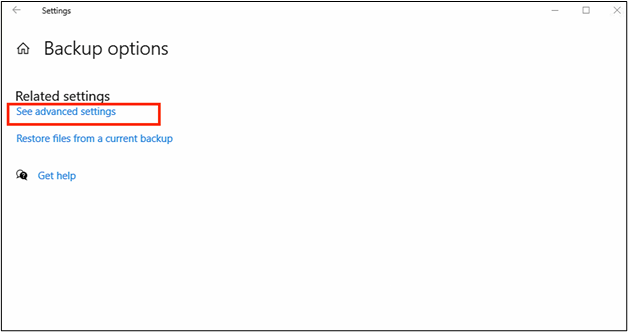
Step 3. Choose See advanced settings from the new window.
Step 4. Click on Select a network location option.
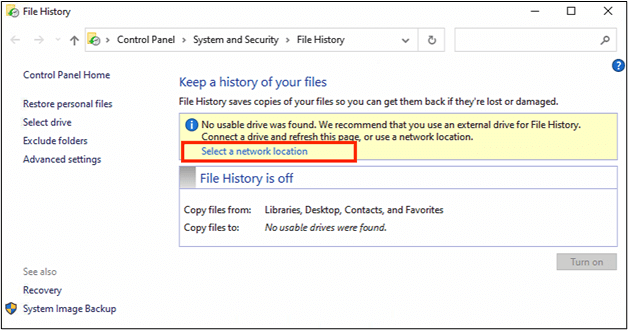
Step 5. If it's your first-time setup, tap on Add network location.
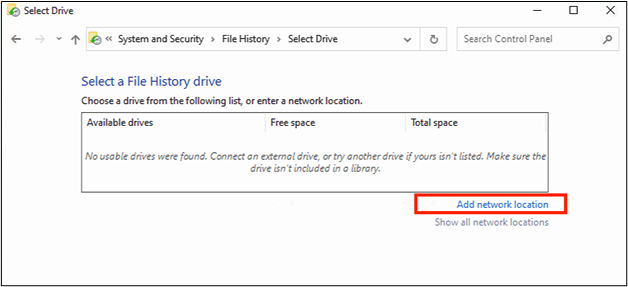
Step 6. To set up the NAS, go to the search bar and enter the NAS IP, then choose the NAS folder as your network location. Once you've completed the setup, click on OK.
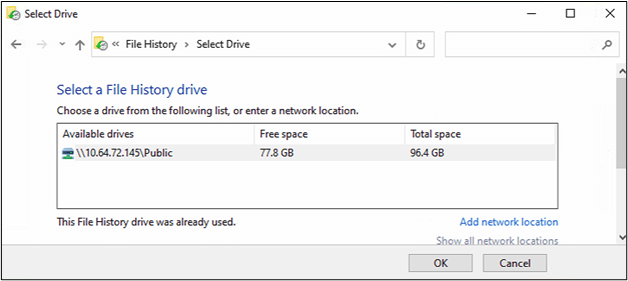
To turn on the "File History" backup method in Windows 10, complete the steps outlined above. Once enabled, you can access the advanced settings to schedule different actions for file backups.
Best NAS for Home Media
Here are the top NAS solutions for home media storage, providing the best devices to enhance your home entertainment experience.
Method 3. Backup Windows 10 to QNAP NAS with Backup and Restore
The Backup and Restore feature, introduced in Windows 7, is still available in Windows 10 and Windows 11, allowing users to create a system replicate on a specific network, such as a NAS.
To restore your system to an earlier state, follow these steps: Go to Settings, then click on Update & Security, and finally click on Recovery. From there, you can choose to go back to a recent restore point where your system was working properly. This feature helps you recover from system crashes, software conflicts, and other issues. Just make sure you have backups of your important files, and you'll be good to go.
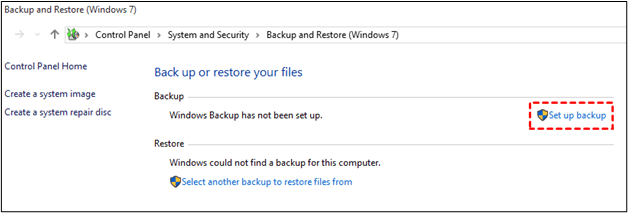
Step 1. To access the Backup and Restore option, follow the pathway mentioned earlier. On the right side of the screen, tap on the Set up backup option.
Step 2. Select Save on a network.
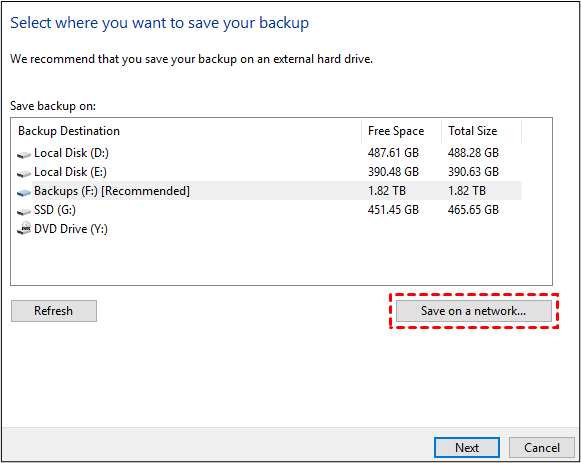
Step 3. Enter the NAS IP address in the box labeled "Network Location".
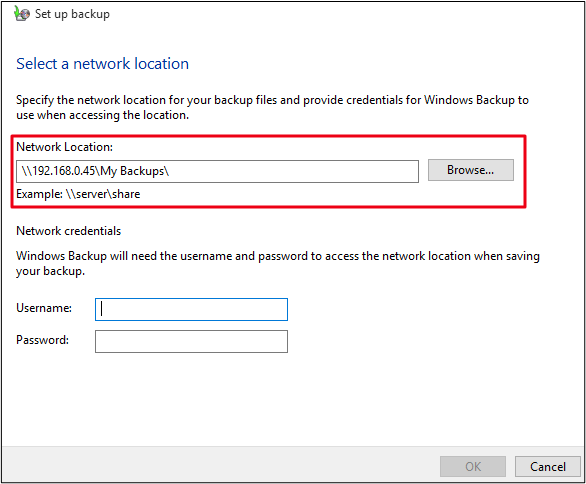
Step 4. Enter your username and password, then click OK and next to proceed.
Step 5. On the Review Backup screen, select Change Schedule to set the backup schedule according to your needs.
To keep your data safe in a network using Windows 10, ensure you've selected the correct network location, which can be Public or Private. This setting determines the level of security and access to your data. If you're in a public network, it's recommended to choose Public to prevent unauthorized access.
The Final Verdict
After reading this guide, you should have a good understanding of various methods to back up your data. You may be ready to take action after learning how to backup files to QNAP NAS, a proficient method that can be followed.
Qiling Disk Master is recommended for its advanced features, including cloud storage, which ensures no files or folders are lost, unlike Windows built-in features that may result in lost recent files if not backed up.
FAQs on File Backup to QNAP NAS
1. How do I set up a QNAP backup?
Here are the steps to create a QNAP backup to your required network in one paragraph:
- Go to the Backup and Restore option.
- Tap on New Backup Job.
- Select the destination where you want to take a backup.
- Tap on the Next button.
- Choose the Storage space.
- Click on OK to complete the task.
2. Can I connect a QNAP NAS directly to my computer?
You can connect your QNAP NAS directly to your computer using an Ethernet cable. This allows for a fast and stable connection for data transfer and access to NAS resources.
3. How do I access QNAP NAS from my computer?
To access QNAP NAS from your computer, ensure your computer is connected to the same network as the NAS, then follow the steps.
- Go to Web Browser.
- Insert NAS IP in the address bar.
- Add your Username and Password to the new page that appears on the screen.
- Click on the Login button to get started.
Related Articles
- How to Copy and Backup Files without Admin Rights
- How to Do Offsite Backup? [2024 Three Ultimate Guide]
- Where Does Windows 10 Backup Save to? Get Full Answer
- How to Backup Onedrive to Synology NAS - 3 Effective Ways
- How to Backup SD Card to Google Drive
- Can I Clone BitLocker Encrypted Drive Without Disabling It? Yes! [3 Minutes Guide]
- More Than Clone SSD - See What You Can Do with Qiling Disk Master
Qiling Backup is more than just a clone software, as it offers additional features beyond disk cloning. While it does provide cloning functionality, it also offers more capabilities, making it a more comprehensive tool than initially thought.
Products
Articles & Tutorials
- Data Recovery
- Data Backup
- File Recovery
- File Backup
- System Backup and Restore
- Disk and Partition Clone
- Technical articles
- Mobile articles
- Disk Master Help
- Windows Data Recovery Tutorials
- Windows Secure Delete Tutorials
- Windows Partition Management Tutorials
- Windows File Backup and Restore Tutorials
- Windows System Backup and Restore Tutorials
- Windows Disk Backup and Restore Tutorials
- Windows Clone Tutorials