Fix "No Option to Format SSD" in Windows 10/11 [Quick & Easy Methods]
If you encounter the "No option to format SSD" error in Disk Management, don't worry - this issue can be resolved with a simple and effective solution. The error typically occurs due to a specific reason that we need to identify first. Once we understand the cause, we can proceed with the solution to get you back on track.
Why There Is No Option to Format SSD in Disk Management
The SSD has become a popular storage device among computer users for its excellent and stable performance, but sometimes there is no option to format an SSD in Disk Management.
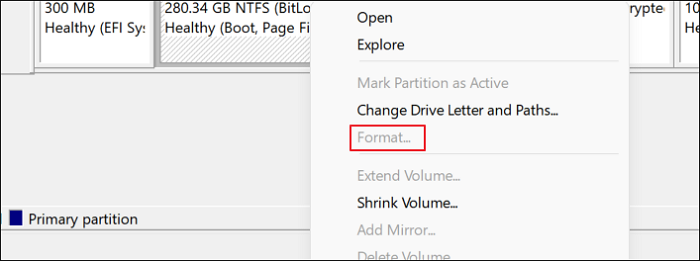
The possible situations are below:
- You're formatting an SSD with OS on it.
- Disk Management failed to recognize SSD.
- Your SSD is not initialized.
- Your SSD is physically damaged.
The "no option to format SSD" error can occur due to various situations, such as disk errors, malware infections, or corrupted system files. To resolve the "format grayed out Disk Management" issue, several solutions can be applied, which will be discussed in detail.
You may also like:
Fix 1. Format SSD with OS on It
Works to: When formatting an SSD with an operating system (OS) on it, the format option becomes grayed out, preventing accidental overwrites of the OS. This safety feature ensures that the OS remains intact, even if the user attempts to format the drive.
Qiling Disk Master Free is a utility that helps Windows users format SSDs, manage disks, and check disks, efficiently fixing the "no option to format SSD" error by allowing users to format their SSD with simple steps.
To format an SSD with an operating system installed, you need to create a bootable media first, which allows you to manage your hard disks and partitions if your computer fails to boot normally. If you directly format the SSD, you won't be able to boot your computer again.
Guide 1. Create a Bootable Media
Step 1. To create a bootable disk of Qiling Disk Master, prepare a storage media like a USB drive or CD/DVD disc, and correctly connect it to your computer.
Step 2. Launch Qiling Disk Master, and click on the "Bootable Media" feature on the left.
Step 3. When the drive is available, you can choose to save the ISO file to a USB or CD/DVD. Alternatively, if no storage device is available, you can save the ISO file to a local drive and burn it to a storage media later. To proceed, click the "Create" button.
- Check the Warning message and click "Yes".
Step 4. When the process finishes, a pop-up window will appear, asking if you want to restart your computer from the bootable USB.
- Reboot Now: You want to restart the current PC and enter Qiling Bootable Media to manage disk partitions without OS.
- Done: it means you don't want to restart the current PC but to use the bootable USB on a new PC.
Note: To use the bootable disk on a new PC, simply restart the target computer, press F2/F8/Del key to enter BIOS, and set the USB bootable disk as the first boot disk.
Your computer will automatically boot up from the USB bootable media and enter Qiling WinPE desktop once you wait patiently.
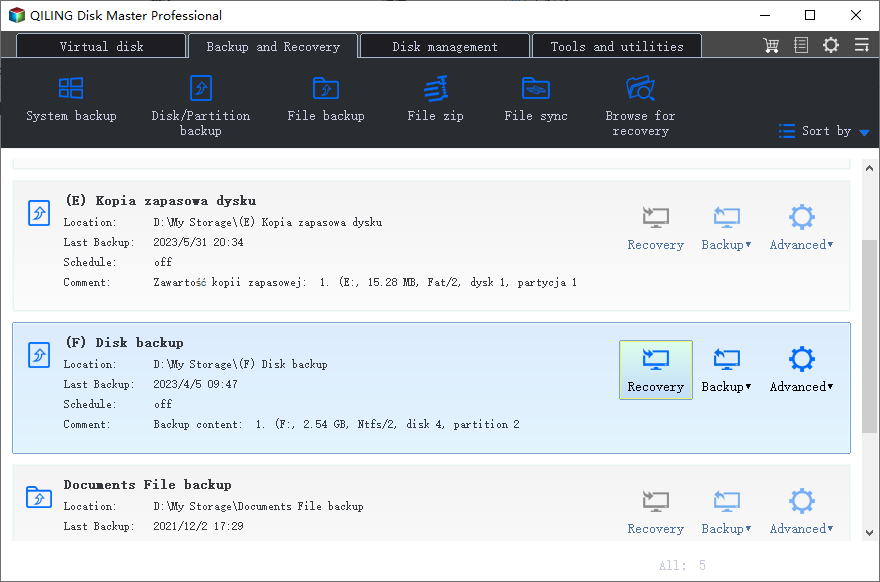
Guide 2. Format SSD with OS on It
After creating a bootable media, boot your computer from it, and you can then format your SSD using Qiling Disk Master by following the steps below.
Step 1. Right-click the hard drive partition and choose the "Format" option.
Step 2. Set the Partition label, File system, and Cluster size for the partition in the new window.
Step 3. You can see a warning window, click "Yes" to continue.
Step 4. To start formatting the hard drive partition, click the "Proceed" button.
By the way, this professional format tool can help with a lot of issues. Let's learn more about it.
Features of Qiling Disk Master:
Qiling Disk Master is a format utility that can help you resolve various disk partition issues. If you're fed up with dealing with these problems, download it to get assistance.
Fix 2. Reconnect SSD and Check File System Error
Work to: Disk Management fails to recognize SSD.
If Disk Management fails to recognize your SSD, try reconnecting it to your device. If that doesn't work, you may need to check for file system errors, which Qiling Disk Master can also help with. Download it and follow the steps.
Step 1. Right-click the target partition that has a problem.
Step 2. Choose "Advanced" > "Check File System".
Step 3. Confirm if you want to hide the partition or not.
Step 4. To fix the error on the disk, check the "Fix the error on the disk" option in the Check File System window.
Step 5. Click "Proceed" to check errors on your partition.
After this, check if the problem has been solved. If not, have it repaired.
Fix 3. Initialize SSD Before Formatting It
Works to: Your SSD is not initialized before you format it.
If your SSD is not initialized, you won't be able to create a new partition or format it using Disk Management, and you'll need to initialize your disk before proceeding.
Step 1. Locate your SSD in Disk Management and right-click on it.
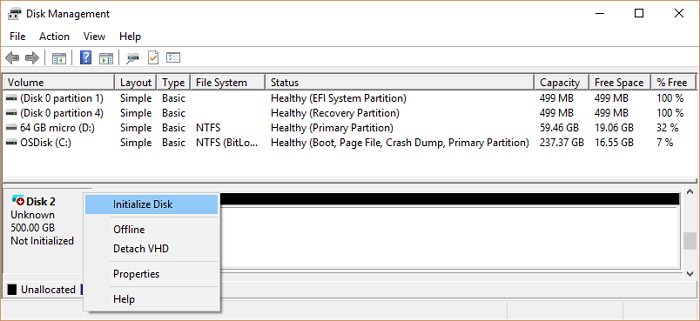
Step 2. To initialize your SSD as MBR or GPT, follow the wizard provided by the wizard. This process will guide you through the steps to prepare your SSD for use in a Windows system.
Step 3. To format the target disk, click on the "Start" button, type "This PC" in the search bar, and click on it. Then, right-click on the target disk and select "Format" from the context menu.
If you encounter issues during the process, such as the SSD not showing up, you can try reinstalling it or reconnecting it to resolve the error.
Fix 4. Contact the Manufacturer to Repair
Works to: Your SSD is physically damaged.
If you drop the storage device or expose it to harsh conditions, it may be damaged. The methods described in this article won't work if the physical damage is severe. However, you can reach out to the manufacturer or send it to a repair center to fix the issue.
Conclusion
The inability to format an SSD (solid-state drive) with the operating system is a limitation that can be frustrating for users. However, there are alternative solutions available, such as using a third-party tool like Qiling Disk Master, which can create a boot disk and format or delete the disk or partition directly. This can be a helpful option for those who are not experienced in computer operations, as it provides a straightforward and user-friendly way to manage their disk and partition needs.
There are some frequently asked questions in the next part. If you need to know the answers, please continue to read.
FAQs About No Option to Format SSD
Do you know how to remove the "no option to format SSD" error? This part lists some other questions related to this error. Hope it can help.
1. Why can't I format my SSD?
The possible reasons are below:
- Bad sectors
- Corrupted SSD
- File system errors
It seems like your device might be experiencing issues due to overheating, water damage, or physical trauma.
2. Why is the format option greyed out?
The Format option may be grayed out due to various reasons, such as the file being in a read-only state, the file type not being supported by the application, or the document being too large or complex for the application to handle. Additionally, if the file is corrupted or contains invalid data, the Format option may also be unavailable. In some cases, the application may also be experiencing technical issues or bugs that prevent the Format option from being enabled.
The volume is corrupted or has bad sectors.
The volume contains OS.
3. Why can't I format my SSD to FAT32?
There are two main reasons:
1. Your SSD might be larger than 32 GB.
2. Your SSD is corrupted.
Related Articles
- Qiling Disk Master VS DiskgGenius: See What Are Differences and Which Is Better
- How to Corrupt A Flash Drive on Purpose
- Resize Dynamic Disk to Extend or Shrink Dynamic Disk
- How to Fix Surface Won't Turn On [100% Working Solutions🚩]
- Free WD Quick Formatter Download for Windows 7,8,10
This article tells how to download and use WD Quick Formatter Tool format WD My Passport or Seagate external drive to NTFS or FAT32 step by step. - Solutions to Windows Can't Be Installed to Disk 0 Partition 1
Windows can't be installed to disk 0 partition 1 is an error message you may meet when installing Windows. Here, I'll tell why & how to fix it in several ways.
Products
Articles & Tutorials
- Data Recovery
- Data Backup
- File Recovery
- File Backup
- System Backup and Restore
- Disk and Partition Clone
- Technical articles
- Mobile articles
- Disk Master Help
- Windows Data Recovery Tutorials
- Windows Secure Delete Tutorials
- Windows Partition Management Tutorials
- Windows File Backup and Restore Tutorials
- Windows System Backup and Restore Tutorials
- Windows Disk Backup and Restore Tutorials
- Windows Clone Tutorials