How to Fix Remove PIN (Greyed Out) on Windows 11
In Windows 11, the Personal Identification Number (PIN) is a convenient and secure way to quickly access your system. However, if you find that the option to erase or fix a PIN has suddenly greyed out, it might be disconcerting.
Qiling will discuss the methods for resolving the Remove PIN Greyed Out on Windows 11, providing practical insights and step-by-step instructions to help you easily restore control of your PIN settings.
Discover the secret to a perfect Windows 11 experience with the extensive troubleshooting methods provided below, which can help resolve common issues and ensure a smooth and enjoyable operating system performance.
One-Click to Remove PIN (Greyed Out) on Windows 11
You may resolve the greyed-You can resolve the Windows 11 PIN issue with a simple click using Qiling Disk Master Professional, a third-party product that features a password reset option.
This user-friendly solution serves Windows users of all skill levels, ensuring a smooth and effective PIN removal process. Here are the steps to remove a PIN (greyed out) on Windows 11.
Step 1. To create a bootable USB disk using Qiling Disk Master, insert the target USB disk into a computer, run the Qiling Disk Master software, and then click on the "Tools" menu and select "Create bootable media" from the dropdown options.

Step 2. Select the correct USB flash drive and click "Proceed" to erase all data on it, backing up any important data first.

Step 3. After the password reset USB flash drive is created, connect it to the locked PC. Restart the PC and press F2/F8/F11/Del to enter the BIOS, setting the USB as the boot drive. The system will then automatically boot from the USB.
Step 4. After restarting, launch Qiling Disk Master again and go to the "Tools" tab. All accounts on the PC will be shown, click on the target account and check "Password Reset".

Step 5. When you receive this prompt, click "Reset" to continue. Your password will be erased.

Download Qiling Disk Master to restore control of your Windows 11 PIN settings and get additional benefits, including data backup and drive-related issue fixing.
How to Fix Remove PIN (Greyed Out) on Windows 11
In this section, you will find more solutions that you can use to fix the removed PIN greyed out on Windows 11. So, adhere to the step-by-step guide given below:
- Disable Windows Hello Sign-in for Microsoft Accounts
- Disable Microsoft Account without Password
- Remove PIN using the "I forgot my PIN" Window
If you're experiencing the "removed PIN greyed-out" error on Windows 11, this guide can help. To fix the issue, go to Settings > Accounts > Sign-in options and click on "Add" to create a new PIN.
1. Disable Windows Hello Sign-in for Microsoft Accounts
Disabling Windows Hello sign-To resolve the greyed-out PIN issue for Microsoft accounts, follow these steps: shortly in for Microsoft accounts is an efficient solution. This practical strategy can help you deal with the greyed-out PIN issue. You must take the following steps: shortly in for Microsoft accounts is an efficient solution. This practical strategy can help you deal with the greyed-out PIN issue.
Step 1. Press Win + I to open Settings.
Step 2. Navigate to "Accounts" and then "Sign-in Options."
Step 3. In the "Manage how you sign in to your device" section, locate "Windows Hello" and turn off "Require Windows Hello sign-in for Microsoft accounts."
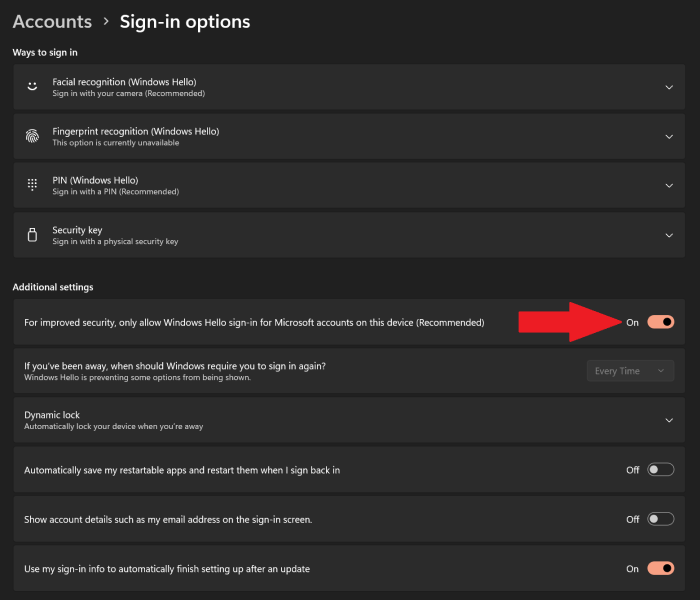
Step 4. Verify the activity by following the on-screen directions.
Step 5. To see the changes take effect, reboot your machine.
This should fix the issue. If not, then you can follow the steps below to try again.
2. Disable Microsoft Account without Password
To resolve the greyed-out PIN issue, consider deactivating the Microsoft account without a password. This can be done by following a series of steps, providing a quick resolution to the problem.
Step 1. Open the Settings app on your Windows 11 machine.
Step 2. Go to "Accounts" and then the "Your Info" page.
Step 3. Select "Accounts" from the "Related Settings" section.
Step 4. Click on the "Security" tab.
Step 5. Click on "Advanced security options."
Step 6. In the "Additional Security" area, disable the "Passwordless Account" feature.
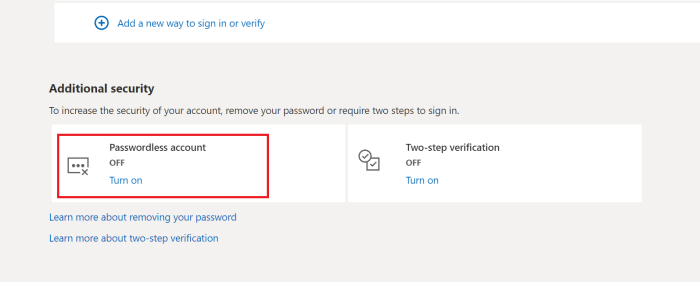
Step 7. Follow the on-screen instructions to finish the process.
Step 8. Restart your computer to apply the changes.
After completing these steps, you will see the "Remove" button restored under the "PIN (Windows Hello)" setting in Windows 11, and be careful not to mess with other settings to avoid losing data.
3. Remove PIN using the "I forgot my PIN" Window
To reset your Windows 11 PIN, go to Settings > Accounts > Sign-in options, then select "I forgot my PIN". You'll be prompted to enter your Microsoft account credentials to verify your identity. Once verified, you can reset or delete your PIN.
Step 1. On the login screen, click "I forgot my PIN."
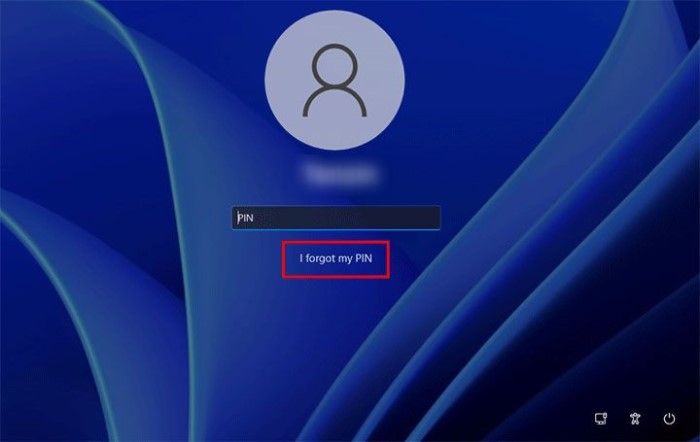
Step 2. To verify your identity through an alternative method, you would need to use a different method than the one you're currently using, such as your Microsoft account password. This is usually done to confirm your identity and ensure that you're the legitimate owner of the account.
Step 3. Follow on-screen instructions for verification.
Step 4. After verifying your identity, you'll be prompted to set up a new PIN or choose an alternative method to sign in.
Step 5. Complete the process, and your previous PIN will be successfully removed.
Hopefully, you have successfully fixed the issue of Remove PIN being greyed out on Windows 11.
Why Remove PIN (Greyed Out) on Windows 11
Solving the greyed-out PIN on Windows 11 is crucial because a locked PIN prevents users from logging in and poses potential security risks.
The greyed-out PIN issue on Android devices can be frustrating, especially when trying to access important apps or features. This problem often occurs due to various reasons, including incorrect or inconsistent PIN entries, software glitches, or hardware issues.
- Conflicts with Security Policy: The PIN removal feature might be tricky to utilize because of conflicts with specific security measures.
- File System Errors: If the file system containing your PIN information becomes unstable, it may cause the delete option to disappear.
- Short-Term Issues with Credential Manager: A A glitch in the Credential Manager, which handles logins, may cause a brief issue with removing PINs.
- Mistakes in Cryptographic Protocols: Using complex cryptography protocols may cause the PIN removal option to behave erratically.
To fix the remove PIN greyed-out error, check if the PIN is already set in the Settings app. If it is, try deleting the PIN from the Settings app. If the issue persists, try restarting your device.
Conclusion
Fixing Windows 11's PIN-Ensuring system security and accessibility is crucial for a safe and seamless Windows 11 experience, and resolving related issues is essential for this. This article provides detailed answers for individuals with varying levels of experience, emphasizing the importance of addressing these problems to guarantee a secure and smooth Windows 11 experience.
Qiling Disk Master is a highly recommended solution for a simple, beginner-friendly remedy. Paying close attention to PIN-related issues is crucial in maintaining a safe and secure computer environment.
FAQs About Remove PIN (Greyed Out) on Windows 11
Windows 11 users often encounter issues with their PIN, such as being unable to unlock their device or having trouble setting up a new PIN. To troubleshoot these problems, users can try restarting their device, resetting their PIN, or checking for any software updates that may be causing the issue.
1. How do I turn off PIN on Windows 11?
To turn off PIN on Windows 11, follow these simple steps. You can disable the PIN requirement with just a few clicks, allowing you to log in without needing to enter a PIN.
Step 1. In Windows 11, go to Settings.
Step 2. Pick "Accounts," "Sign-in Options," and then"PIN."
Step 3. Now select "Remove."
Note: To protect your account and data, use other login methods such as two-factor authentication, a password manager, or a VPN to ensure your account and PC remain secure.
2. Why is the PIN option not available in Windows 11?
If you're unable to use the PIN option due to conflicts with security settings, file system problems, or issues with Credential Manager, try resetting your PIN and logging back in to resolve the issue.
3. How do I forget my PIN on Windows 11?
To reset your PIN, click "I forgot my PIN" on the login screen, confirm your identity, and follow the on-screen instructions to create a new PIN or sign in another way. Alternatively, you can reset your PIN and then use the new PIN to log back in on your Windows PC.
Related Articles
- How to Remove USB Partition on Windows 10/11
- How Do I Force Format SD Card on Windows 11/10? Your Guide Here
- Fast Duplicate File Finder for All Windows OS Users
If you're looking for a fast duplicate file finder, this guide can help. A fast duplicate file finder can help you quickly identify and remove duplicate files from your drive, saving you time and space. - Best Free PC Cleaner for Windows OS [2026]
Are you looking for a free PC cleaner for your Windows computer? If you still have no choice, here you may find the best free PC disk cleaner. - Convert MBR to GPT in Windows Server 2012 (R2) without Data Loss
This post details how to convert MBR to GPT Server 2012 R2 2016, 2019, and 2022 without data loss by using Disk Management, Diskpart, and powerful third-party software. - How to Securely Erase SSD Drive in Windows 7?
Before selling your SSD, you need to erase SSD drive securely to wipe data in Windows 10/8/7 so that your data on it won't be retrieved with despiteful purpose.
Products
Articles & Tutorials
- Data Recovery
- Data Backup
- File Recovery
- File Backup
- System Backup and Restore
- Disk and Partition Clone
- Technical articles
- Mobile articles
- Disk Master Help
- Windows Data Recovery Tutorials
- Windows Secure Delete Tutorials
- Windows Partition Management Tutorials
- Windows File Backup and Restore Tutorials
- Windows System Backup and Restore Tutorials
- Windows Disk Backup and Restore Tutorials
- Windows Clone Tutorials