ReFS VS NTFS VS FAT32, Which One Should You Use?
Qiling explains the differences between ReFS, NTFS, and FAT32 file systems, highlighting their unique features, advantages, and disadvantages.
A file system is a structure that helps the operating system manage data in groups using logical rules, allowing users to easily access, read, write, modify, and protect data on storage devices.
?ReFS VS NTFS VS FAT32: What Are They
Windows 11 is adding support for ReFS, but NTFS and FAT32 remain the most widely used file systems. NTFS is a powerful file system that supports large files, security features, and compression, making it suitable for most users. FAT32, on the other hand, is an older file system that is still widely supported but lacks some of the features of NTFS, such as security and compression. The best choice depends on the user's specific needs, but NTFS is generally recommended for most users due to its advanced features and wide compatibility.
ReFS:
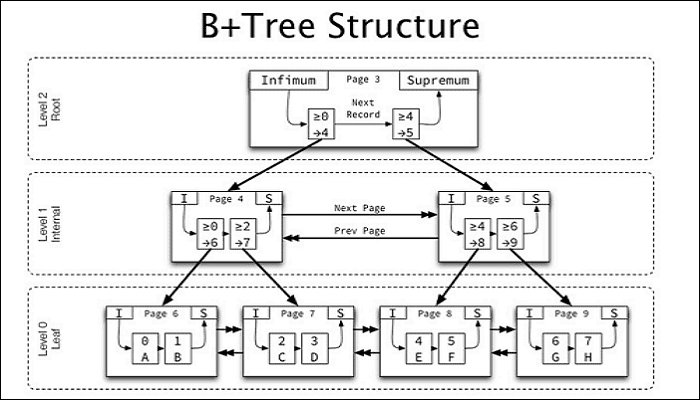
Microsoft launched Resilient File System (ReFS) in 2012, a new generation of advanced file systems designed based on NTFS code. ReFS aims to provide greater reliability, data availability, and meet users' growing data storage needs. It is compatible with Storage Spaces spanning volume technology, allowing for automatic error detection and file copying in case of disk failures. ReFS also boasts improved storage performance through its B+ tree structure, enabling the storage of more data and supporting a maximum file path of 32,768 characters.
NTFS:
NTFS has been the default file system format in Windows since Win 98, surpassing FAT in some ways. It supports metadata and has higher disk utilization than FAT32, and can support disk partitions up to 2 TB.
FAT32:
FAT32 is a file system that organizes files on a disk drive, using 32-bit addresses to store information. It was developed as an improvement over its predecessor, FAT 16, and is compatible with both Windows and Mac operating systems, making it a widely supported and accessible disk format.
Well, what's their difference? Which one is the best file system? Which one is your best choice? The next part will answer your questions.
?ReFS VS NTFS VS FAT32: What's Their Difference
While all three - ReFS, NTFS, and FAT32 - are file systems developed by Microsoft, they have distinct differences. ReFS and NTFS are designed for different purposes, with ReFS optimized for high-performance storage and NTFS being a more traditional file system, whereas FAT32 is an older file system that is still widely used due to its simplicity and compatibility with older systems. Each has its own strengths and weaknesses, making them suitable for different use cases.
| Comparison | ReFS | NTFS | FAT32 |
|---|---|---|---|
| ✏️Compatibility |
Windows Server 2022/2019/2016/2012 R2 and Windows Server 2012 |
The operating systems supported by this software include Windows 2000, XP, 2003, Vista, 7, 8, 8.1, and 10, as well as Windows Server 2008, 2008 R2, and 2012. Additionally, it is compatible with various GNU/Linux distributions and macOS X. | All major operating systems, including Windows, Linux, and macOS, as well as gaming consoles like the Xbox One, PS3/4, and the Steam Deck, can run the game. |
| ✏️Max Volume Size | 35 PB | 8PB | 32GB |
| ✏️Max File Size | 35 PB |
|
4GB |
FAT32 is widely compatible with many devices, but its size limit and outdated nature are significant drawbacks.
NTFS and ReFS have significant advantages over FAT32, with NTFS and ReFS offering much larger maximum volume and file sizes. ReFS is particularly similar to NTFS, making it a viable alternative to NTFS in many cases. Their similarities can be seen in the table below.
| Comparison | ReFS | NTFS |
|---|---|---|
| Data Deduplication | Yes | Yes |
| Cluster Shared Volume (CSV) support | Yes | Yes |
| BitLocker encryption | Yes | Yes |
| Access-control lists | Yes | Yes |
| Soft links | Yes | Yes |
| Trim/Unmap | Yes | Yes |
| Changes notifications | Yes | Yes |
| Thin Provisioning | Yes | Yes |
| Junction points | Yes | Yes |
| USN journal | Yes | Yes |
| File IDs | Yes | Yes |
| Changes notifications | Yes | Yes |
| Mount points | Yes | Yes |
| Volume snapshots | Yes | Yes |
| Sparse files | Yes | Yes |
| Named streams | Yes | Yes |
You May Also Like:
ReFS, a new file system developed by Microsoft, is not intended to replace NTFS, but rather to provide an alternative for specific use cases, such as high-performance storage and data integrity. ReFS offers improved performance, reliability, and scalability compared to NTFS, but may not be suitable for all scenarios due to its limitations in terms of compatibility and features. NTFS, on the other hand, remains a widely supported and versatile file system that is well-suited for general-purpose use. Ultimately, the choice between ReFS and NTFS depends on the specific needs and requirements of the user.
Pros of ReFS:
?Resiliency: ReFS has built-in resiliency, which checks files as you read or write them to prevent data corruption, and periodically checks all files on the drive to identify and repair corrupted data.
?Scalability: ReFS can support extremely large amounts of data; by default, it allows for file names and file paths up to 32,768 characters.
?Performance: ReFS's mirror-accelerated parity feature distributes data into two layers on the drive, enabling high performance and efficient data storage.
Cons of ReFS:
?Windows cannot boot from ReFS.
ReFS uses more system resources, especially for larger disk arrays, which requires more RAM and IOPS to maintain file integrity.
?NTFS data cannot be converted to ReFS.
ReFS, a file system developed by Microsoft, does not include features such as file system compression and encryption.
Pros of NTFS:
?Journaling: NTFS uses journal files to record metadata changes to a volume and to restore file system consistency when the computer is restarted after a system failure, ensuring data integrity and recovery.
?Security: NTFS uses access control lists (ACLs) and user-level encryption to protect user data, allowing users to set permissions for files or folders, specify users to restrict or allow access to, and select access types.
?Space saving: NTFS file system compression, hard links, and disk quotas are features that can significantly save system resources and free up disk space. These features enable efficient storage and management of files, allowing for better utilization of available disk space and reducing the need for additional storage solutions.
Cons of NTFS:
The main disadvantage of NTFS is its limited compatibility with non-Windows operating systems and other removable devices.
Click the link below, and you can learn more details about the difference between NTFS and ReFS.
ReFS VS NTFS: Which Is a Better File System?
While both ReFS and NTFS are file systems developed by Microsoft, they have distinct differences despite ReFS being built on top of NTFS code.
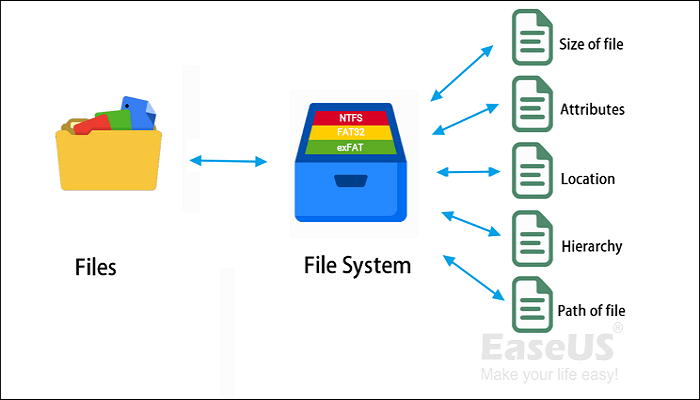
ReFS, NTFS, and FAT32 are three file systems with distinct features. ReFS offers high-performance, reliability, and scalability, making it suitable for large-scale data storage. NTFS provides robust security features, data compression, and support for multiple partitions, while FAT32 is a simple, widely-supported file system ideal for smaller storage devices. Each file system has its strengths, and the choice between them depends on the specific needs and requirements of the user.
| ✅ReFS | ✅NTFS | ✅FAT32 |
|---|---|---|
|
|
|
Windows 11 is getting ReFS support because it offers improved performance, reliability, and security features compared to NTFS, making it a suitable option for specific use cases, such as high-performance storage, data integrity, and security. However, ReFS does not easily replace NTFS, and its adoption is not expected to be widespread in the near future. The choice between ReFS, NTFS, and FAT32 depends on specific needs, with ReFS suitable for high-performance storage, NTFS for general-purpose use, and FAT32 for legacy systems or specific use cases where compatibility is essential.
NTFS is a widely used and versatile file system suitable for most situations due to its common use in various configurations and jobs.
ReFS is not a substitute for NTFS, but rather a supplement to it, lacking key functions. However, it is inherently more efficient for advanced users, particularly in Windows Server environments, offering unique features that protect and restore data for PCs handling large amounts of data with flexibility.
FAT32 is a widely used file system that is compatible with both Windows and Macs, making it a popular choice for users who need to share files between the two platforms. However, it has limitations on maximum file size and partition size, which may not be ideal for users who need to work with large files. Despite this, its compatibility makes it a convenient option for many users.
Then, how can we convert NTFS and FAT32 to ReFS? The next part gives you a trustworthy tool. Let's see it together.
Bonus Tip: An Ideal File System Converter Among ReFS, NTFS, and FAT32
Windows 11 uses ReFS, potentially replacing NTFS and FAT32. Unfortunately, Windows can't directly convert FAT32/NTFS to ReFS, requiring a reformat and backup of files. However, a professional format tool like Qiling Disk Master Free can format a FAT32/NTFS drive to ReFS.
Download it and follow the tutorial to try it:
Step 1. Launch Qiling Disk Master, right-click the partition you intend to format and choose "Format".
Step 2. Enter the Partition label, choose the FAT32/EXT2/EXT3/EXT4 file system, and set the cluster size according to your needs, then click "Proceed" in the new window.
Step 3. A warning window will appear, click "Yes" to start formatting the partition to FAT32/EXT2/EXT3/EXT4.
Conclusion
Windows 11's support for ReFS doesn't mean it will replace NTFS, which remains widely used and excellent. Despite ReFS's advantages, only a few organizations adopted it when first introduced, making it more suitable for enterprise users like Windows Server. If you want to try ReFS, you can format a drive using Qiling Disk Master, but remember to back up important data first.
FAQ About the Difference Among ReFS, NTFS, and FAT32
Some other questions and answers may help you get more information about the difference between something. Check the answers below to learn more.
1. Is ReFS better than NTFS?
NTFS and ReFS are both reliable and advanced file system types, each with its own features, and the choice between them depends on individual needs. ReFS was designed to provide greater resiliency and data integrity, particularly for large storage and high-availability environments, while NTFS remains the default file system to ensure backward compatibility with previous Windows versions and devices that interface with Microsoft systems.
2. Is ReFS replacing NTFS?
While both ReFS and NTFS are reliable file systems, ReFS is not yet ready to replace NTFS in the near future. This is due to its limited functions and features, which currently only allow it to serve as a supplement to NTFS, rather than a full-fledged replacement.
3. When should I use ReFS?
ReFS offers enterprise users built-in support for deduplication, which saves space on storage devices, and advanced algorithms to detect and correct data corruption in real time, making it an attractive option for enterprises.
Related Articles
- [NEW] Fix USB Accessories Disabled on macOS 13 Ventura Effectively in Seven Ways
- How to Format SD Card for Camera [Step-by-Step Instructions]
- 6 Ways to Fix C Drive Keeps Filling Up for No Reason
- How to Fix It Looks Like Windows Didn't Load Correctly
- Do I Need to Backup OneDrive? [Why & How-to Guide]
OneDrive users should be cautious as the platform is not always secure, and data breaches can occur. To mitigate this, users can create a backup of their OneDrive data using a professional tool like Qiling Disk Master, ensuring their files are safe in case of emergencies. - Does BitLocker Slow Down SSD? Yes, up to 45%
Many users wonder if BitLocker slows down SSDs, and if there's a way to disable it to enhance performance. If you're curious about this, keep reading for comprehensive answers to your questions.
Products
Articles & Tutorials
- Data Recovery
- Data Backup
- File Recovery
- File Backup
- System Backup and Restore
- Disk and Partition Clone
- Technical articles
- Mobile articles
- Disk Master Help
- Windows Data Recovery Tutorials
- Windows Secure Delete Tutorials
- Windows Partition Management Tutorials
- Windows File Backup and Restore Tutorials
- Windows System Backup and Restore Tutorials
- Windows Disk Backup and Restore Tutorials
- Windows Clone Tutorials