How to Format SD Card on Windows 10 [Easy & Efficient]
Formatting an SD card on Windows 10 is a straightforward process. If you need to format your SD card, we're here to guide you through the necessary steps. The process involves using methods and tools available on Windows 10, and it's often necessary when the card becomes corrupted or you want to erase its contents. To start, you can use the built-in Disk Management tool or a third-party software to format the SD card. We'll walk you through the steps to ensure a successful formatting process.
Why Format SD Card on Windows 10
The main reasons for formatting an SD card are to make it suitable for different devices, as various devices require different formatting. This is due to the fact that different devices have different requirements for the SD card, and formatting it allows the user to tailor it to the specific device's needs.
- Change the file system:
To accommodate different devices, the SD card's file system format needs to be changed by formatting it, making it compatible with digital cameras, game consoles, and smartphones.
- Fix corrupted SD card:
When your SD card encounters errors or problems, you can fix them by formatting, but try it out before investing in a new card.
- Erase data to get space:
When your SD card is running low on space or you want to start a new project, you can format it to free up space and start fresh. This process will erase all data on the card, so make sure to back up any important files before proceeding.
Now, we're going to learn three ways to format an SD card. So, connect your SD card to a Windows PC. If it's not visible, click the link below to check. Once connected, you can format the SD card using the built-in Disk Management tool, the Command Prompt, or a third-party software like Qiling Disk Master.
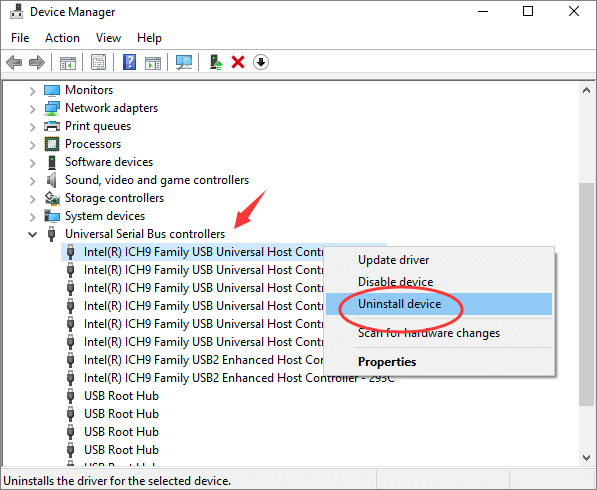
SD Card Not Detected Windows 11/10
If you're experiencing issues with your SD card not being detected or showing up on your Windows 11/10 device, there are 9 potential approaches to resolve the problem, each addressing a different aspect of the issue.
Format SD Card on Windows 10 - Full Guide on 4 Ways
To format your SD card on Windows 10, you have a few options. You can choose the method that best suits your needs and computer knowledge, and follow the steps to prepare your SD card for future use. One way to do this is by following the steps outlined in this guide, which will walk you through the process of formatting your SD card. Alternatively, you can use the built-in formatting tool in Windows 10 to format your SD card. Whatever method you choose, formatting your SD card provides you a clean slate to work with.
Way 1. Format SD Card on Windows 10 via Qiling Disk Master - Easy
Qiling Disk Master Free is a free and user-friendly third-party disk manager that can format SD cards, USB drives, and external SSDs with ease. It's compatible with all Windows versions, including Windows 11, 10, 8, 7, Vista, and XP, and provides timely prompts to guide beginners through each step, making it a great option for those who are new to disk management.
Now, download the free tool and follow the guide to format your SD card.
Step 1. To format your SD card, locate it and right-click on the partition you want to format, then select the "Format" option.
Step 2. Set the partition label, file system, and cluster size for the selected partition.
Step 4. Click the "Proceed" to continue.
Step 3. To start formatting your SD card, click "Yes" on the pop-up window that appears.
This SD card formatting software is easy to use, requiring only a few simple steps. It can efficiently change the SD card file system format, empty the SD card to free up storage space, and effectively make the SD card new again.
Way 2. Format SD Card on Windows 10 via File Explorer - Medium
Here are the steps to format your SD card using File Explorer: you can format your SD card to NTFS, FAT32, exFAT, etc. using File Explorer, a built-in tool for managing your disk. This process might take some time, depending on the capacity of your SD card.
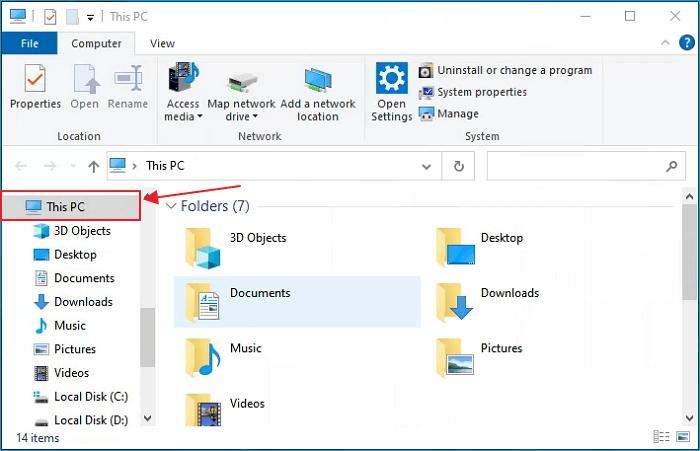
Step 1. To access your SD card, insert it into your computer, then press the Windows key + E on your keyboard to open File Explorer, allowing you to view and manage the contents of your SD card.
Step 2. Click on "This PC" and locate your SD card.
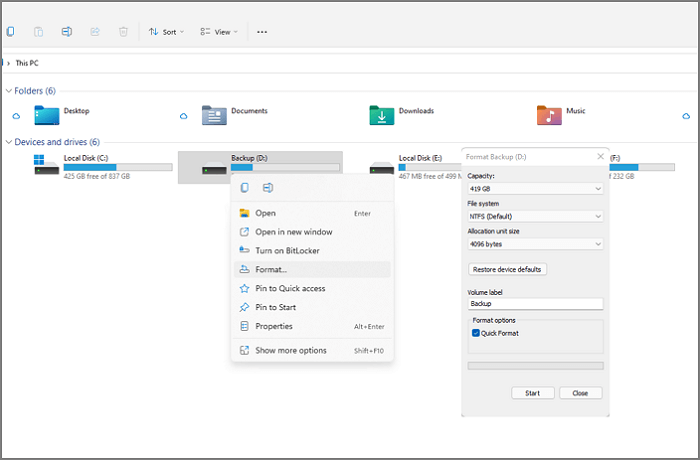
Step 3. Right-click it and choose "Format."
Step 4. You will then select the file system you want to use.
- Notice:
- Choose NFTS if using on Windows only, or FAT32 if using on multiple devices. If formatting for the first time, uncheck Quick Format. If formatting again, check Quick Format.
Way 3. Format SD Card on Windows 10 via Disk Management - Medium
To format an SD card using Disk Management in Windows 10, follow these steps: Open Disk Management by searching for it in the Start menu. In the Disk Management window, locate the SD card you want to format and right-click on it. Select "Format" from the context menu. In the "Format" window, choose the file system you want to use (e.
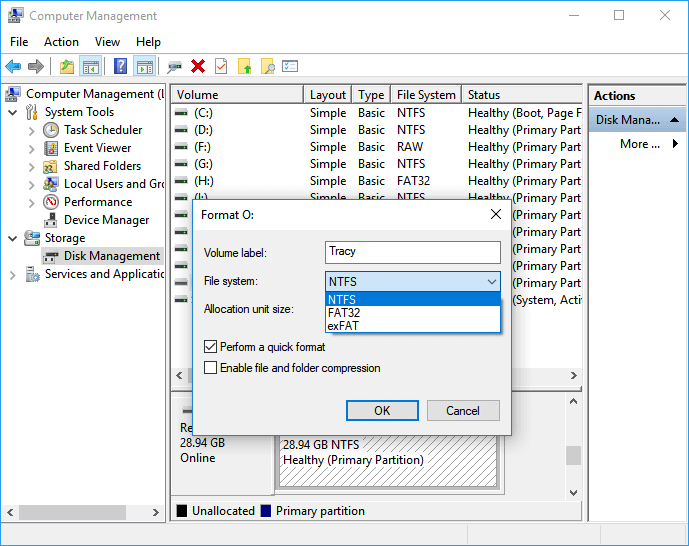
Step 1. Right-click on the Windows and choose "Disk Management."
Step 2. Make sure your SD card has been inserted into the PC and is visible in Disk Management.
Step 3. Right-click it and choose "Format."
Step 4. Select the file system and choose "Perform a quick format."
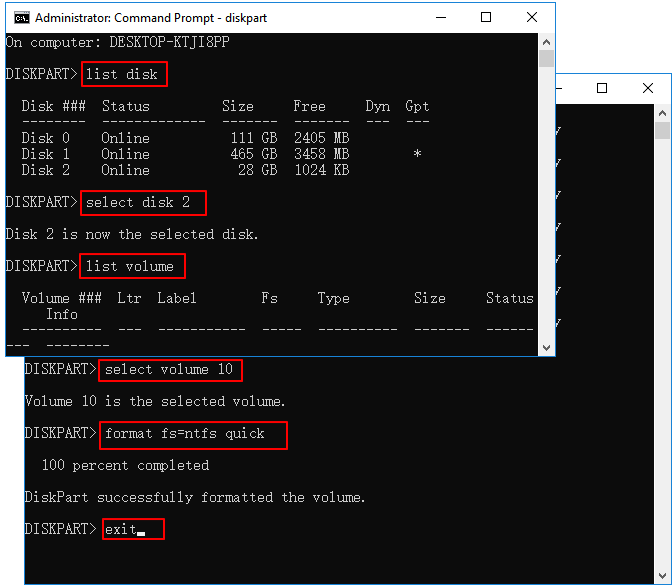
Way 4. Format SD Card on Windows 10 via Diskpart - Difficult
Diskpart is a built-Formatting an SD card using Diskpart on Windows 10 is a straightforward process, but it requires caution to avoid data loss. The Diskpart command-line tool takes control of your hard drive and can be used to format SD cards. When entering related commands, be careful not to accidentally delete important data. To format an SD card using Diskpart, simply follow the steps outlined in the instructions.
Step 1. To open Command Prompt as an administrator, type "cmd" in the search box, select Command Prompt from the search results, and then choose "Run as administrator" from the context menu.
Step 2. Type diskpart and press Enter.
Step 3. Enter the following commands and hit Enter after each command:
- list disk
- select disk 2 (Replace 2 with the correct SD card number)
- list volume
- Select volume 10 (Replace 10 with the right number)
format fs=ntfs quick (Replace NTFS with the file system you want)
You can format an SD card using four different methods. If you encounter any issues during the process, you can refer to the links below for assistance.
Conclusion
Formatting an SD card on Windows 10 can be done efficiently and safely in four different ways, making it compatible with various device formats. You can choose the method that best suits your needs and preferences.
If you're new to Windows, it's recommended to use Qiling Disk Master to format SD cards, as Diskpart commands and other methods can lead to data loss.
Format SD Card Windows 10 FAQs
Formatting SD cards is a common task, and we've discussed various ways to do it. If you have further questions about formatting SD cards in Windows 10, you can refer to the provided answers for guidance.
1. How do I format my Micro SD card on my computer?
To format a Micro SD card on your computer, insert the card into a Micro SD card reader connected to your computer, open the File Explorer, right-click on the card, select "Format," choose the file system (FAT32, exFAT, or NTFS), and click "Start" to begin the formatting process. Alternatively, you can use the built-in Disk Management tool to format the card, or use a third-party software like Qiling or MiniTool.
Step 1. Open Disk Management and locate your Micro SD card.
Step 2. Right-click the SD card and click "format."
Step 3. Select the desired file system and click the "perform a quick format" option.
2. Should I format my SD card to exFAT or FAT32?
exFAT and FAT32 are not the same, but which one to choose depends on your usage. If you work with files smaller than 4GB, FAT32 is a good option. However, if you always work with large files, exFAT is a better choice, especially for external hard drives.
3. Can I format an SD card to FAT32 on Windows 10?
There are many built-in tools that can help format an SD card, but if you're not experienced in formatting, using a reliable third-party tool like Qiling Disk Master can be a good option.
Related Articles
- How Do I Clone Windows to New Computer/PC? Your Checklist in 2026 [New]
- How to Run SSD SMART Test Safely [SMART Attributes Explained]
- 3 Ways: How to Increase C Drive Space in Windows 10/8/7
- 2 Best Disk Manager for Windows Server Free Download [Free & Paid]
- How to Fix Remove PIN (Greyed Out) on Windows 11
To fix the issue of a greyed out PIN on Windows 11, follow these steps below. This will help you resolve the problem and remove the greyed out PIN within a few minutes. - How to Remove USB Partition on Windows 10/11
Removing a USB partition is relatively straightforward and requires just a few steps.
Products
Articles & Tutorials
- Data Recovery
- Data Backup
- File Recovery
- File Backup
- System Backup and Restore
- Disk and Partition Clone
- Technical articles
- Mobile articles
- Disk Master Help
- Windows Data Recovery Tutorials
- Windows Secure Delete Tutorials
- Windows Partition Management Tutorials
- Windows File Backup and Restore Tutorials
- Windows System Backup and Restore Tutorials
- Windows Disk Backup and Restore Tutorials
- Windows Clone Tutorials