Full Guide to Fix Windows 11 Slow Startup Error
Windows 11 is the much-The highly anticipated Microsoft announcement that Windows users have been eagerly awaiting for years has finally arrived, bringing with it a plethora of exciting new features.
The Windows 11 slow startup error occurs when the operating system takes a long time to load after a shutdown or restart, causing inconvenience to users. This issue can be caused by various factors, including outdated drivers, corrupted system files, or a malfunctioning startup program. To resolve this issue, users can try troubleshooting methods such as checking for updates, running a system file checker, and disabling startup programs. However, before taking any action, it is recommended to update your PC to Windows 11, as it is still unstable and prone to several issues, including the slow startup error.
Many Windows 11 users have experienced slow boot errors, with some experiencing infinite boot loops, where the system fails to load properly, causing frustration and delays.
If you're experiencing slow startup symptoms in Windows 11, it's not a major issue. You can easily fix the problems by making some operational adjustments or visiting your local Microsoft store. If you're familiar with the symptoms, you can address them, such as fixing issues related to the operating system.
- Not having enough space to run Windows 11
- Your system often restarts
- It takes a lot of time to start a program
- The computer or processor is overheating, etc.
Windows 11 boot up can be slow due to various reasons, but understanding the cause is key to fixing it. By identifying the root of the issue, you can take targeted steps to improve your computer's startup speed.
If your PC is taking a long time to start up, ! We'vethis guide can help. Simply identify the reason behind the slow startup speed and use one of the fixes mentioned in this post to resolve the issue. Whether it's a cluttered desktop, outdated drivers, or a resource-intensive program, there's a solution for you.
Main Content:
Why Is Windows 11 Slow to Boot/Startup
9 Methods to Fix Windows 11 Slow Startup/Slow Boot Error
Why Is Windows 11 Slow to Boot/Startup
The common reasons that can cause your Windows 11 to slow startup include outdated drivers, high disk usage, malware infections, corrupted system files, excessive startup programs, and insufficient RAM or disk space. These factors can contribute to a slow startup time, making it difficult to get started with your work or daily activities.
- You are using an outdated graphic card driver
- If your computer's hard drive is not an SSD (Solid-State Drive), it can cause slow performance, as traditional hard drives rely on physical spinning disks and mechanical heads to access data, which can lead to slower loading times and overall system slowness. This can be especially true if the drive is old or has a lot of data stored on it.
- Outdated Windows OS build
- Too many startup programs
- You have installed corrupted software on your computer
- Not having sufficient RAM to support Windows 11 installation
- That's good! Your computer has been running smoothly and efficiently for a long time without needing a reboot, which is a sign of good system maintenance and a stable operating system.
- Viruses or malware-infected computer
- A major hardware failure
- Too many applications running in the background
- The visual and unwanted notifications might be enabled, etc.
9 Methods to Fix Windows 11 Slow Startup/Slow Boot Error
To fix Windows 11 slow startup, consider the various reasons behind this issue, including outdated drivers, disk errors, and resource-intensive startup programs. You can resolve the problem by updating your drivers, running a disk check, and disabling unnecessary startup programs, among other methods. By addressing these potential causes, you can improve the performance and speed of your Windows 11 startup.
Method 1. Disable Startup Programs
Method 2. Update Windows 11 Build
If the system drive (usually C drive) is running out of space, you can extend the system drive or migrate the OS to an SSD (solid-state drive) to free up space. This method is more complex and requires technical knowledge, but it can be a good solution if you have an SSD available. You can use the built-in Disk Management tool in Windows to extend the system drive, or use a third-party tool to migrate the OS to a new SSD.
Method 4. Delete Huge Temporary Files
Method 5. Turn Off Fast Startup
Method 6. Scan and Clean Up Virus
Method 7. Update Graphics Drivers
Method 8. Use Windows Update Troubleshooter
Method 9. Remove WDI Directory Files
Method 1. Disable Startup Programs
To speed up your PC's boot time, turn off unnecessary programs or software that launch at startup, and disable them from running automatically. This can be done by going to the Startup tab in the Task Manager, where you can select and disable any unwanted programs. By doing so, you can help improve your PC's boot speed.
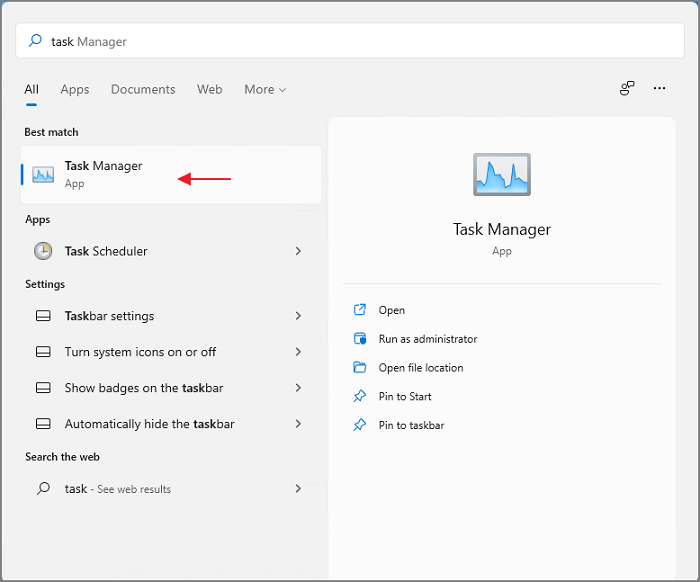
Step 1. To open Task Manager, press the Ctrl + Shift + Esc keys simultaneously or search for "Task Manager" from the start menu.
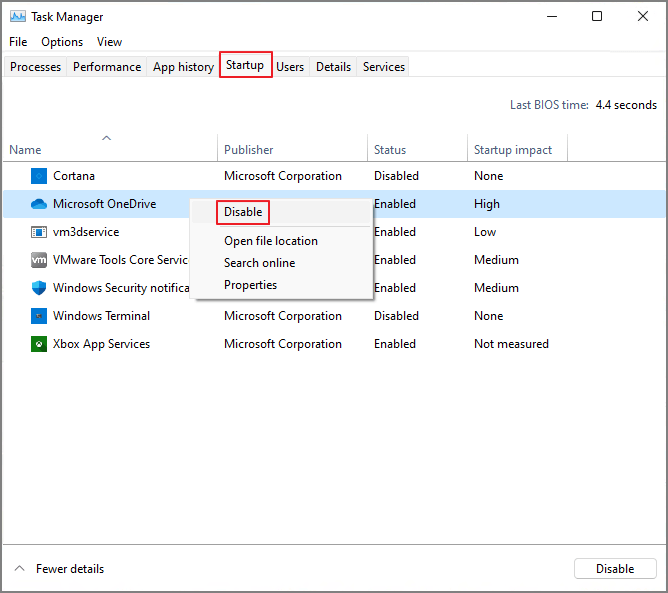
Step 2. To disable startup applications, click on the Startup tab and select the applications you want to disable.
Step 3. To disable a program from starting with Windows 11, navigate to the Startup tab in the Task Manager, select the program you want to disable, and tap on the Disable button. This will prevent the selected program from running at startup, and you can repeat the process for any other programs you want to disable.
Method 2. Update Windows 11 Build
If you haven't updated your Windows 11 OS on your computer for some time, it can lead to various errors, including a slow startup. To avoid system issues, it's recommended to keep your Windows OS up-to-date.
Step 1. Press Windows and I keys together to open Windows Settings.
Step 2. Then, click on the System from the left pane.
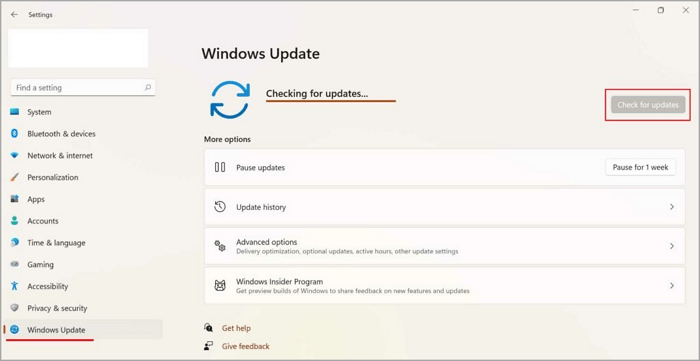
Step 3. To update Windows, click on "Check for updates" and let the system automatically download and install any available updates. This process may take some time, so be patient.
Method 3. Extend System C Drive or Migrate OS to SSD
64 GB of free space is the minimum recommended by Microsoft, but it's generally recommended to have more free space than that to run resource-heavy games and applications.
If you're running low on free space on your C drive, it may cause system crashes or restarts. To resolve this, you can either expand your C drive or move your Windows 11 OS to a larger Solid-State Drive (SSD).
To complete both operations, you can use Qiling Partition Master, a free tool that allows you to resize your C drive by adjusting partition size with a simple slider, and also migrate OS to a larger SSD, HHD, or USB drive.
Here's how you can use Qiling Partition Master to optimize your Windows 11 hard disk:
Option 1. Extend System C drive with unallocated space
- 1. Click on the System C: drive and select "Resize/Move".
- Drag the system partition end into the unallocated space to combine it with the C: drive. This will effectively add the unallocated space to the C: drive, increasing its size.
- 3. Click "Proceed" to execute the operations and extend the C drive.
Option 2. Extend System C drive without unallocated space
- 1. To resize a partition, click on the big partition with enough free space on the system disk, then select the "Resize/Move" option.
- 2. To free up unallocated space, drag the end of the big partition to shrink it, then click "Proceed" to confirm.
- 3. Select the system drive at the Disk managemtn page, and select "Resize/Move".
- 4. To free up space on System C drive, you can drag the end of the drive into the unallocated space. This will move the drive's partition to the left, making more space available in the unallocated area.
- 5. Click "Proceed" to save the changes and extend the C drive.
Method 4. Delete Huge Temporary Files
Temporary files in Windows OS can slow down your computer's startup by clogging up old or corrupted files, but they help speed up tasks by storing data in memory.
To improve Windows 11 slow startup, you should delete temporary files from your computer. You can do this by following these steps: open the Settings app, click on the "System" tab, select "Storage" and click on "Temporary files" and then click on "Remove temporary files". Alternatively, you can also use the Disk Cleanup tool to delete temporary files.
Step 1. To open the Run dialog box, press the Windows key + R on your keyboard. This will bring up a small window where you can type in a command or application name to run.
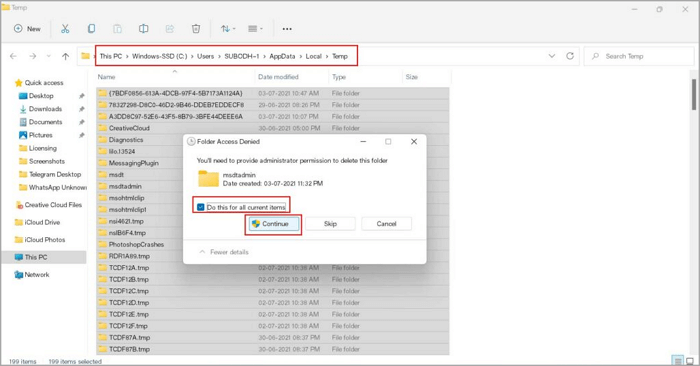
Step 2. Type %temp and hit Enter to access the Temp Folder from C drive.
Step 3. To delete all temporary files at once, press the Ctrl + A keys to select all the files, and then tap on the Delete key. This will remove all the selected files.
Step 4. After deleting the Windows 11 update, tap on the Continue button and wait for a few minutes to complete the deletion process. Then, restart your computer and check how fast Windows 11 boots.
Method 5. Turn Off Fast Startup
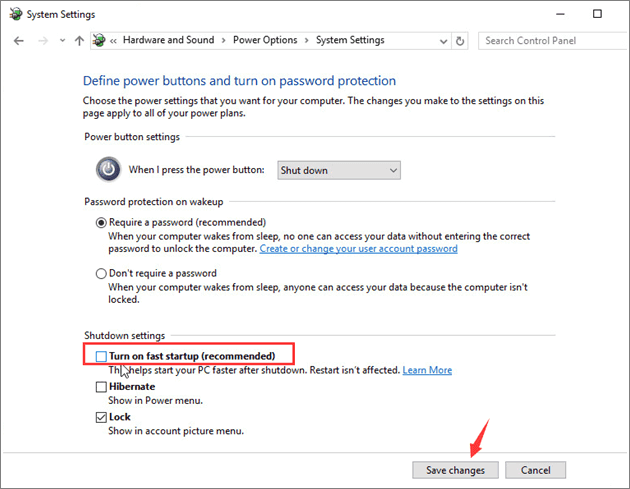
In Windows 11, Fast Startup is enabled by default, which can help speed up the boot time, but it can also cause slow startup issues. To resolve this, you can turn off Fast Startup by following these steps.
Step 1. To adjust the power settings, go to the Control Panel, then click on Hardware and Sound, and finally select Power Options.
Step 2. To disable Fast Startup, select the "Choose what the power button does" option, uncheck the box next to "Turn on Fast Startup", and click "Save Changes" to restart your computer.
Method 6. Scan and Clean Up Virus
Viruses and malware can enter a Windows 11 system through various means, such as data transfer, online file downloads, or external devices, potentially corrupting the system and slowing down boot times and program performance.
You can always use third-To protect your Windows 11 system from viruses, consider using third-party antivirus software to regularly scan and clean up your system, or utilize the built-in Windows Defender program to scan and remove viruses.
Step 1. Use Windows, and I keys to open Windows Settings.
Step 2. To run a quick scan, go to Privacy & Security > Windows Security > Virus & threat protection > Quick scan.
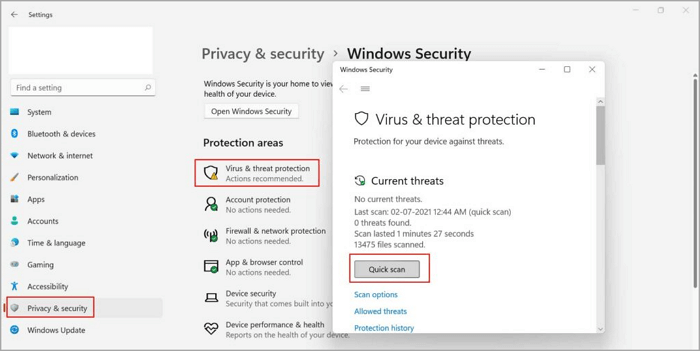
Step 3. Wait for a few minutes for the scan to complete, and if potential threats are found, Windows Defender will automatically remove them from your system.
Method 7. Update Graphics Drivers
To quickly update your graphics driver on Windows 11, you can follow these steps:
Step 1. To open the Quick Start Menu, press the Windows key and the X key at the same time. This will bring up a menu with various options such as File Explorer, Device Manager, and Task Manager, among others.
Step 2. Go to the Device Manager > Display adapters.
Step 3. Right-click on the graphics card that you are using.
Step 4. Select the Update driver > Search automatically for drivers.
Step 5. The system will automatically download and install the latest driver version if there's an update.
Method 8. Use Windows Update Troubleshooter
You can use the Windows 11 Troubleshooter to identify and fix the reason behind your slow startup. To do this, simply run the Troubleshooter, which will scan your system and provide a list of potential issues. From there, you can select the specific problem and follow the on-screen instructions to resolve it, potentially speeding up your startup time in the process.
Step 1. Open Windows Settings by pressing Windows and I keys.
Step 2. To access the System from the bottom of the left pane, select the option that says "System" from the list of available system settings. This will open the System window where you can view and manage various system settings and features.
Step 3. To troubleshoot Windows Update, click on the "Troubleshoot" option, then select "Other troubleshooters" from the list, and finally click on the "Run" button next to "Windows Update".
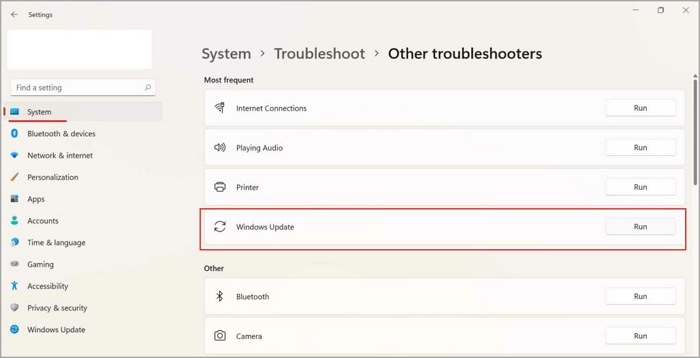
Step 4. This will automatically initiate a diagnostic and check your system thoroughly. If any problem is detected, it will fix it for you.
Method 9. Remove WDI Directory Files
If all other methods fail, you can delete the WDI directory files to resolve the Windows 11 boot error, but this should be a last resort as it may cause issues with system services. To do this, you can delete the files in the WDI directory.
Step 1. The Windows and E keys can be pressed together to open This PC.
Step 2. Go to the C drive or another drive where you have installed the Windows 11 OS.
Step 3. To access the WDI folder, navigate to the Windows folder, then select the System32 folder, and finally, proceed to the WDI folder within it.
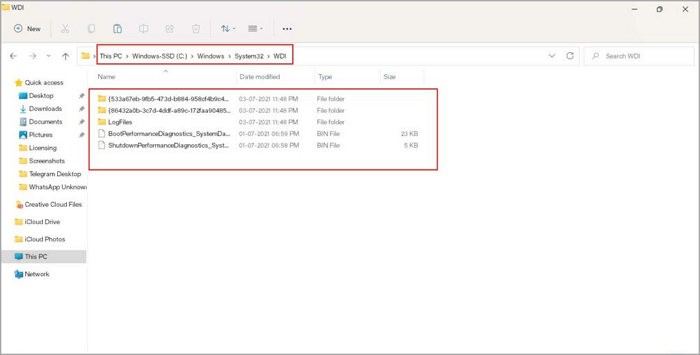
Step 4. To select all files, press the Ctrl + A keys on your keyboard. This will highlight all the files in the current directory.
Step 5. To delete files, press the Delete key or use the right-click menu to select the "Delete" option.
Step 6. To resolve the issue of a slow boot time due to a full LogFiles folder, you can try deleting the folder by selecting all files inside it first, then deleting the folder itself. This should allow you to restart your computer and check if the boot time has improved.
Parting Remarks
Observing the symptoms of a slow Windows 11 startup and addressing the issue promptly is essential to avoid frustration and annoyance caused by waiting for your computer to boot up.
To avoid slow Windows 11 boot times, install the latest build on your computer, ensure the system C drive has sufficient space, and disable any unnecessary programs from startup. This will help prevent boot time issues.
To optimize your Windows 11 disk space, you can use the free Qiling Partition Master software, which can be downloaded here, to help with a smooth Windows 11 workflow.
Related Articles
- How to Fix SD Card Saying Full When Empty in Windows 11/10/8/7
- How Do I Make My Partition Bigger Than 2 TB?
- 6 Tips to Fix Recovery Drive Full in Windows 10/8/7
- How to Reformat a Hard Drive in Windows 11/10 and Mac [2022 Guide]
- BSOD (INVALID_DATA_ACCESS_TRAP) when upgrade to Windows 11 from Windows 10
There are some reports that errors like BSOD would happen during the process. One of the common error codes is 'INVALID_DATA_ACCESS_TRAP'. Continue reading, and you will find the way to resolve BSOD (INVALID_DATA_ACCESS_TRAP) when upgrade to Windows 11 from Windows 10. - Can I Format a 64GB USB Flash Drive to FAT32 and How?
You can only format a USB flash drive of at most 32GB to FAT32 in Windows. However, this article explains how to format a 64GB USB flash drive to FAT32 in an effective and easy way.
Products
Articles & Tutorials
- Data Recovery
- Data Backup
- File Recovery
- File Backup
- System Backup and Restore
- Disk and Partition Clone
- Technical articles
- Mobile articles
- Disk Master Help
- Windows Data Recovery Tutorials
- Windows Secure Delete Tutorials
- Windows Partition Management Tutorials
- Windows File Backup and Restore Tutorials
- Windows System Backup and Restore Tutorials
- Windows Disk Backup and Restore Tutorials
- Windows Clone Tutorials