Perform Xbox One S Hard Drive Upgrade - Guide with Pictures
Upgrading your Xbox One S hard drive can elevate your gaming experience, and this guide from Qiling will walk you through the process. The Xbox One S is an upgraded version of the original Xbox One, offering better features and specifications. To upgrade your Xbox One S's hard drive, follow this detailed guide to ensure a successful upgrade.
The Xbox One S hard drive upgrade procedure involves purchasing a compatible external hard drive, formatting the drive using the Xbox, and then transferring all data from the original hard drive to the new one. This process ensures a seamless transition of games, profiles, and other data to the upgraded drive, allowing for continued use of the Xbox One S with increased storage capacity.
| 💡Aspects | 🧩Details |
|---|---|
| 🔎Complex Level | Low, step-by-step guide |
| Applies to |
Upgrading Xbox One S hard drive to SSD Upgrading Xbox One S hard drive to a larger HDD |
| 🚩Stages | |
| 💻Tools |
|
To upgrade the Xbox One S hard drive, which also applies to upgrading the Xbox series X/S storage, you must first prepare by gathering all necessary tools.
- Download a reliable cloning tool - Qiling Disk Master
This tool allows you to transfer all the games and custom settings from the original hard drive to the new one or new SSD, ensuring your data isn't lost with its clone feature.
- Required Tools:
To install a new SSD or HDD into your Xbox One S, you'll need to remove the internal hard drive. This requires some tools, including a Torx T10 screwdriver, a plastic spudger, and a small Phillips head screwdriver.
- External hard drive
- USB drive
- Screwdriver
- Buy a certificated HDD or SSD
When purchasing a hard drive, consider several key factors, including performance, speed, price, capacity, and quality, to ensure you get the best value for your needs.
- Initialize the new HDD or SSD
Initializing a new HDD or SSD prepares the storage device for use with a computer or device by formatting the disk and setting up essential system structures, allowing the operating system to recognize and utilize the storage.
Stage 1: Take Out the Original Hard Drive on the Xbox One S
Before upgrading your Xbox One S's hard drive, carefully remove the original hard disk to ensure a smooth transition to the new drive. Follow these steps to avoid any issues during the upgrade process.
Step 1. To begin, turn off your Xbox One S and detach it from all cables for safety. Next, locate the power button on the front of the console, which is a small, circular button with a light on it.
Step 2. To access the internal components of the hard drive, you need to remove its cover. This provides you easy access to the internal parts.
Step 3. Lastly, carefully remove the connections from its appropriate position.
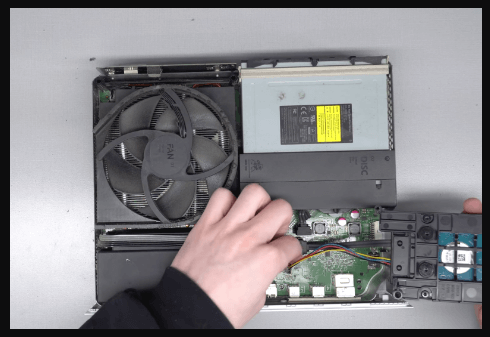
To clone the data, connect the original hard disk and the initialized HDD or SSD to a Windows PC. This ensures that your new drive has all the required files and settings from the original drive, allowing for a smooth transfer and data retention.
Stage 2: Clone the Internal Hard Drive
After detaching the hard drive, the next step is to replicate the data to prevent any loss. To do this, reliable tools like Qiling Disk Master can be used. With its user-friendly interface and powerful features, Qiling Disk Master makes it easy to clone the Xbox One S hard drive and transfer all the data to the new drive.
To clone your essential data using the Qiling Disk Master, you can follow these steps: First, download and install the Qiling Disk Master software. Then, connect the target disk to the computer where the software is installed.
Step 1. Select the source disk.
- To clone a disk, click the "Clone" option from the left menu, then select either "Clone OS Disk" or "Clone Data Disk" and click "Next".
- Choose the source disk and click "Next".
Step 2. Select the target disk.
- Select the desired hard drive or solid-state drive (HDD/SSD) as the destination and click "Next" to proceed.
Step 3. To view the disk layout and edit the target disk partition size, you can use the disk management tool in your operating system. This tool allows you to visualize the disk layout and make changes to the partition size as needed. For example, if you want to increase the size of the partition where your operating system is installed, you can use the disk management tool to resize the partition and make more space available.
To format a disk, open the Disk Management tool, right-click on the target disk, and select "Format" from the context menu. A warning message will appear, stating that formatting will erase all data on the disk. Click "Continue" to proceed, but be sure to back up any valuable data on the disk beforehand.
To customize your disk layout, you can choose from three options: "Autofit the disk", "Clone as the source", or "Edit disk layout". If you want to leave more space for your C drive, select "Edit disk layout".
Step 4. Click "Proceed" to start the disk cloning process.
- Read Warning message and confirm "Yes" button.
The feature makes cloning safe and efficient, thanks to the following features that contribute to it.
- Easy-to-use interface.
- Allows for sector-by-sector clone to ensure all data is transferred.
- Supports resizing partitions during the cloning process.
- Provides options for optimizing performance and reliability.
Download and install Qiling Disk Master on your Windows PC to simplify the cloning process and successfully transfer data to your new Xbox One S hard drive, also useful for upgrading Xbox One X to SSD and Xbox 360 storage devices.
Stage 3. Install Cloned HDD or SSD to Xbox One S
After cloning the data, install the replacement HDD or SSD into your Xbox One S. To complete the installation, follow the procedures outlined below.
To install a cloned HDD or SSD to your Xbox One S, start by powering off your console and unplugging the power cord. Remove the hard drive from the Xbox One S, taking note of the orientation of the drive's connectors.
To finish the installation, follow the procedures outlined below.
Step 1. To replace the original hard drive with a new HDD or SSD, start by shutting down the computer. Once powered off, locate the slot where the original hard drive was installed.
Step 2. Insert the new drive into the slot, making sure it clicks into place and is firmly seated.
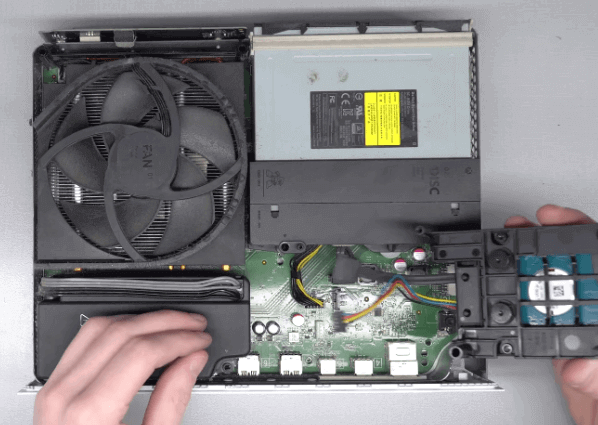
Step 3. To replace the old drive with the new one, reattach the cables to the new drive, making sure they are properly inserted and secured in their respective ports. This step is crucial to ensure the new drive functions correctly and provides a stable connection to the system.
To improve the storage and performance of your console, consider upgrading your storage device to a faster one, such as an SSD, and deleting unused games and apps to free up space. You can also try clearing cache and data for individual apps, and updating your console's software to the latest version.
Extended Reading: Use an External Hard Drive to Upgrade Xbox One S
The Xbox One S is a gaming console by Microsoft, offering a sleek design and enhanced features. It comes with a range of internal storage options from 500GB to 2TB, and users can also attach an external hard drive to increase storage capacity without risking data loss, providing ample space for programs and games.
Follow these steps to conveniently attach and format an external hard drive for Xbox One S:
Step 1. Insert the external hard drive in the free USB port on Xbox One S.
Step 2. Format the drive to erase all existing data and prepare it for use.
Step 3. Once the drive is formatted, copy the games and programs to a different location. To do this, go to "Settings," then "System," and finally "Storage." From there, select all the files, games, and programs you want to transfer and choose the external drive as their final destination.
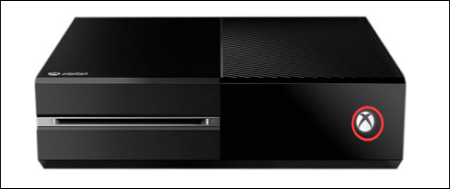
To fix an Xbox external hard drive not working, try restarting the console, checking the hard drive for errors, and updating the Xbox software. If the issue persists, try reformatting the hard drive or using a different USB port.
Xbox One users may experience issues with their external hard drives, such as them constantly turning on and off, or not being detected at all.
This method allows for easy expansion of storage space without replacing the console's internal hard drive, making it convenient for users who need more space to store games.
Conclusion
Upgrading the hard drive on your Xbox One S is essential for expanding your gaming library and improving performance. To do this, you'll need to clone your data first and proceed with caution, as a minor mistake could be devastating. It's recommended to follow the outlined stages and use the necessary tools, and consider using the Qiling Disk Master cloning tool for a smooth transition. By upgrading your hard drive, you'll be able to enjoy a larger gaming library and improved performance, making it a worthwhile investment for any Xbox One S owner.
Xbox One S Hard Drive Upgrade FAQs
If you're experiencing issues with your Xbox One S hard drive upgrade, you can refer to the answers to the following commonly asked questions. What is the maximum capacity of the Xbox One S hard drive? How do I upgrade my Xbox One S hard drive? Can I use any external hard drive for the upgrade?
1. Can I upgrade Xbox One S hard drive?
Yes, it is possible to upgrade Xbox One S hard drive; you can replace it with a drive with a larger storage capacity or upgrade the SSD for better performance.
2. How to upgrade Xbox One S hard drive to SSD?
Follow the below-given steps to upgrade Xbox One S hard drive:
- Buy a compatible SSD and connect it to your computer.
- To replicate data from a hard drive into a solid-state drive (SSD), consider using cloning software like Qiling Disk Master. This tool allows you to create an exact duplicate of your hard drive's contents onto the SSD, preserving all files, programs, and settings.
- Shut down the console and remove its cover.
- Carefully disconnect all cables, remove the old drive, and insert the new SSD into the same slot.
- Lastly, put the cover back on the hard drive.
3. What is the max HDD size for Xbox One S?
500GB-2TB is the maximum external hard drive capacity supported by Xbox One S, allowing for a larger game library and storage for various apps and media.
Related Articles
- Blue Screen of Death When Playing Games? 2024 Fixes Here
- How to Fix PC Won't Boot After Installing M2 SSD - Full Guide
- Guide on Convert GPT to MBR with 3 GPT to MBR Converters
- Windows 11 Is Not Booting? Your Fixes Are Here!
- How Do I Format SD Card for Raspberry Pi? Your Step-by-Step Guide Here
To prepare your SD card for Raspberry Pi, you need to determine the correct format for your card, and then format it accordingly. You can find instructions on how to do this on a tutorial page, which will guide you through the process of setting up your SD card for use with your Raspberry Pi. - How to Format SD Card to FAT32 on Windows 11/10
Qiling Partition Master allows you to format SD cards to FAT32 in Windows 11/10, regardless of their size, including 32GB, 64GB, 128GB, or 256GB.
Products
Articles & Tutorials
- Data Recovery
- Data Backup
- File Recovery
- File Backup
- System Backup and Restore
- Disk and Partition Clone
- Technical articles
- Mobile articles
- Disk Master Help
- Windows Data Recovery Tutorials
- Windows Secure Delete Tutorials
- Windows Partition Management Tutorials
- Windows File Backup and Restore Tutorials
- Windows System Backup and Restore Tutorials
- Windows Disk Backup and Restore Tutorials
- Windows Clone Tutorials