How to Improve SSD Performance in Windows 11 [Step-by-Step]
| Workable Solutions | Step-by-step Troubleshooting |
|---|---|
| #1. Disable Startup Apps with Task Manager | Step 1. First, you can press Ctrl+Alt+Delete to get a screen with several options; Step 2. Left-click on the Task Manager...Full steps |
| #2. Run the Latest Windows Update | Step 1. First, you need to open your computer's Start menu, either by pressing the Windows key or by manually clicking...Full steps |
| #3. Turn on Fast Startup with Control Panel | Step 1. To turn on Fast Startup from Control Panel, you will first need to open the Start Menu by using the same methods...Full steps |
| #4. Increase C Drive Space with Qiling Partition Master | Option 1. Extend System C drive with unallocated space; Option 2. Extend System C drive without unallocated space...Full steps |
| #5. Update Graphics Drivers | Step 1. First, you need to open the Quick Start Menu on your device. The simplest way to do this is by pressing...Full steps |
| #6. Remove Unnecessary Files and Programs | Removing unnecessary files or obsolete programs...Full steps |
Does Windows 11 Slow Down SSD?
Newer operating systems like Windows 11 are generally more optimized, but some users still experience slow SSD performance after installation. To prevent this and improve SSD performance on Windows 11, this guide will show you how to optimize your SSD.
How to Improve SSD Performance on Windows 11
When people ask us the essential question: "What can I do to improve SSD performance?" we always tell them to enable TRIM, update their SSD firmware, and avoid fragmentation. TRIM is a command that allows the SSD to mark dead cells as such, which can improve performance.
Prioritizing your well-being is key, and that means making choices that align with your values and goals. This might involve exercising regularly, eating a healthy diet, and getting enough sleep, as well as managing stress, staying hydrated, practicing good hygiene, limiting your exposure to pollutants, and staying connected with loved ones. It's also essential to engage in activities that bring you joy and take care of your mental health.
If your SSD drive is not optimized for Windows 11, there are several routes you can take to speed it up, with varying levels of effectiveness depending on the situation. A step-by-step guide has been compiled detailing some of the most effective ways to boost your SSD drive's performance.
#1. Disable Startup Apps from Task Manager
To improve SSD performance on Windows 11, start by disabling unnecessary Startup Apps using the Task Manager, which is the first and most important step.
Startup apps can consume device resources and slow down Windows 11, which is still not fully optimized and can be buggy.
To run the Task Manager on your Windows 11 device, you have two simple options: press the Ctrl + Shift + Esc keys simultaneously, or right-click on the Taskbar and select "Task Manager" from the context menu. This will instantly open the Task Manager, allowing you to view and manage running applications, processes, and system resources.
Step 1. First, you can press Ctrl+Alt+Delete to get a screen with several options.
Step 2. Left-click on the Task Manager button.
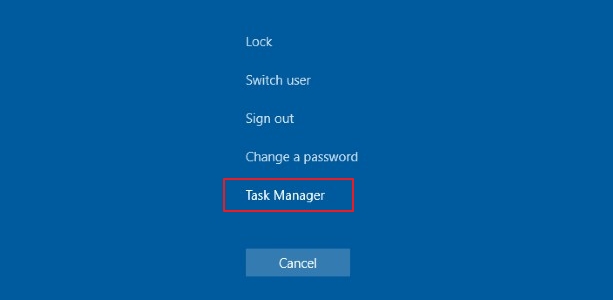
The bottom option is the task manager. When clicked, it opens a window displaying system information and process management capabilities, allowing users to view and manage running applications, processes, and system resources.
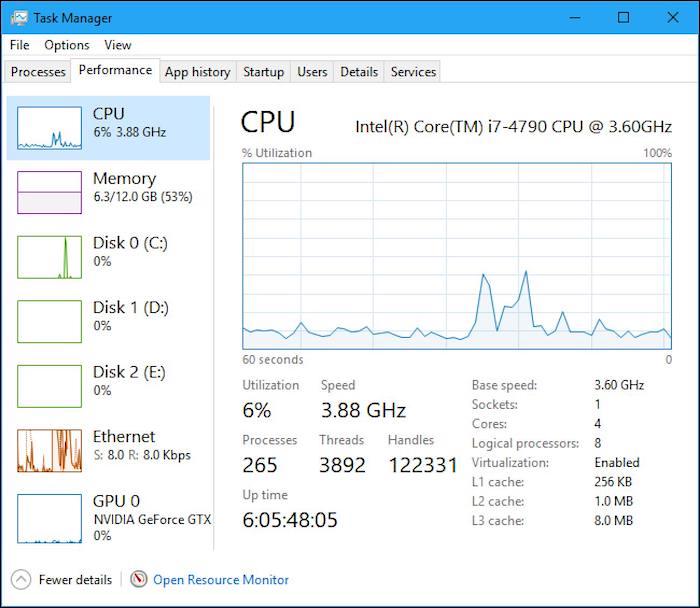
To access the Task Manager on your device, you can either navigate to it through the Start menu or use the Run command. By pressing the Windows key and the R key simultaneously, you can open the Run dialog box, where you can type "taskmgr" and press Enter, which will directly open the Task Manager window. This alternative method provides a quicker way to access the Task Manager without having to navigate through the Start menu.
Step 3. To disable an app from running on startup, open the Task Manager, navigate to the Startup tab, right-click on the app you want to disable, and select "Disable". This will prevent the app from running on startup, reducing the load on your SSD.
#2. Run the Latest Windows Update
Upgrading to the latest operating system, such as Windows 11, can improve SSD performance on outdated systems by running the Windows Update system.
Microsoft regularly updates Windows 11 with patches that enhance system optimization and fix known issues, resulting in a smoother and more efficient user experience over time.
To run the latest Windows Update, you need to follow a few steps. First, click on the Start button and select Settings.
Step 1. To start, open your computer's Start menu, either by pressing the Windows key or by manually clicking on it on the screen.
Step 2. To update Windows, navigate to the Settings tab and select the Windows Update option.
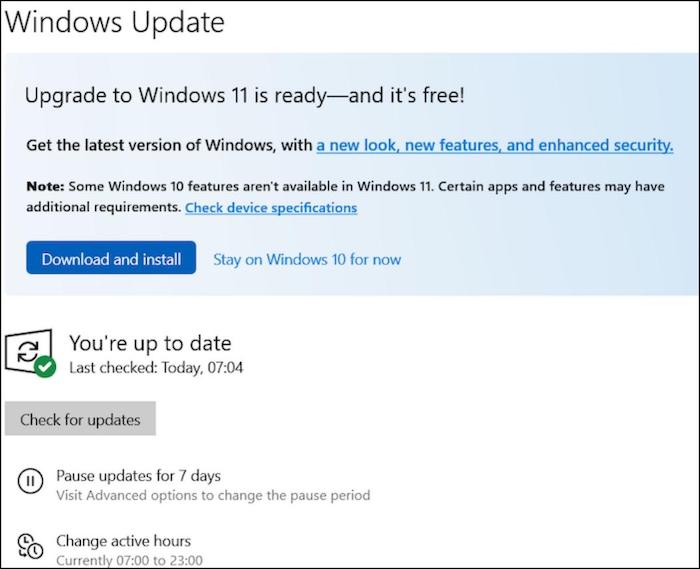
If your computer's operating system isn't up to date, any available updates will show here. You can choose to install them immediately or on the next startup, and you may need to reboot your device to get them.
#3. Turn on Fast Startup from Control Panel
Turning on Fast Startup in Windows 11 can improve SSD performance by reducing the time it takes to shut down and start up the operating system. This is because Fast Startup allows the system to save the state of running applications and services, rather than fully shutting down, which can help to reduce the time it takes to start up again. To turn on Fast Startup, go to the Control Panel, click on "Power Options", and then click on "Choose what the power buttons do".
Fast Startup is an optional feature that speeds up your SSD and provides a smoother user experience by sacrificing some convenience.
Step 1. To turn on Fast Startup from Control Panel, open the Start Menu, then navigate to Control Panel. From there, click on the "Power Options" icon, followed by clicking on "Choose what the power buttons do" on the left side, then "Change settings that are currently unavailable".
Step 2. To access the Control Panel, locate the Control Panel icon in the menu and left-click on it.
Step 3. Click on the System and Security button.
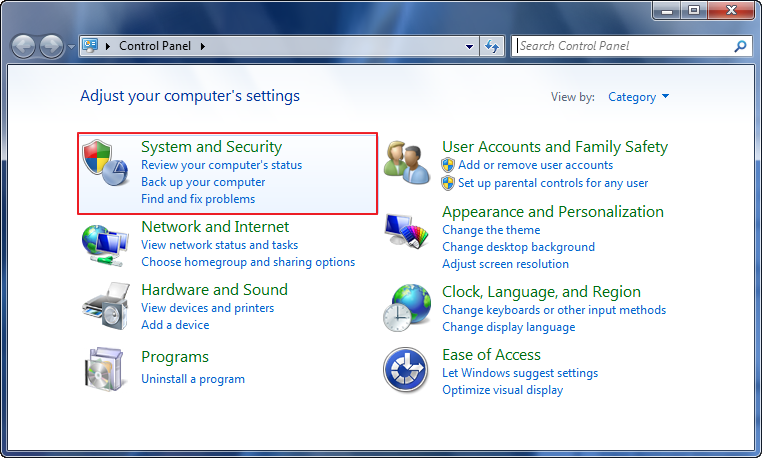
Step 4. Left-click on the Power Options button. This will open the Power Options window, where you can customize your power settings, adjust your screen brightness, and set up various power-related preferences. You can also click on the "Change plan settings" button to change the power plan, or click on the "Restart now" button to restart your computer. Additionally, you can click on the "Update & security" button to update your operating system and security settings.
Step 5. The Power Button will be used to turn the computer on or off. It will be used to put the computer to sleep or to restart it. It will also be used to shut down the computer.
Step 6. Clicking on the option provides another window to deal with power plans for your PC, which can be optimized for appearance, performance, or energy-saving.
Step 7. If the fast startup option is greyed out and unavailable, you can easily enable it by clicking on the "Change settings that are currently unavailable" button.
Step 8. To improve your computer's startup time, navigate to the shutdown settings and enable the "Turn on fast startup (recommended)" option by checking the box. Click "Save changes" and you'll likely notice a significant improvement in your next startup.
#4. Increase C Drive Space with Qiling Partition Master
To improve SSD performance on Windows 11, a software called Qiling Partition Master can be used, offering a simplified solution for users looking to enhance their SSD's performance without dealing with complex Windows features.
This app allows users to manipulate partitions to give the C drive, where Windows 11 is installed, more space, which may improve performance.
Option 1. Extend System C drive with unallocated space
- 1. Click on the System C: drive and select "Resize/Move".
- 2. Drag the system partition end into the unallocated space so to add it to the C: drive. And click "Proceed" to execute the operations and extend the C drive.
Option 2. Extend System C drive without unallocated space
- 1. To resize a partition, click on a big partition with enough free space on the system disk, then select the "Resize/Move" option. This will allow you to adjust the size of the partition as needed.
- 2. To shrink the big partition, drag its end into itself, then click "Proceed".
- 3. Click System C drive, select "Resize/Move".
- 4. Extend the C drive by dragging the end of System C drive into the unallocated space, then click "Proceed" to save the changes.
This software is capable of improving the speed of your SSD, but it also has a wide range of other uses. In addition to enhancing SSD performance, it can be used for a variety of other tasks.
- Resize/Move Partitions
- Merge Two SSD Drives
- Create/Format/Delete Partitions
- Copy Disk/Partition
- Migrate OS to SSD
#5. Update Graphics Drivers
Updating the graphics drivers on your device is another often-overlooked step that can improve SSD performance on Windows 11.
The process is straightforward and can lead to a notable performance boost.
Step 1. First, you need to open the Quick Start Menu on your device. The simplest way to do this is by pressing the Windows + X keys.
Step 2. After selecting the "Device Manager" option, you will see a screen that lists all the devices connected to your computer, including hardware components such as printers, scanners, and USB drives. This screen will display a hierarchical list of devices, with categories such as "Print queues", "Network adapters", and "Disk drives" to help you locate specific devices. The Device Manager screen will also display detailed information about each device, including its manufacturer, model number, and current status.
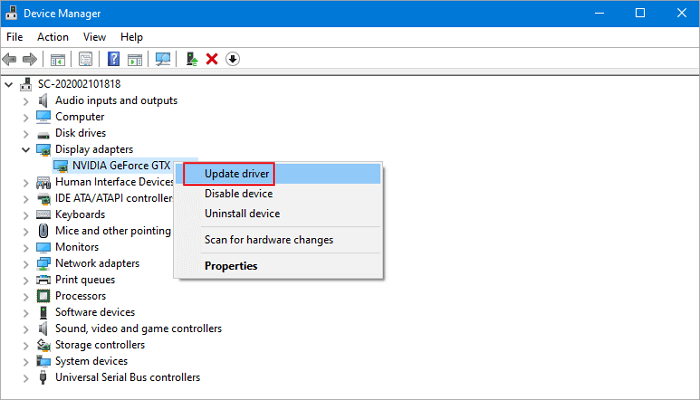
Step 3. To update the display adapters, right-click the "Display Adapters" option from the drop-down menu and select the "Update driver" option. Then, check the "search for drivers automatically" box.
Once the graphics driver update is complete, your device will update its graphics drivers.
#6. Remove Unnecessary Files and Programs
Simply freeing up space on your SSD or its partitions can also improve performance on Windows 11. This can be achieved by removing unnecessary files and programs, making room for your system to run more efficiently.
Removing unnecessary files:
Removing unnecessary files in Windows 11 is a very simple task.
Step 1. To delete a file or a group of files, you can select them by clicking on the files you want to delete while holding the Ctrl key (Windows) or Command key (Mac) to select multiple files. Once you have selected the desired files, you can right-click on them and choose the option to delete them.
Step 2. To get rid of unwanted files, right-click on them and select the "bin" option from the menu that appears, which will move them to the Recycle Bin.
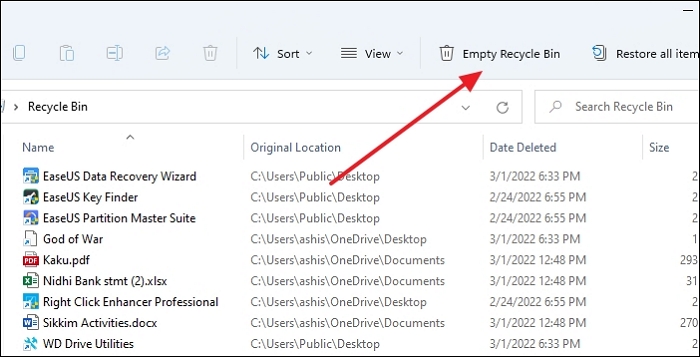
Step 3. To open the Recycle Bin, you can either click on the icon on your desktop or search for it in the Start Menu.
Step 4. To permanently delete files from your computer, click on the "Empty Recycle Bin" button, confirm the deletion if prompted, and you're done. The files are now removed from the computer.
Removing unnecessary or obsolete programs:
To uninstall a program, go to the Start Menu, click on the "Settings" icon, and then click on "Apps". From there, you can search for the program you want to uninstall and click on it to remove it.
Step 1. First, press the Windows key or left-click the Start Menu to get a list of apps on your computer.
Step 2. Then, right-click the app that you want to be removed.
Step 3. You will see a drop-down menu with the Uninstall option listed at the bottom. Click on that option.
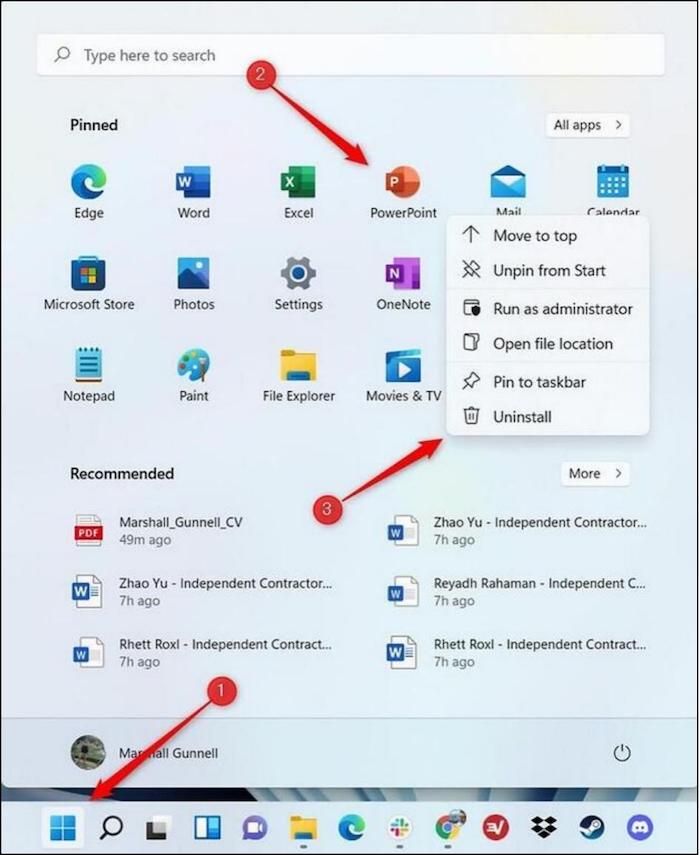
Once you've confirmed, Windows 11 will ask you to confirm the uninstallation again, and your app will be uninstalled, freeing up space and speeding up your SSD.
Conclusion
As Windows 11 receives regular updates and gains popularity, its SSD performance also improves, making it a more efficient and reliable operating system for users.
To speed up your device's charging process while maintaining its health, consider using a high-quality charger, keeping your device's battery level between 20% and 80%, avoiding extreme temperatures, and updating your device's software regularly.
This guide provides various options for enhancing SSD performance on Windows 11, along with a recommendation for a user-friendly automated software that can be particularly beneficial for those who are less experienced with computer optimization.
Related Articles
- Delete Partition with Windows Partition Delete Tool & Free Partition Manager
- Resize Dynamic Disk to Extend or Shrink Dynamic Disk
- The Local Device Name Is Already in Use
- How to Clone Hard Drive to Samsung SSD | Get Your Answer
- How Do I Reset Hard Drive on My Own? Here Is the Complete Guide
If you're looking to reset your hard drive, this article provides a clear guide to help you do so on your own. - How to Resize/Remove Dynamic Volume
Step-by-step tutorial to resize or remove GPT dynamic volume with Qiling Partition Master on Windows XP/Vista/7/8 and Server 2003/2008/2012.
Products
Articles & Tutorials
- Data Recovery
- Data Backup
- File Recovery
- File Backup
- System Backup and Restore
- Disk and Partition Clone
- Technical articles
- Mobile articles
- Disk Master Help
- Windows Data Recovery Tutorials
- Windows Secure Delete Tutorials
- Windows Partition Management Tutorials
- Windows File Backup and Restore Tutorials
- Windows System Backup and Restore Tutorials
- Windows Disk Backup and Restore Tutorials
- Windows Clone Tutorials