Full Guide to Upgrade PS4 to SSD [Quick & Easy]
Get ready for a thrilling gaming experience as Qiling guides you through upgrading your PS4 to an SSD, unlocking faster load times and seamless multitasking that will take your gaming to the next level!
Upgrading your PS4 to an SSD can have a profound impact on your gaming experience, with smoother gameplay, reduced lag, and near-instant teleportation into your gaming universe. This enhancement can breathe new life into your gaming escapades, making it an intriguing and worthwhile investment for any serious gamer.
Get ready to transform your PS4 into a speed-hungry machine with an SSD upgrade! Buckle up for the exhilarating experience that awaits.
| ⏱️Duration | About half an hour |
| 🧑💻Software required | Qiling Disk Master |
| ⛏️Prepared materials |
✔️Phillips screwdriver ✔️A Windows computer ✔️Internal and external hard drives |
| 🎮Supported PS | PS4, PS4 Pro and PS4 Slim hard drive |
| 💿Suitable for | Upgrade PS4 hard drive to 1TB, 2TB, 4TB SSD |
| ⭐Steps |
Stage 1. Select the Suitable PS4 SSD and Format It Stage 2: Remove the Old PS4 Hard Disk |
If you're looking for a solution to a problem on the forum, you can try searching for the issue you're experiencing or the solution you're looking for. If you can't find the answer, you can also try asking the community for help.
I need to confirm some things about upgrading the hard drive on a ps4 to an SSD. Is there anything I'm missing, or are my assumptions correct? I will make a video about what type of hard drive is needed and how to upgrade since it should be easy and only 2-3 minutes max. Let me know if you have anything to add that would be good for the video from Reddit
Keep reading and know all the details to replace PS4 with SSD!
Before PS4 SSD Upgrade: Figure Out PS4 SSD Compatibility
Before upgrading your PS4's SSD, make sure you're prepared with the right tools. Each tool is crucial in ensuring the upgrade goes smoothly and improves the console's speed and functionality.
- 1. The Right PS4 Model: To ensure a successful upgrade, it's essential to verify the compatibility of the chosen SSD with the specific PS4 model, taking into account the varying requirements and interfaces of the PS4/PS4 Pro/PS4 Slim models.
- 2. A 2.5-inch SSD: You should prepare an SSD with a SATA cable.
- 3. An Adjustable Screwdriver: The adjustable nature of the screwdriver allows for safe and accurate removal and securing of components, preventing damage during installation.
- 4. Access to a Windows Computer: A Windows computer will download the necessary software for migrating your PS4 data to the new SSD, a crucial step in smoothly transitioning your data and settings to the upgraded storage.
- 5Download Qiling Disk Master: To upgrade a PS4's SSD without losing data, you can use a professional SSD cloning tool like Qiling Disk Master, which can smoothly clone all data from the old disk to the new SSD on any Windows PC.
Next, we'll dive deeper into the process of upgrading a PS4's hard drive to an SSD. If you found this guide helpful, consider sharing it with others who might benefit from this tutorial.
How to Upgrade PS4 to SSD
Upgrading your PS4 to an SSD can enhance your gaming experience with lightning-fast load rates, and this article will guide you through the process, from selecting the right SSD to upgrading your console.
Stage 1. Select the Compatible PS4 SSD and Format It
Before you begin, ensure you have a compatible SSD, checking the PS4 SSD compatibility beforehand. When choosing an SSD, consider factors such as storage capacity, read and write speeds, durability, warranty, and compatibility with your system's interface. Options such as those listed on Android Central can be a good starting point.
- Seagate Game Drive for PS4
- Toshiba Canvio Basics
- Western Digital 4TB My Passport Portable
- Crucial MX500 1TB
The PS4 hard drive is a storage device that allows users to store and play games, as well as store and manage their game saves, screenshots, and videos. It can be upgraded with an external hard drive, which can provide additional storage space and allow users to transfer their game saves and other data to the external drive.
Formatting your SSD for use with your PS4 involves using either the PS4's built-in formatting tool or a third-party software like Qiling Disk Master to format the SSD to either FAT32 or exFAT file systems, ensuring compatibility with your PS4.

How to Format External Hard Drive for PS4
The best format for PS4 external devices is exFAT, which can be converted to by following the steps outlined in this article, allowing for seamless use on the console.
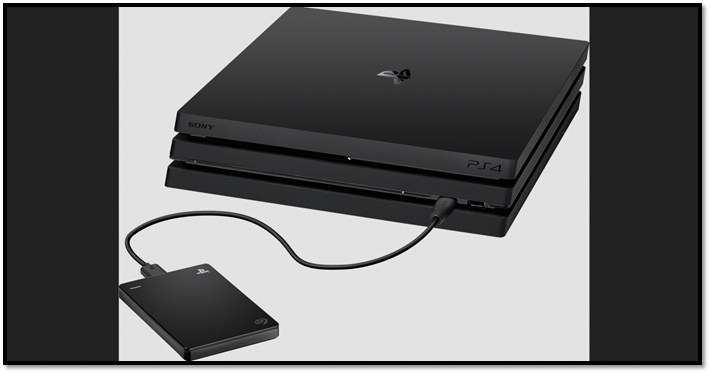
Stage 2: Remove the Old PS4 Hard Disk
Follow these steps to remove the old PS4 hard disk:
Step 1. Gently shut down your PS4 and unplug all cables.
Step 2. Follow your PS4's manual to access the hard disk.
Step 3. Carefully remove the old hard disk.
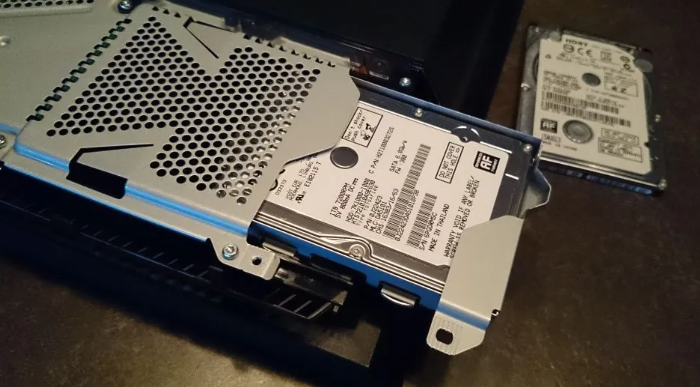
Stage 3: Upgrade PS4 to SSD Without Data Loss
Connect the old hard disk and the new SSD to a running PS4. Use Qiling Disk Master to clone the original PS4 hard disk, ensuring your game data remains intact.
Qiling Disk Master is a user-friendly software that helps manage storage devices efficiently, allowing for a seamless upgrade of PS4 storage by cloning data from an old hard disk to a new SSD.
To upgrade to SSD, follow these steps:
Step 1. Select the source disk.
- To clone a disk, click on the "Tools" tab page and then select the "Clone OS Disk" or "Clone Data Disk" option. This will allow you to create an exact copy of the selected disk.
- Choose the source disk and click "Next".
Step 2. Select the target disk.
- Select the desired hard drive or solid-state drive as your destination and click "Next" to proceed.
- Read Warning message and confirm "Yes" button.
Step 3. View the disk layout and edit the target disk partition size.
Then click "Continue" when the program warns it will wipe out all data on the target disk. (If you have valuable data on the target disk, back up it in advance.)
Users can choose to automatically adjust the disk layout, clone the disk as the source, or edit the disk layout to tailor it to their needs, with the last option being ideal for leaving more space for the C drive.
Step 4. Click "Proceed" to start the disk cloning process.
You can perform a smooth PS4 Slim SSD upgrade using this tool, which features a cloning function that allows you to add an SSD to your PS4 without losing any data.
See also:
Stage 4: Install the New PS4 SSD
To install a new SSD in your PS4, follow these simple steps. First, purchase a compatible SSD specifically designed for the PS4, such as the Sony PS4 SSD. Next, shut down your PS4 and unplug all cables. Then, remove the hard drive cage and locate the SSD bay.
Step 1. Insert the new SSD into your PS4.
Step 2. Reassemble your PS4 following the manual's instructions.
Step 3. Power on the PS4 and bask in the glory of your upgraded storage.
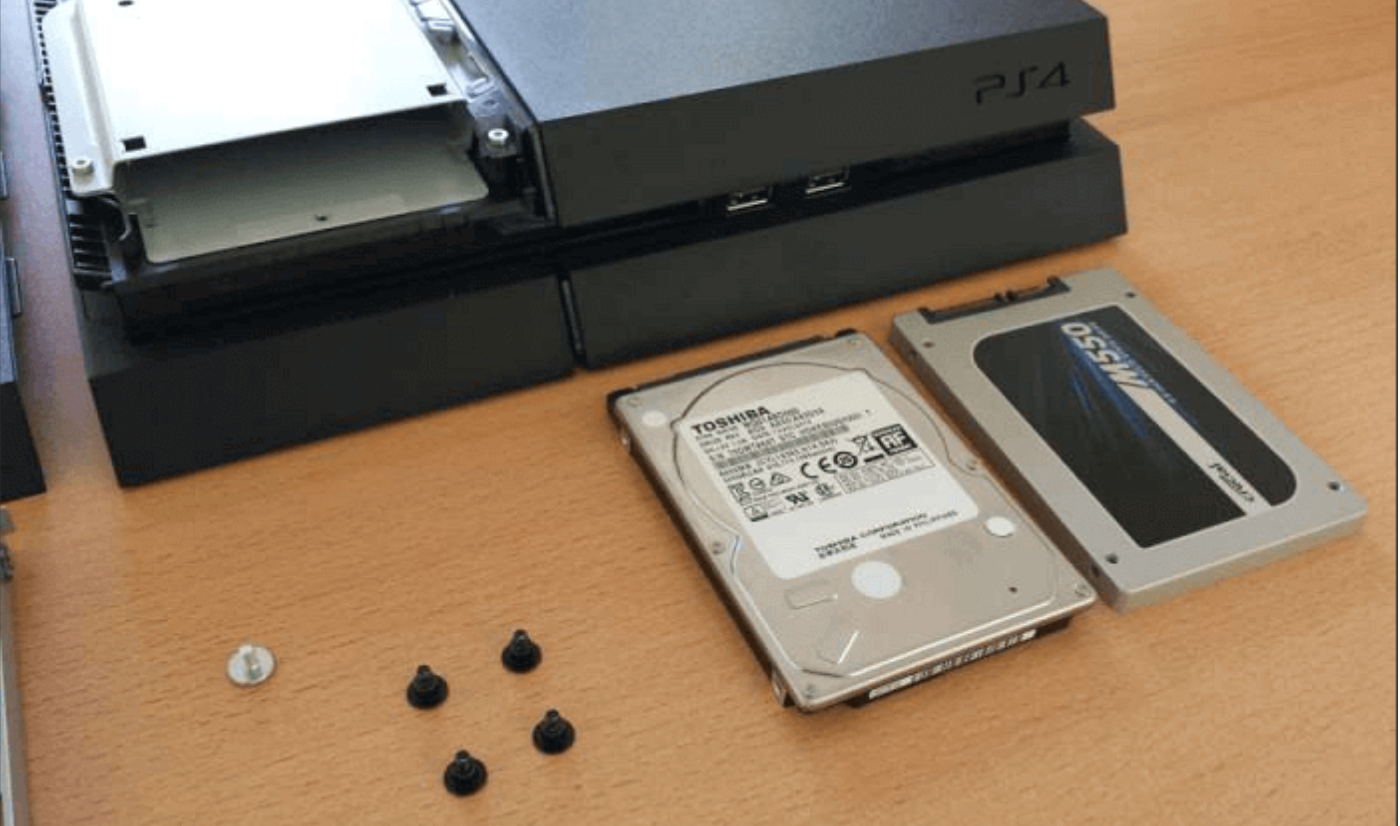
For a more detailed guide, you can follow the video below from YouTube, which provides a comprehensive overview of the topic.
Other Problems Related to PS4:
Why Do I Need to Run PS4 SSD Upgrade
Here are two of the most frequently asked questions about upgrading a PS4 to an SSD:
1. How much faster will my PS4 be with an SSD?
The difference in speed will be quite significant, with load times improving up to 60%. This results in a noticeably smoother and highly responsive gaming experience that enhances overall enjoyment.
2. Is it worth running a PS4 SSD upgrade?
The PS4 SSD upgrade is a worthwhile investment that brings substantial benefits, including faster load times, seamless multitasking, and enhanced graphics rendering, making your gaming experience more enjoyable and immersive.
3. What are the benefits of replacing PS4 with SSD?
Upgrading your PS4 to an SSD (solid-state drive) offers significant performance improvements compared to using a traditional HDD (hard disk drive). With an SSD, you can experience faster loading times, quicker access to games and applications, and a smoother overall gaming experience.
- Speedy Load Times: Solid State Drives (SSDs) significantly reduce loading times, allowing users to access their games and other applications more quickly, and minimizing the time spent waiting for content to load.
- Smooth Gameplay: SSDs are quieter than HDDs, making them a better choice for gaming.
- Effortless Multitasking: Solid-State Drives (SSDs) allow for quick switching between applications, eliminating the lag often associated with traditional hard drives, making it possible to move between tasks without any noticeable performance disruptions.
- Faster Data Backups and Restores: With an SSD, backing up and restoring data becomes faster and more efficient, saving time when transitioning to a new console or restoring saved games.
- Longevity and Reliability: Solid-State Drives (SSDs) have a longer lifespan due to the absence of moving parts, which can result in longer performance and less wear and tear.
Upgrading the PS4 to a larger SSD can also help alleviate storage issues, as it provides more space for games, apps, and other data. This can be especially helpful if the PS4's storage is full, as it allows users to install more games and apps, and also provides a buffer for storing save data and other files. Additionally, upgrading to a larger SSD can also improve the overall performance of the PS4, making it a worthwhile investment for users who want to get the most out of their console.
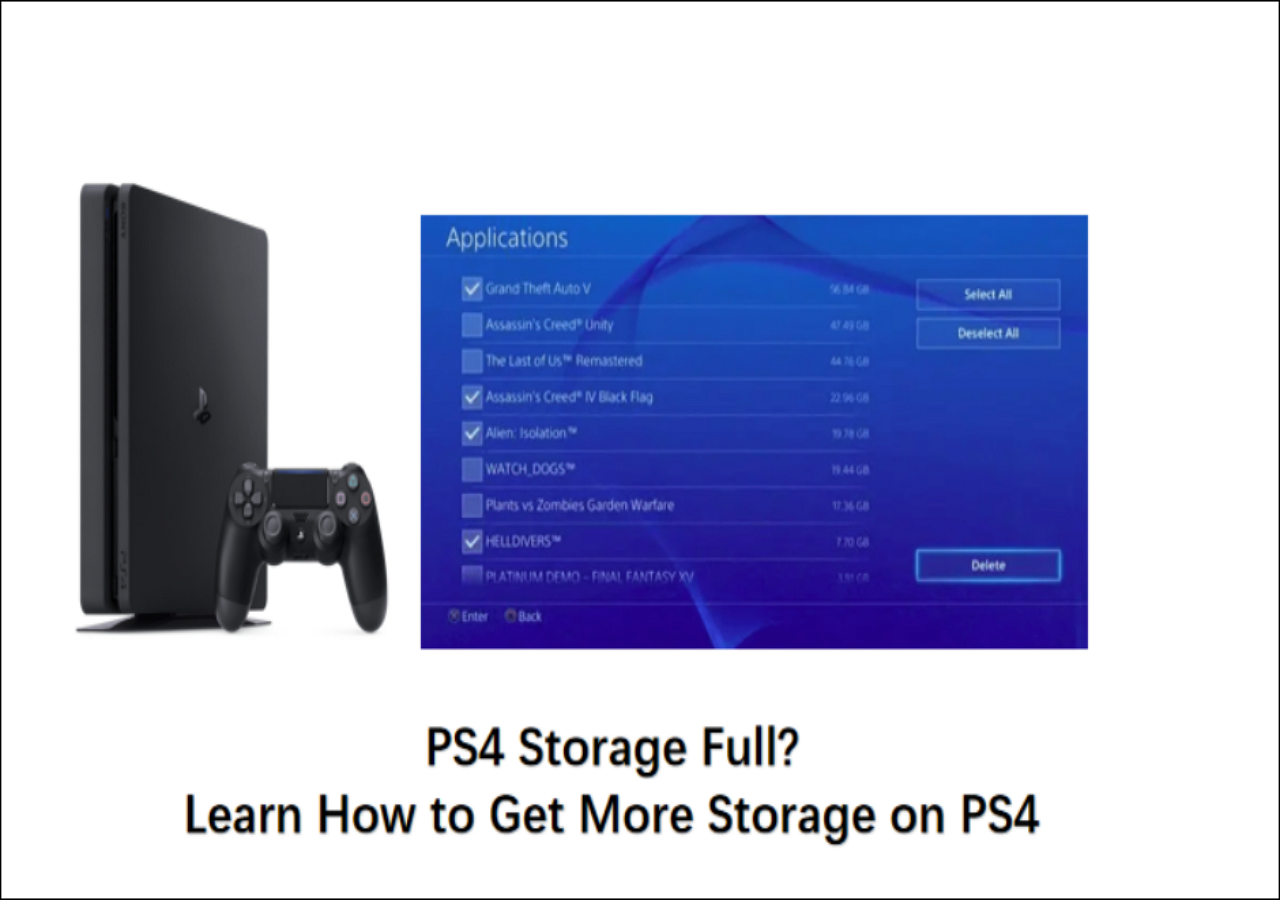
Running out of storage on your PS4? Don't worry, there are ways to free up space and get more storage on your console. You can start by deleting unused apps, games, and demos, and then consider purchasing an external hard drive to expand your storage capacity.
PS4 storage full is a frustrating issue. If you're looking for a solution, this guide provides a helpful resource to expand your PS4 storage.
Conclusion
Upgrading your PS4 to an SSD can significantly improve your gaming experience, providing faster loading times, smoother gameplay, and enhanced overall performance. By choosing the right SSD and following the correct installation process, you can unlock the full potential of your console and enjoy a more immersive gaming experience.
Upgrade to an SSD for lightning-fast performance, seamless multitasking, and breathtaking graphics. By slashing load times up to 60%, you'll be fully immersed in your gaming world. The benefits are undeniable: if realism and an enhanced experience are top priorities, the answer is a resounding yes. Qiling Disk Master is your trusted partner for a smooth upgrade, providing the tools and insights you need to take your gaming to the next level. Get ready to elevate your play – SSDs are waiting.
FAQs About Upgrading PS4 to SSD
Here are some common queries to solidify your understanding and embark on your SSD-enhanced gaming journey.
1. Should I Upgrade My PS4 HDD to SSD?
Upgrading the PS4's hard drive disk (HDD) to a solid-state drive (SSD) is a highly recommended upgrade that brings substantial performance improvements, significantly reducing load times and enhancing overall gaming responsiveness.
2. Which SSD is Compatible with PS4 for Upgrading?
The PS4 is compatible with various SSDs, including popular options like the Seagate Game Drive for PS4, Toshiba Canvio Basics, and Western Digital 4TB My Passport Portable, ensuring you can choose an SSD that meets your storage needs and the PS4's requirements.
3. How do I convert my PS4 hard drive to SSD?
Here are the steps to upgrade your PS4 Slim to an SSD in a concise format:
- Save game data and files to a USB drive.
- To replace the hard drive in a PS4, you first need to open the casing, disconnect the cables, and remove the old HDD. This typically involves unscrewing the screws that hold the casing shut, then carefully prying it open to access the internal components.
- Attach new SSD, reconnect cables, and reassemble casing.
- To troubleshoot issues with your PS4, you can try booting it in Safe Mode, initializing it, and then installing the latest system software. This process can help resolve various problems, including freezing, crashing, or other system-related issues.
- Connect the USB drive, restore data, and re-download games from the Library.
The process of upgrading your PS4's storage to an SSD typically involves the following steps: purchasing a compatible SSD, physically installing the SSD into your PS4, and then initializing the new storage on your console. You may need to transfer your games and data from the original hard drive to the new SSD, which can be done using the PS4's built-in transfer feature or by using a USB drive.
For more in-depth answers and insights, turn to this article. Your journey to an enhanced gaming experience is just a question away.
Related Articles
- How to Wipe External Hard Drive on Windows 10 and Mac Without Recovery
- Qiling Disk Master 16.0 Key Generator + Key Crack 2024
- How to Stop Programs from Running in the Background on Windows 10/11
- How to Fix Windows 10 Won't Boot After Update 2016 [Effective]
- How to Fix Windows 10 File System Error (-2018375670) [Step-by-Step Guide]
This article provides the newest and easiest ways to fix Windows 10 file system error (-2018375670) and introduces a professional tool to help check bad sectors and file system errors. - How to Fix Windows 10 Start Menu Not Working/Opening When Clicked [2026]
The Windows 10 start menu not working or not opening is a common issue. To resolve this problem, you can try restarting Windows Explorer, running the SFC or DISM tools to fix corrupted system files, checking for Windows updates, and other troubleshooting steps.
Products
Articles & Tutorials
- Data Recovery
- Data Backup
- File Recovery
- File Backup
- System Backup and Restore
- Disk and Partition Clone
- Technical articles
- Mobile articles
- Disk Master Help
- Windows Data Recovery Tutorials
- Windows Secure Delete Tutorials
- Windows Partition Management Tutorials
- Windows File Backup and Restore Tutorials
- Windows System Backup and Restore Tutorials
- Windows Disk Backup and Restore Tutorials
- Windows Clone Tutorials