HP Laptop Won't Turn On But Power Light Is On [Detailed Guide]
To succeed in an online business, consider the following eight tips: focus on a specific niche to stand out from the competition, create high-quality content that resonates with your target audience, utilize search engine optimization (SEO) techniques to improve your website's visibility, leverage social media platforms to expand your reach, build an email list to nurture customer relationships, offer exceptional customer service to foster loyalty, invest in digital marketing strategies to drive sales, and stay up-to-date with the latest industry trends to remain competitive.
- 1. Restart Computer
- 2. Check External Disks and Devices
- 3. Check the Battery
- 4. Hard Reset HP Laptop
- 5. Enter Safe Mode
- 6. Refresh or Reset HP Laptop
- 7. Drain Static Charge and Loading Default BIOS
- 8. Update BIOS on HP Laptop
HP laptops with a black screen and no cursor can be caused by a variety of issues, including a faulty graphics card, a malfunctioning display, or a problem with the laptop's power management system. In some cases, the power light may be on, but the laptop may not be turning on properly, leading to a black screen with no cursor. To resolve this issue, users can try troubleshooting steps such as checking the power cord, restarting the laptop in safe mode, or running a system file check.
The "HP laptop won't turn on but power light is on" issue can be frustrating, but there are some effective solutions to fix it. The problem may arise due to a faulty power button, a loose connection, a dead battery, a malfunctioning power adapter, or a hardware issue.
You can fix more black screen problems with these posts:
Why Your HP Laptop Won't Turn On But Power Light Is On
The exact reason for the "HP laptop won't turn on but power light is on" is unknown, but common reasons include a faulty power adapter, a dead battery, a loose or damaged power cord, a malfunctioning power button, a short circuit, or a hardware issue such as a failing hard drive or RAM.
- A damaged or worn-out battery.
- A faulty OS or hardware component.
- Issues with new hardware or software installed.
- External hardware or device issues.
- BIOS settings problems.
- HP laptop screen is broken.
How to Fix HP Laptop Black Screen But Has Power
Here are some fixes you can try to get your HP laptop screen back on if you're facing a black screen: Try pressing the power button for 30 seconds to discharge any residual power, then press and hold the power button for 30 seconds to recharge. If that doesn't work, try pressing the F2 key during boot to access the BIOS settings and reset the screen.
1. Restart Computer
A simple restart can resolve issues with electronic gadgets, including laptops, by giving the operating system a fresh start and resolving minor problems. Sometimes, a laptop not turning on may be caused by minor loading issues with programs, and restarting the laptop reloads the programs and solves the problem.
🚩Read Also: Surface Won't Turn On, Computer Won't Boot, Casues and Fixes
2. Check External Disks and Devices
Faulty external devices connecting to your laptop may also affect your laptop and cause the "my computer shows a black screen even with power on" issue.
Step 1. Shut down your laptop.
Step 2. Remove all external devices and disks connected to the laptop.
Step 3. Check if the laptop turns on now.
- To identify the faulty external device, turn on your computer and connect each external device one by one. If your computer turns on with a particular device connected, that device is likely the culprit.
- If not, move to the next solution.
3. Check the Battery
Steps to check if the battery is working properly:
Step 1. Shut down and remove the battery from your HP laptop.
Step 2. If the laptop is not working with an AC adapter, it's likely a hardware issue and you should take it to a professional for further diagnosis and repair. If it is working with the AC adapter, it means the battery is the problem and you can replace it.
Step 3. If the battery is not holding a charge, you can try to charge it for a few hours to see if it will hold the charge. If it still doesn't hold the charge, it's likely that the battery is damaged and should be replaced with a new one.
If the laptop is not turning on, check if the battery is properly seated and the power cord is securely connected to both the laptop and the wall outlet. If the battery is removable, try removing and reinserting it.
4. Hard Reset HP Laptop
Step 1. Power off your HP laptop and remove external devices.
Step 2. Remove the battery and hold the power button for 15 seconds to drain the overall charge.
Step 3. Install the battery and reconnect the charger, then power on your HP laptop.
Step 4. Click on the "Continue" button on the screen, select the "Start Windows Normally" option, and press Enter.
If you have a non-removable battery, you can avoid this by simply long-pressing the power button for 8-10 seconds. This will restart your device without needing to remove the battery. This method won't void your warranty or potentially damage your device.
Further Reading: If your HP laptop is stuck in a boot loop or stuck on the HP screen, try restarting it in safe mode, checking for loose connections, and updating your BIOS. You can also try booting from a USB drive or CD/DVD to access your system files.
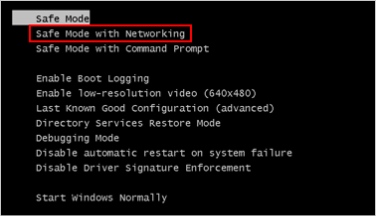
5. Enter Safe Mode
If your HP laptop won't turn on but the power light is on, you can still use it in safe mode, which removes problematic programs and drives and allows you to create a new user account if the original one is corrupted.
Step to enter safe mode on HP laptop:
Step 1. Remove external disks and devices from the computer and restart.
Step 2. Just after the restart, press the F8 key repeatedly before the HP or Windows logo appears.
Step 3. Select the Safe mode with Networking when prompted.
6. Refresh or Reset HP Laptop
Step 1. To refresh your HP laptop, open the "Choose an option" screen on your laptop.
Step 2. To troubleshoot, select Troubleshoot, then Refresh your PC or Reset your PC, and finally click Next.
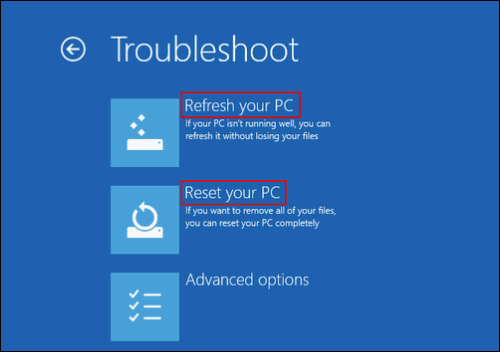
Step 3. Wait until the laptop starts successfully.
7. Drain Static Charge and Loading Default BIOS
Step 1. Long-press the power button for 15 seconds.
Step 2. Press Esc or F10 to invoke the BIOS settings menu.
Step 3. To reset the settings, select the "Restore to default" option from the available choices and click the "Enter" button.
Step 4. Exit the BIOS settings and restart the laptop.
8. Update BIOS on HP Laptop
Steps to Update BIOS on HP laptop.
Step 1. Connect your laptop to a working power source.
Step 2. Press and hold the Windows + B keys at once.
Step 3. Press and hold the Power button for 1 second while holding Windows + B.
Step 4. Now, release all the keys, and the power light flashes.
Step 5. The laptop screen will remain blank for 40 seconds.
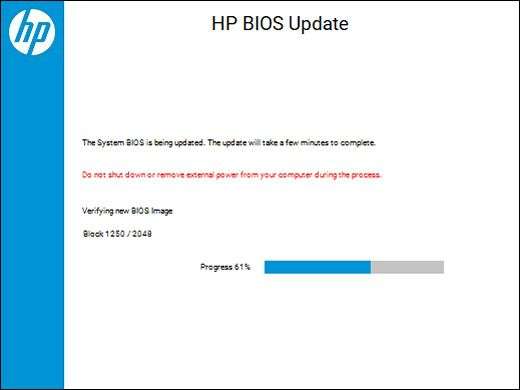
Step 6. The HP BIOS update screen appears and starts the BIOS update process.
Things You Should Do After Solving the Problem
If your HP laptop won't turn on but the power light is on, try to avoid such errors in the future by following these steps: Regularly clean dust from the vents and fans to ensure proper airflow and heat dissipation. Update your BIOS and drivers to the latest versions to prevent compatibility issues.
1. Back up Your HP Laptop Now
If your HP laptop won't turn on but the power light is on, you risk losing data while trying to fix the issue. To safeguard your data, it's essential to back it up. A reliable tool for backing up and restoring data is Qiling Disk Master Pro, which utilizes advanced technologies to ensure seamless data recovery.
Qiling Disk Master Pro, One of the best auto-backup software specializes in providing efficient backup strategies and restoration management, applying the advanced 3-2-1 backup rule to offer systems, disk/partition, file backup, and more. It also functions as a reliable hard drive cloning tool, allowing you to clone, upgrade, and transfer systems, as well as access features like creating bootable disks, mounting ISO images, and a smart recovery environment.
Key features of Qiling Disk Master:
- Award-Winning Automatic backup solutions for all situations.
- Reliable hard disk cloning tool for upgrades and duplications.
- This tool offers various backup modes, allowing users to create a scheduled backup plan, providing flexibility and control over their data backup process.
- Supports multi-The service offers cloud storage and provides its own free 250GB cloud space.
To backup your HP PC after resolving the black screen issue, follow these steps: First, ensure your PC is fully powered on and connected to a stable power source. Next, press the Windows key + I to open the Settings app, then click on Update & Security.
Step 1. Launch Qiling Disk Master and choose "Backup" tab page.

Step 2. Click on the "System backup" option to initiate the backup process.

Step 3. The system partition will be automatically selected, you just need to choose the location.

Step 4. You can save your system backup files to a local drive, the cloud, or a Network-Attached Storage (NAS) device, or even connect an external hard drive to store them.

Step 5. You can customize the settings in "Options" at the left bottom, then click "Proceed" to start the process.

After completing the backup process, you can check the backup status, recover, open, or delete the backup by right-clicking on the backup task in the left panel.
2. Update Available Device Drivers
Updating or fixing drivers is crucial as they act as a medium of communication between hardware and software. It's essential to ensure they are up-to-date and not faulty. Fortunately, drivers can be updated or fixed both manually and automatically.
To resolve the issue, it's recommended to manually update the drivers by finding their manufacturers and updating them. Fortunately, there are various tools available that can assist in identifying the correct drivers and performing the updates automatically. Utilizing these tools can streamline the process and help resolve the problem efficiently.
The final verdict
The exact reason for an HP laptop not turning on despite the power light being on is unknown, so we can only work around some effective solutions to get it back to normal. This article provides fixes to solve the issue and also recommends using backup software Qiling Disk Master Pro to safeguard important data in case of future emergencies.
FAQs
1. How do I force my HP laptop to start up?
To force your HP laptop to start up, follow these 3 steps: Press and hold the power button on your laptop for 30 seconds to discharge any residual power, then press the power button again to turn it back on. If it still doesn't turn on, unplug the power cord and press the power button again to discharge any remaining power, and finally, plug the power cord back in and press the power button to turn it on.
Step 1. Restart your computer, and press the F11 key immediately.
Step 2. Click Start. Long-press the shift key, click Power, and then restart while still holding the shift key.
Step 3. Hold the shift key until the computer restarts.
2. Why is my HP stuck on a black screen?
There are many reasons why your HP is stuck on a black screen. Some are listed below.
- Battery issues.
- CMOS battery malfunctioning.
- A faulty OS.
- Software update.
- External hardware conflicts.
- Virus attacks.
- BIOS settings.
- HP laptop screen issues.
Related Articles
- What Is the Best GoPro SD Card Format? [Best Choice and Tutorial Guide]
- How to Change Partition to Primary Using Diskpart
- How to Solve No Usable Free Extent Could Be Found [Efficient Solutions]
- What Is SoftThinks Agent Service and How to Fix Its High Disk and CPU Usage
SoftThinks Agent Service is one of the nagging issues in Dell computers, as it takes a lot of Disk and CPU usage. This article will tell you why exactly that happens and how you can stop this service from slowing down your computer. - How to Reinstall Failed/Cancled Updates in Windows 10
Windows 10 system update failed or canceled due to slow or stuck downloading? This page offers helpful tips and guidance on how to reinstall the failed Windows updates without affecting your computer's performance or data. - How to Turn Off Xbox Controller on PC
Learn 5 easy ways to turn off your Xbox controller on a PC, including disconnecting Bluetooth, removing the USB cable, long-pressing the Xbox button, removing batteries, and using third-party software.
Products
Articles & Tutorials
- Data Recovery
- Data Backup
- File Recovery
- File Backup
- System Backup and Restore
- Disk and Partition Clone
- Technical articles
- Mobile articles
- Disk Master Help
- Windows Data Recovery Tutorials
- Windows Secure Delete Tutorials
- Windows Partition Management Tutorials
- Windows File Backup and Restore Tutorials
- Windows System Backup and Restore Tutorials
- Windows Disk Backup and Restore Tutorials
- Windows Clone Tutorials