What Is SoftThinks Agent Service and How to Fix Its High Disk and CPU Usage
To resolve high CPU usage by the SoftThinks Agent Service, try restarting the service, checking for any updates, and ensuring the service is running under the correct user account. You can also try disabling any unnecessary features or plugins, and monitoring the service's performance using tools like Resource Monitor or Task Manager to identify any resource-intensive processes. If the issue persists, consider reinstalling the software or seeking further assistance from the manufacturer's support team.
The rapid release of new processors by major players like AMD and Intel means that hardware quickly becomes outdated, making CPUs from 5-8 years ago obsolete and prone to performance issues.
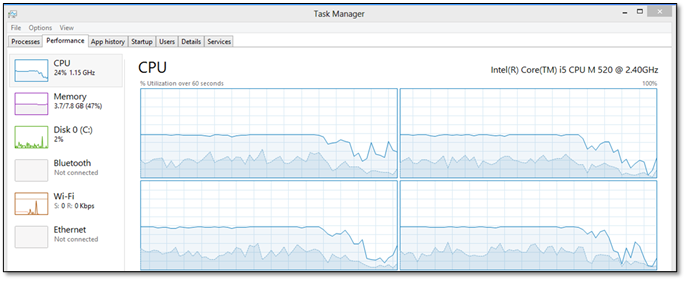
SoftThinks Agent Service is a software component that can cause high CPU usage on computers, even those with the latest hardware. This issue can be caused by various factors, including outdated software, incorrect configuration, or even malware. To resolve the issue, try updating the SoftThinks Agent Service to the latest version, disabling any unnecessary features, or running a virus scan to rule out malware. If the problem persists, consider reinstalling the software or seeking further assistance from the software provider.
SoftThinks Agent Service is a software component that runs in the background on your computer, consuming a significant portion of your CPU resources. This high CPU usage can cause your computer to slow down or even freeze. The Agent Service is typically used for remote monitoring and control of software applications, allowing IT administrators to monitor and manage software installations, updates, and other activities on remote computers. The high CPU usage is often due to the Agent Service constantly polling the system for updates or changes, which can be unnecessary and wasteful.
What Is SoftThinks Agent Service
Dell computers have a built-in service called SoftThinks Agent Service, which creates a backup of system files on PCs and Laptops.
Restoring a Dell computer to its original state or best restore point is crucial, especially when Windows experiences issues like lag or file corruption. This process is often a secondary function of Dell's DataSafe Local Backup Utility, which helps to recover the computer to its previous working state.
A background service, it's not as easy to turn off or on as it would be for a foreground application, as it operates in the background of your computer. However, this utility has recently caused issues with Dell computers.
The main issue users face is a slow PC or laptop, which is often caused by high CPU usage when opening the Task Manager. This problem can be resolved by identifying the root cause, which may involve checking for malware, updating software, and optimizing system resources.
Why SoftThinks Takes up High Disk & CPU Resources
SoftThinks is a backup utility that can consume significant amounts of RAM and CPU when running, also impacting drive usage. However, its performance under stress is somewhat limited, as it's not a primary backup utility.
The computer creates backups in one large process, increasing CPU and Disk usage in Task Manager.

The SoftThinks Agent Service is set to start automatically with Windows, consuming CPU and disk resources as soon as the PC is logged in. This is a primary reason for the high usage.
The Windows System Service is responsible for initializing system resources, including CPU, RAM, and disk, before other services can start. As a result, when you log in, the Task Manager shows 100% CPU usage, indicating that the system is busy allocating resources for other services to run. This is a normal process and not a cause for concern.
How to Fix SoftThinks High Disk & CPU Usage
SoftThinks Agent Service can be removed from your computer to free up resources, and there are two primary methods to do so: uninstalling the service or stopping and disabling it. By removing or disabling the service, you can potentially resolve issues related to system performance and resource usage. To achieve this, you can either uninstall the service through the Control Panel or stop and disable it through the Services Manager. This should help alleviate any problems caused by the service.
Method 1. Disable SoftThinks Agent Service
To disable the SoftThinks Agent Service, follow these steps:
Step 1. Press the Start button and type Services
Step 2. To gain administrator privileges, right-click on the desktop or a folder and select the "Services" option, then click on "Run as Administrator".
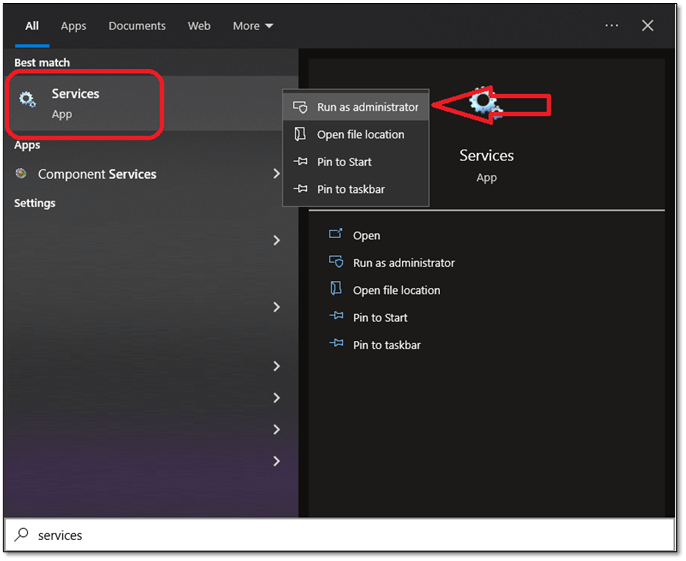
Step 3. Press S on your keyboard until you find SoftThinks Agent Service
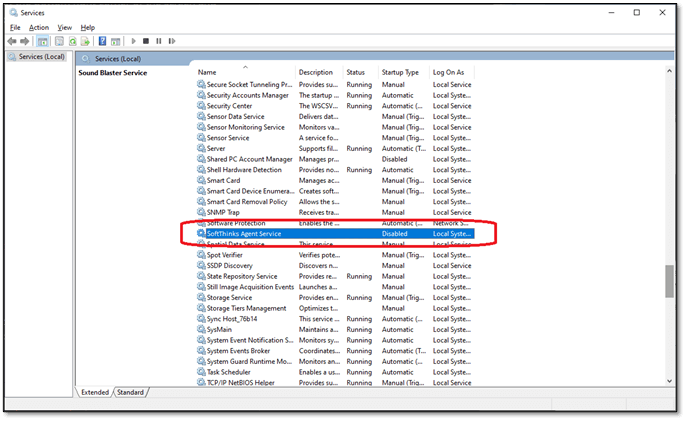
Step 4. Right-Click and click on "Properties"
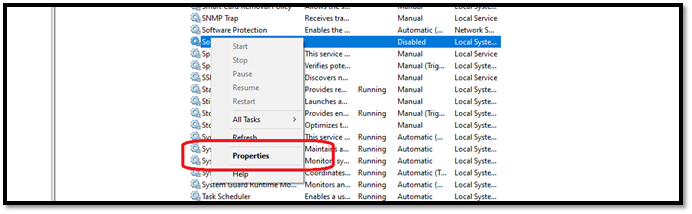
Step 5. In the following options, pick head in Startup type settings
Step 6. Head to the bottom and select Disabled
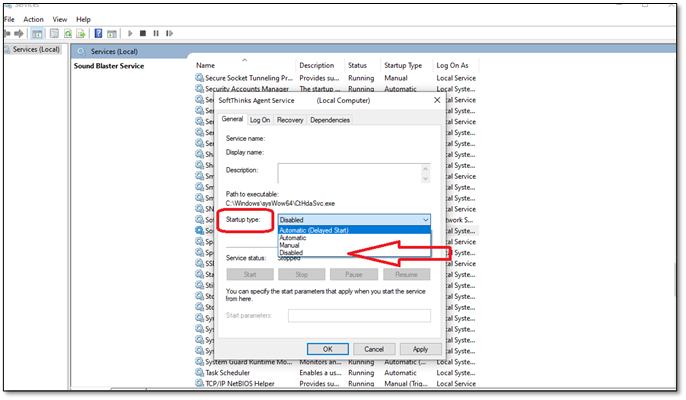
Step 7. Apply your settings, then press OK
Step 8. Restart your PC
Step 9. Done
The screenshot shows the Service status options as unavailable, likely because the service was already stopped.
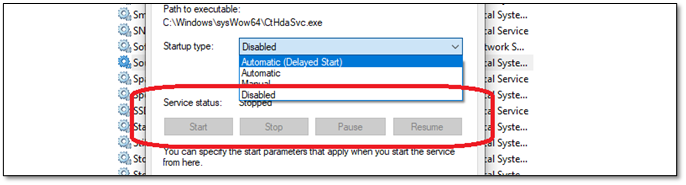
To stop the service, go to the "Services" window, find the service you want to disable, right-click on it, and select "Stop". Then, go to the "Control Panel", click on "Programs and Features", and select "Turn Windows features on or off". In the list of features, find the service you want to disable and uncheck it. Finally, restart your PC to complete the process.
Method 2. Uninstall Dell Backup and Recovery Utility
To uninstall Dell's Backup and Recovery Utility, go to Control Panel, click on "Programs and Features" (in Windows 10) or "Add or Remove Programs" (in Windows 11), and then select "Dell Backup and Recovery" from the list of installed programs. Click "Uninstall" to remove the utility. This will also remove any associated files and settings. Alternatively, you can use the "Apps and Features" option in the Settings app to uninstall the utility.
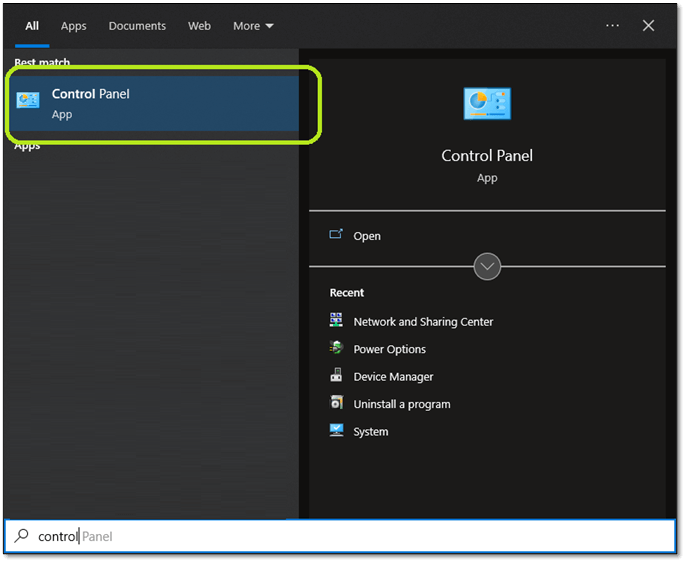
Step 1. Press the Start button
Step 2. Type Control Panel
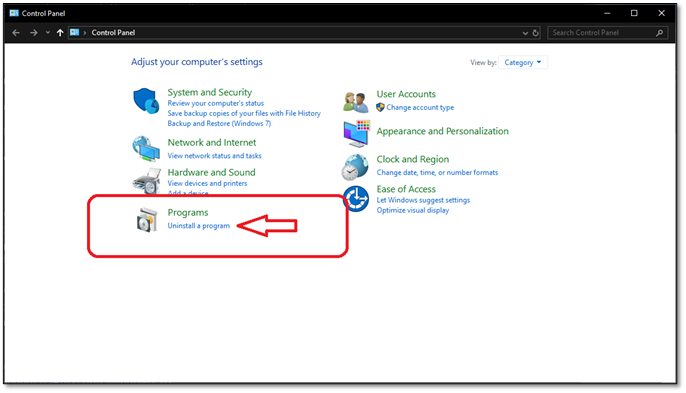
Step 3. Under the Programs option, click on "Uninstall a program"
Step 4. Find Dell Backup and Recovery Utility
Step 5. Click on "Uninstall/Change" in the top bar
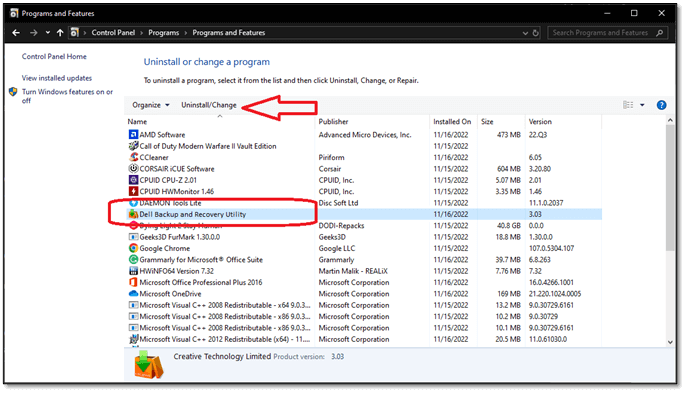
Step 6. Follow the on-screen instructions to complete the uninstallation
Step 7. Wait for the process to finish
Step 8. Done
After restarting your PC, the Dell Backup and Recovery Utility will be gone, and the SoftThinks Agent Service will no longer consume your CPU resources.
Final Words
To get rid of the SoftThinks Agent Service and prevent it from using up your CPU, you can disable the service, uninstall Dell Backup and Recovery Utility, or use the Task Manager to stop the process. Disabling the service will stop it from running, but we recommend uninstalling the utility to prevent it from re-enabling itself. You can also use the Task Manager to stop the process, but this may not be a permanent solution. By following these steps, you can ensure that the SoftThinks Agent Service does not continue to use up your CPU.
Related Articles
- Use CHKDSK to Fix the Selected Volume Corruption Problem in Windows 10
- Can I Upgrade My Motherboard and CPU Without Reinstalling Windows 10? [New Updated 2023]
- Disable Keylogger in Windows 11 to Stop Microsoft from Collecting Your Data
- Outlook 2016 Not Working with Gmail | How to Fix
- How to Fix Installer Information on The Recovery Server Is Damaged?
Are you a Mac user experiencing a common challenge of The installer information on the recovery server being damaged? In this article, you learn why the installer information error occurred and the right approach to fix the problem in a detailed manner. - IS 75 Degrees Too Hot For a PC? Everything You Should Know
Is your PC getting slow? Is 75 Degrees too hot for a PC? If you have all these questions, then you're in luck. The guide below answers all your PC temperature concerns and help you get the best performance. So, what are you waiting for? Dive straight in and get your PC working smoothly.
Products
Articles & Tutorials
- Data Recovery
- Data Backup
- File Recovery
- File Backup
- System Backup and Restore
- Disk and Partition Clone
- Technical articles
- Mobile articles
- Disk Master Help
- Windows Data Recovery Tutorials
- Windows Secure Delete Tutorials
- Windows Partition Management Tutorials
- Windows File Backup and Restore Tutorials
- Windows System Backup and Restore Tutorials
- Windows Disk Backup and Restore Tutorials
- Windows Clone Tutorials