How to Fix Installer Information on The Recovery Server Is Damaged?
When trying to reinstall macOS, you get an error that says "Installer information on the recovery server is damaged", preventing you from completing the reinstallation process.
The "Installer error" on macOS is not a cause for concern, but rather a result of incompatibility. Fortunately, reinstalling macOS or resolving the error is a relatively straightforward process. This guide will walk you through the steps to eliminate the installer error, covering the causes and solutions to get your system up and running smoothly again.
Why Is Installer Information on the Recovery Server a Damaged Error occur?
The error "Installer information on the recovery server is damaged" can be caused by various factors, including issues with the recovery server itself, problems with the installer package, or corrupted data in the recovery server database. Additionally, incorrect configuration, network connectivity problems, or software conflicts may also contribute to this error. Furthermore, human errors such as incorrect installation or mismanagement of the recovery server can also lead to this issue. Lastly, hardware failures or outdated software versions may also be responsible for this error.
1. Mac Certificate is Outdated
The Mac certificate, a part of a user's digital identity, has an expiration date. If this certificate has expired, Apple servers cannot verify it, leading to installation errors. To resolve this, users need to renew their certificate to continue using Apple's features.
You're restricted to features like reinstalling macOS when your certificate is outdated, as Apple can't verify your digital identity.
2. Incompatibility of MacOS with the Hard Disk
Macs with the new APFS hard drive format may require a macOS reinstall due to the inconsistency with older versions, causing the error.
How to Fix "The Installer Information on the Recovery Server is Damaged"? [Boot from Recovery Mode]
If your Mac is experiencing issues, try booting/reinstalling macOS from recovery mode to resolve the problem.
Ensure your Mac has a strong internet connection and is plugged into a power source before you start to prevent an unexpected loss of battery power during the process.
Follow these steps below to start macOS from recovery mode:
Step 1. Shut down your Mac and start it again after shutting it down.
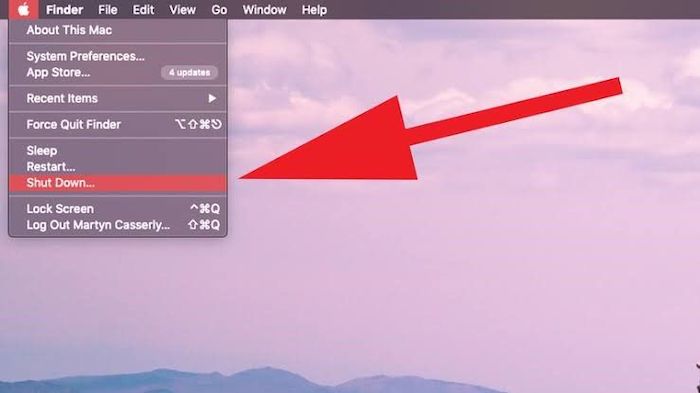
Step 2. To start your Mac in recovery mode, press and hold the power button until you see the Apple logo, then release the power button and immediately press and hold the Command (⌘) + R keys until you see the recovery mode screen. To start your Mac in verbose mode, press and hold the power button until you see the Apple logo, then release the power button and immediately press and hold the Command (⌘) + V keys until you see the verbose mode screen.
- Command + R: To reinstall recent macOS.
- To upgrade to the recent macOS version that's compatible with your device, press Option + Command + R.
- To resolve the issue, you can try to restore your device to its original macOS version using the Recovery Mode. This will allow you to get back to the macOS version you had on your device at purchase or before the error.
Step 3. Keep pressing the keys until Apple's logo appears.
Step 4. Enter your administrative password to gain access to the Utilities Screen.
Step 5. From the Utilities Screen options, choose the reinstall macOS icon.
Step 6. Click on "Continue" and follow the instructions on your screen.
Step 7. Select the disk where you want to install the macOS system files, such as the internal SSD or an external hard drive.
Step 8. If you're prompted to unlock the hard disk, enter the password you typically use to log in to your Mac and continue with the installation process.
If the macOS installation was not completed with an error message, you may need to erase the hard disk of your Mac to start the process again.
Conclusion
When you encounter the error "Installer information on the recovery server is damaged," you'll be unable to complete the reinstallation of your macOS. This error can be caused by an outdated Mac certificate, preventing Apple from verifying your digital identity, or incompatibility of MacOS with the hard disk. However, by following the steps to fix the error when booting or reinstalling macOS from recovery mode, the problem can be resolved quickly.
Frequently Asked FAQs
If you have further questions about the Mac installer error, find answers in the FAQs below:
1. How to fix the recovery server that could not be contacted error on mac?
To install a macOS update, your Mac needs to build a connection with Apple's server. However, if the error "the recovery server could not be contacted" is displayed, it indicates a failed connection with Apple's server. To resolve this issue, follow the steps to fix the error.
Step 1. Check Your Network Connection
Step 2. Ensure you check your date and time on Mac
Step 3. Make use of the macOS Installer
Step 4. Try to reinstall or Update your macOS
Step 5. Reinstall macOS after you've erased your Mac disk.
2. How can Mac internet recovery not working be fixed?
Before reinstalling macOS in recovery mode, you may need to erase your entire Mac drive, which means you'll have to back up your essential data to a safe location first. This will ensure that your important files are preserved during the process.
Step 1. Shut down your Mac.
Step 2. To start your Mac in recovery mode, hit the Power button and immediately press and hold Command-R.
Step 3. Use Disk Utility to delete your Mac's disk.
Step 4. Finally, return to recovery mode, then choose to reinstall macOS.
3. Will I lose my data if I reinstall macOS from recovery?
Your data will be safe if you don't erase your drive during the macOS reinstallation process from recovery mode.
Related Articles
- Can't End Task Access Denied (Cuauses & Solutions)👍
- Is Windows 11 Good For Gaming? Your Best Answer in 2024!
- Best Ways To Fix Windows PowerShell Keeps Popping Up
- FIXED: PC Won't Boot to BIOS - 4 Ways Included
- MSI File Extension - What Is .MSI? How to Open or Install It?
Here you'll know about the msi file extension. How you can easily open it automatically not manually. There are two main steps to open msi file extension. Also, you'll know the difference between MSI File and EXE File. - What Is MTBF? Mean Time Between Failures Explained
In today's fast-paced world, breakdowns and technical failures matter more than ever. These flaws result in missed deadlines, late deliveries, financial losses, and project delays. To avoid that, you should have a sound understanding of MTBF.
Products
Articles & Tutorials
- Data Recovery
- Data Backup
- File Recovery
- File Backup
- System Backup and Restore
- Disk and Partition Clone
- Technical articles
- Mobile articles
- Disk Master Help
- Windows Data Recovery Tutorials
- Windows Secure Delete Tutorials
- Windows Partition Management Tutorials
- Windows File Backup and Restore Tutorials
- Windows System Backup and Restore Tutorials
- Windows Disk Backup and Restore Tutorials
- Windows Clone Tutorials