Can I Upgrade My Motherboard and CPU Without Reinstalling Windows 10? [New Updated 2022]
Are you satisfied with your PC's current hardware, like the motherboard and CPU? Are they serving you well?
Upgrading or changing your PC's motherboard or CPU can be a cost-effective way to breathe new life into an aging computer, especially if it's still running Windows 10. This can be a good option if your current hardware is no longer meeting your needs or is experiencing performance issues.
You can upgrade your motherboard and CPU without reinstalling Windows 10, but it's not always a straightforward process. The main concern is that the new CPU might not be compatible with the existing Windows 10 installation, which could lead to issues with activation, drivers, and system stability. However, Microsoft has implemented a feature called "Windows 10 Hardware Change" that allows you to upgrade your hardware without reinstalling Windows 10.
While most PC users can easily complete a fresh Windows 10 install, the process can be tedious and time-consuming, requiring configuration of system settings, reinstallation of key applications, and re-transfer of data removed by the clean install, not to mention re-activating some programs.
It is possible to upgrade your motherboard and CPU without reinstalling Windows 10. This can be done by using the Windows 10 "Reset this PC" feature in the Settings app, which will reinstall Windows 10 on the new hardware without losing any of your files or installed applications. Alternatively, you can also use a tool like the Windows 10 "Reset" tool, which will allow you to reset Windows 10 to its default settings without losing any of your files or installed applications.
Yes!
Upgrading your motherboard and CPU without reinstalling Windows 10 is a feasible process that can be completed in a series of steps. First, ensure that your new CPU is compatible with your existing motherboard and that you have a compatible CPU cooler. Next, shut down your computer, unplug the power cord, and ground yourself to prevent static electricity damage.
Can I Upgrade My Motherboard and CPU Without Reinstalling Windows 10?
A Windows PC's motherboard and CPU are its core components, connecting and enabling all peripherals and components to function together seamlessly. The motherboard's functionality is crucial for system performance, and when it's top-notch, the entire PC's performance improves significantly.
Upgrading a motherboard and CPU may be necessary due to various reasons and scenarios, including but not limited to, outdated hardware, compatibility issues, and the need for improved performance.
- If your PC's motherboard is damaged, it can lead to a non-functional computer, requiring either repair or replacement of the CPU and/or motherboard.
- Upgrading to a faster CPU processor requires a new motherboard that supports its functionality, enabling faster performance.
- Upgrading to newer RAM iterations requires a compatible motherboard to support the faster memory, allowing for improved performance.
- Gamers often upgrade their motherboard and CPU to support a newer or better graphics card, which is a key factor in improving their computer's overall performance.
- To enable and support faster data transfers, technologies like USB 3.0 and Serial ATA III are used, but they require newer and compatible hardware, such as motherboards and CPUs, for optimal performance.
How to Upgrade Motherboard and CPU Without Reinstalling Windows 10? [Step By Step Instruction]
Yes, you can upgrade your motherboard and CPU without reinstalling Windows 10. However, you'll need to ensure that the new motherboard is compatible with the existing Windows 10 installation, and that the CPU is also compatible with the new motherboard. If you're using a UEFI motherboard, you can try to update the UEFI firmware to match the new CPU, and then install the new CPU.
Upgrading a motherboard and CPU without reinstalling Windows 10 is possible through three key methods. Firstly, the CPU can be removed from its socket and replaced with a new one, taking care to handle the CPU by the edges to prevent damage.
- Perform a universal restore using Qiling Backup (Universal Restore).
- Edit windows registry online.
- Edit Windows registry offline.
The following methods are covered in detail:
- Method 1. Perform a Universal Restore Using Qiling Backup
- Method 2. Upgrade Motherboard and CPU Without Reinstalling Windows by Modifying Registry Online
- Method 3. Upgrade Motherboard and CPU Without Reinstalling Windows by Modifying Registry Offline
Method 1. Perform a Universal Restore Using Qiling Backup

Qiling Backup Restore tool allows you to restore a Windows system image to a different hardware platform, such as a new motherboard or CPU, without reinstalling Windows. This makes it a convenient option for upgrading your hardware without having to reinstall your operating system.
The software provides a media builder to create a bootable USB or disc drive, which can be used to boot a PC if the OS becomes unbootable after restoring the system to different hardware.
To create a bootable USB, CD/DVD, or ISO image using Qiling Backup, you can follow these steps. First, download and install Qiling Backup on your computer.
With Qiling Backup, you can create Qiling Bootable USB, CD/DVD, and ISO Image. Additionally, if you want to create a Windows 10 bootable USB, you can follow the guide provided.

Method 2. Upgrade Motherboard and CPU Without Reinstalling Windows by Modifying Registry Online
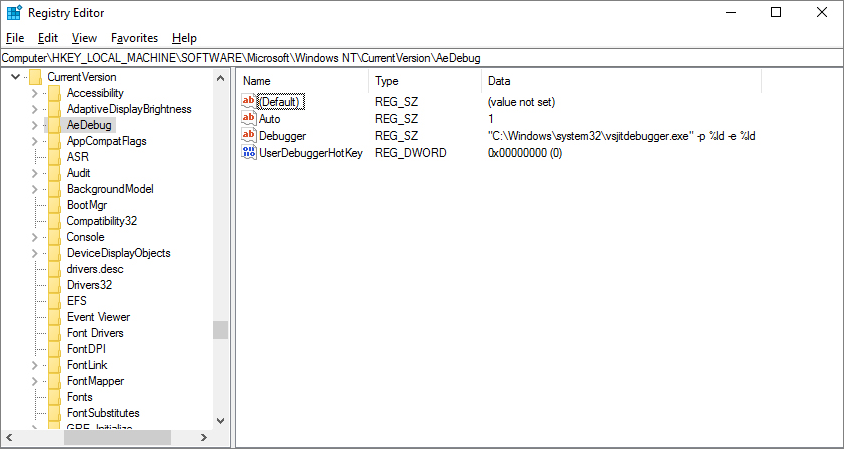
To upgrade your motherboard and CPU, you must first edit the Registry while Windows is still running normally. This involves modifying the msahci key, which has been replaced by StorAHCI in newer Windows systems, to enable the upgrade without requiring a Windows reinstallation.
This method needs high-It's crucial to create a full system image backup before making any significant changes to your PC, such as installing a new operating system or drivers, as it ensures that you can restore your system to its previous state in case something goes wrong, protecting your system and preventing potential data loss.
Link Windows account to Microsoft account online
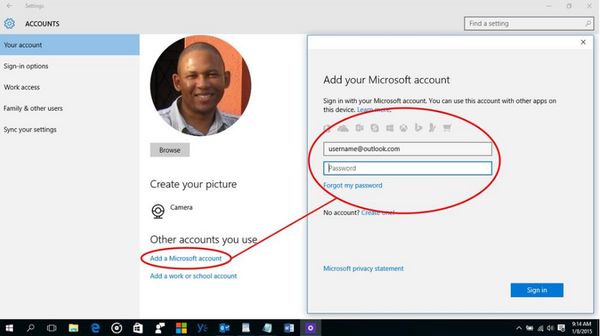
To reactivate Windows 10 on your computer after upgrading the motherboard and CPU, you need to link your Windows 10 account to your Microsoft account online. This allows you to re-activate your Windows operating system.
Link the accounts using the following steps:
Step 1. Click "Windows Start" > "Settings" > "Update & security".
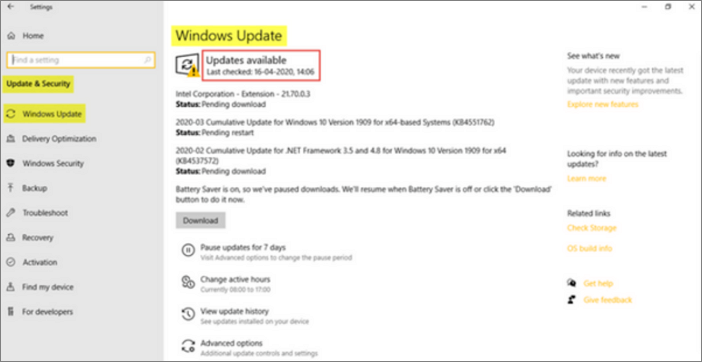
Step 2. On the left panel, click "Activation".
Step 3. When a new window opens, click on the right panel and select "Add an account" from the options.
Step 4. Now, sign in with your Microsoft account.
Modify Registry and change motherboard and CPU
Step 1. Press Win + R to launch the Run dialog box.
Step 2. To open the Windows Registry Editor, simply type "Regedit" in the search bar and click OK. This will open the Registry Editor window, allowing you to access and modify the Windows Registry.
Step 3. In the Registry Editor window, navigate to the key path HKEY_LOCAL_MACHINE\SYSTEM\CurrentControlSet\services\msahci.
Step 4. Now, check the right pane and double click Start, changing its value from what it is to 0. (Note: The actual value to change to may vary depending on the specific registry key and system configuration.
Step 5. To fix the issue, locate the key HKEY_LOCAL_MACHINE\SYSTEM\CurrentControlSet\services\pciide, find the DWORD value, and change its value data to 0. This should resolve the problem.
Step 6. Save the changes you've made, then exit the Registry editor.
Step 7. If your PC is experiencing issues that can't be resolved by troubleshooting or updating drivers, and you've tried all other options, it might be time to consider replacing the hardware. In this case, shutting down your PC and replacing the CPU and motherboard might be the best solution. This will give you a fresh start and ensure that your system is running with the latest technology.
Once you're done, you should be able to boot your Windows successfully.
Note: To re-activate your Windows operating system using this method, you may need to re-activate it. This can be done by going through the process of re-activating Windows.
- Go to settings > Update & security > Troubleshoot.
- Select the "I changed hardware on this device recently" option.
- Sign in to your online Microsoft Account and click on it to activate it. This will automatically grab your activation key from the account.
- To revert Windows 10 to a Local Account, go to Settings > Accounts > Your email and accounts, and click on the Microsoft account you're currently signed in with. Then, click on "Sign in with a local account instead.
Method 3. Upgrade Motherboard and CPU Without Reinstalling Windows by Modifying Registry Offline
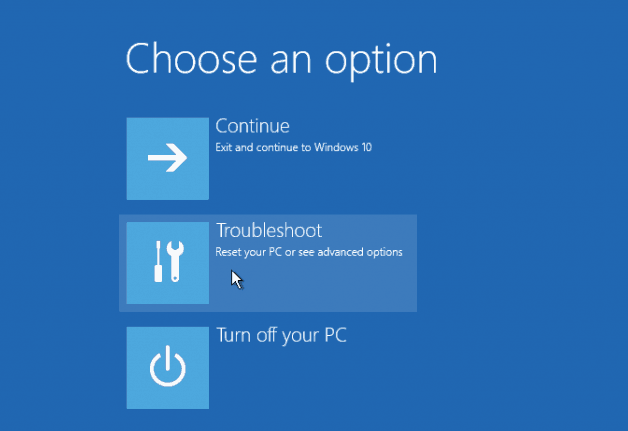
If you upgrade your motherboard and CPU without first updating the Registry, your OS may fail to boot.
To complete the installation, you'll first need to prepare an installation media, such as a USB drive or CD/DVD, with the installation files. Next, you'll use this media to boot your computer, which will take you to the installation screen.
Follow these steps:
Step 1. To start your PC from the installation disc, press F2 or Del repeatedly to enter the BIOS settings. This will allow you to configure the boot order and select the disc as the primary boot device.
Step 2. Set the USB/disk as the first boot option, then press F10 to save changes and restart.
Step 3. Set your PC's language and other settings (time and format, keyboard/input method) and click Repair your computer to continue.
Step 4. You can access the Command Prompt by selecting Troubleshoot > Advanced options > Command Prompt.
Step 5. In the Command Prompt, type Regedit and press Enter to open Windows Registry Editor.
Step 6. To access the offline Registry, navigate to the HKEY_LOCAL_MACHINE key, then select File and Load Hive from the menu. This will load the offline Registry.
Step 7. Now, go to the system drive (where Windows is installed) and open the system file path: C:\Windows\system32\config\system.
Step 8. Click Open.
Step 9. To save a key, type a key name, such as Offline, and click Ok.
Step 10. To set the start value data of key paths to 0, follow these steps:
HKEY_LOCAL_MACHINE\Offline\ControlSet001\services\msahci
HKEY_LOCAL_MACHINE\Offline\ControlSet001\services\pciide
Step 11. To unload the Hive, highlight the Offline key, then go to the File menu and select Unload Hive. This will write back the changes made in the offline Registry.
Step 12. Close the Registry Editor.
Step 13. To change the BIOS settings, restart your PC, then remove the disc and run your computer as normal.
To upgrade the motherboard and CPU without reinstalling Windows 10, start by backing up your data and shutting down the computer. Remove the power cord, any expansion cards, and the CPU cooler.
Note: We recommend using the Qiling Backup tool for registry methods, as they can be tedious and difficult.
Do I Need to Reinstall Windows 10 After Upgrading Motherboard and CPU?
You can upgrade your motherboard and CPU without reinstalling Windows 10, but it's recommended to reinstall the OS for safety and performance boost.
If you just swap out your CPU for a new one without touching the motherboard, you may not need to reinstall Windows 10.
This limits your CPU options to only those supported by your motherboard, as the motherboard typically dictates which CPU can be used.
As long as your CPU is compatible with the motherboard and the BIOS can recognize it properly, you're all set.
Upgrading the motherboard and CPU provides a performance boost, but it is important to ensure compatibility with other components and the Windows 10 operating system.
Upgrading your motherboard and CPUs requires reinstalling Windows 10 to ensure optimal compatibility. This ensures that your system runs smoothly and takes advantage of the new hardware.
Upgrading a motherboard and CPU can be a significant change, and while it might not cause immediate issues, it's still a good idea to reinstall Windows 10 to ensure a smooth and stable system. This way, you can be sure that the operating system is fully compatible with the new hardware and avoid any potential problems that might arise from the upgrade.
If you upgraded your motherboard and CPU, Windows 10 may fail to boot due to the hardware change, and you might need to reinstall Windows 10 if you didn't back up your system during the upgrade.
Conclusion
Upgrading a motherboard and CPU without reinstalling Windows 10 is possible through registry editing or using third-party tools. This process involves modifying the registry to update the system's hardware configuration, allowing the new components to be recognized by the operating system. It's a straightforward process, but it requires caution to avoid damaging the system. Users can follow the methods outlined in this article to successfully upgrade their motherboard and CPU without a fresh OS install.
FAQs
The following are answers to some frequently asked questions about upgrading motherboard and CPU without reinstalling Windows 10.
1. Do you need to reinstall Windows 10 after replacing the motherboard and CPU?
You don't need to reinstall Windows 10 after replacing the motherboard and CPU, but it's recommended to do so to prevent OS compatibility issues. However, you can first run your old OS and see if there are any issues before reinstalling.
2. Do I have to buy Windows 10 if I replace my motherboard?
Your Windows license type (OEM, Retail, or Volume) determines what happens when you upgrade or replace your computer's hardware. OEM licenses are tied to the original hardware and require a new key if you make any changes. In contrast, Retail and Volume licenses can be activated online after a hardware change, making them more flexible.
3. Do I need a new operating system if I change my motherboard?
You can upgrade your motherboard and CPU without reinstalling Windows 10, but compatibility issues may require a new OS.
4. Do I need to Re-activate Windows after I change my motherboard and CPU?
If you upgrade your motherboard, you may need to reactivate Windows after reinstalling it, as the OS may not find the license that matches your device online.
If the hardware change also involves moving Windows to another PC, see How to Transfer Windows 10 to Another Computer Safely for backup, licensing, and hardware compatibility checks.
Related Articles
- Guide on Format Partition in Linux [Effective & Easy Solutions]
- [Fixed] Destination Folder Access Denied You Need Permission to Perform This Action in Windows 10/8/7
- (Solved!) How to Backup Gmail Emails to Another Gmail Account
- [Solved] How to Fix DISM Error 2 Unable to Access the Image Windows 11/10
- How to Find A Chrome Account and Password
If you're trying to find a Chrome account and password, this article is for you. We'll explore two different methods to help you locate your Chrome account and password. - How to Find/Redeem Game Key on Epic Games (Complete Guide)
Can't find your Epic Games product key? Learn how to find and redeem game keys on Epic Games, plus bonus tips for transferring games to another PC or drive.
Products
Articles & Tutorials
- Data Recovery
- Data Backup
- File Recovery
- File Backup
- System Backup and Restore
- Disk and Partition Clone
- Technical articles
- Mobile articles
- Disk Master Help
- Windows Data Recovery Tutorials
- Windows Secure Delete Tutorials
- Windows Partition Management Tutorials
- Windows File Backup and Restore Tutorials
- Windows System Backup and Restore Tutorials
- Windows Disk Backup and Restore Tutorials
- Windows Clone Tutorials