[Fixed] Destination Folder Access Denied You Need Permission to Perform This Action in Windows 10/8/7
To resolve the "destination folder access denied" error, try the following steps: 1) Check if the destination folder is open in another program, close it if so; 2) Ensure you have the necessary permissions to access the folder; 3) Run the command prompt as administrator; 4) Use the takeown command to take ownership of the folder; 5) Use the icacls command to change the permissions of the folder. If none of these steps resolve the issue, you may need to consult with a system administrator or IT support for further assistance.
| Workable Solutions | Step-by-step Troubleshooting |
|---|---|
| Recover data from hard drive at first | Before fixing destination folder access denied issue, recover data from the inaccessible folder or hard drive...Full steps |
| Fix 1. Change ownership | Right-click the folder that you want to take ownership of, click "Properties". Click "Security" > "Advanced"...Full steps |
| Fix 2. Perform clean boot | From the Start, search for msconfig. Select "System Configuration" from the search results...Full steps |
| Fix 3. Gain permissions | To get the permission of the destination folder, right-click the inaccessible hard drive or file folder, choose...Full steps |
| More useful methods | To fix the error, check and repair the file system with a free partition manager, format the hard drive...Full steps |
Error: Destination Folder Access Denied in Windows 10
Sorry to hear that you're experiencing issues with your WD Elements external hard drive. It's possible that the drive is not recognized by your computer or network due to a software or hardware issue. To troubleshoot, you can try the following steps:To resolve the "Destination Folder Access Denied" error, you need permission to perform the action. This can be due to a variety of reasons such as file permissions, ownership, or access rights. You can try running the application as an administrator, changing the file permissions, or seeking assistance from the system administrator to resolve the issue.If you're unable to access your files after clicking "Try Again," try restarting your device and then check if you can access your files. If not, you can try checking your internet connection and ensuring that your device is properly connected to the internet. If you're still having trouble, you can contact the support team for assistance. They can help you troubleshoot the issue and regain access to your files.
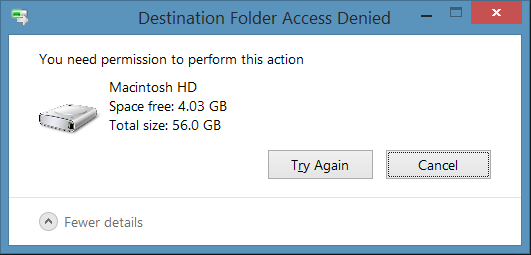
"Destination Folder Access Denied. Need Permissions to Perform this Action" usually occurs when trying to copy or move a folder or file. This issue often stems from a lack of ownership, where the folder or file is owned by another user account, even if it's accessible in your account. To resolve this, you can change the ownership to your current user account, granting you the necessary permissions to modify the folder or file.
However, you may soon find that you cannot delete system files, even as an administrator, due to the Trusted Installer service owning Windows system files by default and Windows File Protection preventing them from being overwritten, resulting in a "destination folder access denied" error.
Things to Do First: Recover Data from an Inaccessible Hard Drive
To address the destination folder access denied issue, it's crucial to first export any important data from the affected area to prevent potential data loss. This proactive step ensures that your valuable information is safely secured before attempting to resolve the access denied problem.
Deep Data Recovery is a powerful software that can recover deleted or lost files, repair corrupted files, and restore formatted data on storage devices with ease, supporting Windows 10/8/7.
You can easily download and use this software to recover data from an inaccessible hard drive, USB, or other devices in just three simple steps.
Step 1. To start the Deep Data Recovery process, first select the file types you want to recover. Once you've made your selection, click "Fast Scan" to begin the recovery process. This will initiate the search for lost files on your computer.

Note: You can choose different search modes based on where and why the data was lost.
Step 2. Choose the place where you lost data. Then, click "Scan".

Step 3. After the scan, use the file format filter to find the files you need, then click the "Preview" button or double-click a file to preview its content.

Step 4. To recover lost data, select the file you want to recover, check the box next to it, and then click "Recover" to save the file to a safe location. The rewritten response is a concise summary of the original text.
Top 5 Ways to Fix Destination Folder Access Denied in Windows 10/8/7
After restoring data, you can try the following methods to resolve the 'destination folder access denied' issue even with full control: check if the folder is in use by another program, try running the program as an administrator, check the folder's permissions and ensure the user has full control, check for any system file conflicts, and finally, try creating a new folder and copying the files to it to see if the issue persists.
Fix 1. Grant Full Control to the Folder by Changing the Ownership
To resolve the "destination folder access denied" issue, take ownership of the folder by right-clicking on it, selecting "Properties," clicking on the "Security" tab, clicking on the "Edit" button, clicking on the "Add" button, selecting "Users" or "Everyone," clicking on the "Check Names" button, clicking on the "OK" button, and finally clicking on the "OK" button to apply the changes. This should grant you permission to access the folder.
For Windows 10 users
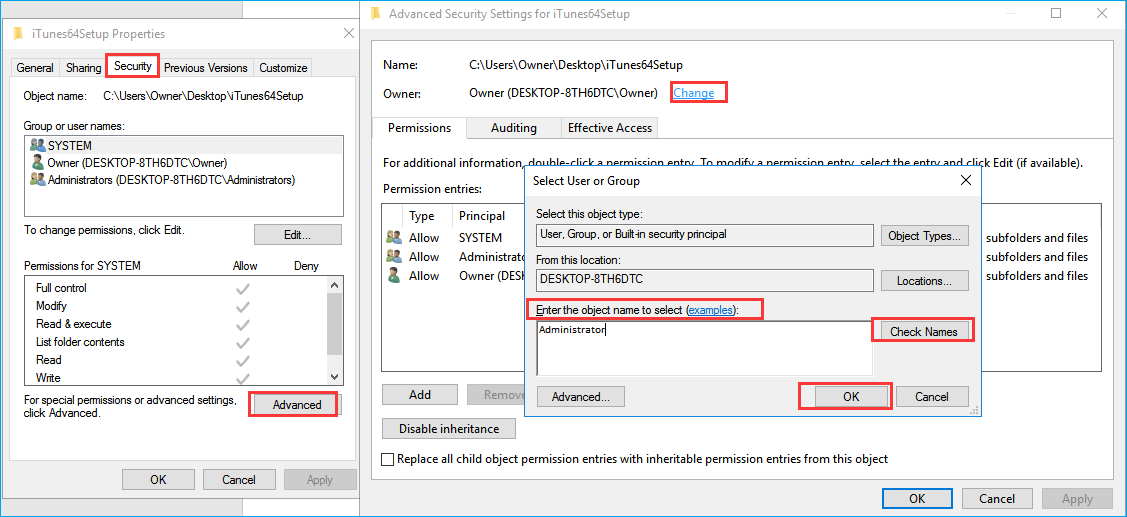
Step 1. Right-click the folder that you want to take ownership of, and then click "Properties" from the Context Menu.
Step 2. Click "Security" > "Advanced", and then click the "Owner" tab.
Step 3. Click "Change" on the popped-up screen, enter "Administrators" or your user name in the "Enter the object name to select" field, click "Check Names" and if all goes well, the input will change. Then, click "OK" to save changes.
Step 4. To change the owner section, select the option to replace the owner on subcontainers and objects, and then click apply and ok to save the changes. Alternatively, you can also choose to replace all child object permission entries.
For Windows 7 users to grant permissions
Step 1. Right-click on the file and select "Properties" from Context Menu.
Step 2. Click the "Edit" button in the Properties window, then click "OK" to confirm.
Step 3. To add users or groups to a permission window, click "Add" or select "user/group" from the menu.
Step 4. To assign full control permissions, check the box next to "Full Control" in the "Allow" column under the "Permission" section. This will grant the user full access rights control over the selected item or folder.
Step 5. To confirm changes, click "OK" to apply them, then click "OK" again to close the "Properties" window. This will ensure the changes take effect and you can exit the window.
Once you have taken ownership of a file or folder, check if you have solved your problems.
Also read: You Don't Currently Have Permission To Access This Folder
Fix 2. Perform a Windows 10 Clean Boot to Fix Folder Access Denied
To fix the folder access denied error, you can try performing a clean boot. This involves restarting your computer in a minimal state, then enabling the necessary services and applications to access the folder. To do this, go to the Start menu, type "msconfig" and press Enter.
Step 1. From the Start, search for msconfig.
Step 2. Select "System Configuration" from the search results, then on the "Services" tab, select the "Hide all Microsoft services" checkbox and click "Disable all".
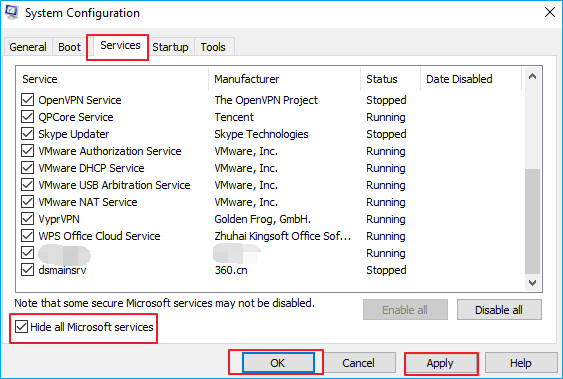
Step 3. On the "Startup" tab of the System Configuration dialog box, tap or click "Open Task Manager".
Step 4. To disable startup items, open Task Manager, click on the "Startup" tab, select each startup item, and then click "Disable". Finally, close Task Manager.
Step 5. On the Startup tab of the System Configuration dialog box, click "OK" to confirm, then restart the computer.
Fix 3. Gain Permissions to the Inaccessible Device
If you're still experiencing issues with accessing the Windows 10 destination folder due to access denied errors, you can attempt to resolve the issue by gaining permission. To do this, right-click on the folder, select 'Properties', and then click on the 'Security' tab.
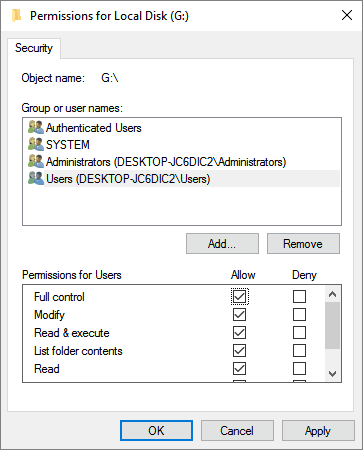
Step 1. Right-click the inaccessible hard drive, USB, or file folder and select "Properties".
Step 2. To access the Owner tab, go to the "Security" section, click on "Advanced", and then navigate to the "Owner" tab.
Step 3. Click "Edit", click your username under "Group" or username.
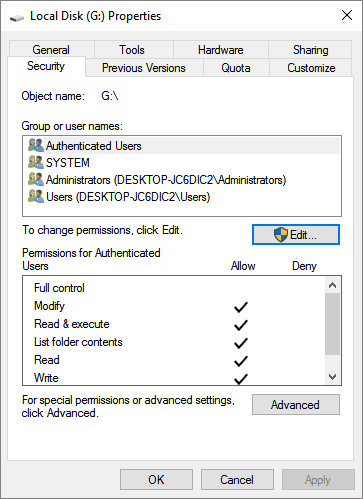
Step 4. To gain access to your inaccessible device, check all boxes in the Allow column and click "OK", then click "Apply" to apply the changes.
Fix 4. Repair Corrupted File System to Fix Destination Folder Access Denied
If the file system on your hard drive is corrupted, you won't be able to access the folder. To fix this, you can use a free hard drive repair tool like Qiling Partition Master to check and repair the hard drive with ease. This software allows you to create, clone, format, merge, and resize/move partitions with just a few clicks. Follow the steps to use this tool to check and repair the file system.
Step 1.To change the drive letter of a partition, run Qiling Partition Master, right-click the target partition, and select "Change Drive Letter" from the context menu.
Step 2. In the new window, click the down arrow and select a drive letter for the partition from the drop-down menu.
To repair the damaged file system of the access denied hard drive, you can run the CHKDSK command. This command will scan the hard drive for errors and attempt to repair them, potentially resolving the access denied issue.
- To run a check on an inaccessible hard drive, open a Command Prompt and type `chkdsk /f c:` (replace "c" with the drive letter of your hard drive). This command will scan the drive for errors and attempt to fix them.
- Hit Enter to let the checking process run.
- When it's finished, type exit and hit Enter to complete the process.
Fix 5. Format the Device to Fix the Denied Access Error
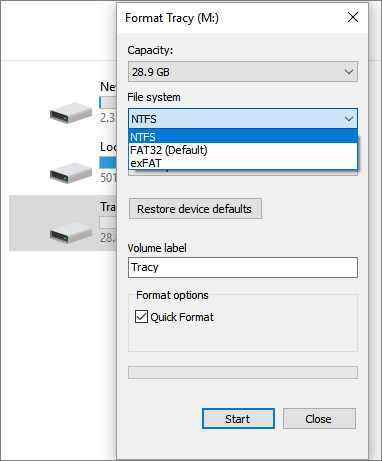
If quick fixes don't work, you can format the device to resolve Windows destination folder access denied error. Before doing so, make a backup as formatting will delete files. To format a hard drive in File Explorer, follow these steps:
Step 1. Right-click on the inaccessible device - internal/external hard drive, USB or SD card, etc. and select "Format".
Step 2. The inaccessible devices' file system, label name, etc. should be set to a default or standard configuration to ensure they can be accessed and managed properly. This typically involves setting the file system to a standard format, assigning a label or name to the device, and configuring any necessary permissions or access controls.
Step 3. To resolve the "destination folder access denied" error when using the "Quick Format" feature, check the "Quick Format" option and click "Start".
Conclusion
Many computer users have reported getting a "Destination Folder Access Denied" error message when trying to copy, move, or delete a file or folder, either locally or from a shared resource. This issue can be resolved by trying the suggested solutions.
Qiling offers solutions to access denied errors and provides ways to recover files or folders using professional data recovery software. You can ask Qiling for assistance if you need help.
FAQs - Destination Folder Access Denied Windows 10
The error "Destination folder access denied" typically occurs when you don't have the required administrator rights to copy a file or folder. This issue can be resolved by running the application or process as an administrator, which grants the necessary permissions to access the destination folder. If you continue to experience problems, you can refer to additional questions and answers for further assistance.
Why is Folder Access Denied?
The "Access Denied" error appears because of the following reasons:
- You may not grant ownership to access files and folder
- Folder access is denied due to its encryption
- Something goes wrong with your file system
What are administrator rights?
Administrator rights refer to a set of protocols that designate a specific user as the owner and primary controller of a computer system, granting them elevated privileges and control over the system's operations and settings.
How do I fix destination folder access denied?
If you're experiencing the Access Denied error in Windows, try these solutions: Check if the issue is due to a permission problem by running the Command Prompt as an administrator, and then try the action again. You can also try running the Task Manager as an administrator, or use the built-in Windows utility to check for and fix any issues with your system files.
- Fix 1. Change ownership
- Fix 2. Perform clean boot
- Fix 3. Gain permissions
- Fix 4. Run CHKDSK to fix file system
- Fix 5. Format the device
How do I access the Found.000 folder?
The FOUND.000 folder is created when users run the CHKDSK command, but it can be hidden from view. To reveal the folder, users can follow the instructions provided, which typically involve checking the folder's location and permissions, and potentially using the "Show hidden files" or "Show all files" option in the file explorer to make it visible.
Step 1. To access File Explorer Options in Windows 10, 8.1, and 8, open the Control Panel and navigate to File Explorer Options. This will allow you to customize various settings related to File Explorer, such as the default location of the File Explorer window, the appearance of the navigation pane, and the behavior of the search function.
Step 2. On the File Explorer Options window, navigate to the View tab, under the Hidden files and folders section, select the option to Show hidden files, folders, and drives.
Step 3. Re-open your local hard drive or device to check the FOUND.000 folder on your PC again.
What happens if a destination folder gets deleted?
If a destination folder gets deleted, all the data and associated files will either be deleted or become unresponsive, so it's good to know how to recover them.
Related Articles
- Download Windows 10 21H2/21H1/20H2/2004/1909/1903 ISO and Fix Fail to Install Error
- Internet Browsers Not Working after Windows Upgrade? Fix It Now!
- Fix Dropbox Not Syncing Error in Windows 10 [2022]
- Fix Computer Slow after Windows 10 Update | Speed Up PC in 6 Ways
- Imaging Software Disadvantages VS Advantages, Show I Have It [2022 Thorough Reviews]
The advantages and disadvantages of imaging software are a crucial consideration. On one hand, imaging software can be a valuable tool for protecting essential belongings, but on the other hand, it also has its drawbacks. - Install & Pair Bluetooth on Windows 10/11
Learn how to install Bluetooth on Windows 10 or 11, pair devices, update drivers, and fix missing Bluetooth settings.
Products
Articles & Tutorials
- Data Recovery
- Data Backup
- File Recovery
- File Backup
- System Backup and Restore
- Disk and Partition Clone
- Technical articles
- Mobile articles
- Disk Master Help
- Windows Data Recovery Tutorials
- Windows Secure Delete Tutorials
- Windows Partition Management Tutorials
- Windows File Backup and Restore Tutorials
- Windows System Backup and Restore Tutorials
- Windows Disk Backup and Restore Tutorials
- Windows Clone Tutorials