How to Recover Files from Found.000 Folder
User Case: Can I Recover Files in the Found.000 Folder
"When I plugged my USB into PC, Windows asked to scan and repair the flash drive disk. Then I did it using the CHKDSK command line. But after that, some of my files, including JPEG pictures and videos turned into .chk files in the newly created Found.000 folder. Is there any way to convert .chk files to original format or recover files to their original location?"
What Are Found.000 Folder and CHK Files
When running Windows' built-in CHKDSK tool to scan for errors, it often converts potentially corrupted data to .chk files and stores them in a Found.000 folder, rather than deleting them. This is because CHKDSK is designed to preserve data that may be problematic, rather than erasing it.
To access the hidden folder, you need to enable the "hidden folder" option in the "View" tab of File Explorer. However, attempting to open the CHK files within will result in their inaccessibility, ultimately leading to a data loss disaster.
Why Does Found.000 Folder Get Created
The FOUND.000 folder is created when a user runs the CHKDSK command, containing corrupted and fragmented data in the .chk extension. This folder and CHK files are typically created due to various reasons, including disk errors, file system corruption, or a failed system check.
- Abrupt power outage
- Sudden Windows OS crash
- Malware or virus attack
- If you pulled the USB flash drive or pen drive out while writing data, it may cause data corruption or loss. This is because the computer is still in the process of writing data to the drive, and removing it abruptly can interrupt this process, leading to incomplete or corrupted data.
Recovered File Fragments
On Windows, files with the .chk extension are often labeled as "recovered file fragments". If your data is already backed up, you can safely delete these files and free up space. However, if you've lost important data, you can try recovering it from your backup instead.
If you have no backup, but there are some important files that you've spotted in the Found.000 folder, you can check the following tutorials and learn how to recover files from the Found.000 folder in three ways.
How to Convert CHK Files to Original Format
Changing the CHK extension to a more recognizable file format, such as JPEG for pictures or MP4 for videos, is the simplest way to recover files from the Found.000 folder. This can be done by creating a copy of the .chk file and renaming the .chk files to their respective file formats. For example, if lost pictures are in JPEG format, rename the .chk files to .jpg files.
To modify file extensions in bulk, you can use a combination of the `find` command and the `exec` command in Linux. Here's how:
Step 1. Create a text document on your computer.
Step 2. Double-click to open, type ren *.chk *.jpg, and save.
Step 3. Change the .txt suffix to .bat.
Step 4. Copy the .bat file to the Found.000 folder and double-click it to run, which will then convert the .chk files to .jpg files.
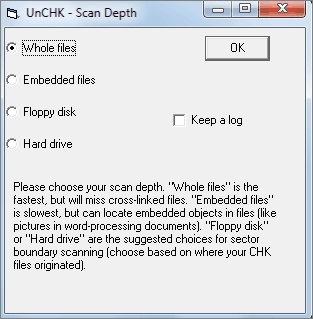
Recover CHK Files from Found.000 Folder with UnCHK Windows 10
UnCHK is a free tool that recovers and converts CHK files from the Found.000 folder, allowing you to open and view the recovered files, although severely damaged files may not be recoverable.
Found.000 Folder Recovery with Data Recovery Software
If you've deleted the Found.000 folder but want to recover files from it, you can use Deep Data Recovery to help you recover the deleted folder or .chk files with minimal effort. After recovery, you can convert the chk files back to their original format and then open and recover them.
Qiling's data recovery and repair tool not only recovers damaged files but also repairs corrupted ones, supporting multiple file types including Word, Excel, PPT, PDF, photos, and videos.
Step 1. Run Deep Data Recovery. Select file types and click "Fast Scan" to start the recovery process.

Note: You can choose different search modes based on where and why the data was lost.
Step 2. Click on the location where you lost the folder and click "OK" to scan. This will initiate a search for the missing folder on your computer.

Step 3. To search for the target folder, you can type the name of the folder in the search bar. Alternatively, you can use the Filter feature to narrow down the search results and find a specific type of file within the folder.

Step 4. After previewing the recovered folder, click "Recover" and select a new and secure location on your PC to save the recovered data.
Conclusion
You can recover files from the Found.000 folder by either converting the chk files to their original format using a tool like UnCHK or by using a file recovery tool like Qiling to recover the entire Found.000 folder, including any chk files. This can be helpful if the Found.000 folder is lost or deleted.
Related Articles
- [Solved] Recover Corrupted or Invalid ZIP Files
- How to Recover Folders Turned into .exe | Remove exe Virus
- Super Easy! How to Recover Deleted Files from NAS (Synology/QNAP)
- How to Solve We're Sorry but Word Has Run Into an Error and How to Repair Corrupted Word/Excel/PPT Files
- Best Prosoft Data Rescue Alternative - Free Download
Prosoft Data Rescue is a great tool to recover lost or deleted data on computer. This article introduces you a Prosoft Data Rescue alternative software tool. - How to Recover Accidentally Deleted Folder on Mac
Where are the recently deleted folders on Mac and how to do deleted folder recovery? Here is the step-by-step guide for how to recover deleted folder on Mac.
Products
Articles & Tutorials
- Data Recovery
- Data Backup
- File Recovery
- File Backup
- System Backup and Restore
- Disk and Partition Clone
- Technical articles
- Mobile articles
- Disk Master Help
- Windows Data Recovery Tutorials
- Windows Secure Delete Tutorials
- Windows Partition Management Tutorials
- Windows File Backup and Restore Tutorials
- Windows System Backup and Restore Tutorials
- Windows Disk Backup and Restore Tutorials
- Windows Clone Tutorials