How to Recover Folders Turned into .exe | Remove exe Virus
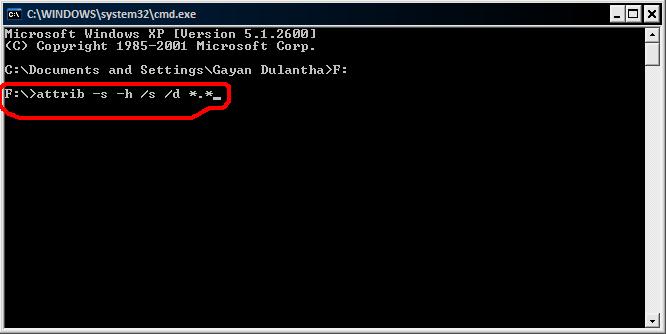
Folders changed to Application .exe, how to remove .exe virus from computer?
If your computer is infected with a .exe virus, which turns folders into executable files, follow these steps to remove the infected folders:
1. Install, update your antivirus application.
2. Delete all detected files. Now, the .exe folder is removed, and you need to show the original folders.
3. Open File Manager.
4. To access folder options, go to the top menu, click on Tools, then select Folder Options, and from there, click on the View tab.
5. Check the "Show hidden files and folders."
6. To open Command Prompt, go to Start, type "cmd" in the search box, and press Enter. This will show the Command Prompt window.
7. Using My Computer, view the drive of hidden folders
8. To unhide all folders and files, go to the Command Prompt and type the command line "attrib *.* /d /s -h -r -s" to remove the hidden attribute from all files and folders. This will make all previously hidden folders and files visible.
See more items on how to remove .exe virus from computer.
Overview of .exe Virus
.exe virus malware is not new to most computer users, with applications.exe, app.exe, and newfolder.exe being the most commonly heard variants. This type of virus spreads mainly through mobile devices like USB flash drives and tricks users into clicking on fake executable files, which then triggers a Trojan to infect more folders. The .exe virus is particularly dangerous as it can disable essential programs like Task Manager, Regedit, and Folder Options. If your device has been infected, you can follow the steps below to recover files and remove the virus thoroughly.
How to Recover Files from .exe Virus
Once a USB flash drive or computer is infected with a .exe virus, the original folders and files become hidden and are converted to .exe files. To recover the infected files, you need to unhide all folders and files using the methods below.
1. Change View Settings
- To access the Folder Options in Windows, you can open the File Manager, go to the top menu and select "Tools" followed by "Folder Options". Then, navigate to the "View" tab.
- Mark the "Show hidden files and folders".
2. Use Command Prompt
- To run the Command Prompt as an administrator, go to the "Start" menu, type "cmd" in the search bar, right-click on "Command Prompt" and select "Run as administrator".
- Type attrib -h -r -s /s /d *.* and hit Enter.
Manual execution of command lines is not recommended for non-computer professionals, as it can cause more harm than good. Instead, a tool like Qiling CleanGenius can be used to perform tasks such as checking and fixing file system errors, enabling or disabling write protection, and updating the system with a single click, making it a more user-friendly and secure option.
To show hidden files with this 1-click-fix software, simply follow these simple steps:
Step 1. DOWNLOAD Qiling CleanGenius for Free.
Step 2. Start Qiling CleanGenius, choose "Optimization" on the left panel. Next, click "File Showing" on the right panel.
Step 3. Select the hard drive and click "Execute".
Step 4. After the operation completes, click the here link to check the hidden files.
3. Use Virus Attack Recovery Software (Most Effective)
If the above solutions can't recover the files turned into .exe, you can still try using Qiling hard drive recovery software, which has helped many customers recover virus-infected files and restore folders infected by the .exe virus from USB flash drives and computer hard drives.
To recover the .exe virus file, download the data recovery software by clicking the download button below and follow the step-by-step guide to proceed as soon as possible.
Step 1. Select file types and click "Fast Scan" to start
To recover a virus file, run Qiling virus file recovery software on your Windows PC, select the desired file types, and click "Fast Scan" to initiate the recovery process.

Note: You can choose different search modes based on where and why the data was lost.
Step 2. Select the virus infected drive to scan
To scan for lost or hidden files, select the disk attacked by the virus. Note that this process may require specific software or tools and may need to be performed by a computer expert.
- If a virus has hidden or deleted files on an HDD, it's safer to install recovery software on a separate volume or an external drive to prevent overwriting any remaining data.
- If the infected device is an external hard drive, flash drive, or memory card, it's not necessary to install the software on the local drive of the computer.

Step 3. Check all scanned results
Deep Data Recovery will immediately start a scan process to find deleted or hidden files on the virus-infected hard drive. To quickly locate wanted files, you can use the Filter or type grouping feature to display only pictures, videos, documents, emails, etc.

Step 4. Preview and recover deleted/hidden files
Once the scanning process is complete, you can preview the recovered files, select the ones you want to recover, and click the "Recover" button. It's essential to save the recovered files to a different location on your computer or storage device, not to the original lost location, to ensure their safety.
How to Remove .exe Virus Manually
To remove .exe virus from the USB drive or the computer, go through the following the guide carefully.
Step 1. Run Command Prompt on your Windows 10/8.1/8/Vista/XP computer;
Step 2. Enter the following commands one by one. These will delete the preliminary stages of the virus.
taskkill /f /t /im "New Folder.exe"
taskkill /f /t /im "SCVVHSOT.exe"
taskkill /f /t /im "SCVHSOT.exe"
taskkill /f /t /im "scvhosts.exe"
taskkill /f /t /im "hinhem.scr"
taskkill /f /t /im "blastclnnn.exe"
Step 3. Re-enable Task Manager and Regedit after deleting the virus by entering the following commands one by one.
reg add HKCU\Software\Microsoft\Windows\CurrentVersion\Policies\System /v DisableTaskMgr /t REG_DWORD /d 0 /f
reg add HKLM\Software\Microsoft\Windows\CurrentVersion\Policies\System /v DisableRegistryTools /t REG_DWORD /d 0 /
reg add HKCU\Software\Microsoft\Windows\CurrentVersion\Policies\System /v DisableRegistryTools /t REG_DWORD /d 0 /f
Step 4. To show hidden files, folders, and drives, go to "Folder Options" > "View" > "Advanced Settings" > "Show Hidden Files, Folders and Drives", and click "OK". Then, delete all the listed files, which include the hidden files and folders. This process will allow you to access and remove any hidden files that may be taking up space on your computer.
C:\WINDOWS\SCVVHSOT.exe
C:\WINDOWS\SCVHSOT.exe
C:\WINDOWS\hinhem.scr
C:\WINDOWS\system32\SCVHSOT.exe
C:\WINDOWS\system32\blastclnnn.exe
C:\WINDOWS\system32\autorun.ini
C:\Documents and Settings\All Users\Documents\SCVHSOT.exe
Related Articles
- How to Mount ISO File in Windows 10/11
- Top 11 Best Photo Repair Software for PC/Mac
- Recover Deleted Chrome Downloads and Resume Canceled Chrome Downloads
- Fixed: Recover Lost Google Play Music Files
- How to Recover Data from Lenovo Laptop (Yoga/Thinkpad Covered)
If you need to recover data from a Lenovo laptop, including Lenovo Yoga and Thinkpad models, there are three possible methods to retrieve your lost files. These methods can recover a wide range of data types, including photos, documents, videos, and more. - How to Recover Deleted Photos from Picasa
If you've lost photos from Picasa on Windows or Mac, either accidentally or intentionally deleted them, you can try recovering them with these simple 3 steps.
Products
Articles & Tutorials
- Data Recovery
- Data Backup
- File Recovery
- File Backup
- System Backup and Restore
- Disk and Partition Clone
- Technical articles
- Mobile articles
- Disk Master Help
- Windows Data Recovery Tutorials
- Windows Secure Delete Tutorials
- Windows Partition Management Tutorials
- Windows File Backup and Restore Tutorials
- Windows System Backup and Restore Tutorials
- Windows Disk Backup and Restore Tutorials
- Windows Clone Tutorials