Why Won't My Mac Turn On and How to Solve It
Mac users who experience issues with their device not turning on may feel anxious, but there are several potential causes, including a dead battery, faulty power adapter, or a malfunctioning logic board. In such cases, troubleshooting and possible repair or replacement may be necessary.
The most direct cause of a Mac not turning on is a lack of power, but other possible causes include a damaged external device, an SMC problem, or issues with the display monitor. If you're still wondering why your Mac won't turn on, there are various solutions that can be applied to resolve the problem.
| Workable Solutions | Step-by-step Troubleshooting |
|---|---|
| Fix 1. Check power connections | The simplest solution to fixing the Mac not turning on is to check the power connection...Full steps |
| Fix 2. Unplug accessories | The next step to resolve the Mac not turning on is to detach all the accessories or external...Full steps |
| Fix 3. Check for a flat battery | Not using the Mac for a long time or age can cause a complete discharging of the battery...Full steps |
| Fix 4. Try different power cables | Maybe the fault isn't with your system. In some cases, faulty power cables can lead to the Mac...Full steps |
| More Fixes... | The other 3 fixes are available for you to follow, and fix the Mac won't turn on...Full steps |
How to Fix Mac Won't Turn On
One can adopt multiple solutions to prevent the system from turning on. However, before that, make sure to safeguard your data. It is vital to understand that data loss can take place regardless of the safety precautions you take.
Here are the solutions you can try to fix the problem -
- Fix 1. Check power connections
- Fix 2. Unplug accessories
- Fix 3. Check for a flat battery
- Fix 4. Try a different power cable or adapter
- Fix 5. Boot up your Mac in Safe Boot
- Fix 6. Perform a Power Cycle
- Fix 7. Reset the SMC or T2 chip
Fix 1. Check power connections
If your Mac won't turn on, the simplest solution is to check the power connection, as you might have forgotten to turn on the switch. However, if that's not the issue, you should also check the power outlet to ensure it's working, as a malfunctioning outlet can also prevent your Mac from turning on.
Check the AC power cord of the charger for any damage or wear and tear, and ensure it's inserted correctly. You can also try using a different adaptor to see if the system turns on.

Fix 2. Unplug accessories
To resolve the issue of a Mac not turning on, try detaching all external devices and accessories. This can help resolve the problem if the system is experiencing excess current or short circuits due to these devices, which can trigger the SMC to prevent the system from turning on. Removing these accessories can help determine if the issue is resolved.
Fix 3. Check for a flat battery
A flat battery can cause a Mac to not turn on. If the system hasn't been used for a long time or is old, the battery might be completely drained, preventing the Mac from powering on.
MacBooks before 2012 have a battery check button and LED indicator. Press the button, and if no light appears, the battery is flat.
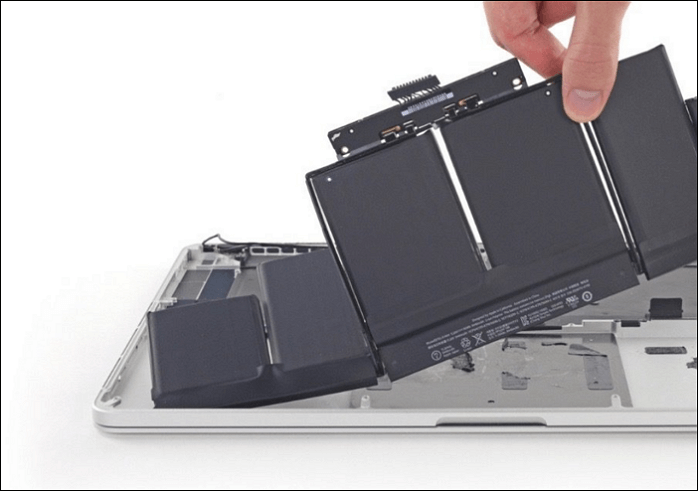
If your Mac won't turn on due to a dead battery, try using a working charger to power the system and turn it on. However, some Mac models may require a minimum battery level to turn on, so you may need to let the charger charge the battery to a certain level before it will turn on.
If you see no light on the charger connector, it's not working, but if you see an orange or green light, the SMC and charger are working. Try turning on the system by pressing the power button after a few minutes.
Fix 4. Try a different power cable or adapter
If your Mac won't turn on, it might not be the computer's fault. A faulty power cable could be the issue, so try switching to a different compatible power cable to see if that resolves the problem.
If you have frequent power cuts, it could damage your power adapter, so it might be necessary to buy a new one and check if your Mac turns on.
Fix 5. Boot up your Mac in Safe Boot
Booting up the Mac in Safe Mode performs different diagnostics to see what is wrong with your system, and sometimes resolves the issue without any fuss.

To get started, you need to follow these steps. First, you need to identify the task you want to accomplish, and then you need to break it down into smaller, manageable tasks.
For Intel-based Mac -
Step 1. Start the system.
Step 2. Press the Shift key and hold it.
Step 3. Wait for the Apple logo to come on the screen.
Step 4. Release the Shift key when you see the login window. Log in.
For Apple-silicon Mac –
Step 1. Press the power button and hold it.
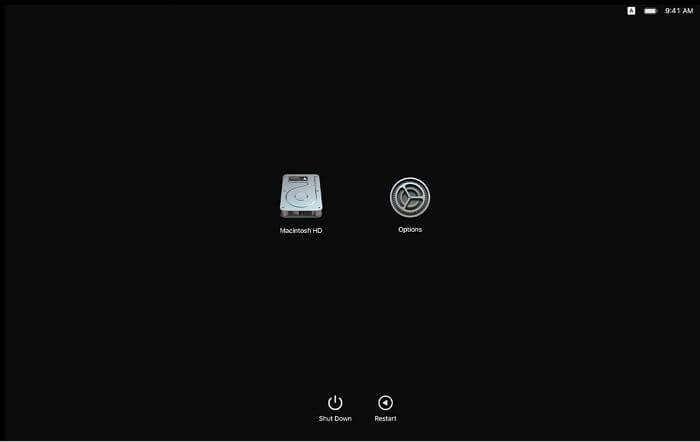
Step 2. Hold the button till you see the startup options window.
Step 3. Select your startup disk.
Step 4. Press the Shift key and hold it.
Step 5. Choose Continue in Safe Mode. Release the key.
Fix 6. Perform a Power Cycle
Before performing a power cycle on your Mac, it's essential to understand the different states it can be in: Off, On, and Sleep. These states are crucial to the process, as the power cycle is typically initiated when the Mac is in the Off state. The power cycle process involves turning the Mac off, waiting for a specified period, and then turning it back on, which can resolve various issues related to the device's performance or functionality.
- To perform a power cycle, you need to ensure the system moves towards the Off state, which means shutting it down completely and then turning it back on. This process can help resolve issues by restarting the system and clearing out any temporary glitches or problems that may have occurred.
- To perform the power cycle, hold the power button for ten seconds, then release it.
- Now, the Mac is in the OFF state. To turn it back on, press the power button.
You must follow the next solution if this doesn't fix the issue.
Fix 7. Reset the SMC or T2 chip
SMC monitors the complete power-on process, but things can go wrong. If that happens, you may need to reset the SMC.
- Here are the steps to reset SMC for a system having a non-removable battery –
Step 1. To turn off the system, press the power button and hold it until the system shuts down. Once it's off, connect the charger to the system to start charging.
Step 2. To restart your Mac, you need to press the Shift-Control-Option buttons and the power button simultaneously. This will initiate the shutdown process and restart your computer.
Step 3. Hold them for at least ten seconds. Release the buttons.
Step 4. Press the power button and turn on the system.
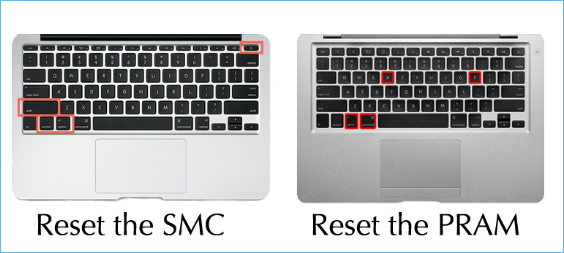
- If you have a system with a removable battery, check out the steps to reset the SMC –
Step 1. Press the power button and hold it to turn off the system.
Step 2. Take out the battery and power adaptor from the system.
Step 3. Press and hold the power button for 5 seconds.
Step 4. Put the battery back within the system.
Step 5. The SMC is reset.
- For systems with a T2 chip, take a look at the steps to reset the SMC –
Step 1. The power button is typically located on the top right side of the laptop, and pressing it once will shut down the system. However, to turn it off completely, you need to press and hold the power button for a few seconds until the system shuts down.
Step 2. Press the Control, Option, and Shift keys all at once for a few seconds. This is a common keyboard shortcut that can be used to reset the System Management Controller (SMC) on a Mac.
Step 3. Press the power button and hold it too.
Step 4. Hold all the keys for a few more seconds. Now, release the keys.
Step 5. Turn on the system by pressing the power button.
How to Recover Lost Data While Mac Has Startup Issues
Mac not turning on can be due to startup issues, which may lead to data loss. If you experience data loss, don't panic and instead use a reliable data recovery tool.
Deep Data Recovery for Mac is an efficient, user-friendly, and reliable data recovery software that helps restore various types of data, including photos, videos, emails, documents, and more, from Mac-based devices such as fusion drives, HDD, SSD, and Time Machine backup drives.
Regardless of the reason for data loss, a reliable data recovery tool can be of great help, and its user-friendly interface makes it accessible to both beginners and experienced users.
- Easy to use
- It offers deep and quick scan
- Send recovered data to Cloud
- Remote IT support is available
- File preview to confirm the recovery of the files
- Advanced filter for easy data scanning
To use Deep Data Recovery for Mac, follow these steps: First, download and install the software on your Mac. Next, launch the program and select the drive or partition where your lost files were located. Then, Deep Data Recovery will scan the selected drive and display a list of recoverable files.
Note: To create a backup, click on "Disk Backup" on the left. This will allow the software to recover deleted files from the backup image, preventing further damage to your disk and data, making it a safer and more reliable option.
Step 1. Scan for deleted files
Select the hard drive, external drive, or SSD where your important data & files were deleted and click "Scan".

Step 2. Filter the lost files
The software performs quick and deep scans on a selected volume to find deleted files, and allows users to filter results by file type and path.

Step 3. Recover deleted files
Double-To recover deleted files, click on the deleted files to preview them. After reviewing, click the "Recover" button to restore them.

The Bottom Line
Mac not turning on can be a frustrating issue, but various reasons such as a dead battery, faulty power cord, or software glitches can explain why this is happening. Fortunately, there are several solutions available to resolve the problem, allowing users to get their Mac up and running again.
For starters, check power connections or unplug accessories, try a different power cable or reset the SMC. If you encounter data loss, consider using Deep Data Recovery for Mac, a professional and reliable data recovery tool with various features.
Install Deep Data Recovery for Mac today!
Why Won't My Mac Turn On FAQs
Have you fixed the issue of your Mac not turning on? Nevertheless, it is vital to gather more information. For that, take a look at the questions and answers listed below -
1. What do I do if my Mac screen is black and won't turn on?
If your Mac screen is black and won't turn on, press the power button and hold it for a few seconds, then release it. Next, immediately press and hold the Command and R keys until the Apple logo appears on the screen.
2. What is Mac's black screen of death?
The Mac black screen of death occurs when the screen turns black, stopping all activities, caused by various factors such as firmware contact problems, software or hardware issues.
3. How do I rescue data when Mac has startup issues?
When a Mac experiences startup issues, a reliable data recovery tool like Deep Data Recovery can be used to rescue data efficiently and quickly. This user-friendly platform aids in the speedy restoration of lost data.
4. How to fix Mac stuck on the Apple logo?
If your Mac is stuck on the Apple logo, try restarting it by pressing and holding the power button to turn it off, waiting a few seconds, and then pressing and holding the power button again to turn it back on. This may resolve the issue.
Related Articles
- How to Fix Mac Error Code 1407 on MacBook Pro/Air [6 Practical Fixes]
- Linux Tips| E212 Can't Open File for Writing in Vim (3 Ways)
- How to Fix IRQL_NOT_LESS_OR_EQUAL Error in Windows 8.1✅
- How to Fix Dynamic Mirror Showing Failed [Three Working Solutions]
- Why Is My SD Card So Slow [All Reasons Explained 2023]
Find out why your SD card is slow and how to improve speed. Check card class, file system, device compatibility, errors, and formatting options. - [Solved!] How to Fix Windows 10 Activation Key Not Working
Do you know how to fix Windows 10 activation key not working? This article will share 6 ways to help you easily solve Windows 10 activation key not working error. After reading this article. you can pick one to cope with this error.
Products
Articles & Tutorials
- Data Recovery
- Data Backup
- File Recovery
- File Backup
- System Backup and Restore
- Disk and Partition Clone
- Technical articles
- Mobile articles
- Disk Master Help
- Windows Data Recovery Tutorials
- Windows Secure Delete Tutorials
- Windows Partition Management Tutorials
- Windows File Backup and Restore Tutorials
- Windows System Backup and Restore Tutorials
- Windows Disk Backup and Restore Tutorials
- Windows Clone Tutorials