How to Fix Mac Error Code 1407 on MacBook Pro/Air [6 Practical Fixes]
You're experiencing the error "the operation can't be finished due to an unforeseen error" when trying to transfer data to external storage devices or send files to the trash, which is likely caused by Mac error code 1407.
Deleting a file on a Mac from an external HDD might occasionally result in a error code, which can be fixed by a variety of solutions mentioned in this article.
Here are effective solutions for Mac error code 1407:
| Workable Solutions | Step-by-step Troubleshooting |
|---|---|
| Fix 1. Check File Permission | Right-click the file, select Get Info, and scroll down to find the Sharing and Permissions...Full steps |
| Fix 2. Unlock the File | Choose the file you would like to move or delete. Go to File > Get Info. Untick the lock checkbox...Full steps |
| Fix 3. Force Quit Applications | Hit the Option + Command + Esc keys to open the Force Quit window, and opt for Finder...Full steps |
| Fix 4. Restart Your Mac | Hit the Apple menu, select Restart, and hit the Yes button to confirm the restart if prompted...Full steps |
| Other Proven Methods | Use First Aid in Disk Utility and reinstall macOS to fix Mac error code 1407...Full steps |
Mac Error Code 1407: Possible Causes
Mac error code 1407 occurs when your Mac is unable to copy-paste or drag-drop files to external drives or the Trash, resulting in an error message.

Mac error code 1407 can occur due to various reasons, including corrupted system files, issues with the operating system, or problems with the user's login session. It may also be caused by a malfunctioning third-party application or a conflict with the system's kernel extension.
🚫No read/write permissions to the file: You won't have permission to read/write the file. As a non-admin, you can't have read/write access to specific files.
🔒The file is locked: The file is locked by your macOS system, preventing transfer, copying, or deletion of encrypted files, resulting in Mac error code 1407 if attempted.
📂The file is being used by another program: You can't delete a Word file if it's still being used by Word, or if Finder is using the file you're trying to delete or transfer.
😨The file is damaged:Mac error code 1407 can occur when you shut down your Mac while working on a file, causing it to become damaged and unable to be transferred or deleted.
⚠️The file format is not supported: The device is not compatible with the file type, so you can't transfer files from your Mac to it. Make sure the file system is compatible before transferring files.
How to Fix Error Code 1407 on MacBook Pro/Air
To resolve the error code 1407 on your MacBook Air/Pro, you need to resolve the error that is preventing the file transfer or deletion process. This involves troubleshooting the issue to ensure that the process can be completed successfully. The exact steps to resolve the error will depend on the specific circumstances and the cause of the error.
Fix 1. Check File Permission to Fix Error Code 1407
The file permission on your MacBook determines who can read and write files on your Mac. To change permission settings, you can use Finder to modify the settings for a folder, file, or disk. This will resolve the Mac error code 1407, which occurs when the proper permissions are not in place.
Step 1. Right-click the file and select "Get Info".
Step 2. Scroll down to find the "Sharing & Permissions" part.
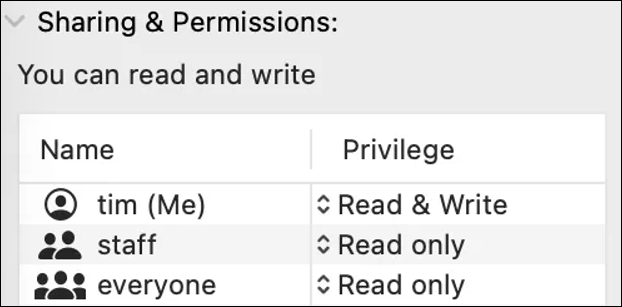
Step 3. To give permission to open and edit a file, select a user or group from the Name column and choose "Read & Write" in the Permissions section.
5 Best Ways to Fix Permission Denied on Mac
This article explores five ways to resolve Mac Permission Denied issues, providing readers with a concise guide on how to fix permission denied on Mac. Read more > (Note: I removed the "Keep reading and learn more" part as it was not essential to the rewritten paragraph)
Fix 2. Unlock the File to Fix Error Code 1407
If the first fix isn't helpful, you may unlock the file that can't be moved or deleted to an external storage medium because of this 1407 error code. The steps are the following:
Step 1. To move or delete a file, select it and then go to "File" and click on "Get Info".
Step 2. To unlock the file, you need to untick the lock checkbox. This will allow you to access and edit the file without any restrictions.
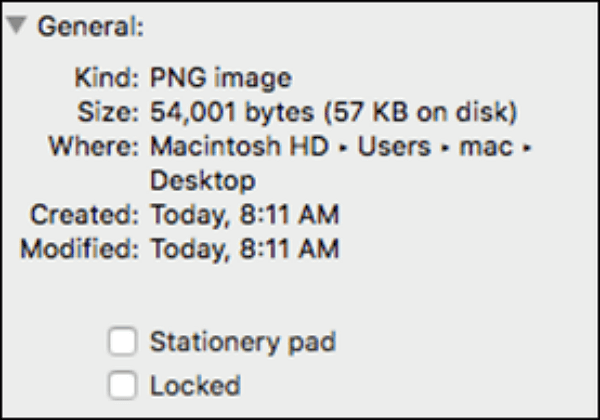
To untick a folder or file, you may use Terminal. The process is straightforward: you can simply employ Terminal to untick the desired folder or file. No further details are provided in this response.
Step 1. Visit "Applications > Utilities > Terminal" to open Terminal.
Step 2. To remove the "nochg" flag from a file or directory, you can use the Terminal command sudo chflags -R nouchg P#. This command will recursively remove the "nochg" flag from the specified directory and all its contents. Simply type the command in the Terminal window, and then press the "Return" button to execute it.
Replace P# with the address of the document you want to unlock, and drag and drop the file or folder to the command prompt to add the location instantly.
Step 3. To unlock the file, you need to provide the password. Once you enter the correct password, the file with the locked icon will be unticked, indicating that it is now accessible.
How to Recover Deleted Files from Mac Terminal
This article guides you through recovering deleted files using Terminal and restoring permanently deleted files that were emptied from the Trash.
Mac error code 1407 can be frustrating, but it's often caused by corrupted system files or software issues. To fix it, try restarting your Mac in Safe Mode, which can help identify the problematic software.
Fix 3. Force Quit Applications that Keep the File Up
To discard error code 1407, you can try forcing quitting the Finder application. This can be done by pressing Command + Option + Esc keys, selecting the Finder process, and clicking Force Quit. Alternatively, you can try restarting your Mac in Safe Mode and then checking if the issue persists.
Step 1. To open the "Force Quit" window, press the keys "Option + Command + Esc" simultaneously.
Step 2. To fix the issue, select "Finder" from the list of applications and click "Force Quit". After that, choose "Relaunch" to restart the Finder.
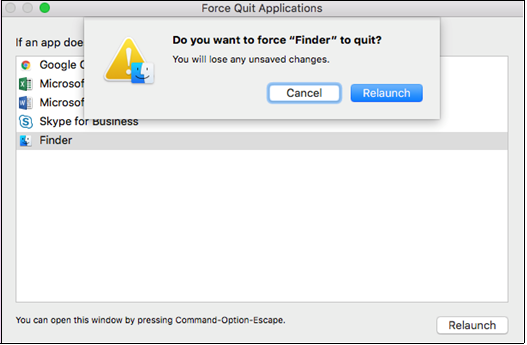
You need to decide whether to move or delete the file, but be aware that forcing an app to quit might result in data loss, such as losing changes on working documents, which can be difficult to recover.
A professional data recovery software, Deep Data Recovery for Mac, is a reliable tool that can recover almost all file types. With its user-friendly interface, you can easily retrieve lost or deleted data with just a few clicks, making it a convenient solution for recovering your important files.
Qiling Mac data recovery software supports various data loss scenarios, including deleted files, formatted partitions, and lost data due to system crashes, virus attacks, or other accidents.
- Formatting during macOS update
- Deletion of data without a backup
- System crash and hardware failure
- Unforeseen shutdown
- Unmounted drive and partition loss
Download this professional data recovery software today to recover your lost or deleted data by following the steps provided.
Step 1. Select the location to scan
Launch Deep Data Recovery for Mac, select the storage device where your lost data is located, and click "Search for lost files" to initiate the scanning process.
Note: Before recovering data, it's recommended to create a backup of your Mac by clicking "Disk Backup" in the left sidebar, to prevent further data loss. Once backed up, the software can then recover data from the Mac backup, allowing your computer to write new data again.

Step 2. Filter lost Mac data
The software automatically scans for lost data on MacBook/iMac, and once the scan is complete, it allows users to filter and recover the desired data using the "Type" and "Path" buttons.

Step 3. Recover lost data or files
Double-To recover lost data, click on a file to preview it, and then click the "Recover" button to restore the data to a new location.

Fix 4. Restart Your Mac to Fix Mac Error Code 1407
To resolve Mac error code 1407, you can restart your MacBook Pro/Air by following these steps: simply shut down your Mac, wait for a few seconds, and then press the power button to turn it back on. This simple restart can often resolve the issue.
Step 1. Hit the Apple menu, and select "Re"Proceed.
Step 2. Hit the "Yes" button to confirm the restart if prompted.
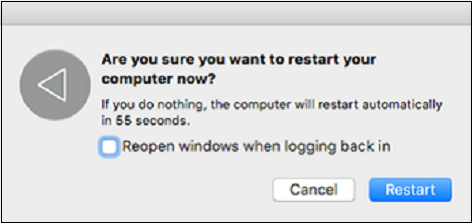
Try relocating or removing the files and restarting the Mac. If the error persists, follow the next troubleshooting step.
Fix 5. Fix Error Code 1407 Using Disk Utility
You may try using Mac First Aid or repairing Mac disk with Disk Utility to get rid of this error code 1407. The full steps to resolve this error code using Disk Utility are the following:
Step 1. To resolve MacBook error code 1407, start your MacBook, then quickly press and hold the Command + R keys until the Apple icon appears, booting your MacBook into Mac Recovery Mode.
Step 2. To initiate the process, go to the macOS Utility window and select "Disk Utility." Once selected, click the "Continue" button to launch the Disk Utility.
Step 3. Hit the Mac startup disk from the Disk Utility sidebar, then select "First Aid" from the top.
Step 4. Run the Mac startup disk repair procedure to fix disk errors. Wait for the repair to complete.
If you've found corruption in a first aid system that needs to be repaired, prioritize your safety and the safety of others. If you're in a situation where you're not sure what to do, call for medical help or seek guidance from a qualified first aid professional.
This article will provide a guide on how to address the error "First Aid found corruption that needs to be repaired" and offer a complete solution.
Fix 6. Reinstall macOS to Fix Mac Error Code 1407
You may try reinstalling macOS in case the Disk Utility repair method doesn't work. Steps are the following to reinstall macOS:
Step 1. To restart your MacBook, first shut it down completely. Once it's off, press and hold the "Command + R" keys as soon as it starts up again.
Step 2. When you see the Apple logo, release the keys and your MacBook will boot into the macOS Recovery mode.
Step 3. When you wipe the Mac storage disk, follow the instructions displayed on the screen to complete the process. This usually involves selecting the type of wipe you want to perform, such as a quick erase or a full erase, and confirming your choice.
Step 4. After a fresh macOS installation, you can recover backup copies of files to your Mac's hard drive by using the built-in Time Machine feature. To do this, connect the external drive that contains your Time Machine backups to your Mac.
Conclusion
To fix the Apple Mac problem code 1407, start by force closing Finder and releasing any locked files. If that doesn't work, try rebooting the system. If the issue persists, you can try launching First Aid or Disk Utility to diagnose and repair any disk-related problems.
To recover lost, erased, or unreadable data on a Mac, consider using Deep Data Recovery, a tool designed to retrieve deleted files and data in various data loss scenarios.
Mac Error Code 1407 FAQs
Let's consider these below-mentioned FAQs to understand Mac Error Code 1407 better:
1. How to delete a file on Mac that won't delete?
To delete files on Mac that won't delete, click the item that needs to be unlocked, then click "File > Get Info" (or Command + I), and uncheck the Locked checkbox. Alternatively, you can click the item and then click "File > Move to Trash" (or Command + Delete), and then confirm that you want to delete the item.
2. What is error code -50 on Mac?
Users are unable to copy or move files from external storage devices due to error code 50, which may be caused by system data or faulty NVRAM/PRAM issues.
3. How do I fix error 1407 on Mac?
To fix the error code 1407 on Mac, you can try using the Disk Utility to repair disk permissions, reinstalling macOS, checking file permissions, or force quitting the Finder. These solutions can help resolve the issue and prevent the error from occurring again.
To force quit Finder, press Option + Command + Esc simultaneously, select "Finder" from the list, and then click "Relaunch".
4. What is system Mac error code 1407?
When trying to drag and drop a file to the Trash or transfer it to an external storage device, a Mac may display error code 1407, indicating an issue with the file system or storage device. This error can occur due to various reasons such as corrupted files, file system inconsistencies, or problems with the external storage device itself.
Related Articles
- How to Solve Sound Not Working on Laptop |5 Troubleshooting Tips for Laptop
- [All Methods to Fix] Selected Boot Image Did Not Authenticate
- Fixes for Windows 10 Corrupt/Crash in Boot
- How To Enable/Disable Reserved Storage Windows 10? [Step By Step]- Qiling
- Recuva Review (Free Download)
Recuva is an official tool made by Piriform Software for Windows, which delivers professional solutions for recovering deleted files. In order to help you solve data loss problems using Recuva, this post provides an in-depth Revuca review. - What Is ReFS File System? Everything You Need to Know
The post will tell you what the ReFS file system is, and show you its main functions and pros and cons. Besides, you are able to obtain some extra information about how it works.
Products
Articles & Tutorials
- Data Recovery
- Data Backup
- File Recovery
- File Backup
- System Backup and Restore
- Disk and Partition Clone
- Technical articles
- Mobile articles
- Disk Master Help
- Windows Data Recovery Tutorials
- Windows Secure Delete Tutorials
- Windows Partition Management Tutorials
- Windows File Backup and Restore Tutorials
- Windows System Backup and Restore Tutorials
- Windows Disk Backup and Restore Tutorials
- Windows Clone Tutorials