Command R Mac | Use Command R to Reinstall macOS
What Does Command R Mac Do
Key combinations can help improve your efficiency and are convenient when working. Command R, which involves pressing the "Command" and "R" keys on your Mac keyboard, can be particularly beneficial for Mac users, especially when experiencing Mac startup issues.
Command R Mac is a shortcut that invokes macOS Recovery Mode, the most useful key combination when your Mac won't restart after an update or has macOS-related problems. In addition to Recovery Mode, there are other related key combinations you can use:
- To boot up your Mac into Recovery Mode, press the "Command + R" keys during startup.
- To boot up your Mac over the Internet using the original macOS that came with your Mac, press the "Command + Shift + Option + R" keys simultaneously during startup.
- To start your Mac over the Internet from the latest compatible macOS version, press the "Command + Option + R" keys during startup.
- To reset NVRAM, press the Command + Option + P + R keys when your Mac restarts, and hold them until you see the Apple logo appear and disappear twice.
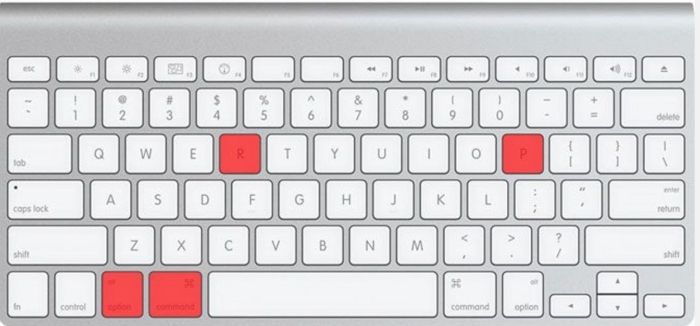
Use Command R Mac to Boot into Recovery Mode
On a Mac, pressing "Command + R" is crucial as it allows users to start their computer's built-in Recovery system, which can be accessed on Intel-based Macs, providing a way to troubleshoot and potentially fix issues with the operating system.
In Mac Recovery Mode, you can recover your system from various issues, such as reinstalling macOS, accessing Disk Utility, setting security options, or restoring files from a Time Machine backup, among other things.
To start your Intel-based Mac in Recovery Mode, restart your Mac and immediately press and hold the Command (⌘) and R keys. This will boot your Mac into Recovery Mode, where you can access various tools and utilities to help you troubleshoot and repair your system.
Step 1. To shut down your Intel-based Mac, click the Apple logo at the top left corner of the screen, select "Restart" from the drop-down menu, and wait for your computer to shut down.
Step 2. Hold the "Command + R" keys until the Apple logo disappears.
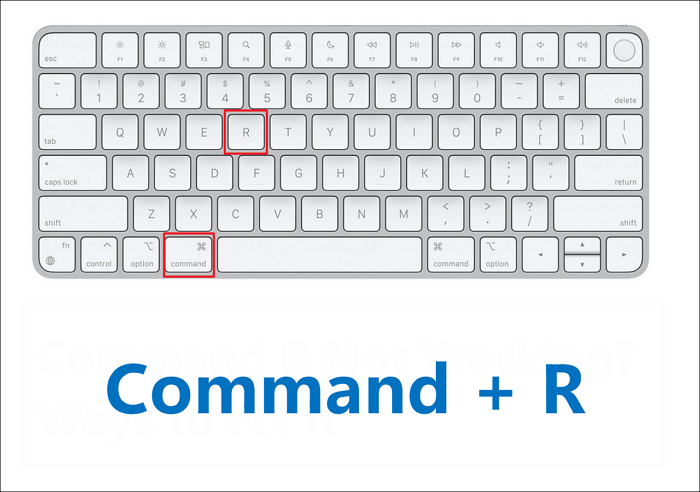
Step 3. Release the keys, and the macOS Utility windows will appear.
On Apple Silicon Macs, Recovery Mode can't be accessed with the usual "Command + R" boot method, unlike Intel-based Macs. Instead, follow these steps for Macs with Apple Silicon chips.
Step 1. To turn off your Mac, press and hold the Power button until the shutdown options appear. Select "Shut Down" from the menu.
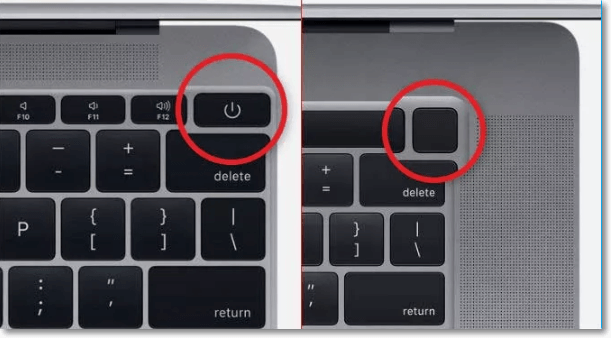
Step 2. Release it when you see Loading startup options.
Step 3. Choose the option you want to start up with and click "Continue".
Use Command R Mac to Access Disk Utility
Here are the steps to access Disk Utility on a Mac:
Step 1. To restart your Mac, press the "Command + R" keys when you see the Apple logo.
Step 2. Click the "Disk Utility" option from the macOS Utilities window.
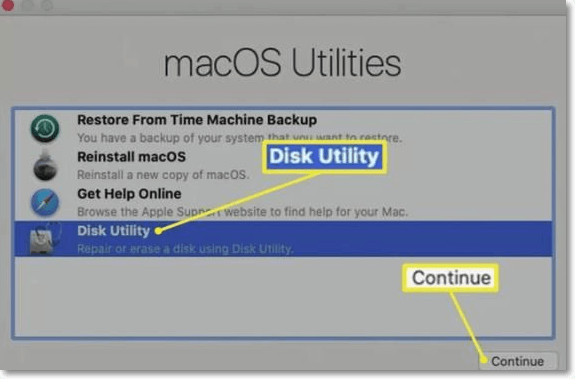
Step 3. To view all devices in the Disk Utility window, click on the "View" menu and select "Show All Devices".
To repair your Mac's disk, access Disk Utility and use the "Command + R" shortcut to enter it, or erase your hard drive if necessary. Before taking these steps, make sure to back up your important files or download a data recovery software like Qiling Data Recovery for Mac to recover lost files, including documents, photos, system data, and emails.
Reinstall macOS with Command R
Mac Recovery Mode is a feature that allows you to access recovery tools, such as reinstalling macOS, to troubleshoot and fix issues with your Mac when its system becomes corrupted.
Please note that the installation process will take a long time, so keep your Mac charged and avoid closing it during this time. You can proceed with the steps below.
Step 1. To restart your MacBook or Mac and enter recovery mode, restart your device and press the "Command + R" keys at the same time. This will boot your Mac in recovery mode.
In recovery mode, you can access the Utilities folder and perform various tasks such as reinstalling macOS, running Disk Utility, or restoring your Mac from a Time Machine backup.
Step 2. Release the keys once you see the Apple logo appear.
Step 3. Click "Reinstall macOS" in the macOS Utilities window, then follow the on-screen instructions to reinstall macOS.
After reinstalling macOS, your Mac will restart and guide you through the initial setup process. Make sure your Mac is connected to a stable internet connection and power source throughout the entire reinstallation to avoid any interruptions.
Command R Mac Not Working
The Command R function is essential on any macOS, including Ventura, Monterey, or Big Sur. If you encounter a situation where Command R doesn't work, you can refer to the reasons and solutions below.
Why Is Command R Mac Not Working
For Mac users, pressing "Command + R" is a common troubleshooting step, but sometimes it may not work as expected. There are several possible reasons why Command + R may not work on a Mac, including system software issues, keyboard malfunctions, or hardware problems such as a faulty keyboard or Command key not functioning properly.
- Keyboard issues on your Mac: check your keyboard before using it.
- Wrong recovery method: The recovery boot method differs between Intel-based Macs and Apple Silicon Macs. On Intel-based Macs, hold Command + R during startup. On Apple Silicon Macs, press and hold the Power button until startup options appear.
- NVRAM corruption: the corrupted NVRAM data can cause Command R working problems.
- Mac's hard drive problem: Problematic hard drives can cause a Mac to malfunction and prevent the Command R function from working, which is used to boot into Recovery Mode. This can lead to issues with the operating system and potentially cause data loss.
How to Fix Command R Mac Not Working
If you're experiencing issues with Command + R on your Mac, note that this shortcut is specific to Intel-based Macs, so if you're using an Apple silicon Mac, it's normal that it's not working. However, if you're experiencing issues on an Intel-based Mac, there are solutions to fix the problem.
- Boot Recovery Mode again
- Use the correct key combination for your Mac model
- Reset SMC on your MacBook Pro
- Proper key combinations
- Repair your Mac drive
- Reinstall your macOS
If none of the solutions in this guide work, you can try using Internet Recovery by pressing Command + Option + R during startup, which will download the latest macOS recovery tools from Apple's servers and allow you to reinstall macOS.
If Command R is not working on your macOS Ventura, Monterey, or Big Sur, don't worry! There are several ways to fix it. First, make sure you are using the correct key combination for your Mac model.
If the option keys are not working to boot Mac into Recovery Mode, you can try the following 6 fixes to resolve the issue.
Conclusion
Command R on Mac is a useful key combination that can start up your Mac in Recovery Mode, allowing you to reinstall macOS, access Disk Utility, and more. Note that this function only works on Intel-based Macs.
Command R Mac FAQs
Here are some questions people also ask when they search for Command R Mac:
1. Why is Command R not working on my Mac?
Command R not working on your Mac can be caused by various reasons, including a faulty keyboard, NVRAM corruption, or issues with the hard drive, among others.
2. How to boot in Mac Recovery Mode using a keyboard?
On Intel-based Macs, press the "Command + R" keys to boot in Mac Recovery Mode, which is not applicable to Apple Silicon Macs.
3. What does Command R do on Mac?
On a Mac, Command + R is a key combination that allows you to boot into Recovery Mode, where you can access Disk Utility, reinstall macOS, and perform other system-related tasks.
4. How do I get out of Command R on Mac?
To exit Mac Recovery Mode, simply restart your Mac, which will get you out of Command R Mac mode.
Related Articles
- What Is CD-RW? Compact Disc Re-Writable Explained
- What is AMD CPU fTPM? Everything You Need to Know
- MP4 File Format | What Is MP4 Video Format
- Motherboard: An Indispensable Part of Your PC
- How to Backup Google Account on Android and PC
Backing up your Google Account is crucial in today's digital age. To do so, you can follow the methods to back up your Google Account data on Android and PC, which will be detailed below. Additionally, we'll provide you with solutions on how to further secure your Google data. - [3 Easy Ways] How to Backup Google Photos to Hard Drive
Do you wonder how to backup Google Photos to hard drive? If yes, you are coming to the right page. This article will share 3 ways to help you back up photos from Google Photos to an external hard drive.
Products
Articles & Tutorials
- Data Recovery
- Data Backup
- File Recovery
- File Backup
- System Backup and Restore
- Disk and Partition Clone
- Technical articles
- Mobile articles
- Disk Master Help
- Windows Data Recovery Tutorials
- Windows Secure Delete Tutorials
- Windows Partition Management Tutorials
- Windows File Backup and Restore Tutorials
- Windows System Backup and Restore Tutorials
- Windows Disk Backup and Restore Tutorials
- Windows Clone Tutorials